This tutorial takes you through Facturo screen by screen: setting up your business, writing a quote and then the invoice, recording payments, keeping your receipts ledger and expenses, and preparing your URSSAF returns. Each chapter tells you where to click, with screenshots and short videos.
- iPhone, iPad and Mac
- 37 chapters
- 11 videos
- Facturo 1.0, November 2026
All the screenshots show fictitious data: the business “Camille Martin EI”, which trades as “Studio Martin” and “Martin Formation”, and its clients Atelier Lumière SARL, Studio Nova and Jeanne Dupont. The videos are sped up and have no sound.
Contents (37 chapters)
Before you start
Facturo is a single app for iPhone, iPad and Mac. It runs a small French business, as a micro-entreprise, a sole trader under the standard scheme, an EURL or a SASU: quotes, invoices, payments received, expenses, returns and the export for your accountant. On the App Store, it is called “Facturo – Factures et compta”.
What you need
- An iPhone or iPad with iOS / iPadOS 17 or later, or a Mac with macOS 14 Sonoma or later.
- To see the same data on several devices: the same iCloud account on each one (see iCloud sync).
There is no account to create. Your data stays on your devices and in your private iCloud; ElpisIA has no access to it. In this first version, all features are free.
Finding your way around
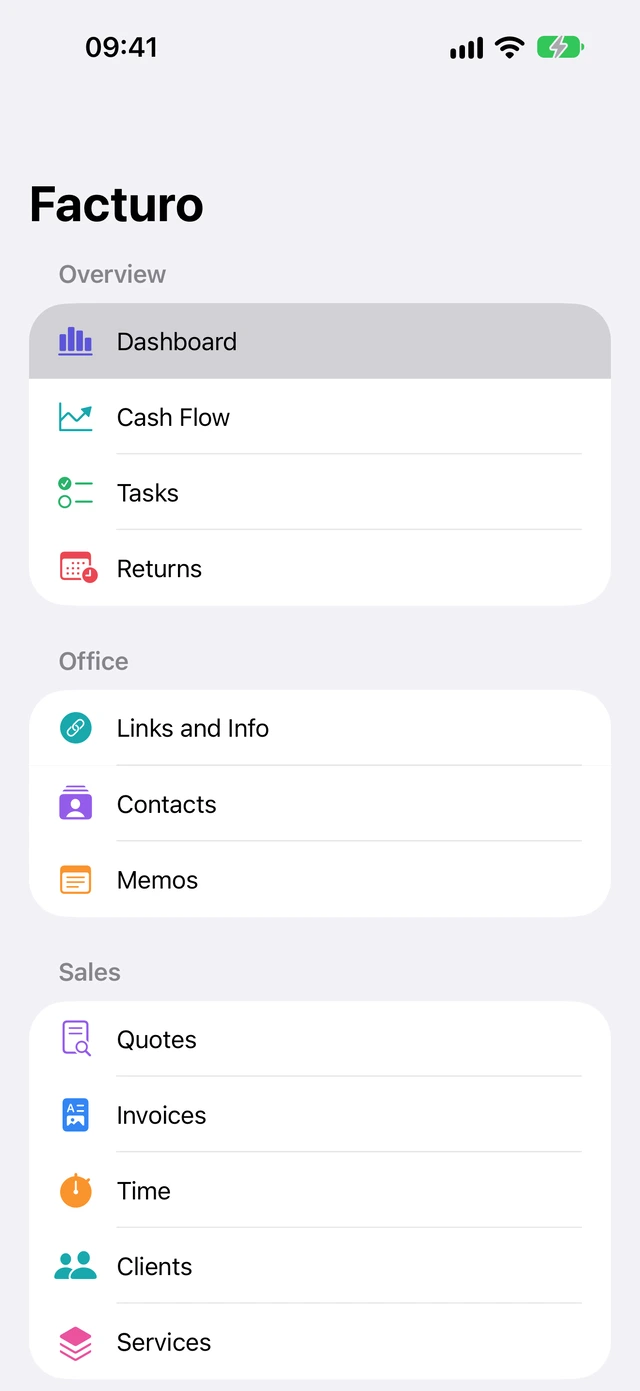
The sections are arranged in five groups:
- Overview: Dashboard, Cash Flow, Tasks, Returns;
- Office: Links and Info, Contacts, Memos;
- Sales: Quotes, Invoices, Time, Clients, Services;
- Accounting: Receipts Ledger, Expenses, Bank, Online Sales;
- Settings: Business, Settings, About.
iPhone The app opens on this menu. Tap a section; the arrow at the top left takes you back to the menu. A screen's buttons sit in a row below the title: swipe the row with your finger if they don't all fit.
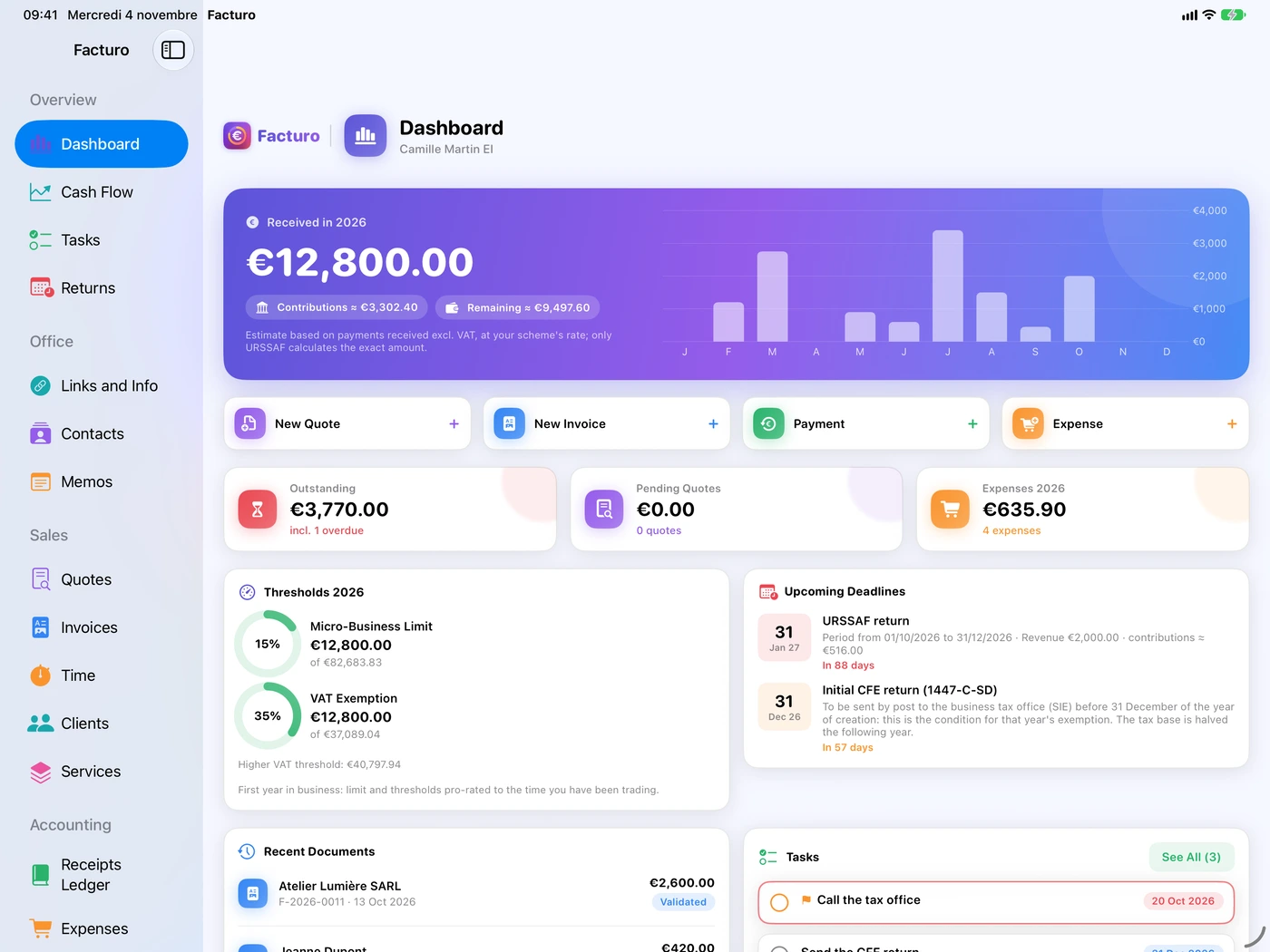
iPad Mac The sections are in the sidebar on the left. Lists (invoices, contacts…) are shown with the details alongside. On Mac, the screen's title and buttons are in the window's toolbar.
The round buttons on detail sheets
Detail sheets (a client, an expense, an income entry…) open over the screen, with round buttons at the top right:
- the green tick ✓ Save, greyed out until something changes;
- the red cross ✕ Close;
- sometimes the bin, to delete;
- in lists, the blue + adds an item.
On a detail sheet, the cross closes without cancelling. What you type is saved as you go: closing with ✕ keeps your changes. A sheet with no name (client, service, brand), or an income entry with no type or no amount, disappears when you close it.
On sheets that carry out an action (Payment Received, Deposit Invoice, Recurring Invoicing, Quote Signature), it's the other way round: ✕ discards, and only ✓ saves.
The welcome guide
The first time you open it, Facturo shows a two-screen guide to the essentials: who you are and how you file your returns.
- On the Welcome to Facturo screen: three promises (compliant quotes and invoices, income and URSSAF, your data stays with you). Tap Set Up My Business.
- On the Your Business screen: fill in Full name, Trading name (optional), SIREN (9 digits), SIRET (14 digits), and the address, postcode and town.
- Choose your Activity: Unregulated profession (BNC, SSI), Regulated profession (BNC, CIPAV), Provision of services (BIC) or Sale of goods (BIC).
- Under URSSAF return, choose Monthly or Quarterly, the same as on your URSSAF account.
- Enter the Business start date and leave VAT exemption (small business) switched on if you don't charge VAT.
- Tap Get Started.
The ✕ button (Later) also closes the guide and keeps what you have already typed. The guide doesn't come back: you can fill in the rest later in Business.
If your data is already arriving from another device via iCloud, Facturo waits up to 20 seconds before showing the guide. It doesn't show it if a complete profile arrives.
As long as the name, SIREN or address is missing, an orange banner on the dashboard reminds you, for example: “Complete the business profile (SIREN, address) to issue your invoices.” Only the missing items are listed. Clicking the banner opens Business.
The business profile
The Business section holds everything that is printed on your quotes and invoices, plus what is used for the URSSAF calculations. There's no Save button: each field saves itself.
Identity
- Full name of the business owner and the Legal form (“EI” by default, added after the name);
- Trading name (optional; with brands, the document's brand is shown) (see brands);
- SIREN, SIRET, APE code;
- Registration (RCS or RM and town), if you are registered: printed after the SIRET;
- Professional insurance (mandatory for some trades): insurer, policy number, cover;
- Add Logo…: an image of your choice.
Contact details
Address, Email, Phone, Website, IBAN (shown on invoices) and BIC. The Bank transfer QR code on invoices (the client scans it with their banking app) box, ticked by default, adds a QR code that your client scans with their banking app: the IBAN, amount and reference are filled in for them.
Tax scheme
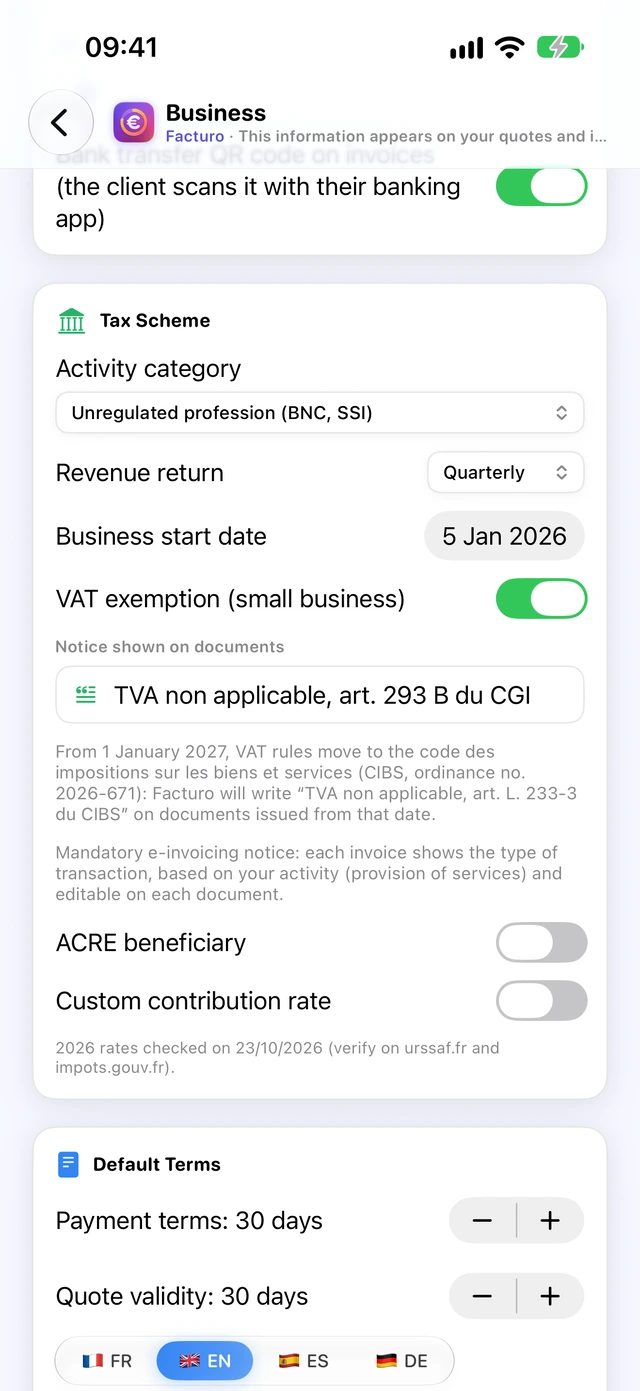
- Activity category and Revenue return (monthly or quarterly): these set the rates and the schedule of your returns.
- Business start date: used for the first return, the thresholds in your first year and the CFE (French local business tax).
- VAT exemption (small business): when ticked, Facturo prints the Notice shown on documents (“TVA non applicable, art. 293 B du CGI” by default). When unticked, you need the EU VAT number (mandatory) and a Default rate; a box lets you choose the Option to pay VAT on invoicing (débits).
- ACRE beneficiary (relief on contributions for new businesses): shows the ACRE end date and ACRE reduction fields (see the box below).
- Custom contribution rate: replaces the built-in social contribution rate if your situation is different.
ACRE: what the authorities say (service-public.fr F11677, checked on 31 October 2026): for a business started on or after 1 July 2026, the exemption is 25% (a rate equal to 75% of the normal rate); it was 50% for a business started on or before 30 June 2026. It lasts until the end of the third calendar quarter after the business start date. Facturo suggests 50% and an end date one year after the start: set ACRE reduction and ACRE end date to match your situation.
Exemption notice in 2027. The VAT rules move to the French code of taxes on goods and services (code des impositions sur les biens et services, CIBS) on 1 January 2027 (Ordinance No. 2026-671). If you keep the default notice, Facturo writes “TVA non applicable, art. L. 233-3 du CIBS” on documents issued from that date. According to the BOFiP (news item of 7 October 2026), the reference to article 293 B of the CGI is still accepted on invoices until 30 June 2028. No official page gives the exact wording of the new notice yet: this still needs checking.
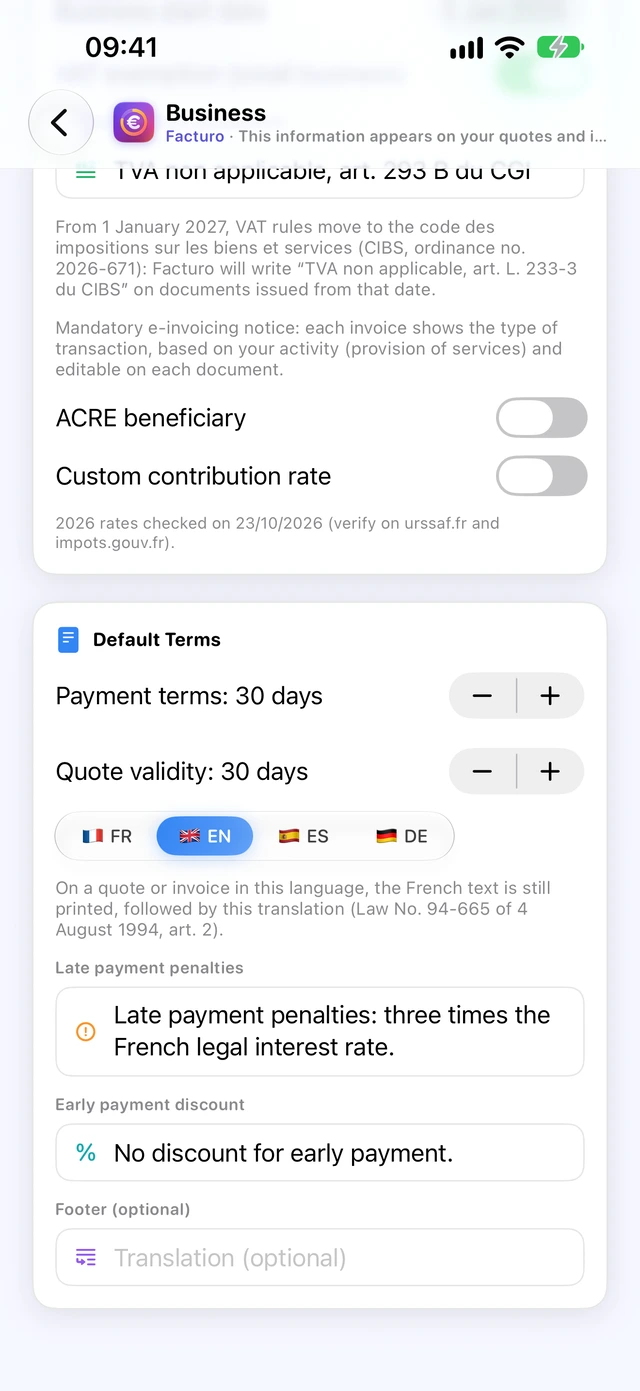
Default terms
Payment terms (30 days by default, from 0 to 60), Quote validity (30 days, from 1 to 180), the wording of the Late payment penalties and Early payment discount notices, and a Footer (optional) printed on every page.
Above the penalties, discount and footer, choose the language: each one has its own wording. On a quote or invoice in a language other than French, the French text is still printed, followed by its translation (the app's note cites Law No. 94-665 of 4 August 1994, art. 2).
Legal payment deadlines (service-public.fr F23211): 30 days after the service is provided, unless otherwise agreed; at most 60 days after the invoice date, or 45 days end of month if the contract provides for it. Between businesses, a fixed debt recovery fee of €40 is due for each invoice paid late: Facturo prints it automatically when the client is a business.
Your legal status: EI, EURL or SASU
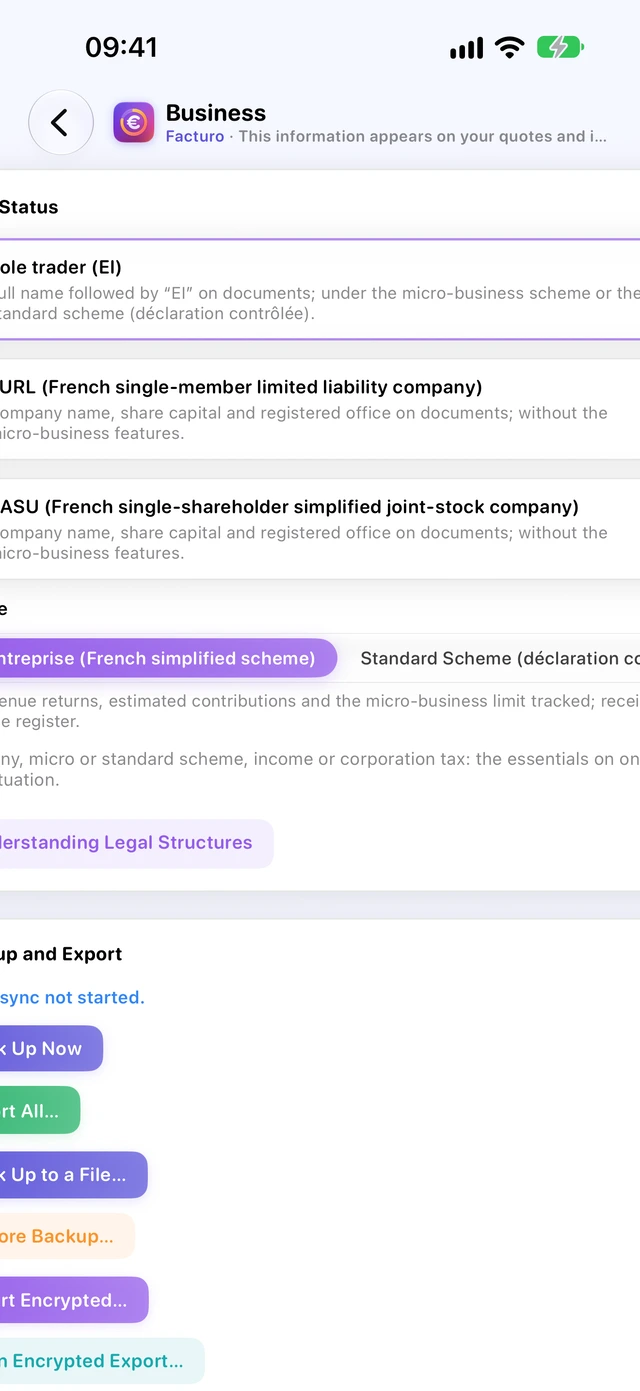
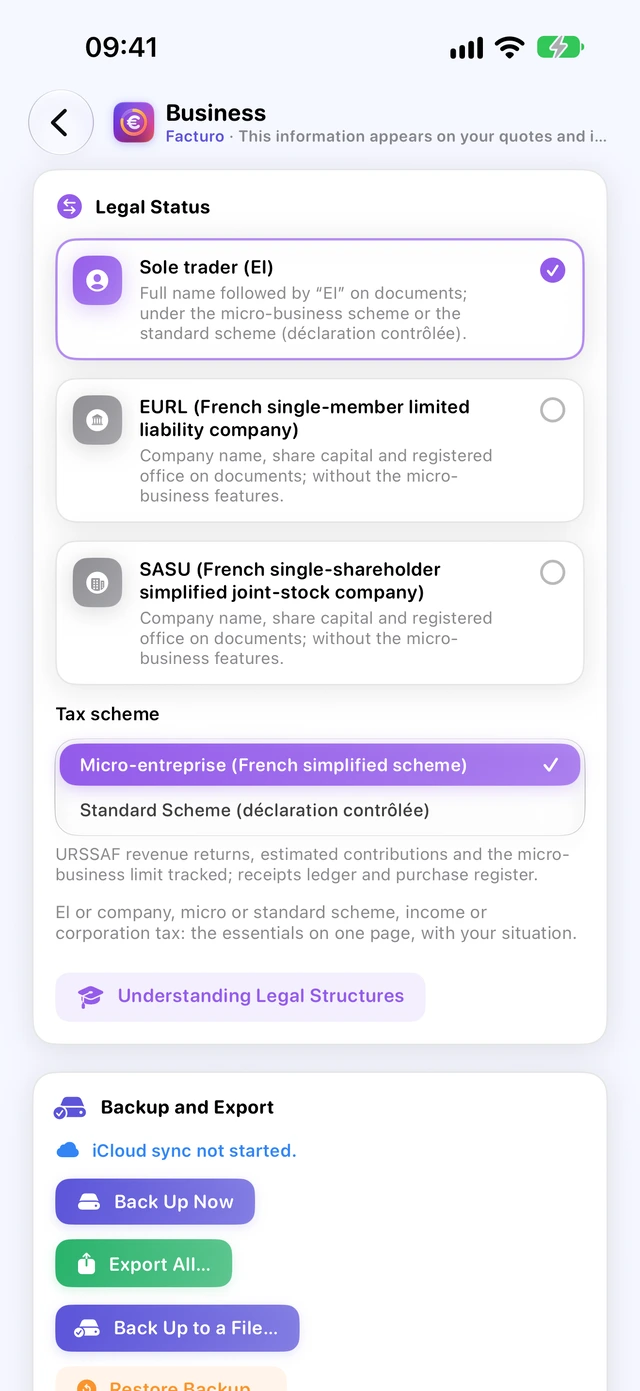
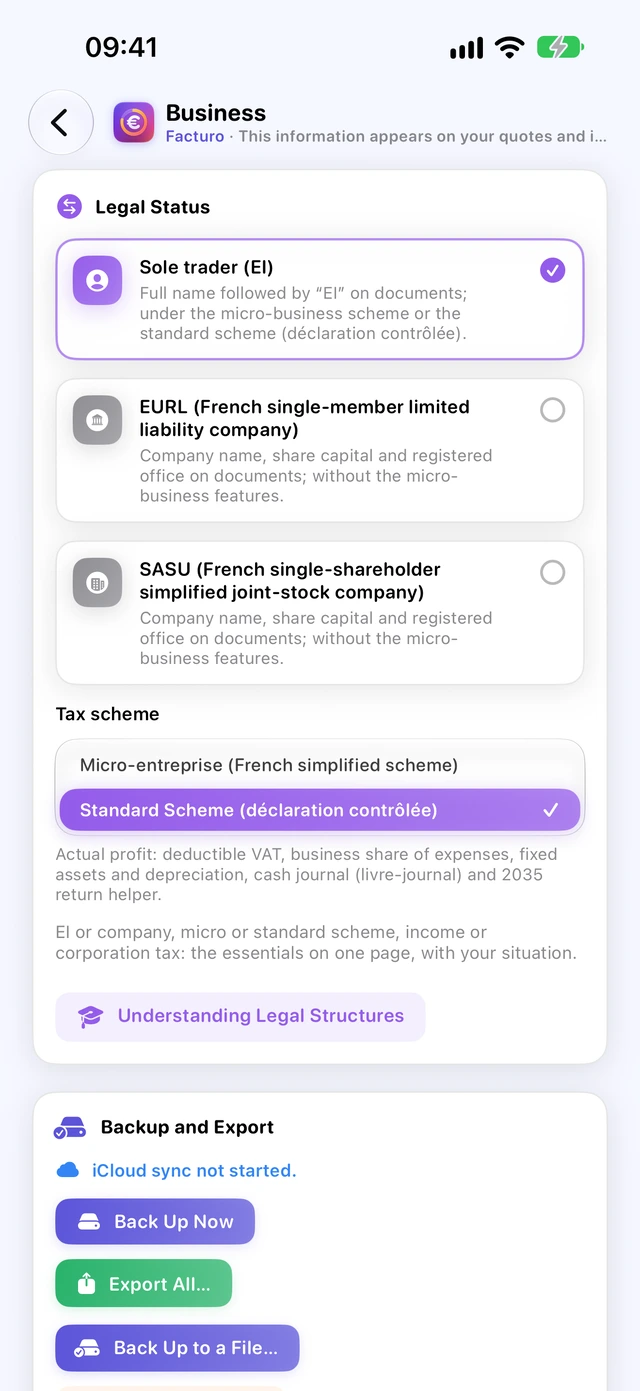
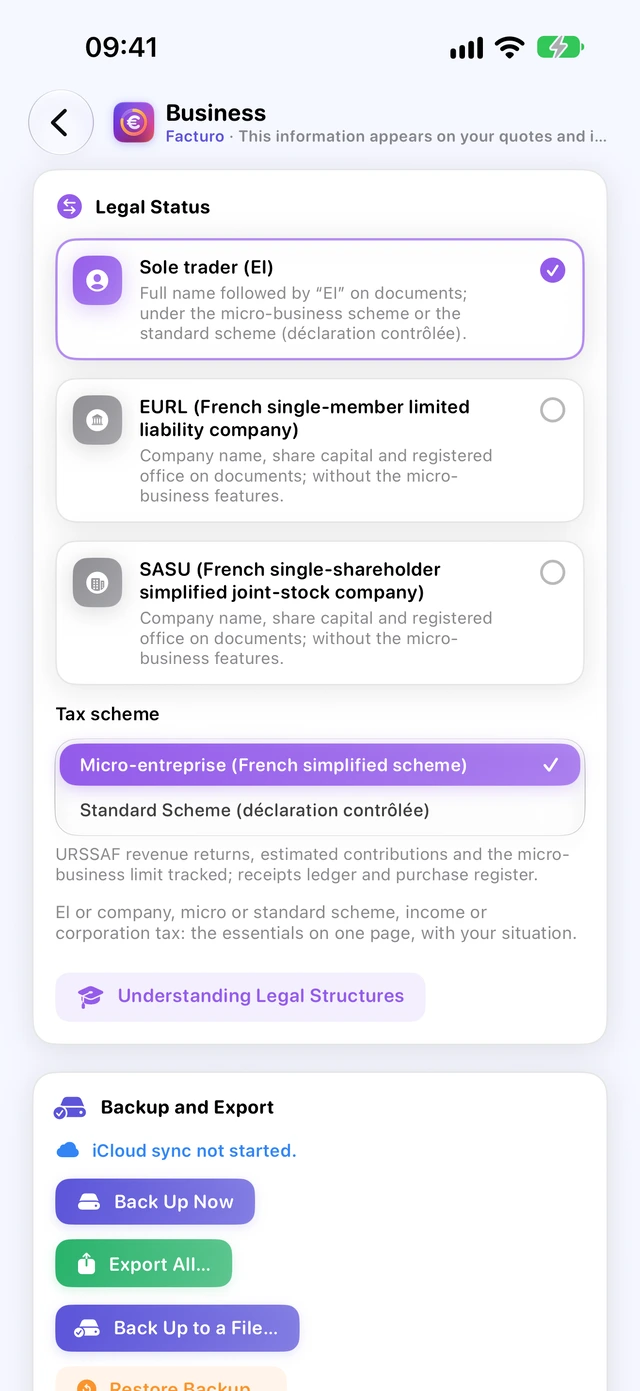
At the top of Business, the Legal Status card says which kind of business you run. Facturo adapts its sections, notices and returns to this choice.
- Sole trader (EI): your first and last name followed by “EI” on documents. Then choose the Tax scheme: Micro-entreprise (French simplified scheme) (URSSAF turnover returns) or Standard Scheme (déclaration contrôlée) (see The standard scheme);
- EURL (French single-member limited liability company) or SASU (French single-shareholder simplified joint-stock company): the Company name, the Share capital (€) and the Registered office replace your name and address on documents (for example “SASU au capital de 1 000 €”, with its translation), and the accounts switch to the accrual basis (see Companies and BIC standard scheme).
Outside the micro-entreprise scheme, the micro-only modules disappear: URSSAF returns, contributions, ACRE, the 2042-C-PRO box. For a company, the returns section is called VAT, CFE and Export. Changing status asks for confirmation; documents already validated keep the details printed when they were validated.
Understanding legal structures
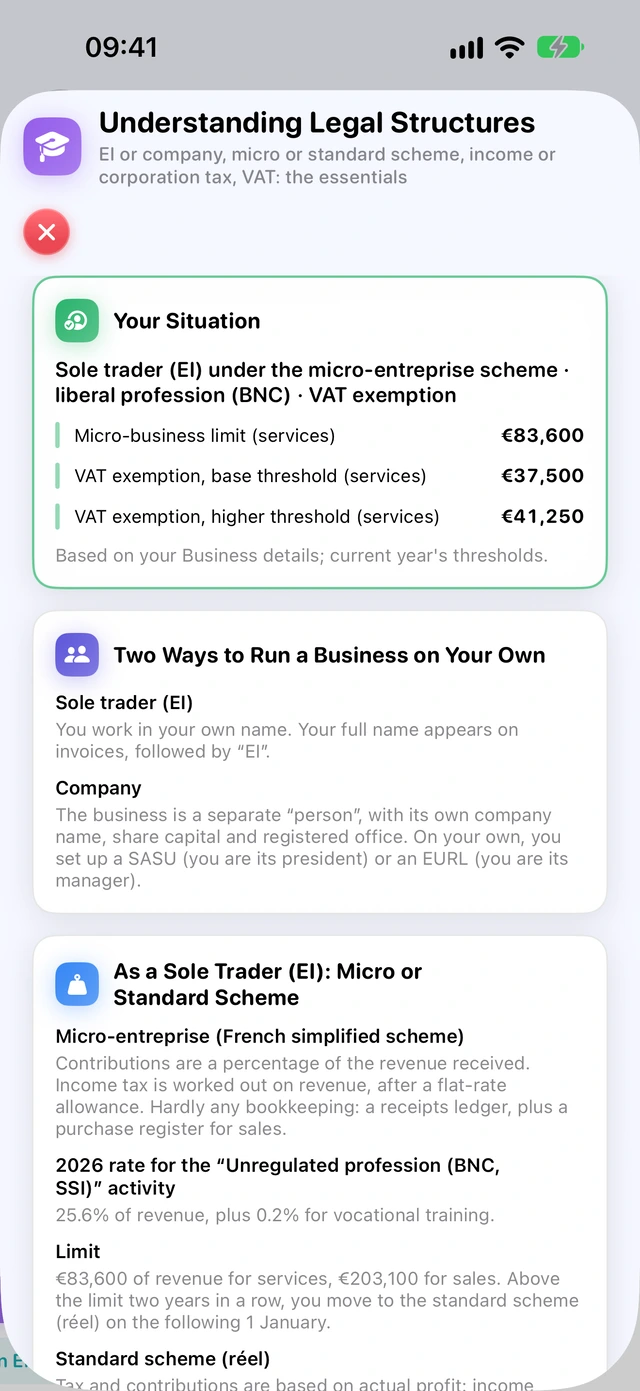
The Understanding Legal Structures button opens a guide, also offered by the welcome guide and by Settings. The Your Situation card sums up your profile (status, activity, VAT, thresholds that apply); the guide then explains sole trader or company, micro or standard scheme, BNC or BIC, income tax or corporation tax, social cover, VAT and vocabulary. It is general information, with its official sources: for your own case, ask a chartered accountant.
Selling under several brands
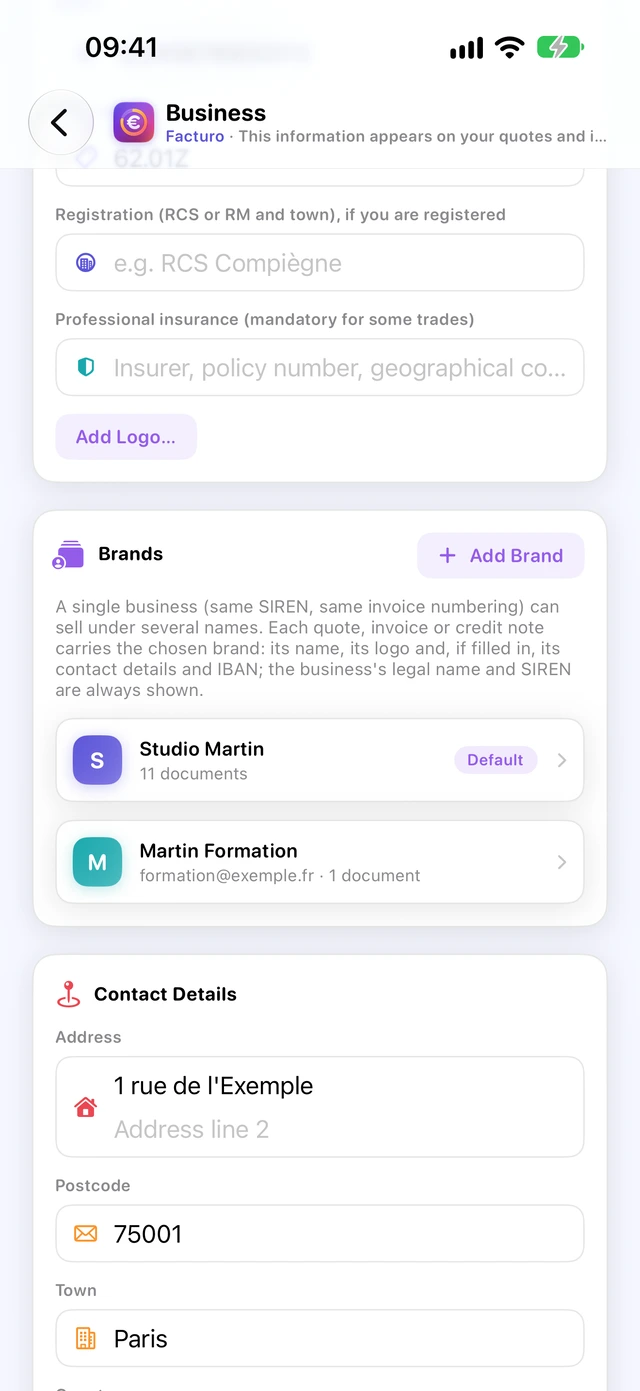
A single business (one SIREN) can trade under several names. Each quote, invoice or credit note then carries the chosen brand, but there is only one numbering sequence for all of them.
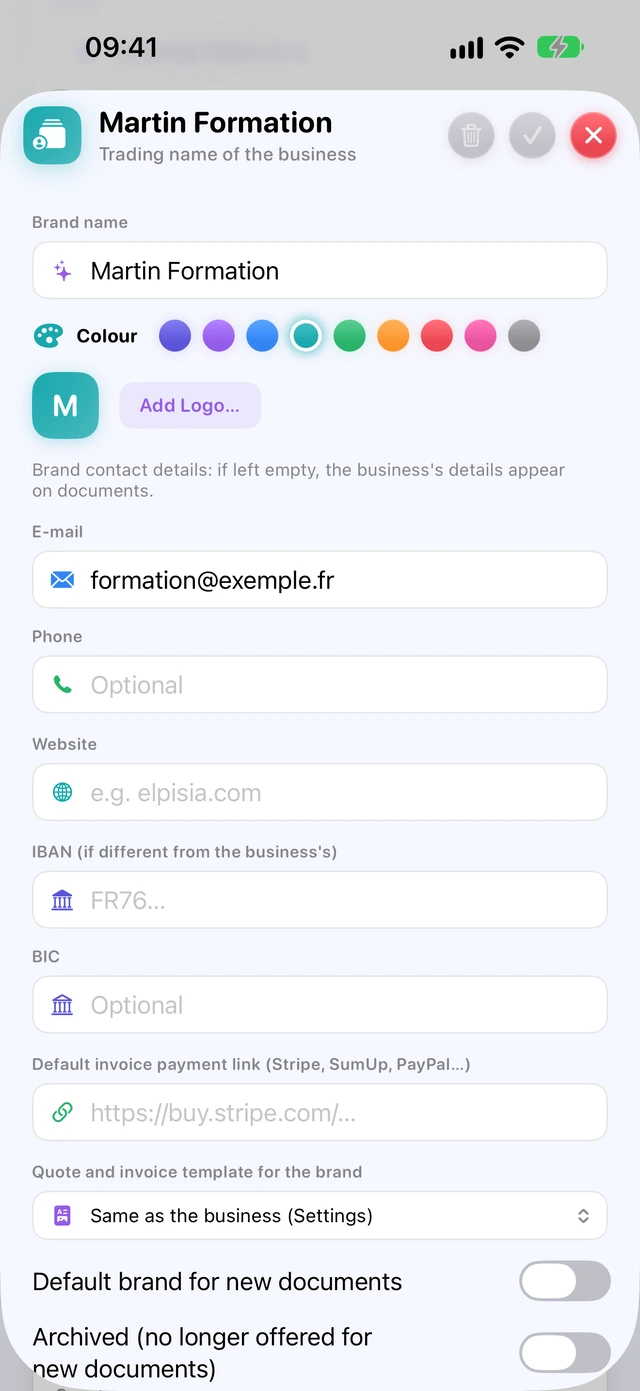
- In Business, on the Brands card, tap Add Brand.
- Enter the Brand name, pick a Colour (it colours your documents) and, if you like, add a logo.
- Fill in the brand's own contact details: Email, Phone, Website, IBAN (if different from the business's). If you leave them blank, the business's details are printed instead (the website, however, doesn't appear on PDFs).
- Optional: a Default invoice payment link (Stripe, SumUp, PayPal…) and a Quote and invoice template for the brand.
The first brand you create becomes the default brand; the Default brand for new documents box lets you change it.
Which brand goes on a new document?
- The brand of the same client's last document, otherwise the default brand;
- a credit note, an invoice created from a quote, a deposit invoice or a recurring invoice takes the brand of the original document;
- the draft's Brand field always lets you change it before you issue or validate the document.
On the PDF, the brand appears as the heading; the legal name (with “EI”) and the SIREN are always printed below it. In emails, the {entreprise} placeholder gives the brand name.
A brand used on documents can't be deleted: tick Archived (no longer offered for new documents) instead.
Choosing the quote and invoice template
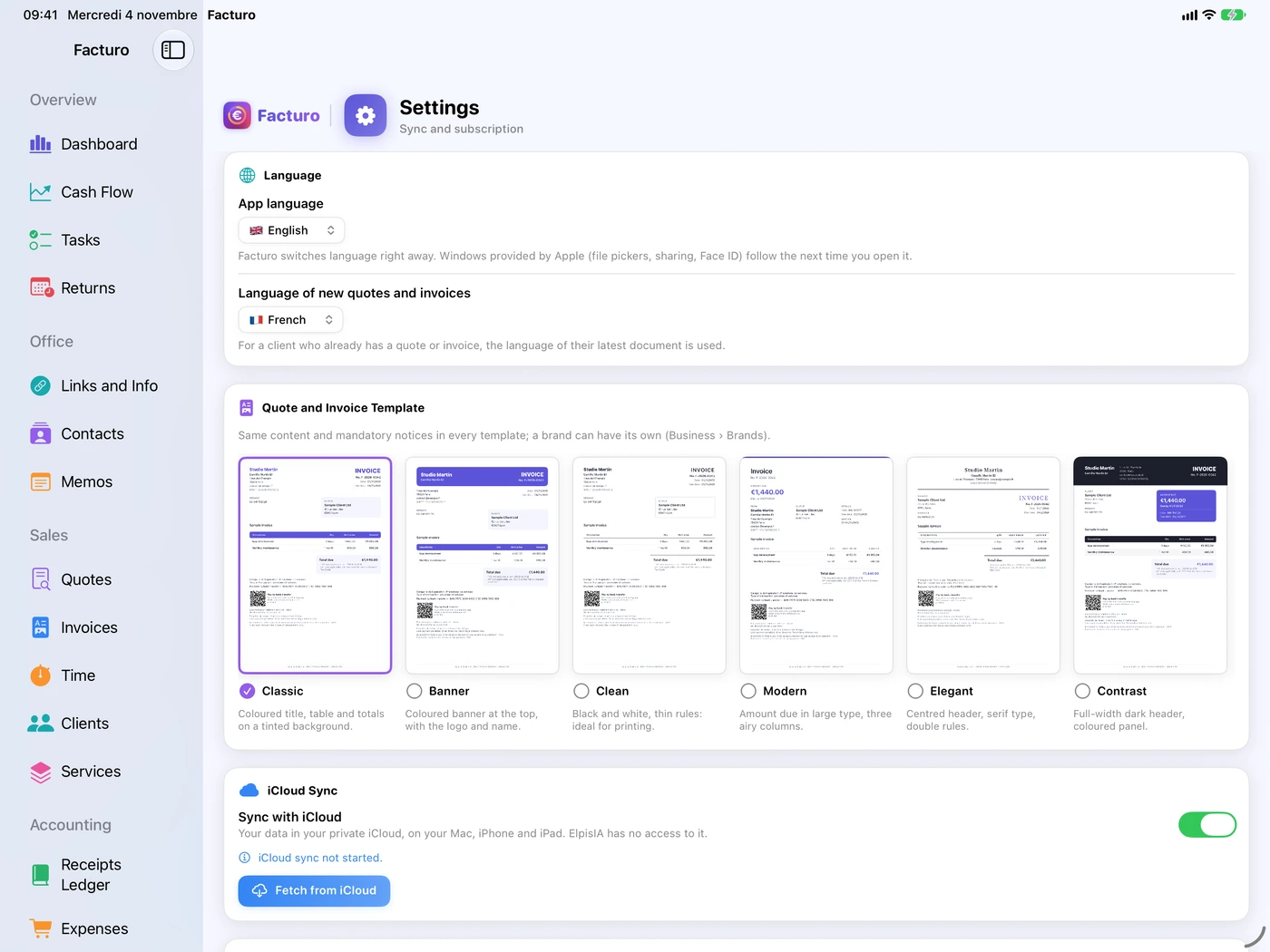
Seven layouts are offered at the top of the Settings section. They all keep the same content and the same mandatory notices; only the presentation changes.
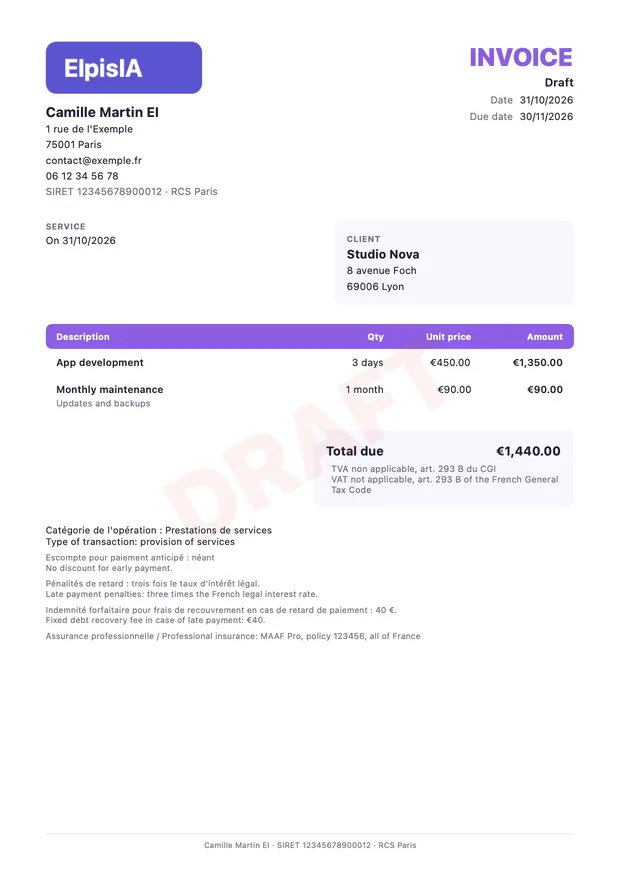
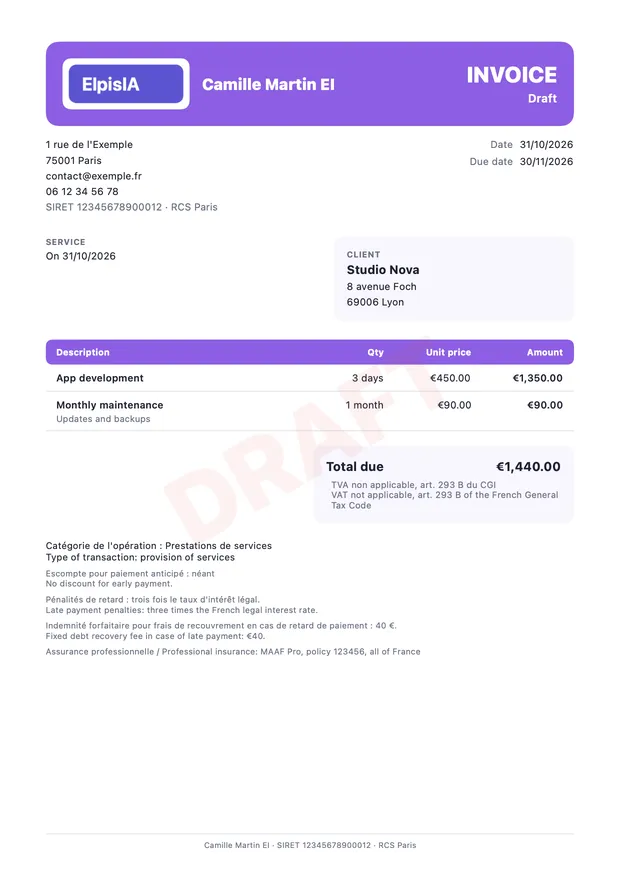
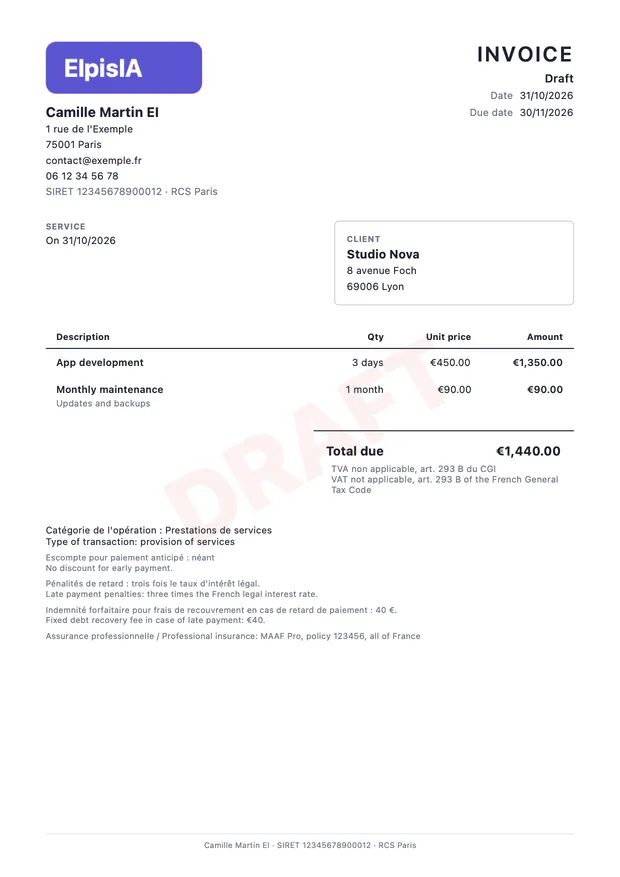
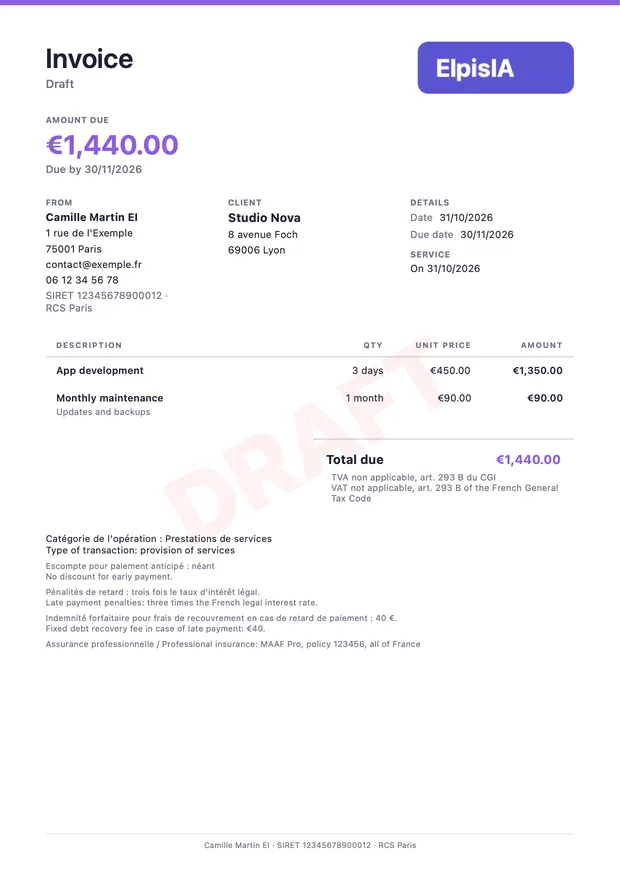
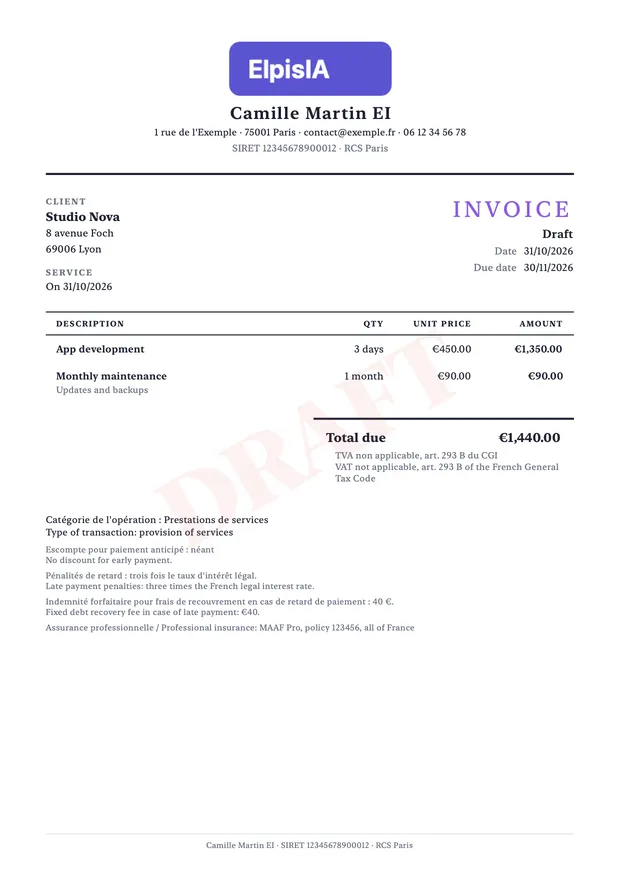
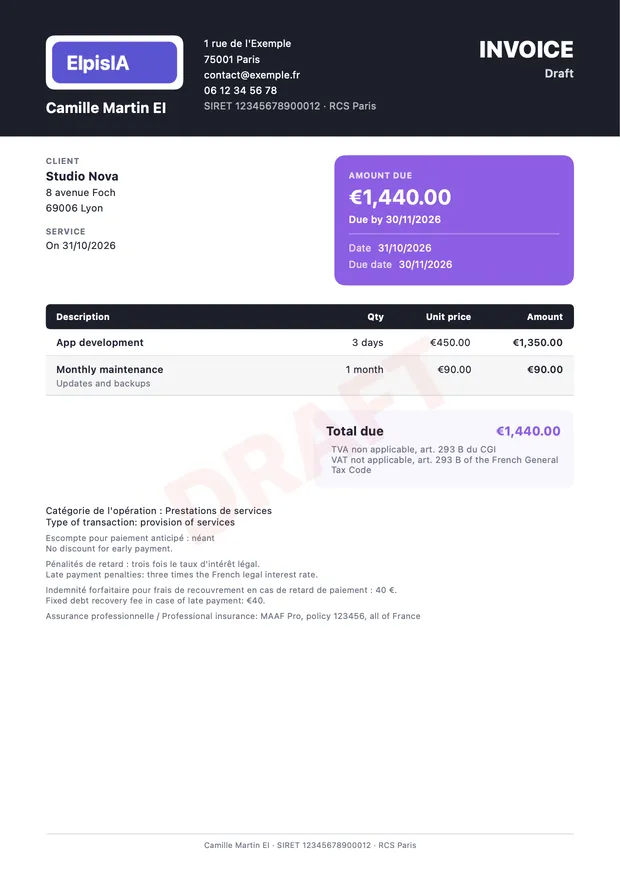
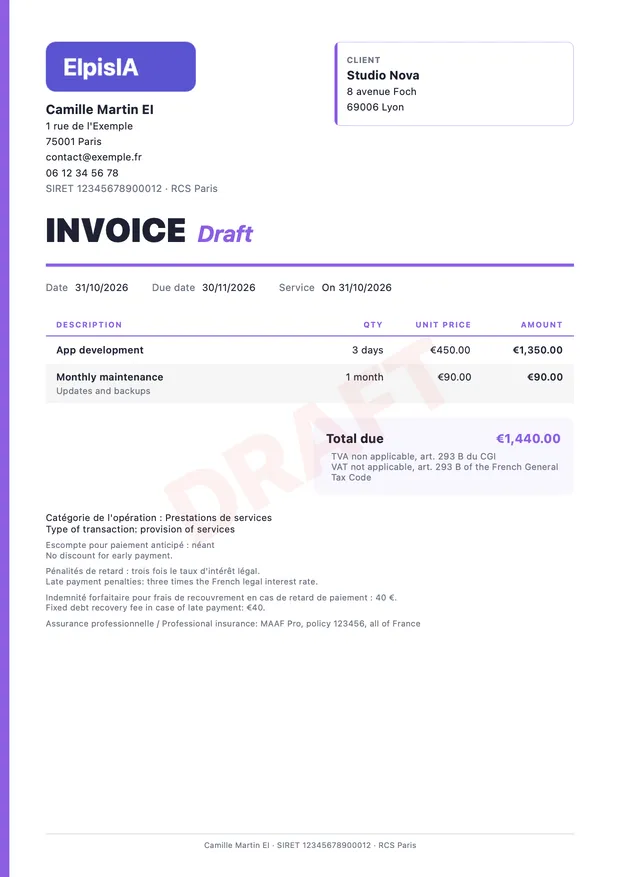
- Open Settings and go to the Quote and Invoice Template card.
- Scroll through the thumbnails and tap the one you like: it gets a tick.
- If your logo already includes your name, untick Show trading name next to logo (the box only appears when there is a logo). With brands, it's the Show brand name next to logo box, in each brand's details, that counts.
A brand can have its own template (in the brand's details). The colour comes from the brand; without a brand, documents are in indigo. The Clean template stays black and white.
Clients
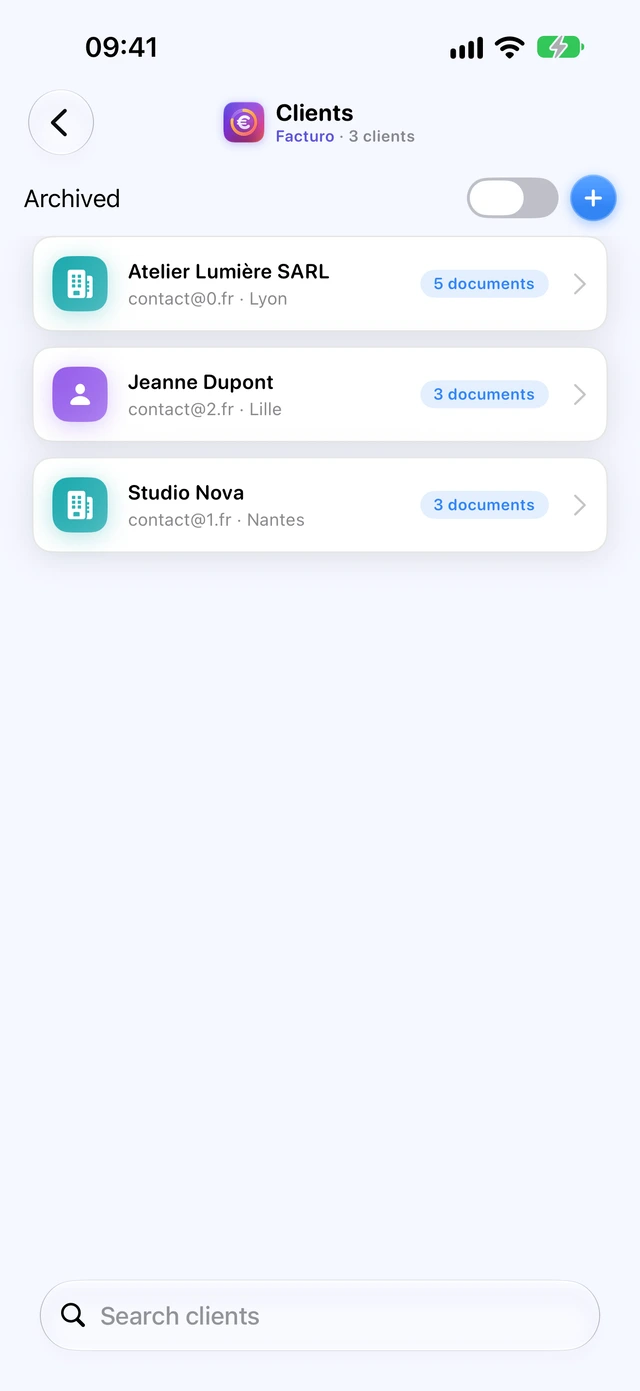
- Open Clients and tap + (New Client).
- Choose Business or Individual.
- Fill in Company name (or Full name), Contact, the address, Email and Phone.
- For a business client: the SIREN (mandatory for e-invoicing) and the EU VAT number.
- If needed, a Delivery address (if different) and internal Notes.
You can also create a client without leaving a quote: use the + button to the right of the Client field.
- Whether the client is a business or an individual affects the PDF: the €40 fee is only printed for a business client.
- An issued document keeps the client's details as they were at the time: editing the client afterwards doesn't change invoices already validated.
- There is no Delete button: tick Archived client (hidden from lists). The Archived box in the list shows archived clients again.
From 1 September 2027, micro-business invoices will have to show the business client's SIREN, the delivery address if it is different, the type of transactions (goods, services or both) and, where applicable, the option to pay VAT on invoicing (service-public.fr F31808). Facturo already has these fields.
The service catalogue
Services are ready-made lines (label, description, price, unit) that you add to your quotes and invoices in a single step.
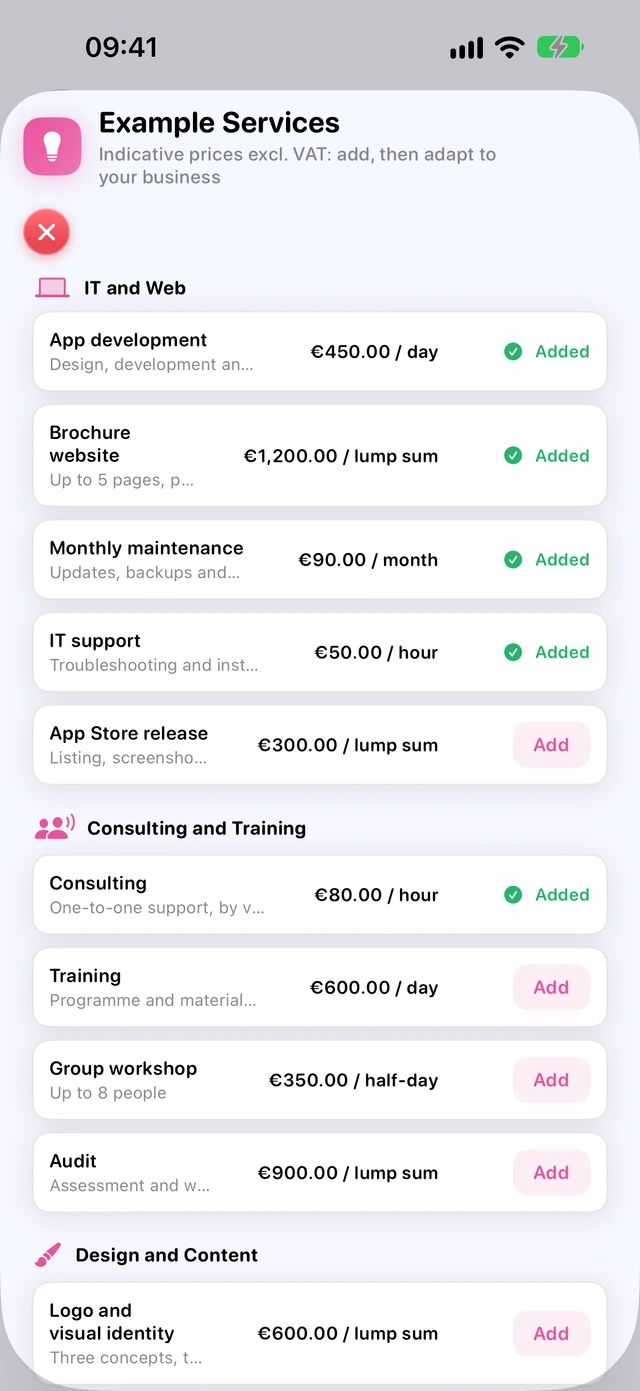
- Open Services and tap +.
- Enter the Label, the Description (shown under the label), the Unit price (€) and the Unit (hour, day, flat fee…).
- Or start from a ready-made one: tap Examples, then Add on the services that are close to yours, and adjust the price.
In a quote or an invoice, the From Services button on the Line Items card adds the service you choose.
To remove a service from the lists without deleting it, tick Archived (no longer offered).
Creating and issuing a quote
A quote starts as a draft, which you can edit as much as you like, and is then issued: at that point it gets its final number (D-2026-0001, D-2026-0002…).
- Open Quotes and tap + (or, on the dashboard, New Quote).
- On the Header card: choose the Client and type the Subject. The Date is today's date, and Valid until adds the validity period set in Business (30 days by default).
- On the Line Items card: From Services adds a line from the catalogue, and Line adds a blank line. For each line: Description, Details (optional), Qty, Unit, Unit Price and, if needed, Discount %.
- On the Notes & Terms card: a Note shown on the document and the Payment terms (for example “30% deposit on order”).
- Tap the eye (Preview) to see the PDF, marked “BROUILLON” (draft).
- Tap Issue, then confirm.
Everything is saved as you type: there's no Save button in a draft. A draft can be deleted with the bin; an issued quote or a validated invoice never can.
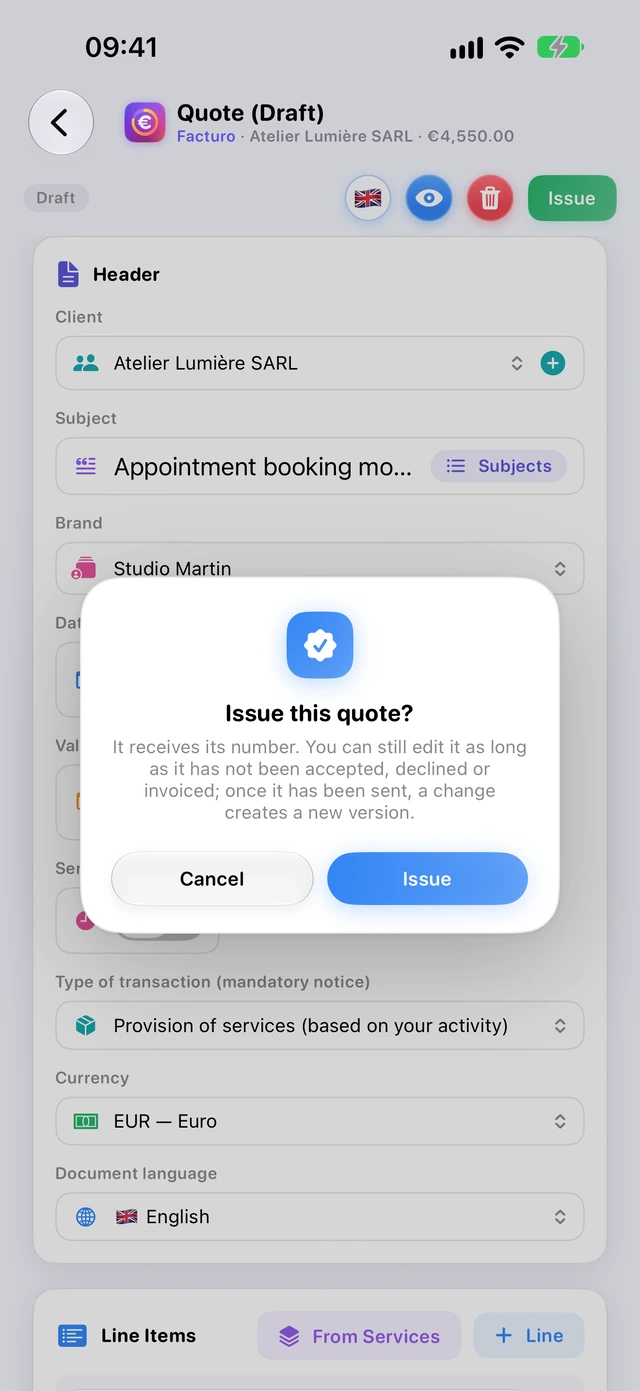
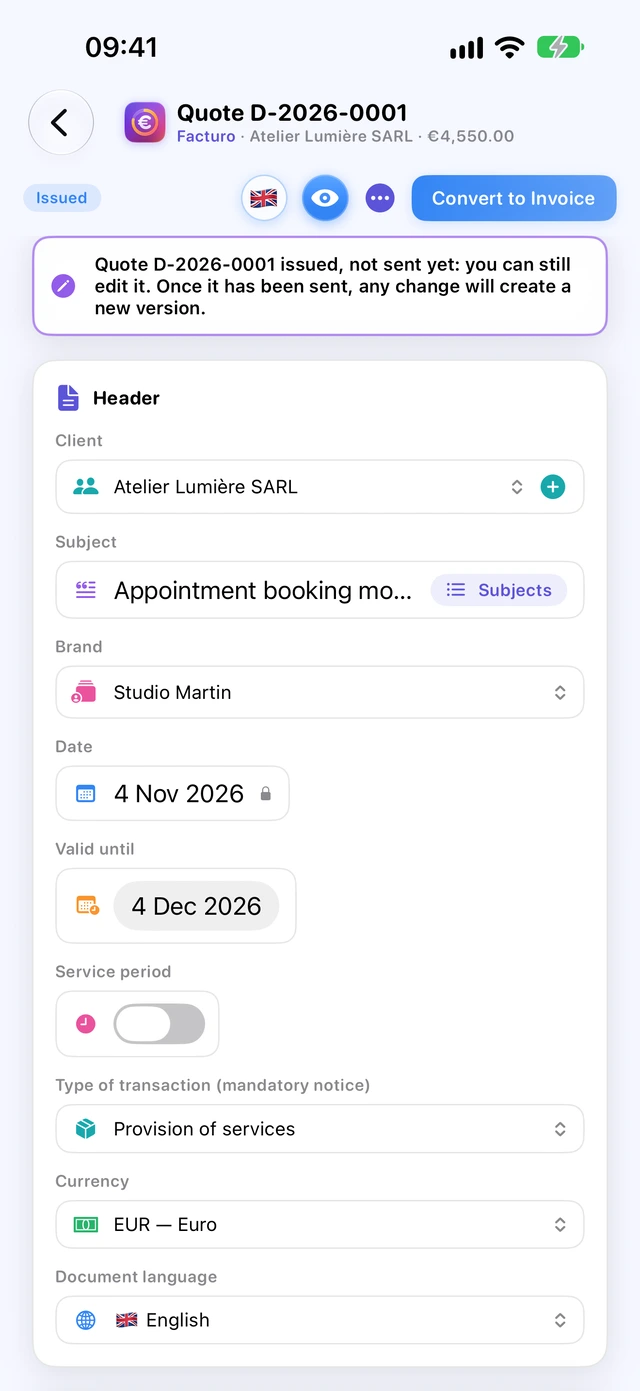
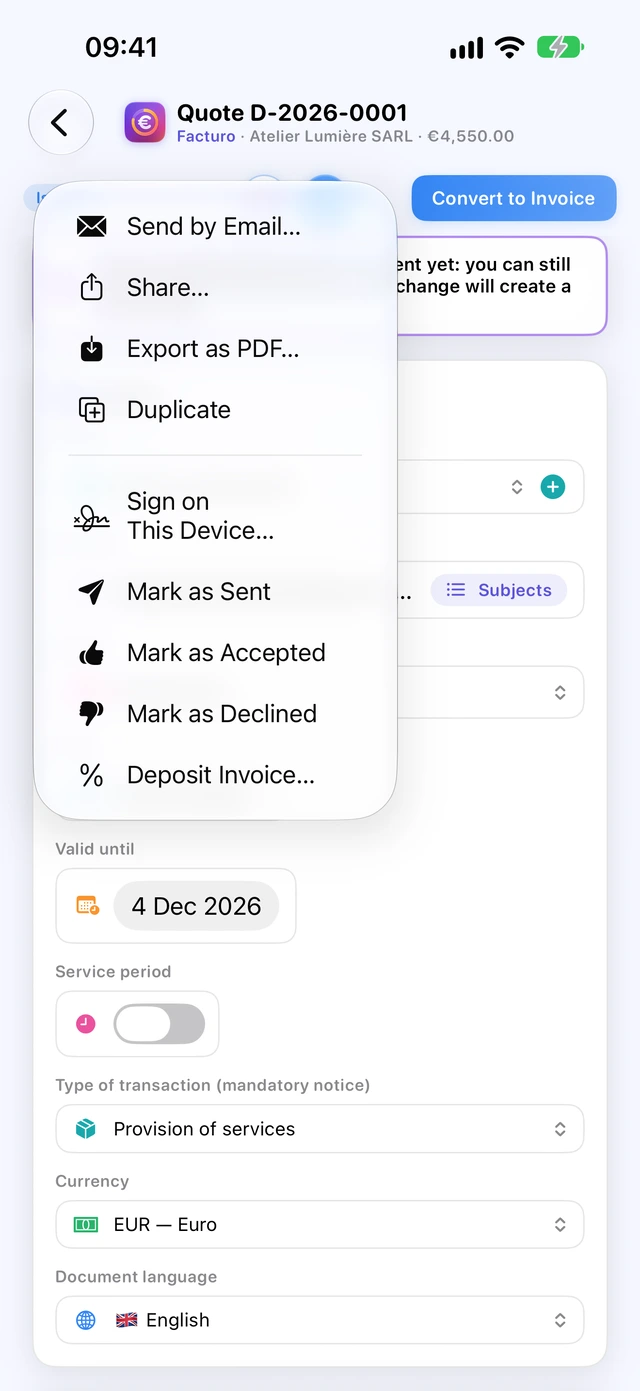
Quote statuses
Draft, Issued, Sent, Accepted, Declined, Invoiced. An issued or sent quote whose validity date has passed is shown as Expired. The … menu offers Mark as Sent, Mark as Accepted and Mark as Declined; sending the quote by email from Facturo changes it to “Sent” automatically.
An issued quote can still be edited as long as it hasn't been sent; a notice reminds you. Once sent, … › Edit (New Version) creates version 2 under the same number (“· v2” in the title): the PDF reads “Version 2 — remplace la version 1 du …” (replaces version 1 of …) and the Send Again button sends it to the client. The old version, marked Superseded, disappears from the lists. The quote locks when it is accepted, declined or invoiced.
The buttons at the top of the list filter by status; the menus filter by year and, if you have more than one, by brand. Search covers the client, the number and the subject.
A quote isn't compulsory in every trade, and what it must include depends on the sector (service-public.fr F36008, and F31144 for building and repair work). Check the rules for your activity.
Having a quote signed on the device
At the client's premises, on iPhone or iPad, the client can sign the quote with a finger or an Apple Pencil. The quote then changes to “Accepted”.
- Open the issued quote, tap …, then Sign on This Device…
- The Quote Signature sheet shows the wording: “Accepted and agreed: the client accepts quote … dated …, for an amount of …, and its terms.”
- The client types their Signatory's name and capacity (for example “Jeanne Dupont, manager”).
- They sign in the Sign here box. Clear lets them start again.
- Tap the tick ✓ (Sign). It stays grey as long as the name or the signature is missing.
The PDF then shows “Bon pour accord — signé par … le … à …” (accepted, signed by … on … at …) with the image of the signature. On Mac, you sign with the trackpad or the mouse.
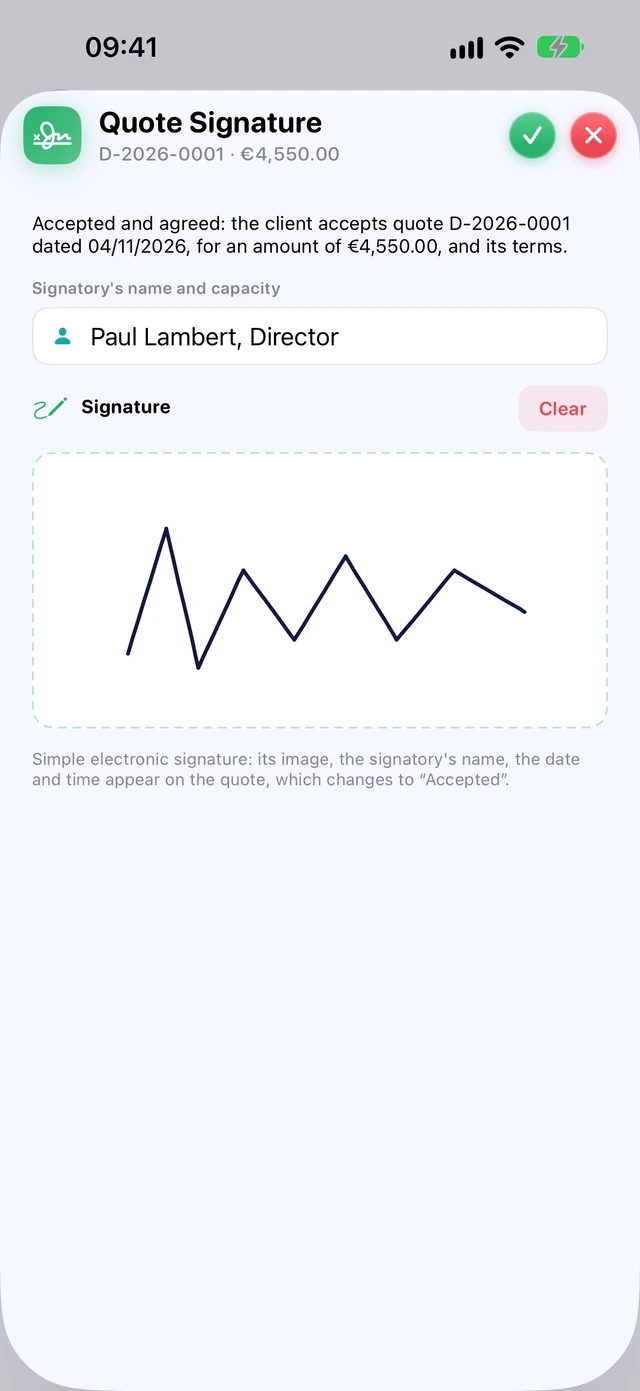
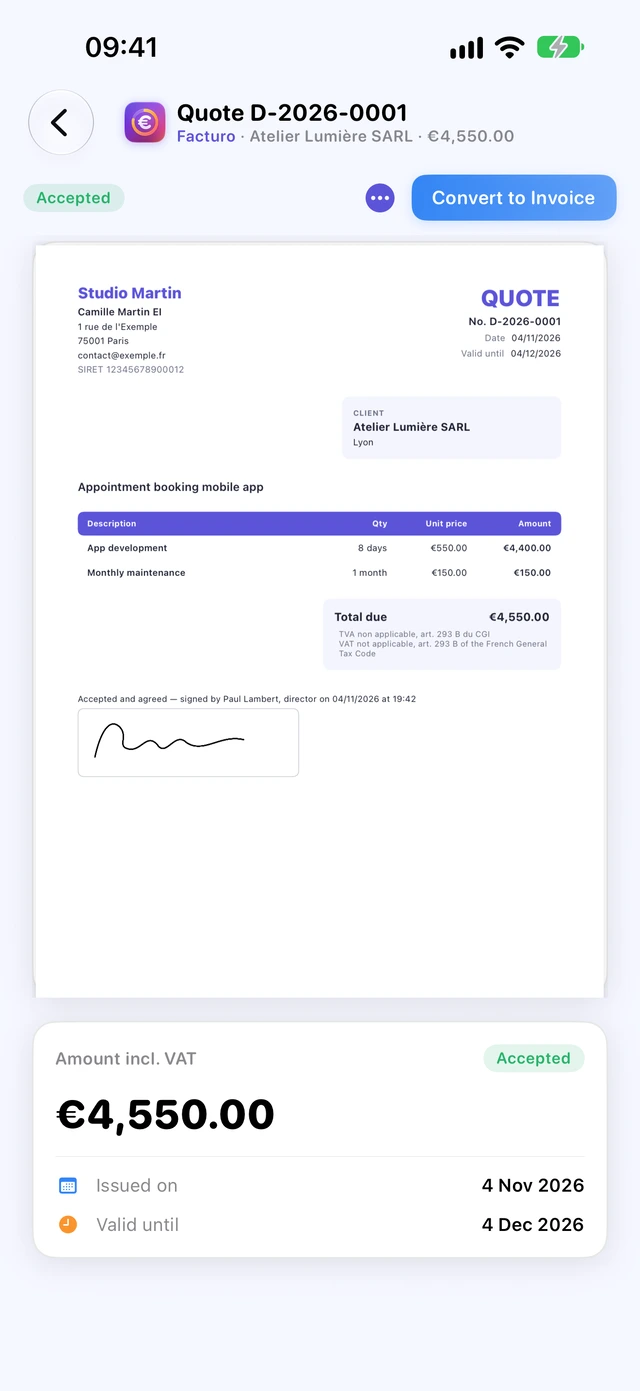
This is a simple electronic signature: its image, the signatory's name and the date and time appear on the quote. An unsigned quote keeps an empty box, “Bon pour accord — date et signature du client” (accepted — date and client's signature), for signing on paper.
Creating and validating an invoice
There are three ways to create an invoice: from a quote (Convert to Invoice), from time spent (Time › Invoice) or from scratch, with the + in the Invoices section.
The fields of an invoice
The same fields as on a quote (client, subject, brand, date, lines, notices). Several of them matter mainly for an invoice, and the purchase order and payment link only exist on an invoice:
- Due date: today's date plus the payment terms set in Business;
- Service period: a switch, then the start and end dates. Without a period, the invoice prints the invoice date as the service date;
- Type of transaction (mandatory notice): provision of services, supply of goods or both, worked out from your activity;
- Client's purchase order no., if the client has issued one;
- Online payment link (optional): it is printed with a “Payer en ligne” (pay online) QR code;
- Currency (euro, dollar, pound, Swiss franc…) and Document language (French, English, Spanish or German);
- The flag before the number in the lists, and at the top of a draft, shows the language; on a draft, it opens the choice of the four languages;
- Subject to VAT: if you are not under the exemption, one rate per line (20%, 10%, 5.5%, 2.1% or 0%).
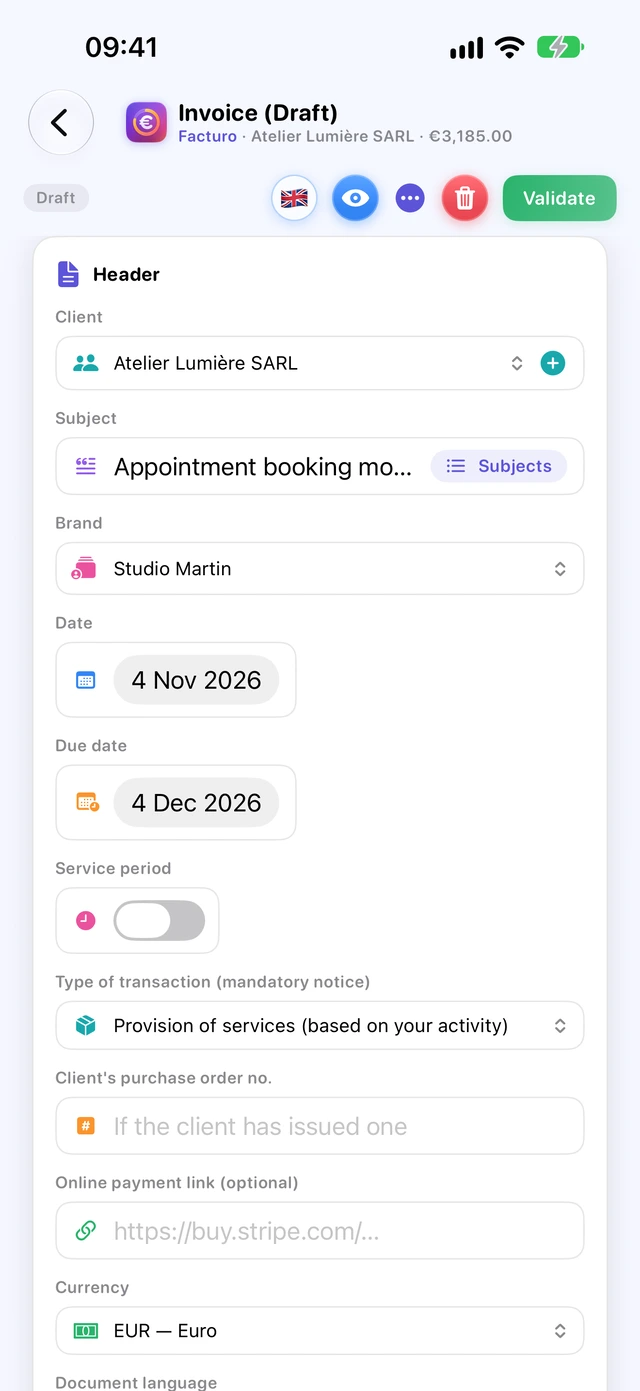
Until it is validated, the invoice is a draft: … › Send Draft by Email…, Share Draft… or Export Draft as PDF… to have it checked. The PDF reads “Projet – ne vaut pas facture” (draft, not a valid invoice) instead of the number, with a PROJET watermark and no QR code or payment link; sending it doesn't validate it.
Validating the invoice
Tap Validate Invoice (Validate on iPhone) and confirm. Facturo first checks the following, in this order, and shows in red whatever is missing:
- Choose a client.
- Add at least one line with an amount.
- the business profile (name, 9-digit SIREN, address, and VAT number if the invoice includes VAT). The message refers you to “Réglages” (Settings): this information is in the Business section;
- for an invoice in a foreign currency that is subject to VAT: the VAT amount in euros;
- the date: The issue date cannot be earlier than that of document F-…: numbering must stay chronological.
Once validated, the invoice gets its number and can no longer be edited. It keeps the business, brand and client details as they were on that date, as well as the VAT, late payment penalty and early payment discount notices and the type of transaction. The registration, professional insurance and footer, on the other hand, follow the current Business section, even on a document that has already been validated.
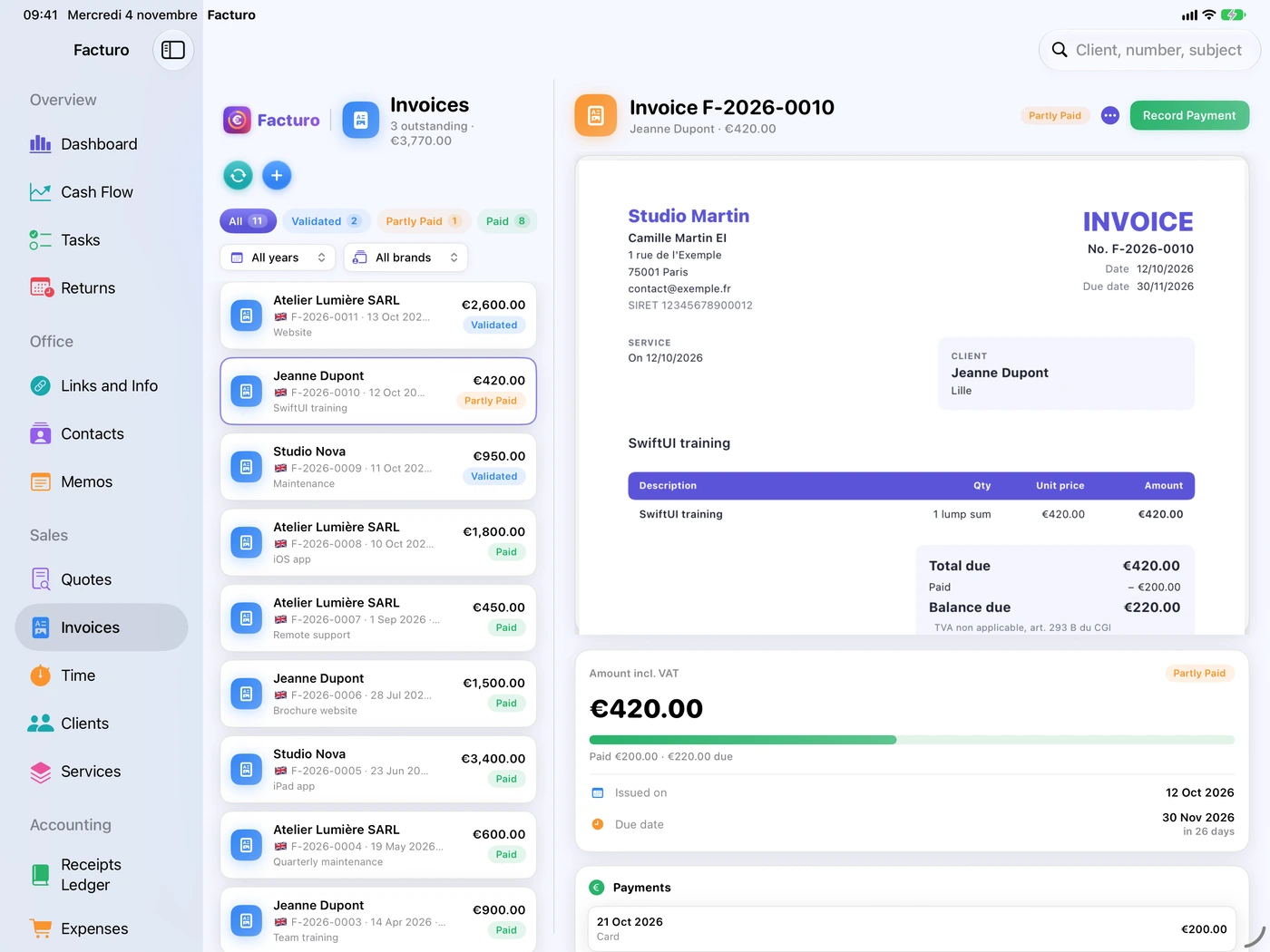
Numbering
- Invoices (including deposit and final invoices): F-2026-0001, F-2026-0002…; quotes: D-; credit notes: A-.
- One sequence per type and per year, with no gaps, shared by all your brands.
- There's no setting: the number is assigned on validation, never before.
An invoice must have a unique number, based on a continuous chronological sequence with no breaks (service-public.fr F23208, checked on 31 October 2026). Once validated, it can no longer be changed.
Two devices working offline can assign the same number. The dashboard then flags it in red: Numbers assigned twice (issued at the same time on two devices). You need to cancel the duplicate with a credit note and issue the invoice again.
The menu of a validated invoice
- Send by Email…, Send Reminder by Email… (until it is paid);
- Share… and Export as PDF…;
- Export as Factur-X… (see Factur-X);
- Duplicate: a new draft with the same client and the same lines;
- Correct: Facturo issues the credit note that cancels the invoice, then opens a draft copy reading “Remplace la facture n° …, annulée par l'avoir n° …” (replaces invoice …, cancelled by credit note …), to correct and then validate. Not available if the invoice has already received a payment or a credit note;
- Create Credit Note and Recurring Invoicing…
The green Record Payment button stays visible until the invoice is paid. An invoice's statuses are Draft, Validated, Partly Paid, Paid and Cancelled. An invoice still unpaid after its due date shows Overdue and “… days overdue”.
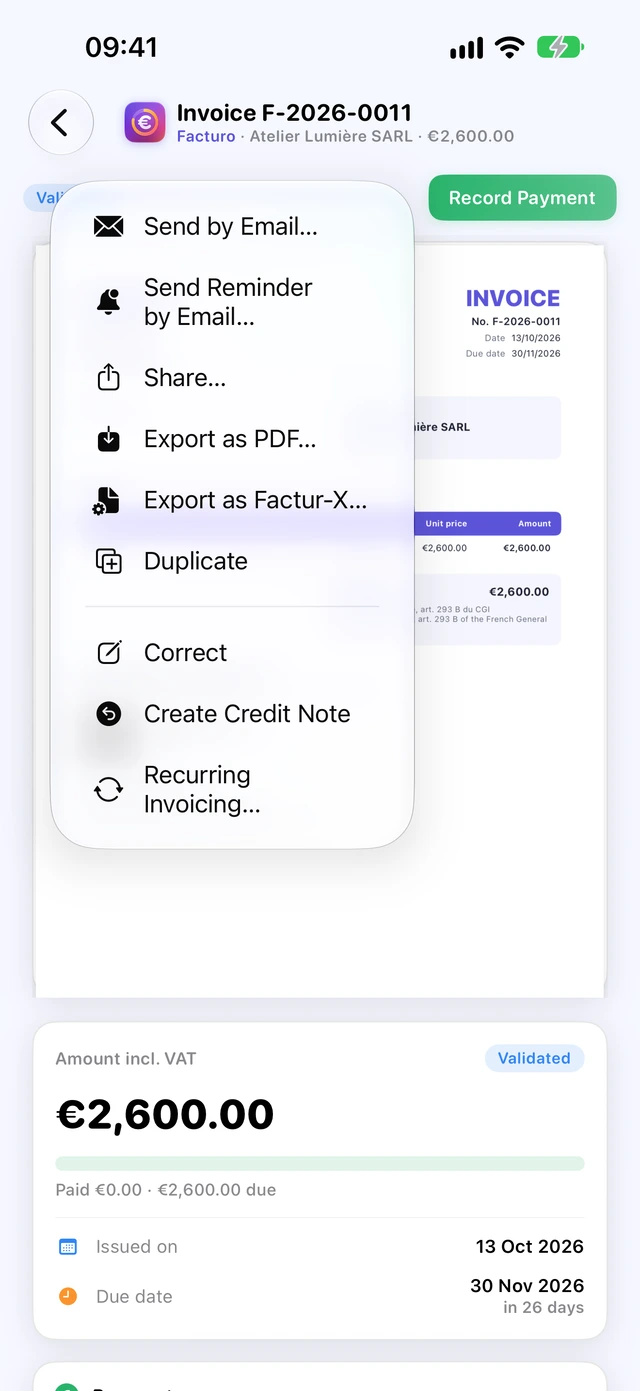
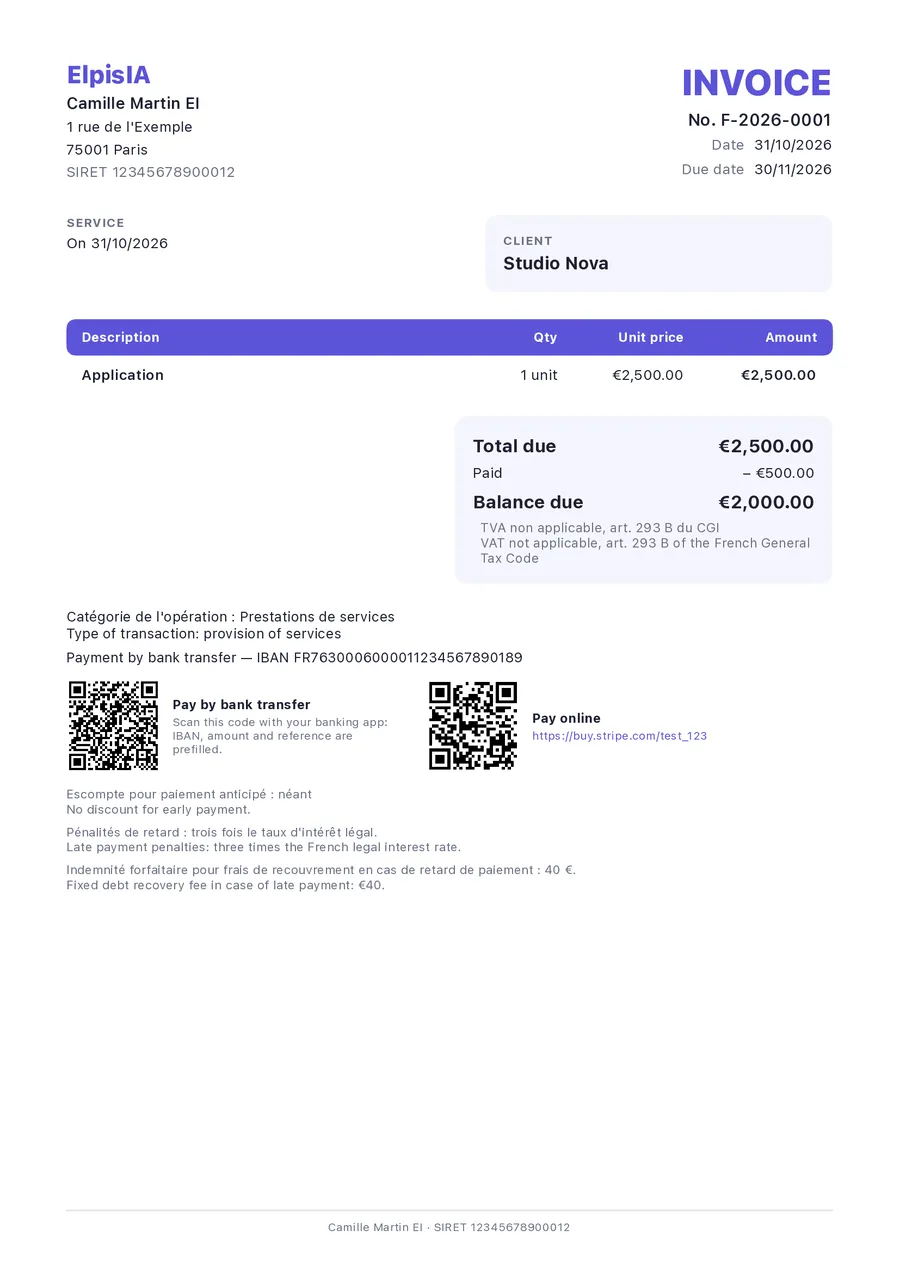
The bank transfer QR code only appears on an invoice in euros, with a known IBAN and an amount still due; it contains the amount due and the invoice number. In English, the PDF is translated; most legal notices keep their French text alongside the translation, and a notice you have customised stays exactly as you wrote it.
Back to contentsSending documents and reminders by email
Facturo prepares the message, with the PDF attached; you send it from your email app.
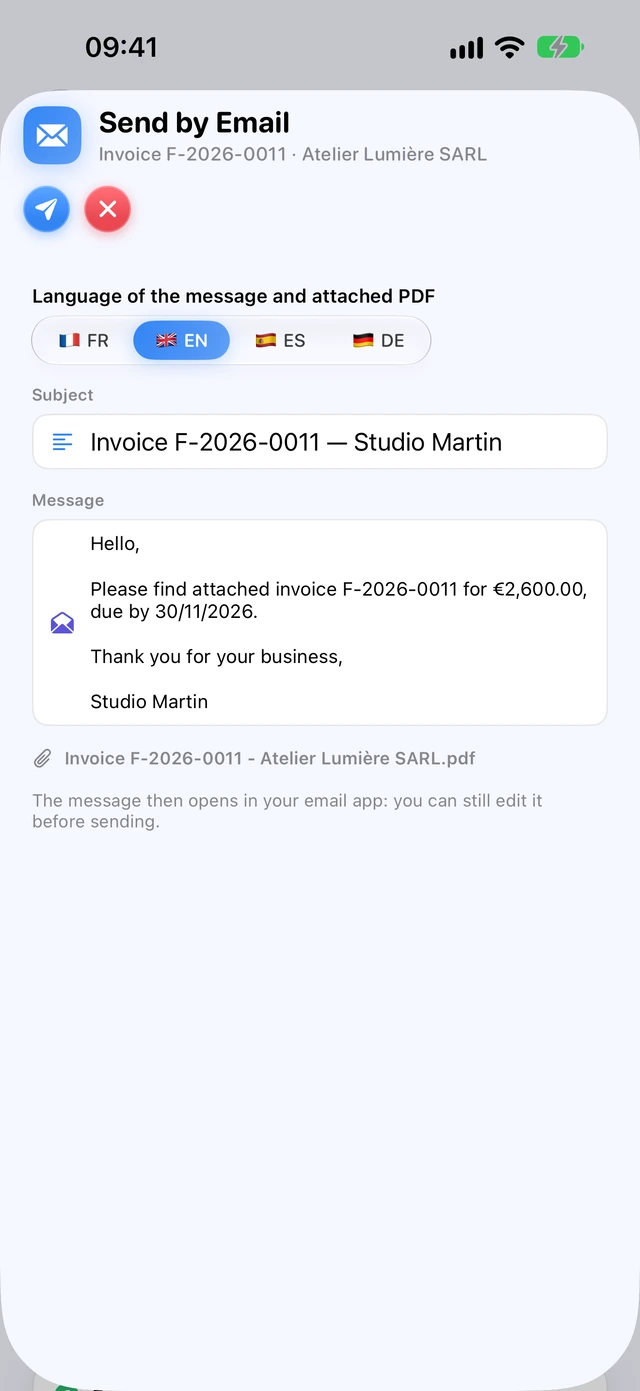
- On an issued quote or a validated invoice, tap …, then Send by Email…
- The Send by Email window opens. Choose the Language of the message and attached PDF (flags): the subject (“Invoice F-2026-0011 — Studio Martin”), the text and the PDF name appear in that language, and the attached PDF is in the same language.
- Tap the arrow to open the message in your email app, where you can still edit it, then send it.
- iPhone iPad The Mail window opens inside Facturo; the document is marked as sent when you tap Send. If there's no Mail account on the device, the text is copied and Facturo offers Share PDF (Gmail, Outlook…), then I've Sent the Message.
- Mac A new message opens in your email app. The document is marked as sent as soon as the message opens.
Email templates
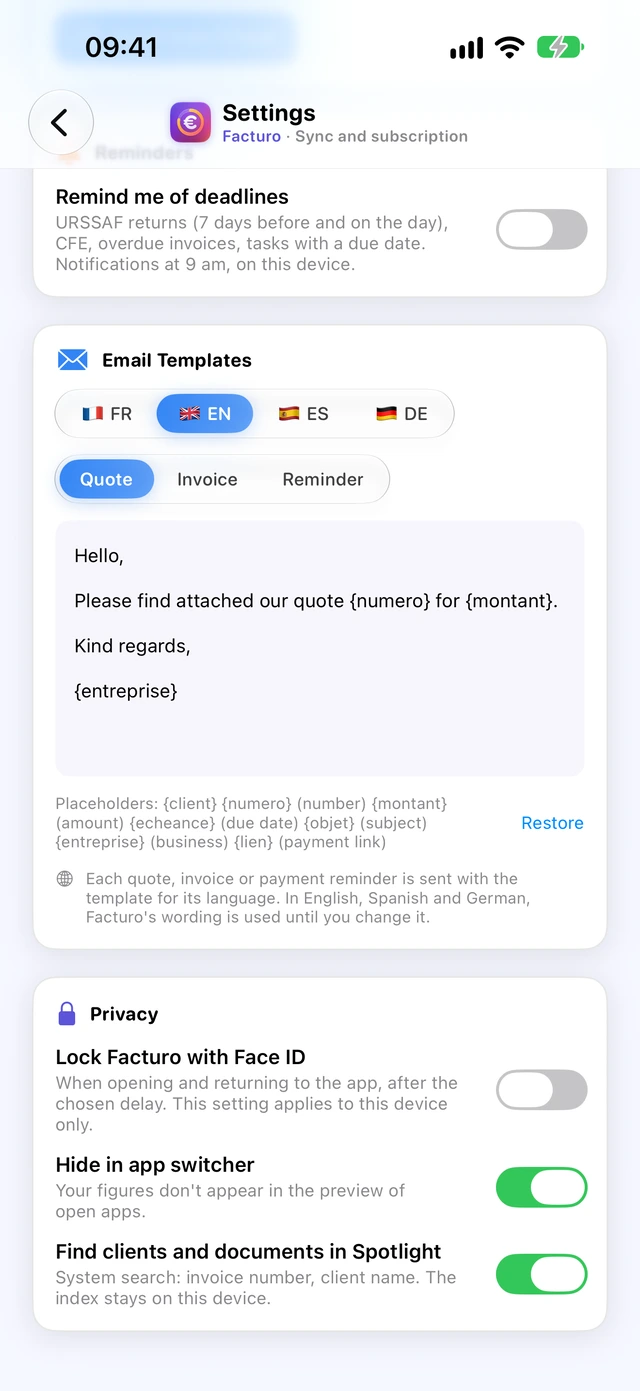
In Settings, on the Email Templates card, you can edit three texts: Quotes, Invoice and Reminder. Restore brings back the original text. The placeholders are replaced when the email is sent:
{client},{numero},{objet};{montant}(the amount still due, for a reminder) and{echeance};{entreprise}: the brand name, otherwise the trading name;{lien}: the invoice's payment link. It isn't in any of the original texts: add it if you want it sent.
Above the templates, choose the language: French, English, Spanish or German. Each language has its own three texts, and a quote, invoice or reminder is sent with the template in its language. In English, Spanish and German, Facturo's wording is used until you change it.
Chasing an unpaid invoice
On a validated or partly paid invoice: … › Send Reminder by Email…. The message uses the Reminder template, with the amount still due. Facturo counts the reminders: “Reminders sent: 2, last on …” appears below the payments. There is only one reminder level, with the same text every time.
Turn on Settings › Reminders › Remind me of deadlines: the day after an unpaid invoice's due date, at 9 am, a notification says “Facture … échue” (invoice … overdue) and reminds you of the amount still to be received. This setting is specific to each device.
Recording a payment
When the client pays, record the payment on the invoice. It's added automatically to the receipts ledger, which is used for your URSSAF returns.
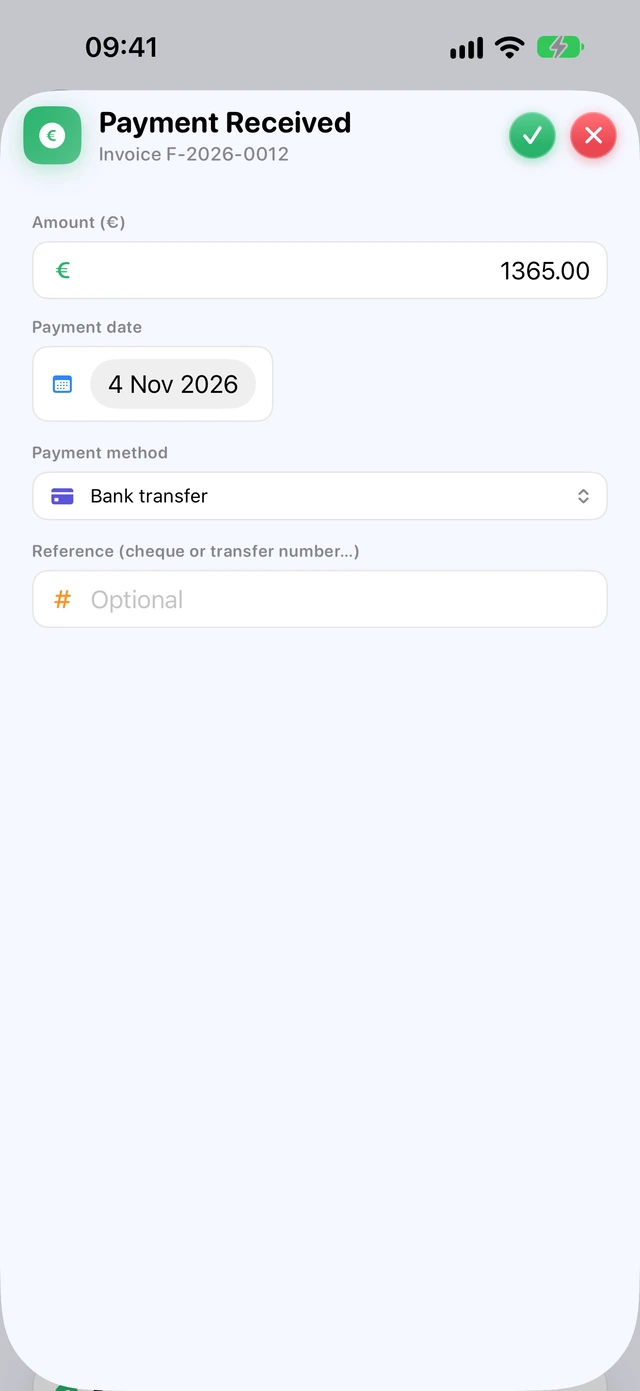
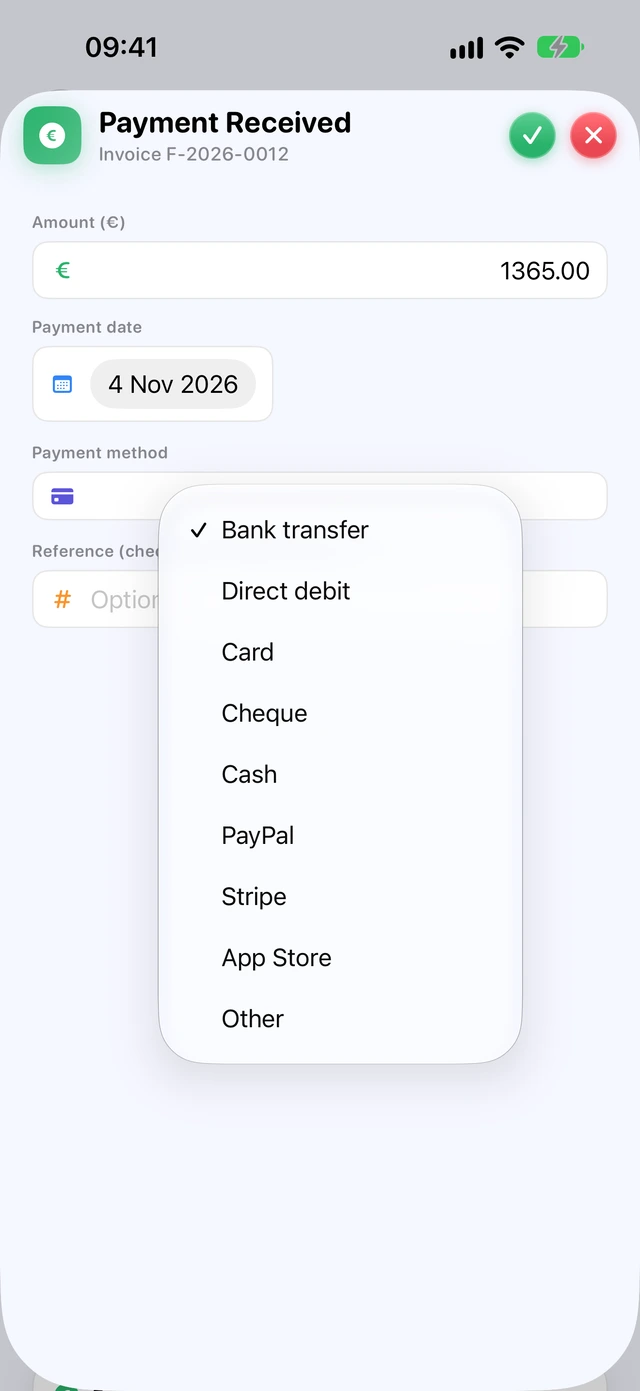
- Open the invoice and tap Record Payment.
- The Amount (€) field suggests the amount still due: change it for a partial payment.
- Enter the Payment date (this is the date that counts for URSSAF) and the Payment method: Bank transfer, Direct debit, Card, Cheque, Cash, PayPal, Stripe, App Store or Other.
- Optional: the Reference (cheque or transfer number…).
- Tap ✓.
The invoice changes to Partly Paid or Paid, with a “Paid … · … due” bar. On the PDF, “Déjà réglé” (paid) and “Reste à payer” (balance due) are added below the total.
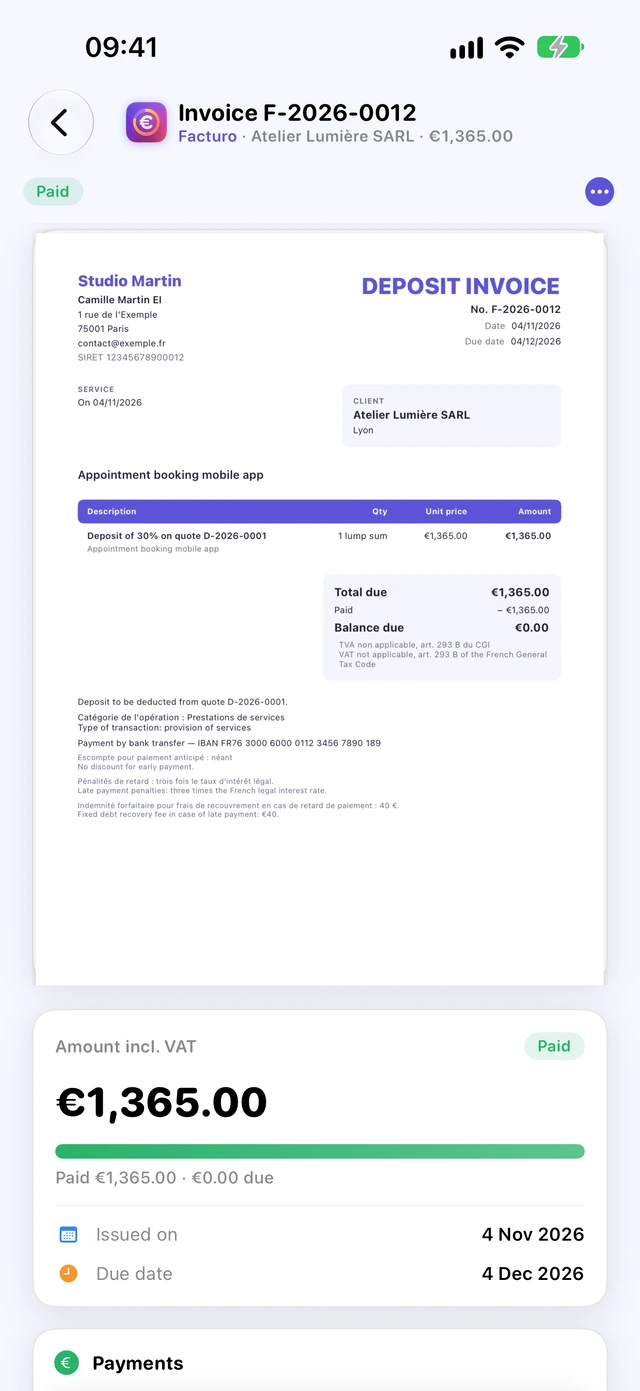
For an invoice in a foreign currency, the sheet asks for the Amount paid in … (in the currency) and the Amount received in euros (receipts ledger). To correct a payment, delete it in the receipts ledger (bin), then enter it again.
Deposit and final invoices
For a project paid in several instalments: one or more deposit invoices from the quote, then a final invoice that deducts them.
The deposit invoice
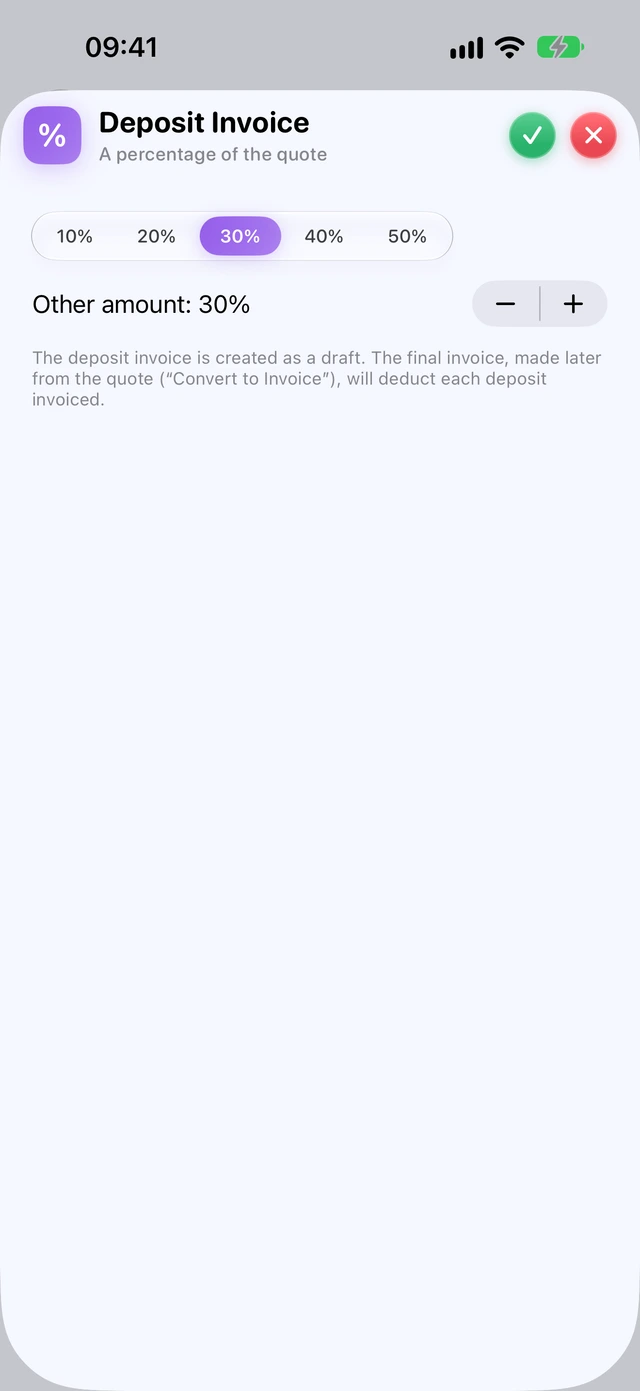
- On the issued quote, tap …, then Deposit Invoice…
- Choose 10%, 20%, 30%, 40% or 50%, or set Other amount from 1 to 99%.
- Tap ✓ (Create draft): Facturo switches to the Invoices section, where the deposit invoice is waiting as a draft, with a line “Acompte de 30% sur le devis D-…” (30% deposit on quote D-…).
- Check it and tap Validate Invoice. The PDF is titled “Facture d'acompte” (deposit invoice; in capitals in most templates).
The percentage applies to the quote's total excluding VAT.
The final invoice
- Go back to the quote and tap Convert to Invoice.
- In Invoices, Facturo creates a draft with all the quote's lines and one negative line for each validated deposit: “Acompte déjà facturé (F-…)” (deposit already invoiced).
- Validate it: the PDF is titled “Facture de solde” (final invoice).
Only validated deposits are deducted; a deposit still in draft is not. As soon as you tap Convert to Invoice, the quote changes to “Invoiced” and no longer accepts new deposits.
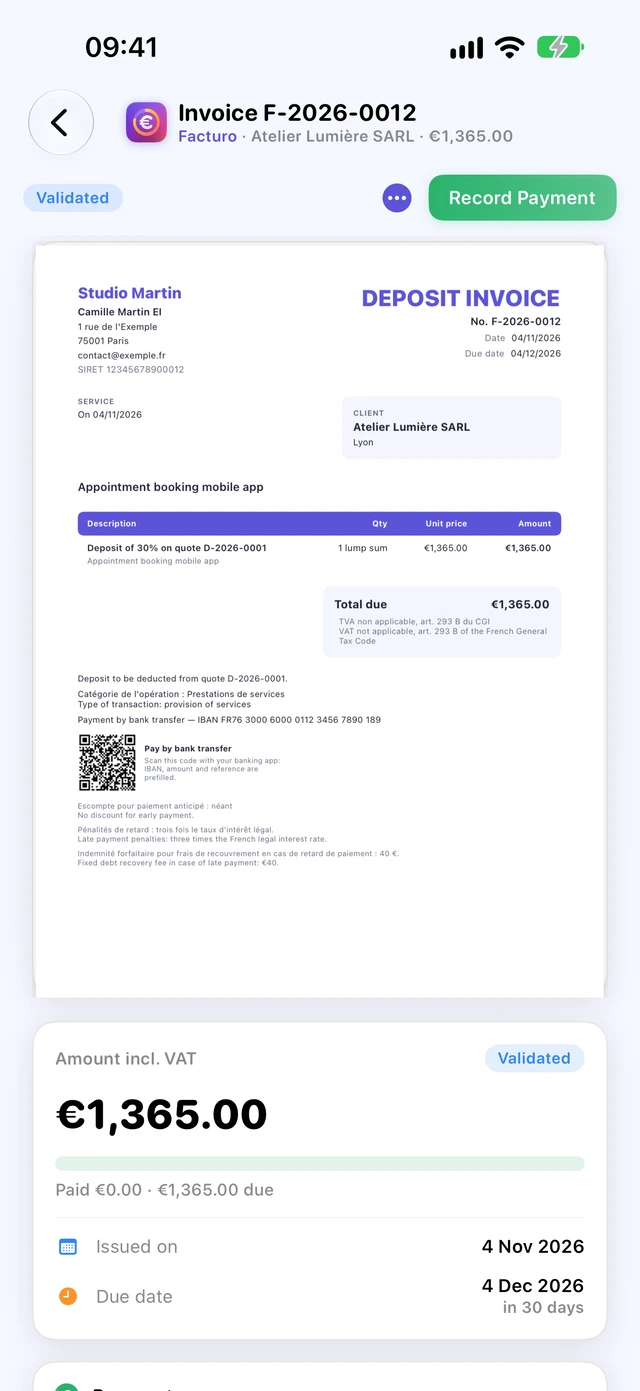
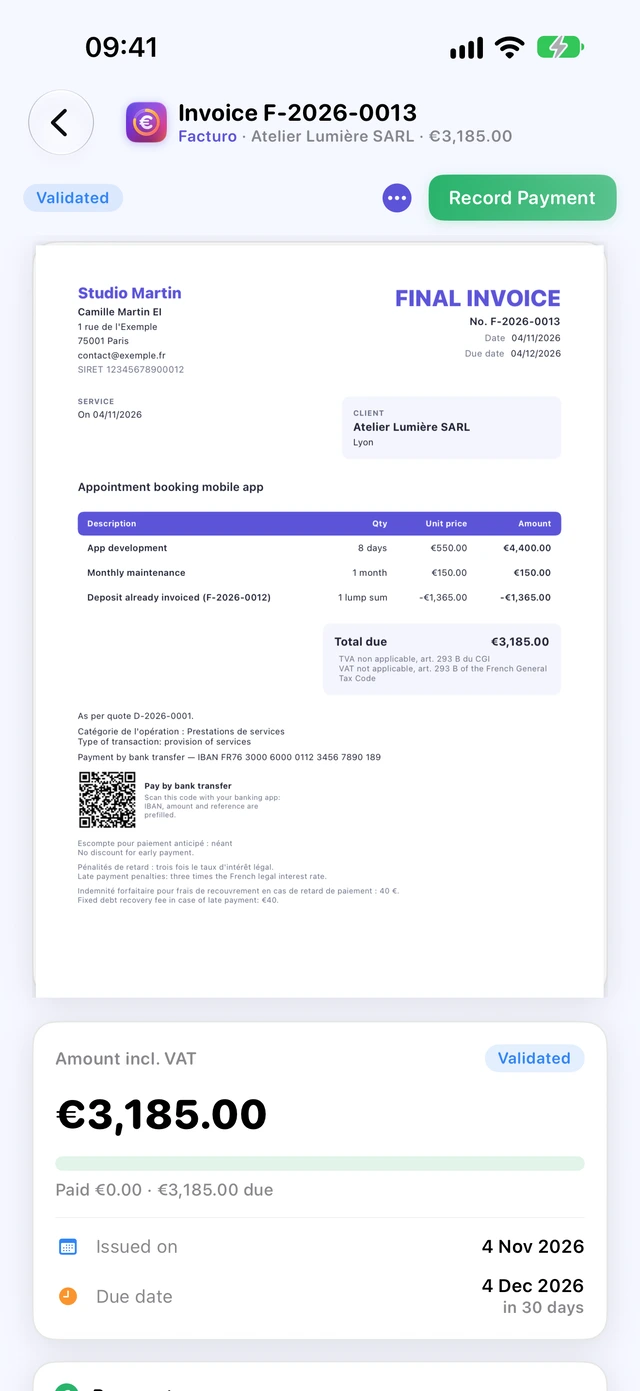
Deposit invoices are numbered and dated like any other invoice, and the final invoice must refer to the deposit invoices (BOFiP BOI-TVA-DECLA-30-20-20-10). For URSSAF, a deposit is declared when it is received.
Correcting an invoice: the credit note
A validated invoice can't be edited or deleted. To cancel it in full or in part, you issue a credit note (A-2026-0001…). Correct does this in one go and prepares the invoice that replaces it.
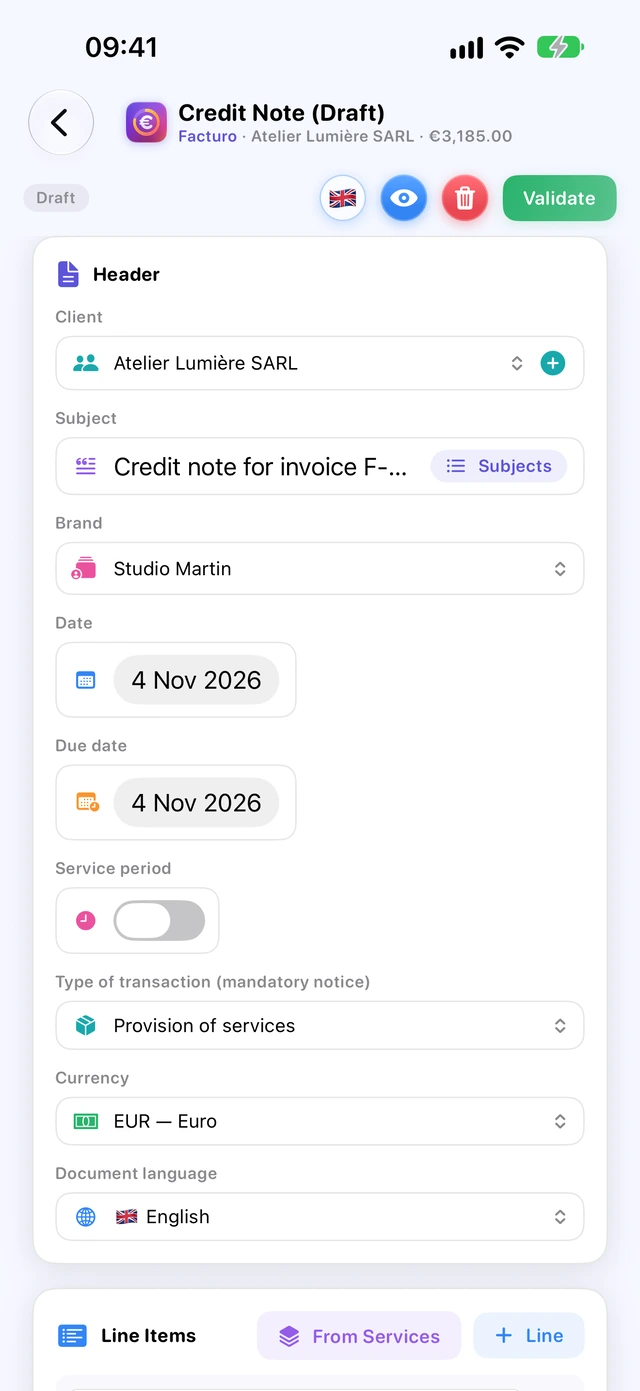
- On the validated invoice, tap …, then Create Credit Note.
- Facturo opens a draft credit note with all the invoice's lines and the note “Annule la facture F-… du …” (cancels invoice F-… dated …).
- For a partial credit note, delete lines or reduce the quantities or prices, and adjust the note.
- Tap Validate Credit Note (Validate on iPhone) and confirm.
When the validated credit notes cover the full amount of the invoice, it changes to Cancelled. Credit notes appear in the invoice list, in orange and preceded by a “−”.
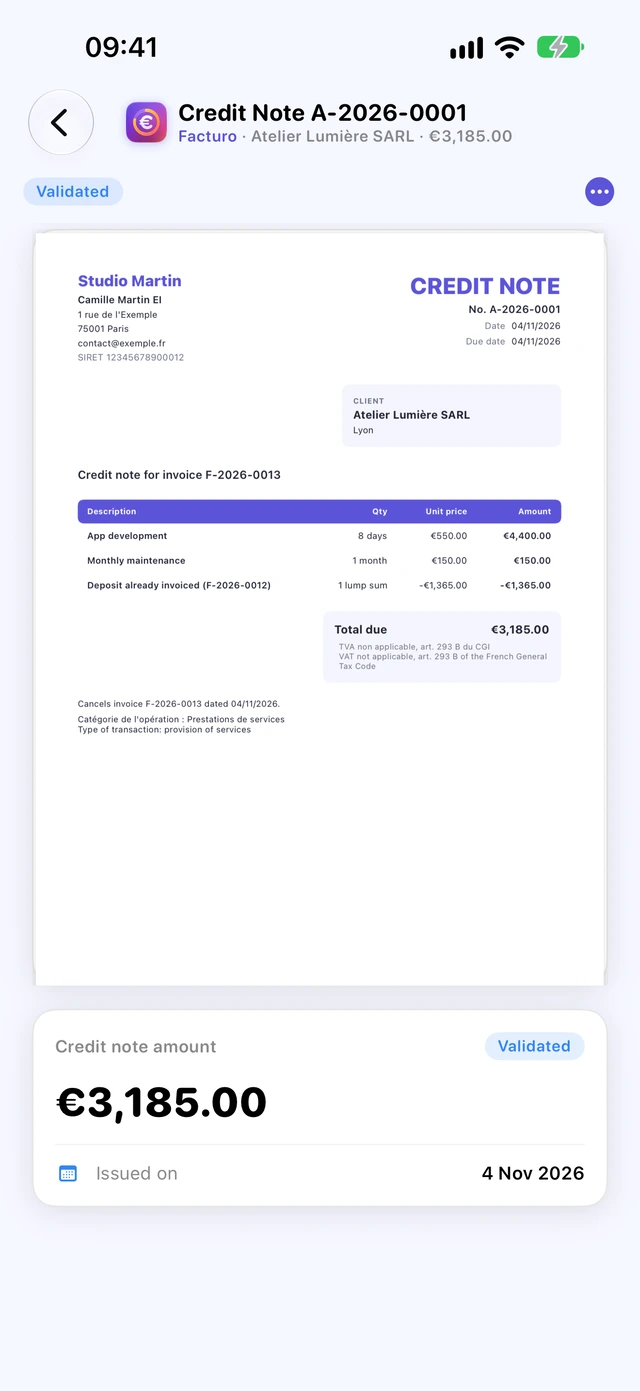
A credit note doesn't affect the receipts ledger: only amounts actually received count. If you refund the client, enter the refund in the receipts ledger as income without an invoice, with a negative amount.
What the authorities say (service-public.fr F23208): before payment, an invoice can also be corrected with a corrective invoice that “cancels and replaces” the previous one, with a new number; after payment, a credit note is required. Facturo makes corrections with credit notes.
Recurring invoices
For a subscription or a maintenance contract, Facturo prepares the invoice on each due date. It creates a draft and never issues anything on its own.
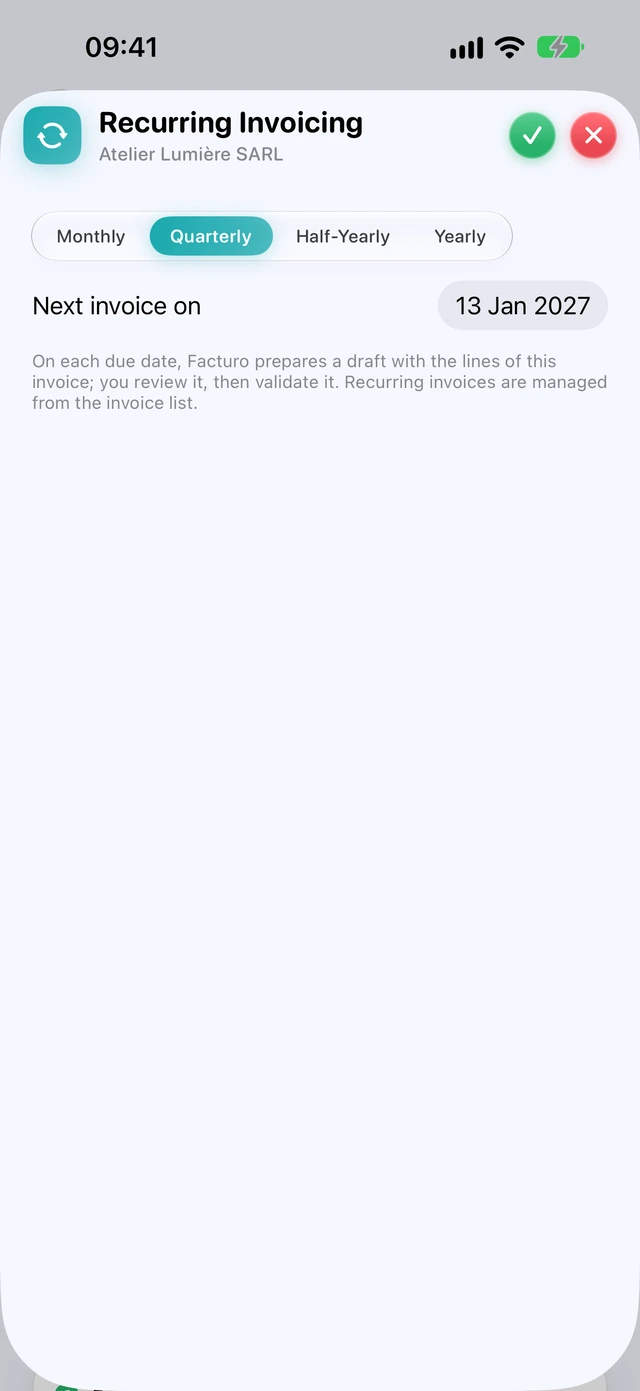
- Open a validated invoice (not a deposit or final invoice) and tap …, then Recurring Invoicing…
- Choose Monthly, Quarterly, Half-Yearly or Yearly.
- Check the Next invoice on field, then tap ✓ (Create recurring invoice).
On each due date, when you open Facturo or return to the app, a draft is created with the subject, lines, note and terms. You check it, then validate it.
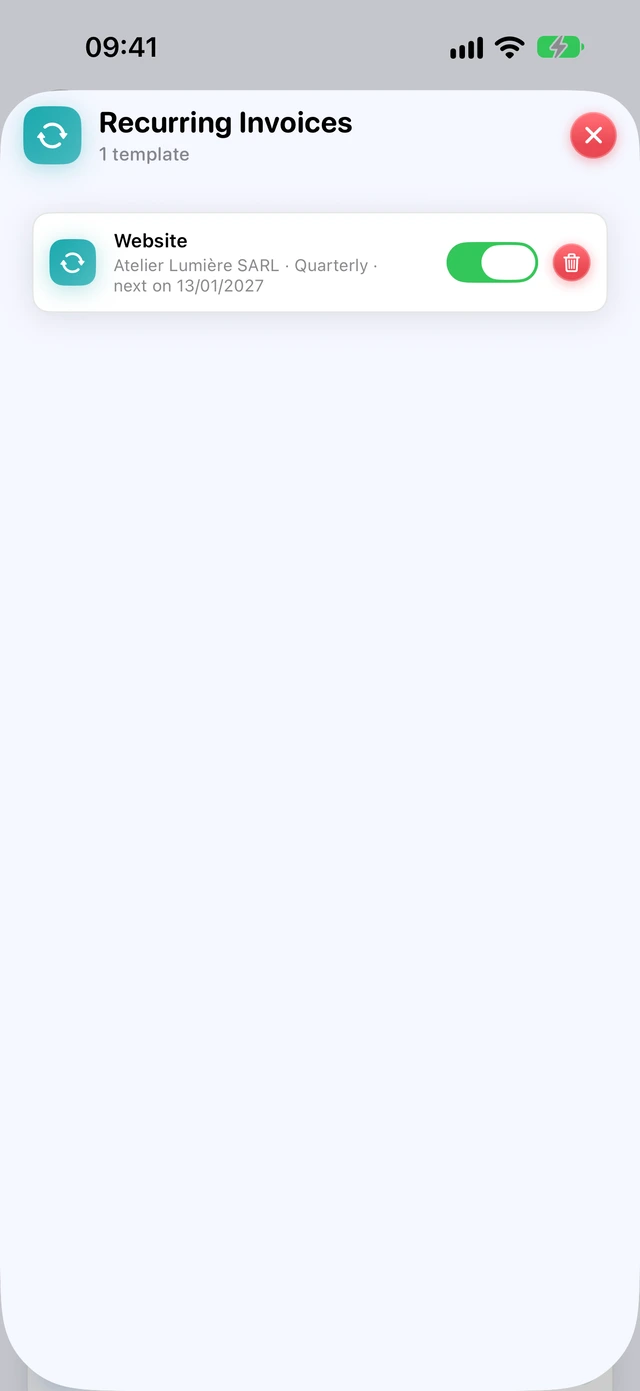
Recurring invoices are managed from the invoice list, with the circular arrows button (Recurring invoices). A switch pauses each recurring invoice, and the bin deletes it. A recurring invoice can't be edited: delete it and create it again from another invoice.
Factur-X and e-invoicing
Factur-X is a PDF that also contains the invoice data in an XML file, which software and e-invoicing platforms can read.
Exporting an invoice as Factur-X
- Open a validated invoice (standard, deposit or final).
- Tap …, then Export as Factur-X… and choose where to save the file “Invoice F-… - Client (Factur-X).pdf”.
The PDF sent by email or with Share… is an ordinary PDF: you only get Factur-X through this export. Credit notes have no Factur-X export.
Importing a supplier's e-invoice
In Expenses, the Import button reads a Factur-X, CII or UBL invoice: the expense is created and filled in (supplier, subject “Invoice …” with the supplier's invoice number, date, amount including VAT), and the file becomes the receipt. On Mac, just drag the file onto the window. An invoice that has already been imported (same supplier, same number) isn't created twice.
The official timetable (service-public.fr F39785, impots.gouv.fr, checked on 31 October 2026):
- since 1 September 2026, all businesses must be able to receive e-invoices;
- from 1 September 2027, micro-businesses will have to issue them, including those under the VAT exemption, for sales between businesses established in France, and send data on their other sales (e-reporting);
- invoices go through an approved platform (plateforme agréée, PA, formerly called PDP); Factur-X is one of the three base formats, along with UBL and CII. A simple PDF will no longer be enough.
Facturo produces the Factur-X file; you send it through the approved platform of your choice.
Time tracking
Time the work you do for a client, or enter it afterwards, then invoice it in one step at your hourly rate.
The timer
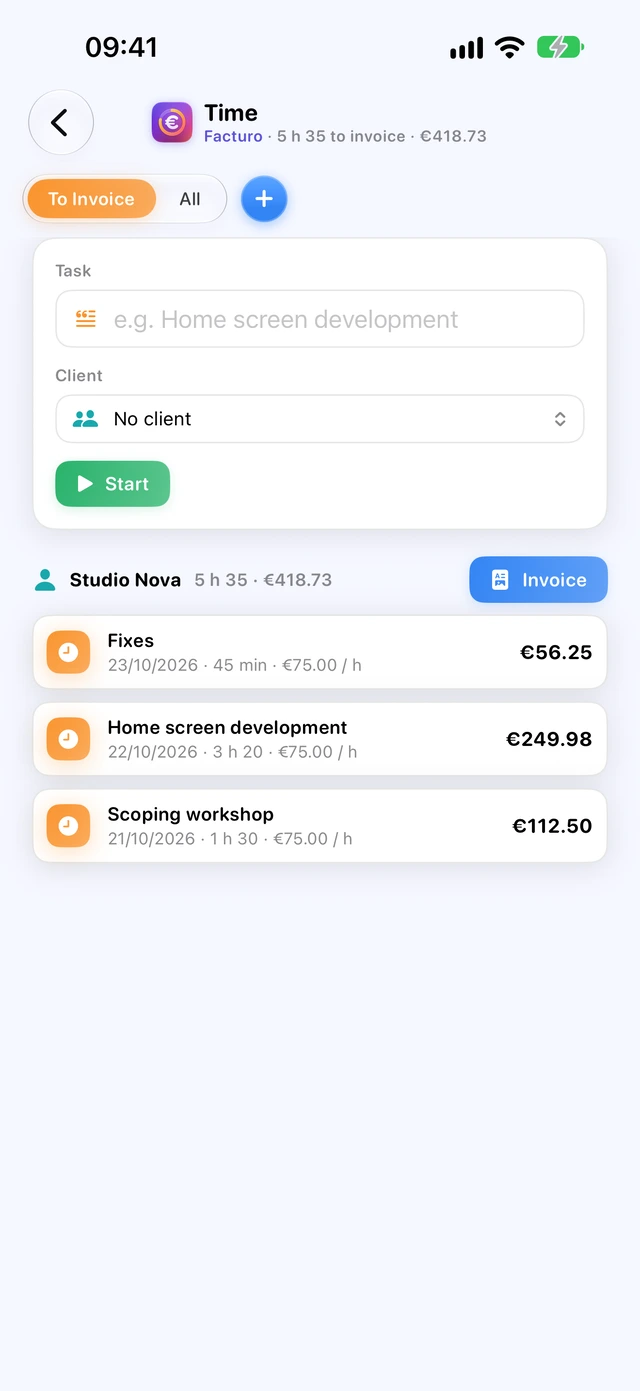
- In Time, type the Task and choose the Client.
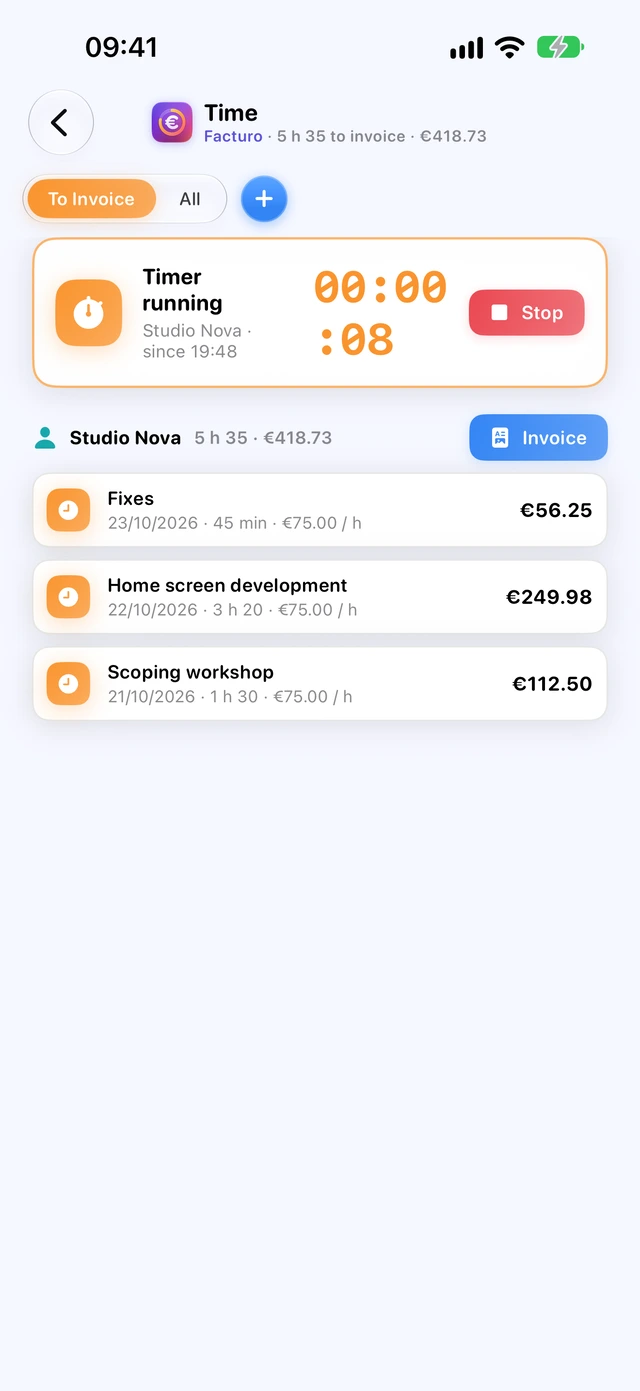
- Tap Start: a card shows the running timer.
- Tap Stop: the time is added to the list.
Only one timer runs at a time. It picks up the last hourly rate used for that client or, failing that, the last rate used. For time entered manually, check the rate in its details.
Entering time
The + (Add time) creates a one-hour entry ending now and opens its details: Task, Client, Start, End, Hourly rate (€), Notes (copied to the invoice line) and the Billable time box. To discard it, delete it with the bin.
Invoicing time
- The list groups time by client, with the total to invoice.
- Tap Invoice next to the client.
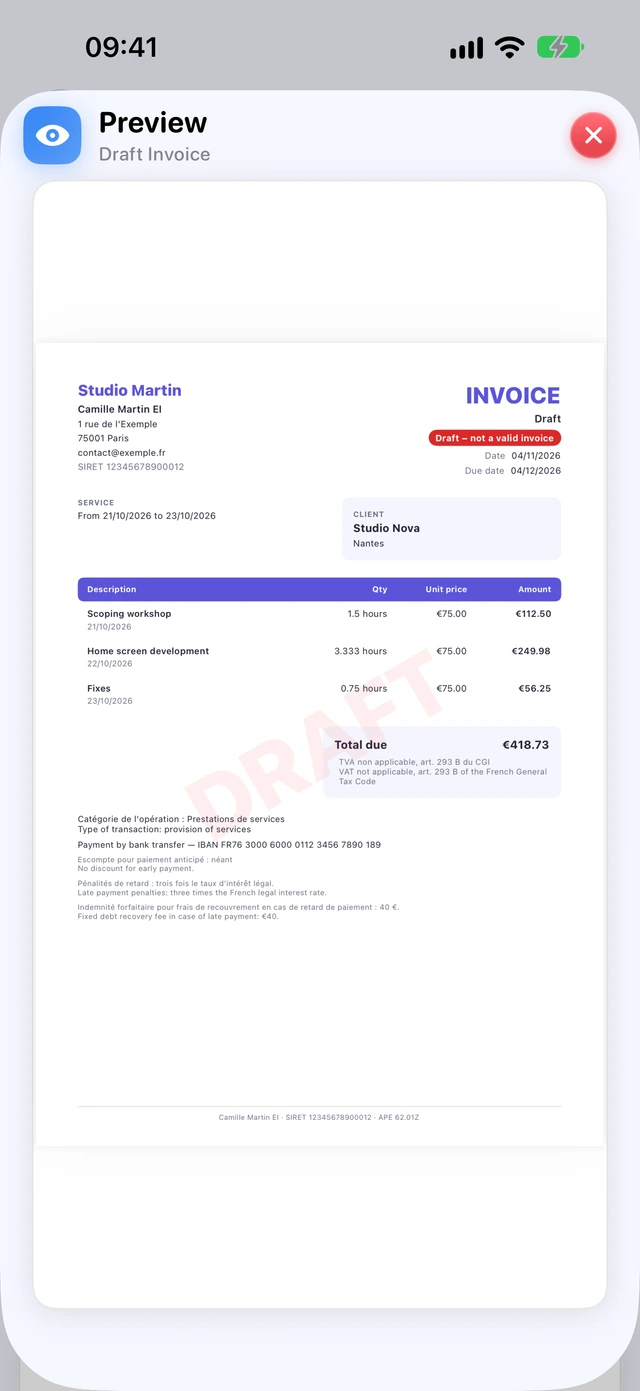
- Facturo creates a draft invoice: one line per time entry, in hours to the nearest minute (1 h 30 min = 1.5 hours), at the hourly rate, with the service period running from the first to the last day.
- Check the draft in Invoices, then validate it.
Invoiced time entries are marked “Invoiced” and leave the To Invoice view; All still shows them. A “No client” time entry must be given a client first; set the rate before invoicing, otherwise the line is worth €0.
The receipts ledger
The receipts ledger (livre des recettes) lists everything you have been paid, with or without an invoice. It is what your URSSAF returns and the thresholds are based on.
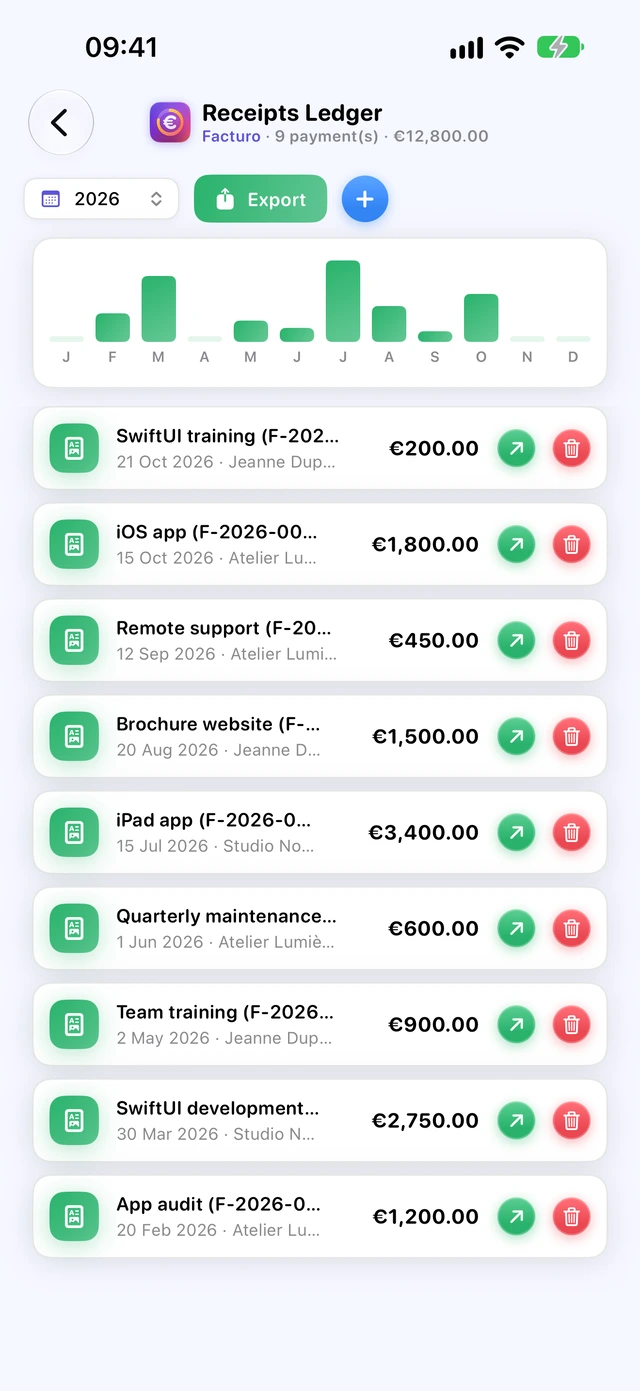
The Receipts Ledger section shows the payments received in a year (year menu), from newest to oldest, with the year's total and a bar for each month. Each line gives the type of income, the date, the payer, the payment method and the amount.
- A line with a green dot comes from an invoice: the ↗ arrow (or tapping the line) opens the invoice.
- A line with a pink dot is income without an invoice: the pencil (Edit or link to an invoice) opens its details.
- The bin deletes the payment, after confirmation: the status of the linked invoice is recalculated.
Adding a payment received
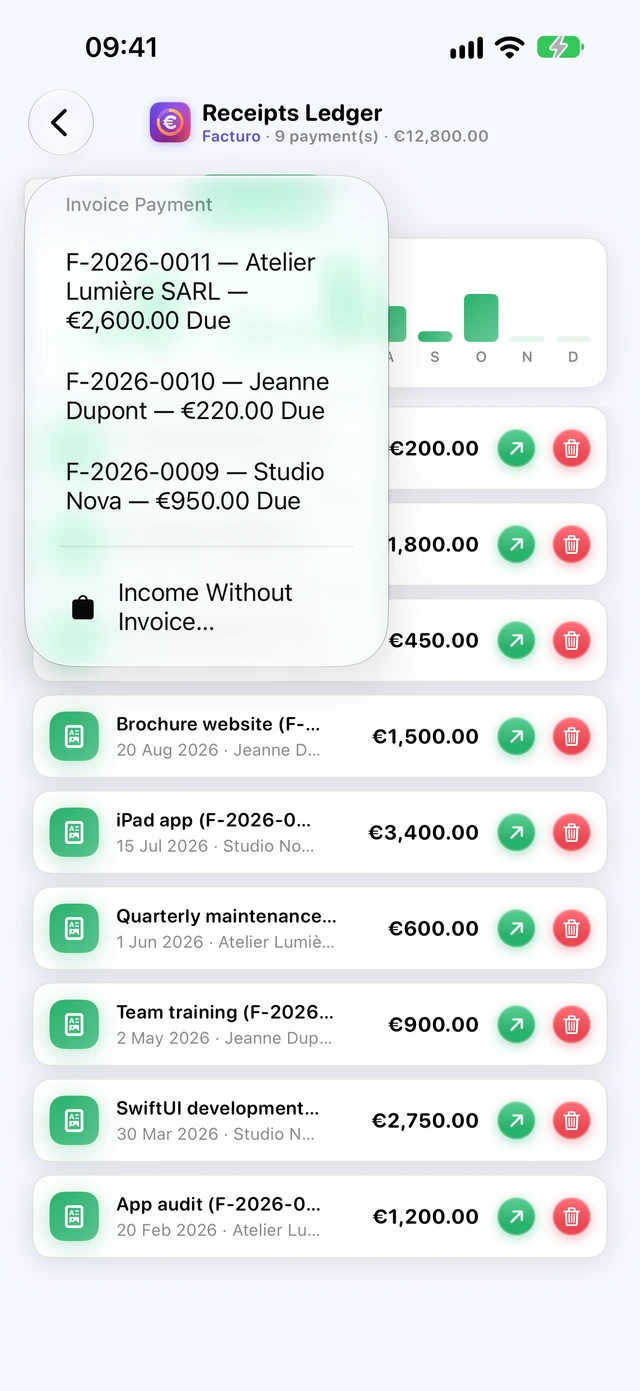
The ledger's + opens a menu:
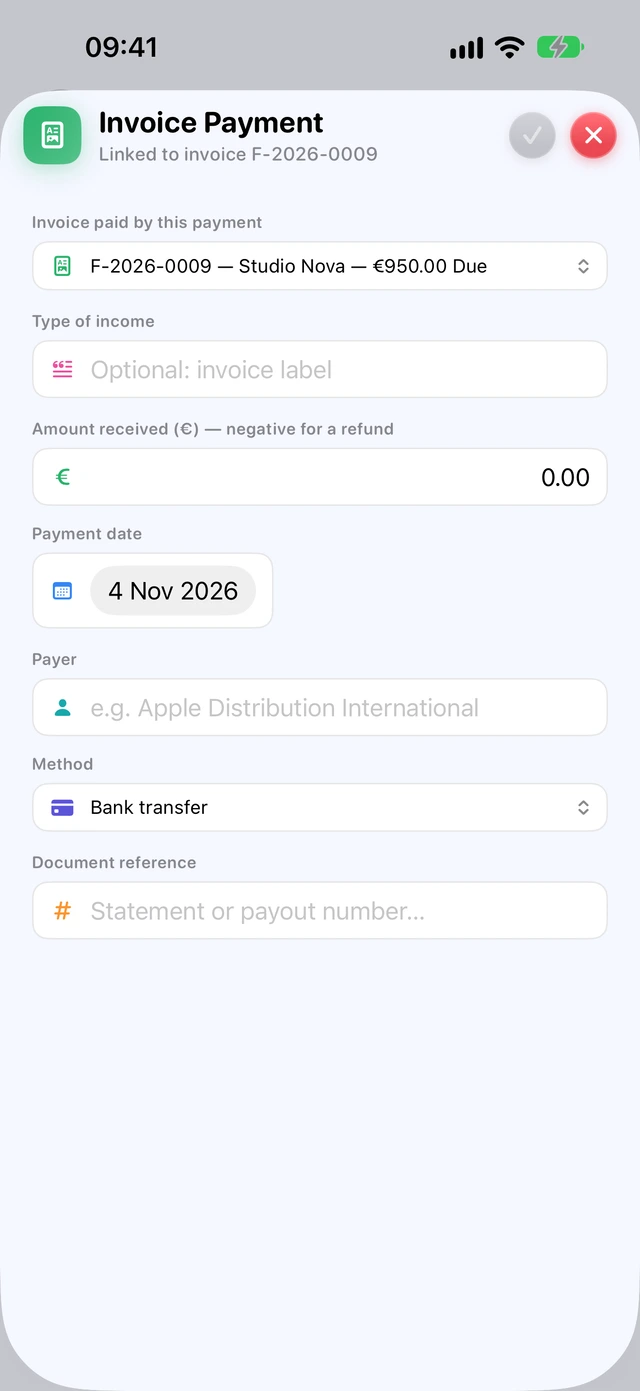
- the Invoice Payment section: each outstanding invoice, “F-… — client — … Due”. Choosing one opens the same Payment Received sheet as from the invoice;
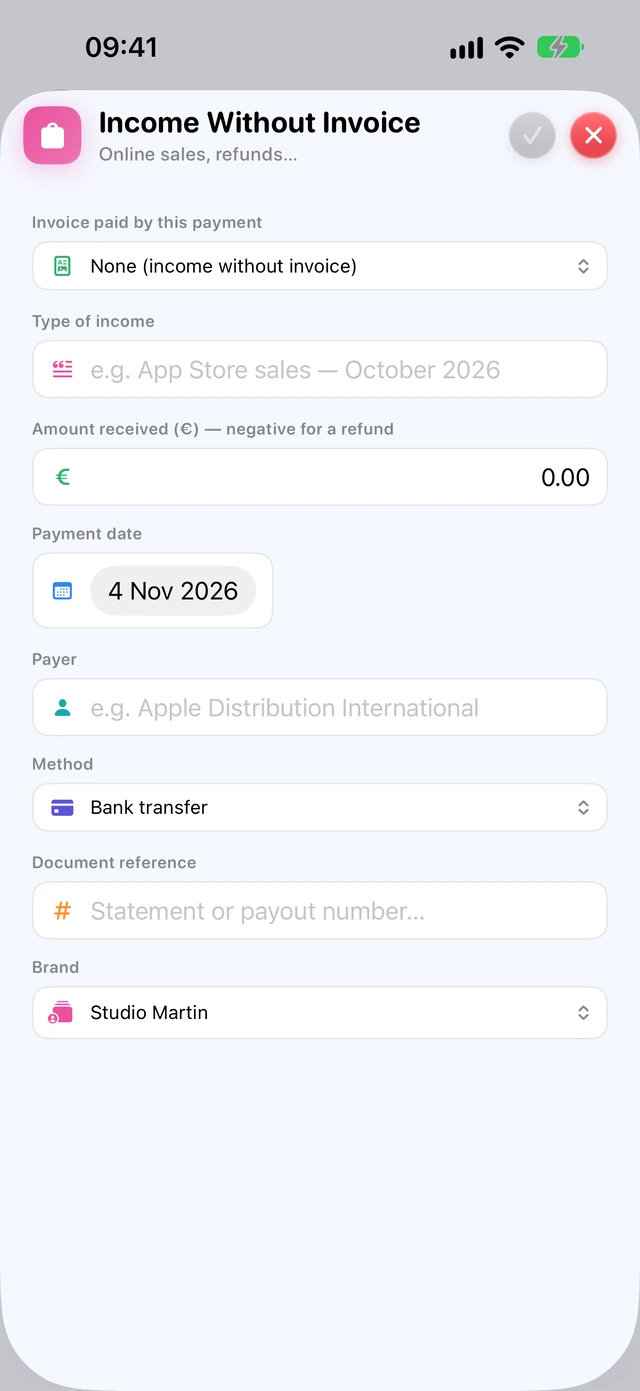
- Income Without Invoice…: an online sale, a refund, a transfer that arrived before the invoice.
Linking income to an invoice
- Open the income entry without an invoice (tap the line or the pencil).
- In Invoice paid by this payment, choose the invoice: the sheet becomes Invoice Payment, “Linked to invoice F-…”.
- Tap ✓.
The income then counts as a payment of the invoice, whose status is updated. Only invoices in euros that are validated or partly paid are offered.
The link is made with ✓; the ✕ cross keeps the income entry (if it has a type and an amount) but doesn't link it. Once linked, an entry can no longer be edited from the ledger: to correct it, delete it and enter it again.
Refunds
A refund is entered as Income Without Invoice…, with an Amount received (€) — negative for a refund. It is deducted from the revenue for its period.
Exporting the ledger
Export › Export as PDF… or Export as CSV (Spreadsheet)…: all the income for the year shown, in chronological order. The PDF is titled “Livre des recettes 2026”, with the subtitle “Recettes encaissées, classées par date (art. 50-0 du CGI)” (income received, sorted by date). The CSV opens directly in Excel or Numbers.
Every micro-entrepreneur must keep a receipts ledger, in chronological order, showing the amount, the client and the payment method for each payment; traders (commerçants) also add the references of the supporting documents. Ledgers and supporting documents must be kept for 10 years (service-public.fr F23266 and F10029).
Expenses and receipts
In a micro-business, expenses don't reduce your contributions, but keeping track of them is still useful, and you may be asked for your purchase register.
Entering an expense
- Open Expenses and tap + (New Expense).
- Fill in Supplier, Date, Subject, Amount incl. VAT (€).
- Choose the Category (software, equipment, subscriptions, hosting, travel, meals, training, professional fees, bank charges, insurance, advertising, office supplies…) and the Method.
- Attach the invoice or till receipt: Receipt › Attach… (PDF or image).
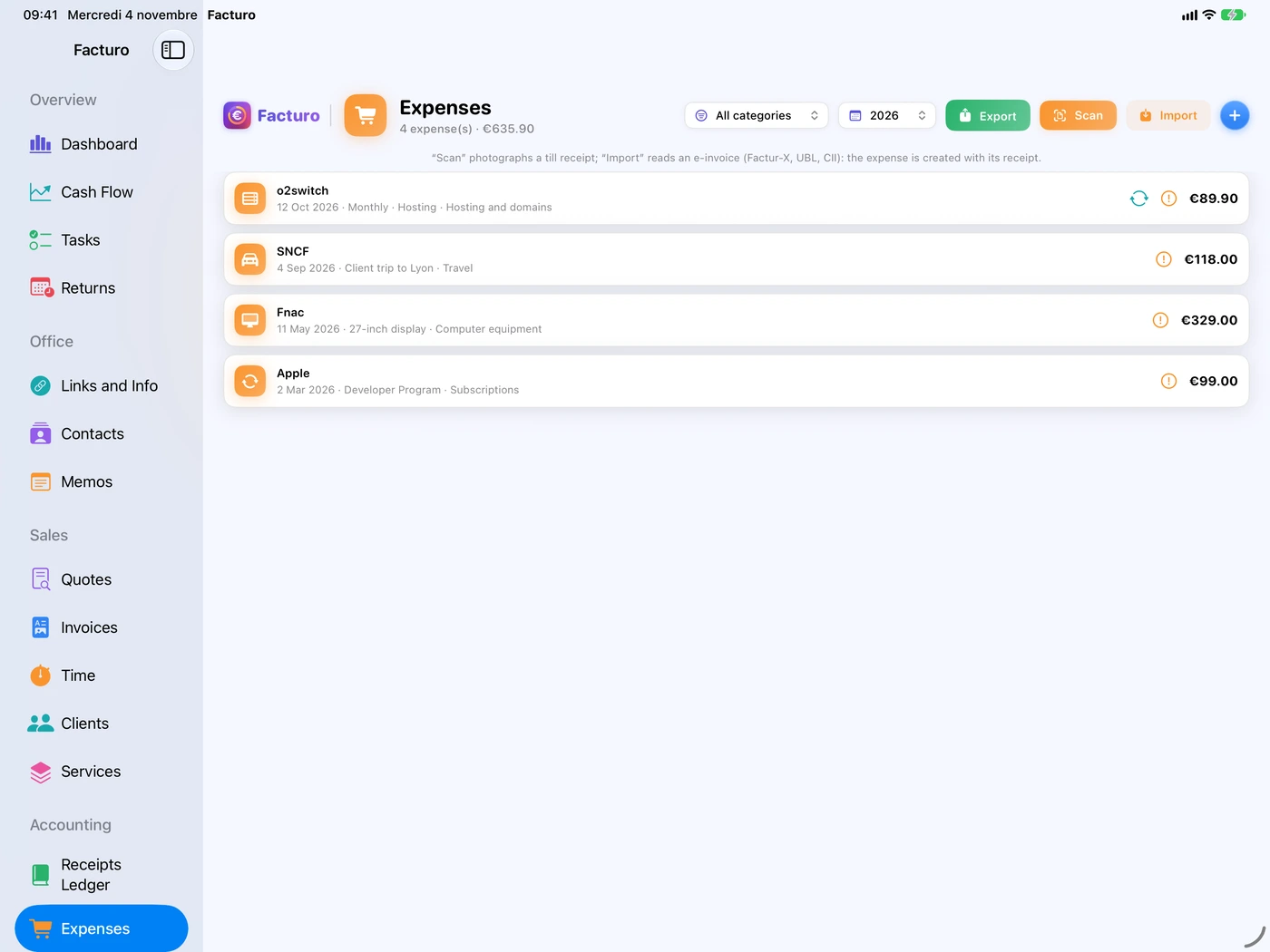
The file is copied into Facturo and follows your data via iCloud; the original stays where it is. In the list, a paper clip marks an expense with a receipt, and an orange exclamation mark one without.
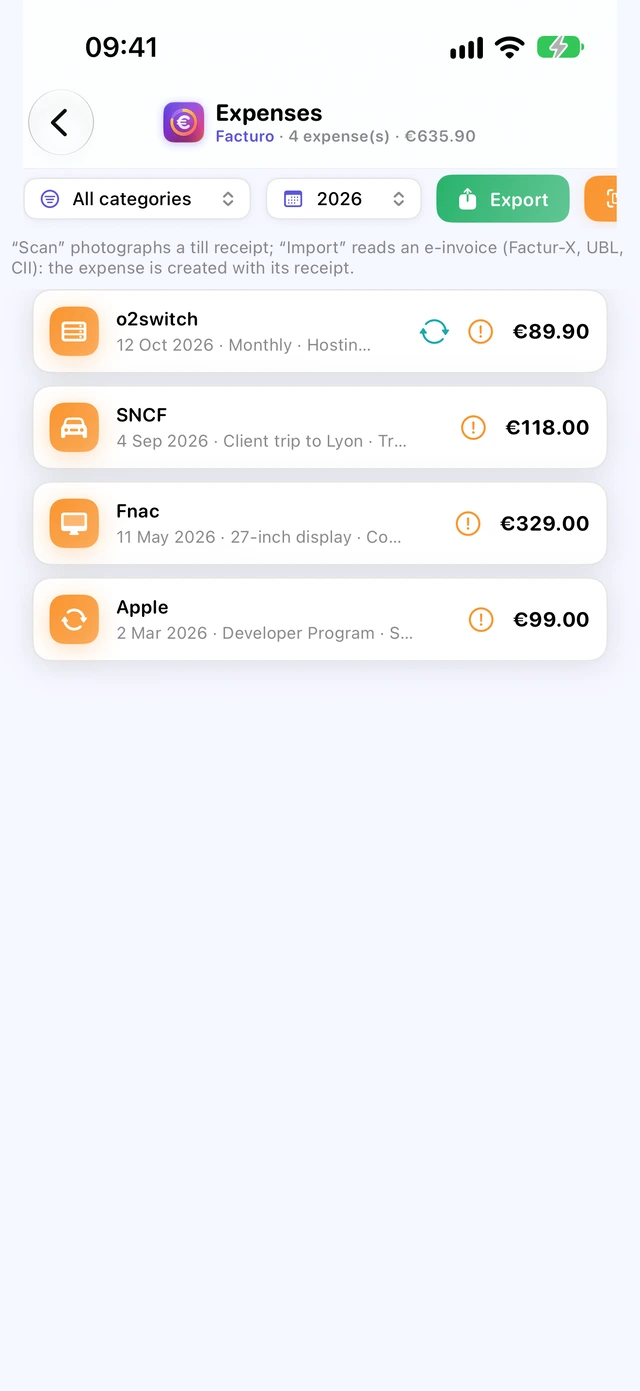
Creating the expense from the receipt
- iPhone iPad Scan opens the document camera (automatic cropping, several pages): the receipt becomes a PDF attached to a new expense.
- Import: a PDF, an image or an e-invoice (Factur-X, UBL, CII).
- Mac Drag the file onto the Expenses window.
Facturo then reads the receipt, on the device, and suggests the supplier, amount and date for any fields that are still empty; the note “Read from the receipt, please check” reminds you of this. An e-invoice fills in the fields with its own data.
Always check what has been read: the category and payment method aren't guessed, and any VAT read is only recorded in the notes.
The purchase register
Export gives you the “Registre des achats 2026” (purchase register) as a PDF or CSV: the expenses shown (chosen year and category), with a “Justificatif” (receipt) column showing “oui” or “non”.
A micro-entrepreneur under the VAT exemption, including independent professionals, must keep a register, totalled by year, of the details of their purchases (CGI, art. 286 II; service-public.fr F23266, checked on 31 October 2026). Facturo's export serves as this register.
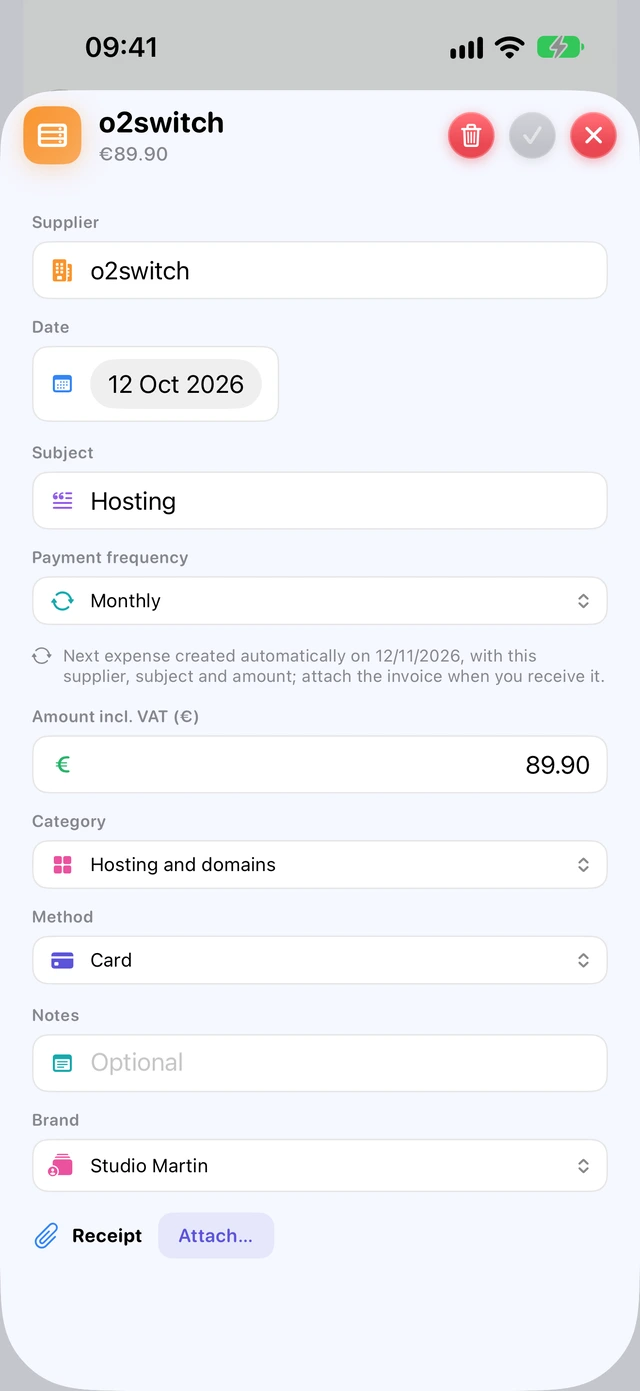
Recurring expenses
Hosting, software, phone: an expense that comes round regularly is created automatically on each due date.
- Open the expense (or create it).
- In Payment frequency, choose Monthly, Quarterly, Half-Yearly or Yearly.
- Facturo shows: “Next expense created automatically on …, with this supplier, subject and amount; attach the invoice when you receive it.”
- Close the sheet.
On each due date, when you open Facturo or return to the app, the expense is created without a receipt or notes: attach the invoice when it arrives. The first due date falls after today; nothing in the past is created retrospectively.
To stop: open an expense in the series and choose One-Off. Expenses already created remain. Deleting an expense doesn't stop the series, unless it was the only expense in the series.
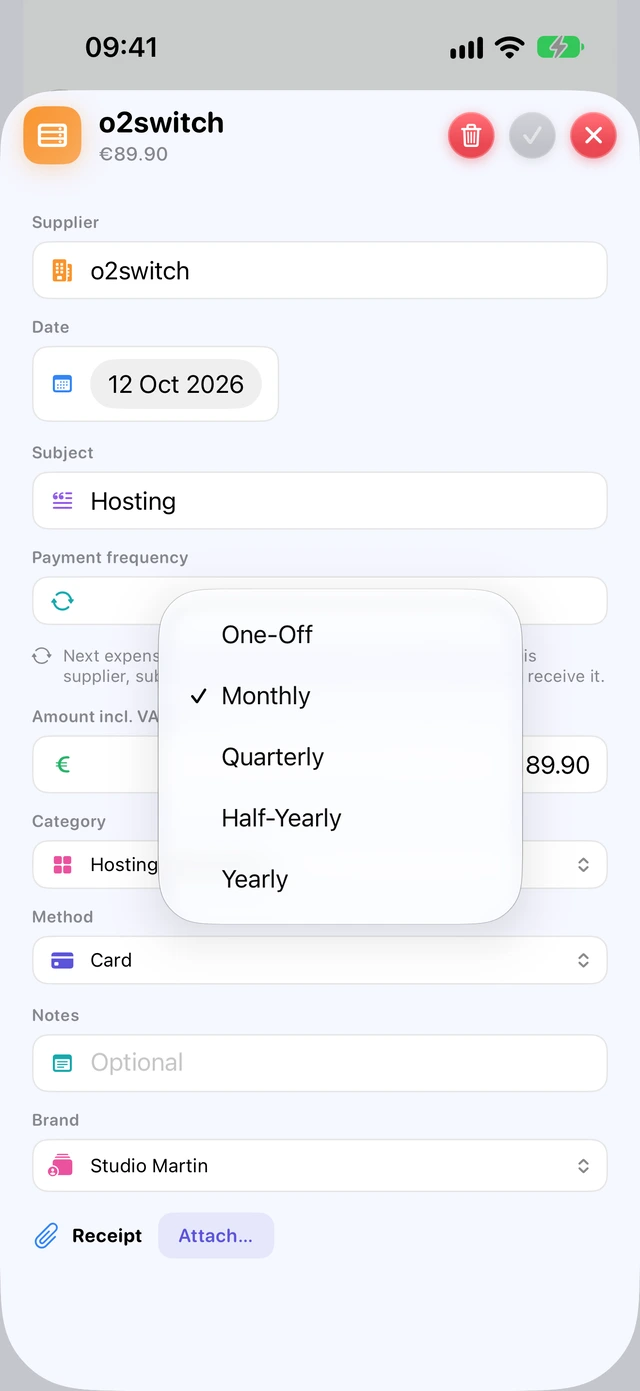
The Direct debit method is suggested for this kind of expense. Recurring expenses are also included in the cash flow forecast.
Back to contentsImporting a bank statement
Facturo reads statements exported as CSV by your bank, then helps you match each transaction with an invoice, an income entry or an expense.
- In your bank's online banking, export your transactions in CSV format.
- In Bank, check the account name (the field next to the button; “Compte professionnel” by default), then tap Import CSV Statement…
- Facturo usually recognises the columns on its own (date, description, amount, or debit and credit). If not, the Statement Columns sheet asks you to choose them, with a sample line.
- A summary appears: “… transaction(s) imported, … already present, … unreadable line(s) skipped.”
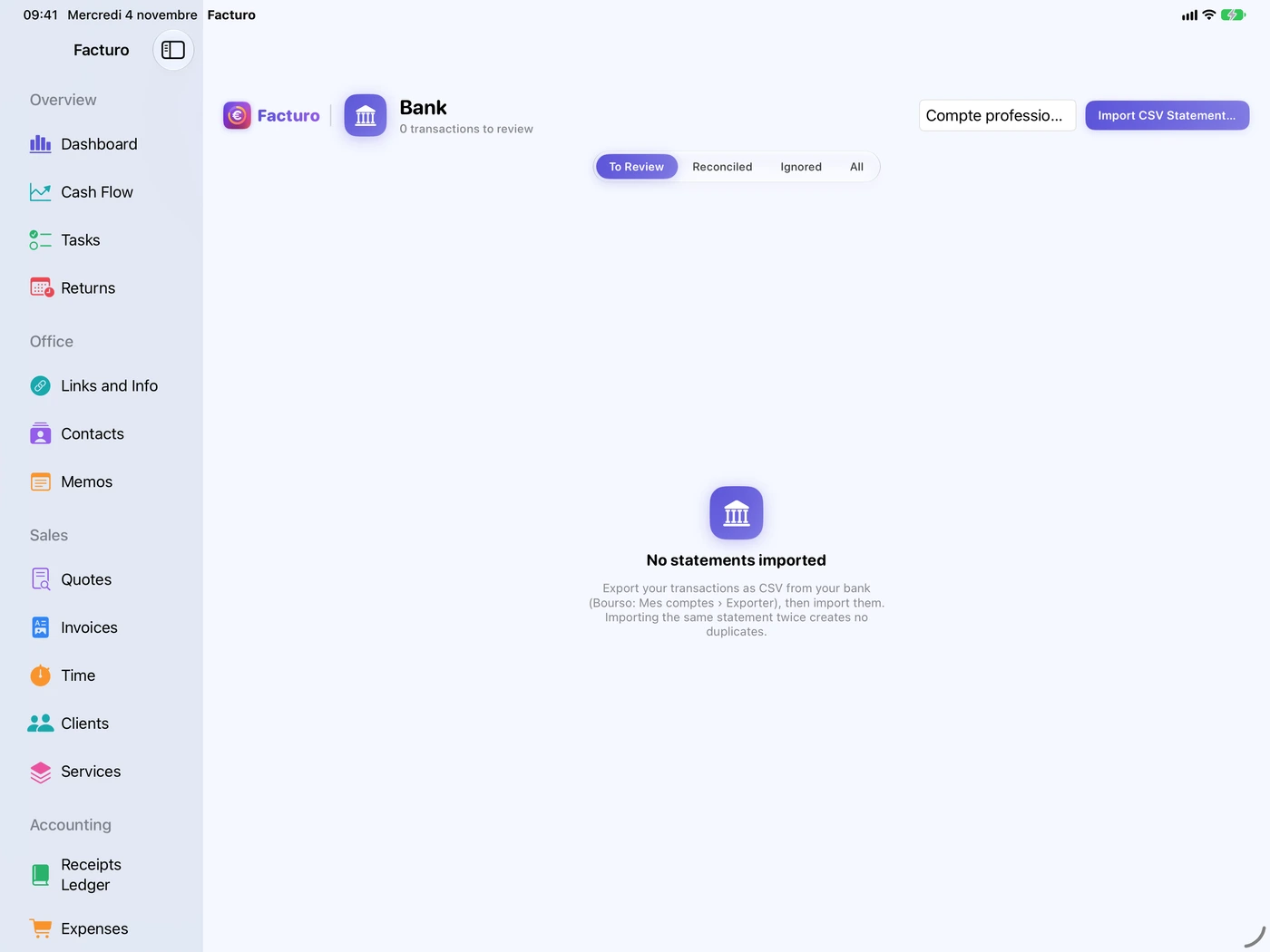
Reconciling transactions
The To Review, Reconciled, Ignored and All buttons sort the transactions. For each one, Facturo suggests what it has found:
- a credit equal to the amount due on an invoice: “Probable payment of F-…” and the Record Payment button, which records the payment on the transaction date;
- an income entry or expense already entered, for the same amount: the Link button;
- the … menu: Record an Invoice Payment, App Store Sales Income, Income Without Invoice for a credit; Create Expense for a debit; and always Ignore This Transaction (internal transfer, money you put in yourself…).
Unlink undoes a match; Restore brings back an ignored transaction.
Importing the same statement again doesn't create duplicates, provided you keep the same account name: the name is part of each transaction's fingerprint. Only CSV is read (not OFX or QIF).
A bank account dedicated to the business (a business or a personal account) becomes compulsory when revenue exceeds €10,000 for two calendar years in a row (service-public.fr F23266).
Online sales: App Store and Stripe
The Online Sales section explains how to record what you sell through the App Store or Stripe, and lists that income.
App Store
The income is the transfer you receive from Apple. Import your statement into Bank, then, on the transfer from Apple, choose … › App Store Sales Income.
Stripe
- In Stripe, download the “Payout reconciliation” report (gross, fee, net columns).
- In Online Sales, tap Import a Stripe Export…
- For each payout, Facturo creates an income entry for the gross amount (Stripe method) and a “Frais Stripe” (Stripe fees) expense in the Bank charges category.
The simple payouts export only contains the net amount: Facturo accepts it but warns you (“Note: net amounts, fees unknown.”). A payout that has already been imported is ignored.
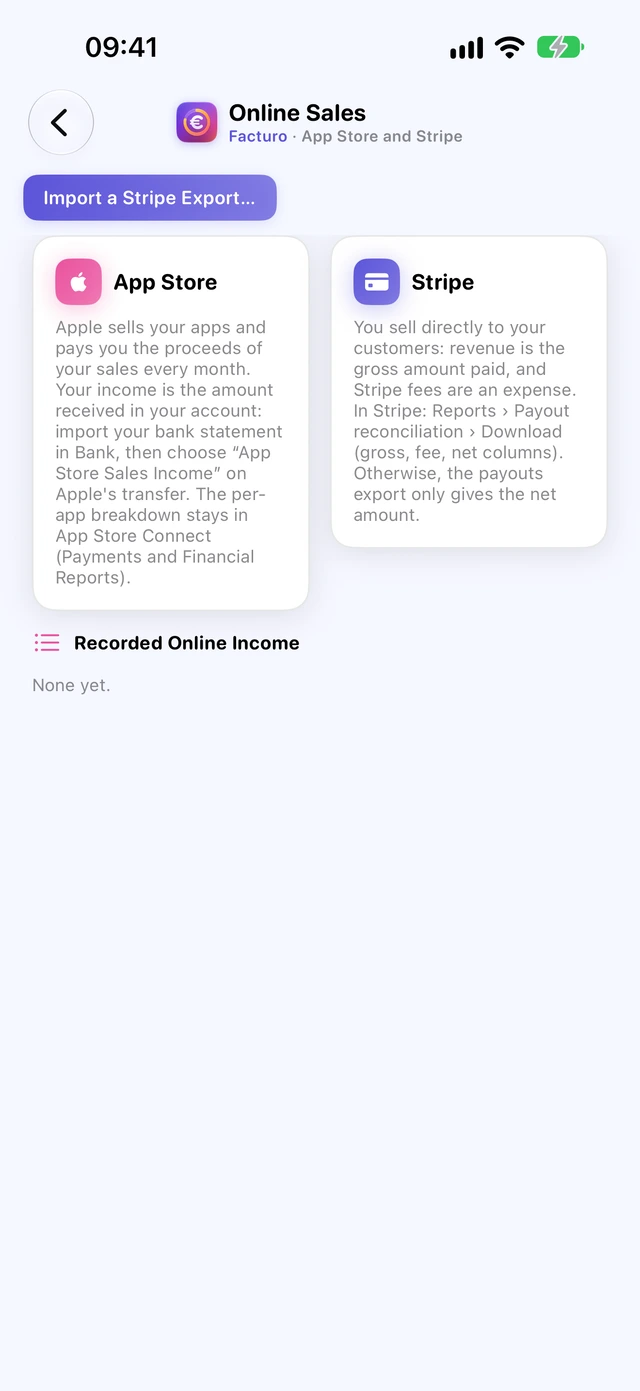
The Stripe transfer that reaches your account (the net amount) corresponds to sales already recorded by the import. In Bank, don't create income from it, or the sale would be counted twice: use Ignore This Transaction.
The standard scheme for sole traders (BNC)
Under the standard scheme, Facturo tracks deductible VAT, the business share of mixed-use expenses and fixed assets, keeps the cash book and prepares the boxes of the 2035 return.
- In Business, Legal Status card, choose Sole trader (EI), then Standard Scheme (déclaration contrôlée).
- For a liberal profession (BNC), the accounts are kept on a cash basis over the calendar year: income counts when it is received, an expense when it is paid.
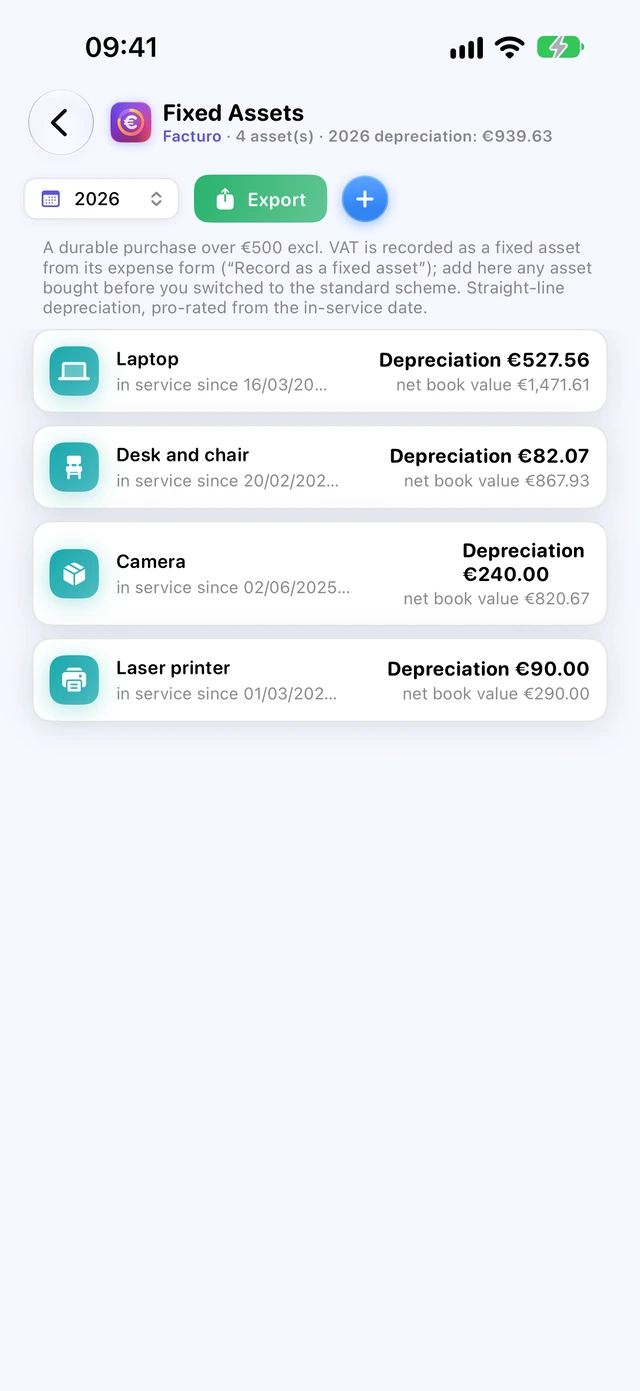
An expense's form gains deductible VAT and the Business share of a mixed-use expense (phone, vehicle…). For a durable asset, tick Record as a fixed asset (depreciated over several years): Facturo suggests it above €500 excl. VAT. Rule reminders appear for some expenses (VAT on vehicles and accommodation, meals).
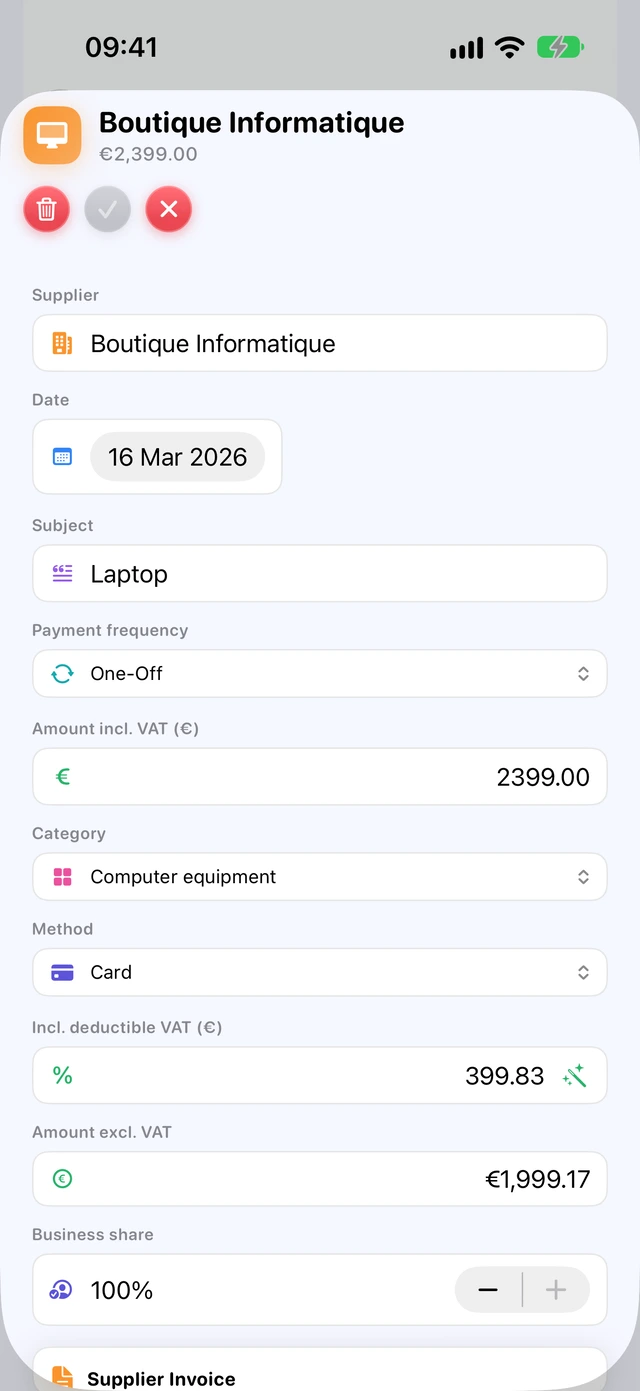
Fixed assets
The Fixed Assets section keeps the asset register: date placed in service, depreciation for the year and net book value. Each asset shows its straight-line depreciation schedule (pro rata to the day in the first year) and lets you record a disposal, with the short- or long-term capital gain. The register exports as PDF and CSV. The periods suggested for each kind of asset are indicative: check them with your accountant.
Help with the 2035 return and the cash book
In the returns section, the “2035 return” card sums up the year: income, expenses line by line, depreciation and profit, in the form's boxes, rounded to the euro. 2035 Return Helper as PDF… exports it; the cash book of income and expenses exports as PDF or CSV. The 2035 deadline appears on the dashboard and in reminders. When you charge VAT, amounts are excluding VAT.
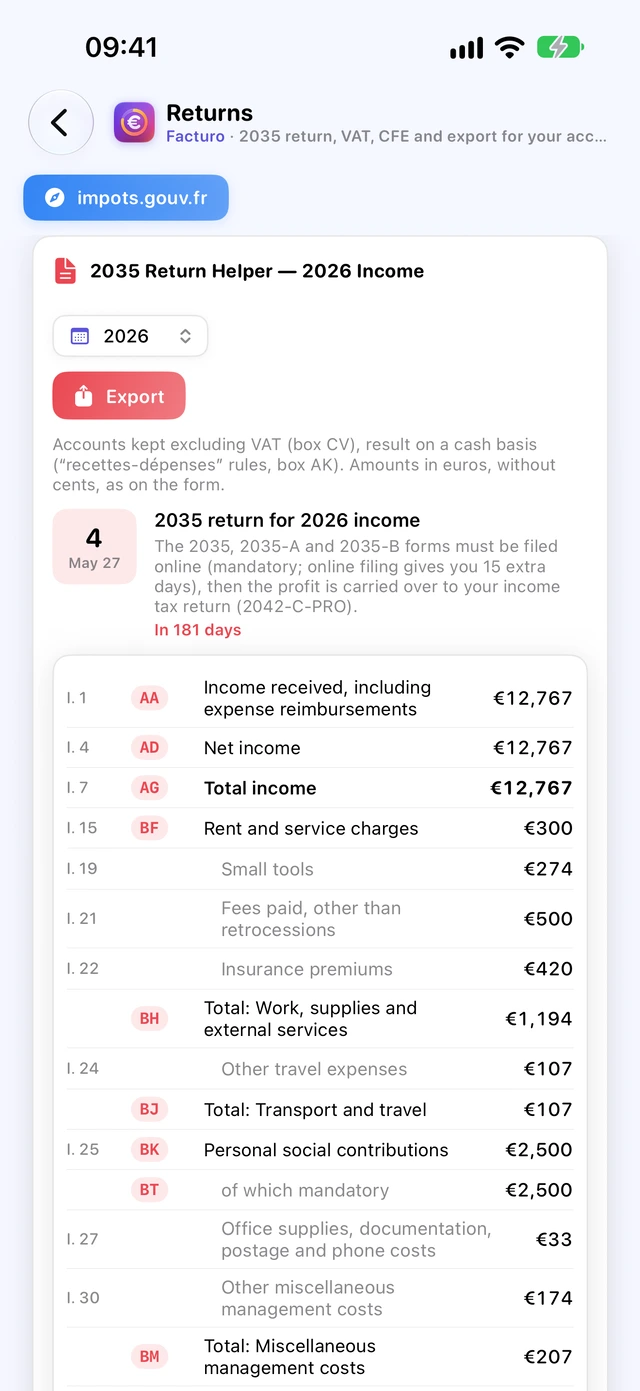
The “déclaration contrôlée” requires a cash book of income and expenses, a register of fixed assets and depreciation, and the 2035 return every year. It can also be chosen as an option, even below the micro ceiling. Facturo prepares the figures; the return is filed on impots.gouv.fr.
VAT by period
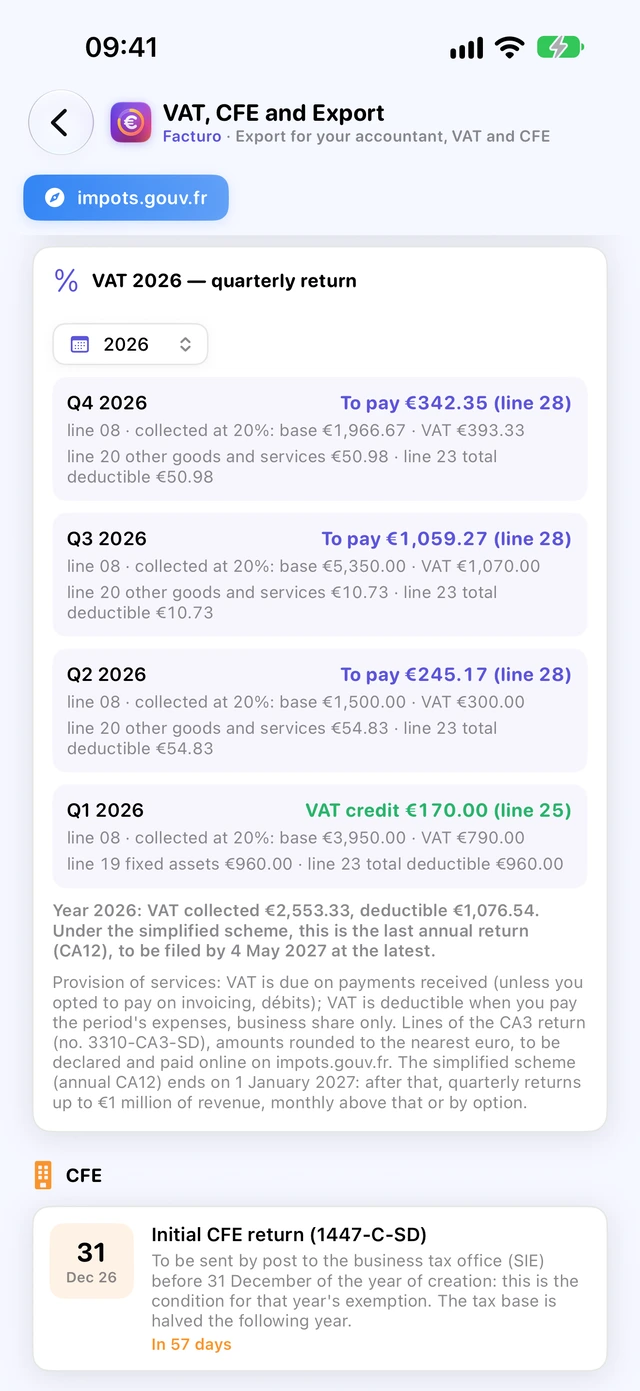
As soon as you charge VAT (micro-entreprise outside the exemption, standard scheme or company), a card sums up each period: VAT collected, VAT deductible on expenses (business share only), amount payable or credit, with the lines of the CA3 return. VAT from imported e-invoices and scanned receipts is filled in automatically.
Companies and BIC standard scheme: financial year, unpaid bills, closing
As an EURL, a SASU or a sole trader under the BIC standard scheme, the accounts are kept on an accrual basis. Facturo tracks invoices to be collected and bills to be paid, and prepares the export for your accountant; the balance sheet, tax return package and tax stay with them.
The financial year and the chart of accounts
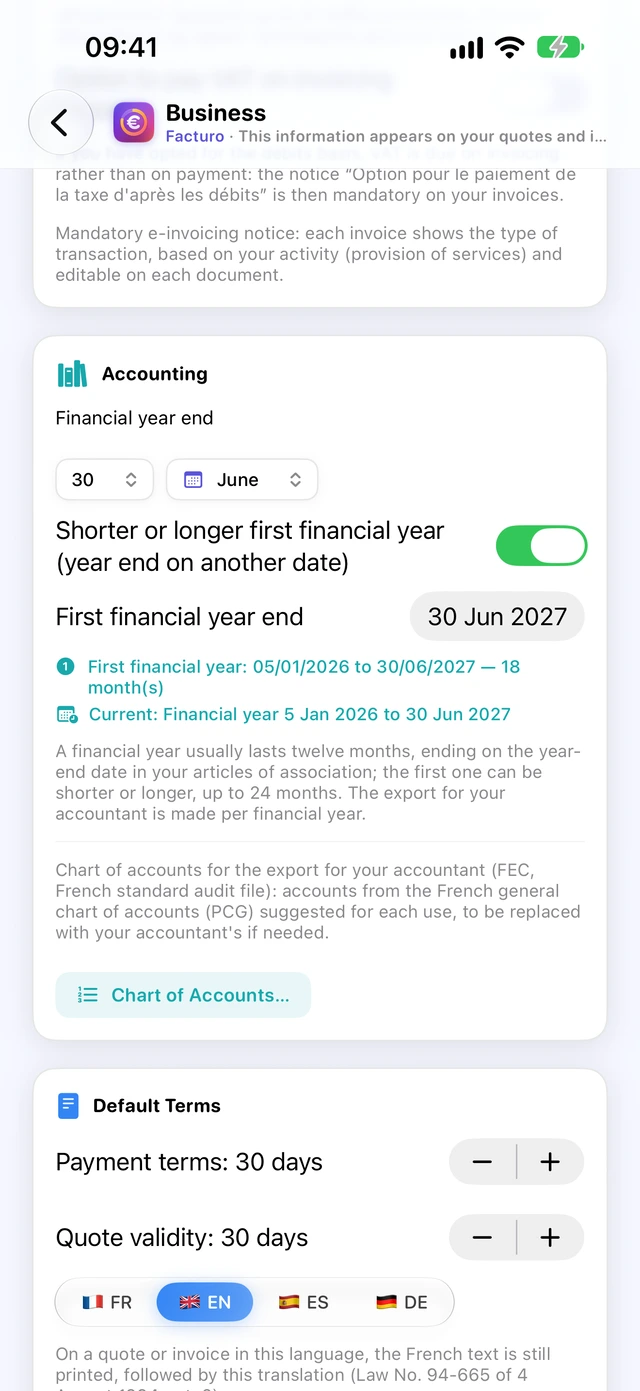
In Business, Accounting card, set the Financial year end. The accounts close on the date chosen in the articles of association, usually every twelve months; the first financial year can be shorter or longer, up to 24 months (service-public.fr, page F32069).
The Chart of Accounts suggests an account from the French general chart of accounts for each expense and income category; you can adapt it. A number must start with three digits of a class 1 to 7.
Bills to pay
In an expense's form, tick Unpaid invoice (recorded before payment), then enter the due date and the Supplier invoice no.. The charge counts on the invoice date, the debt until payment. The expenses' Unpaid filter lists them, “Overdue” after the due date; Mark as Paid records the payment, and a bank transaction linked in Bank marks it paid on its date. The dashboard and cash flow take them into account. An imported e-invoice brings its number and due date.
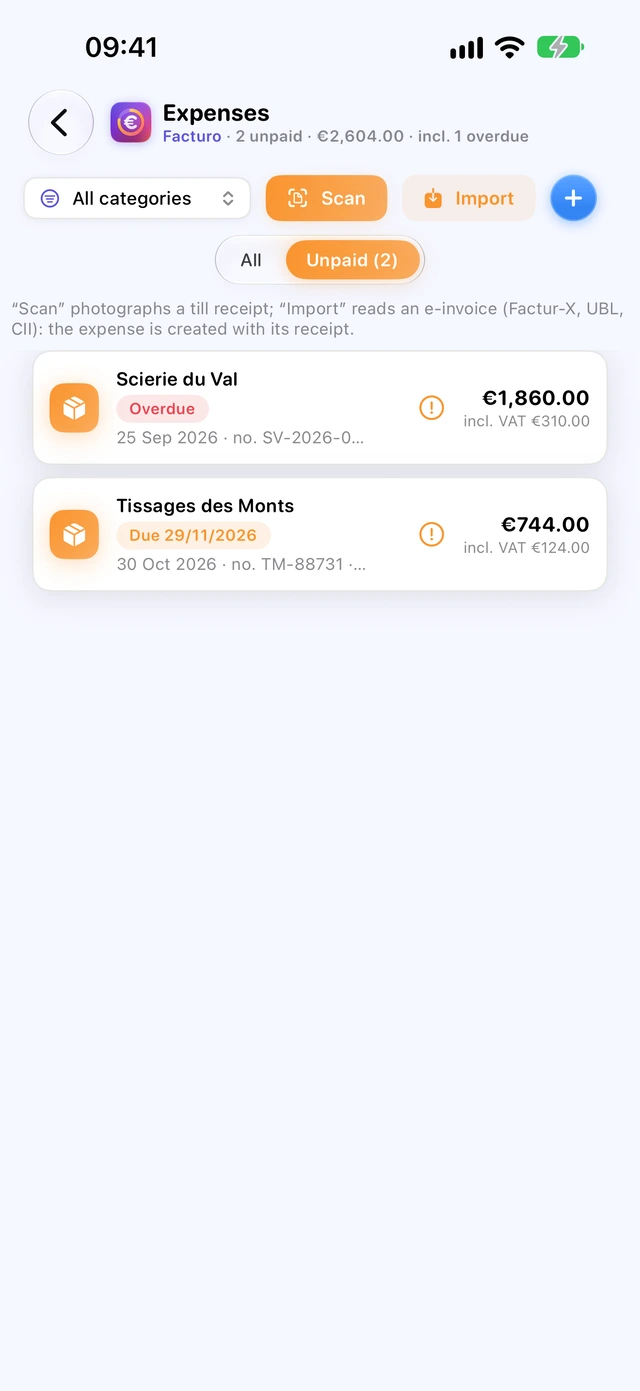
Closing the books
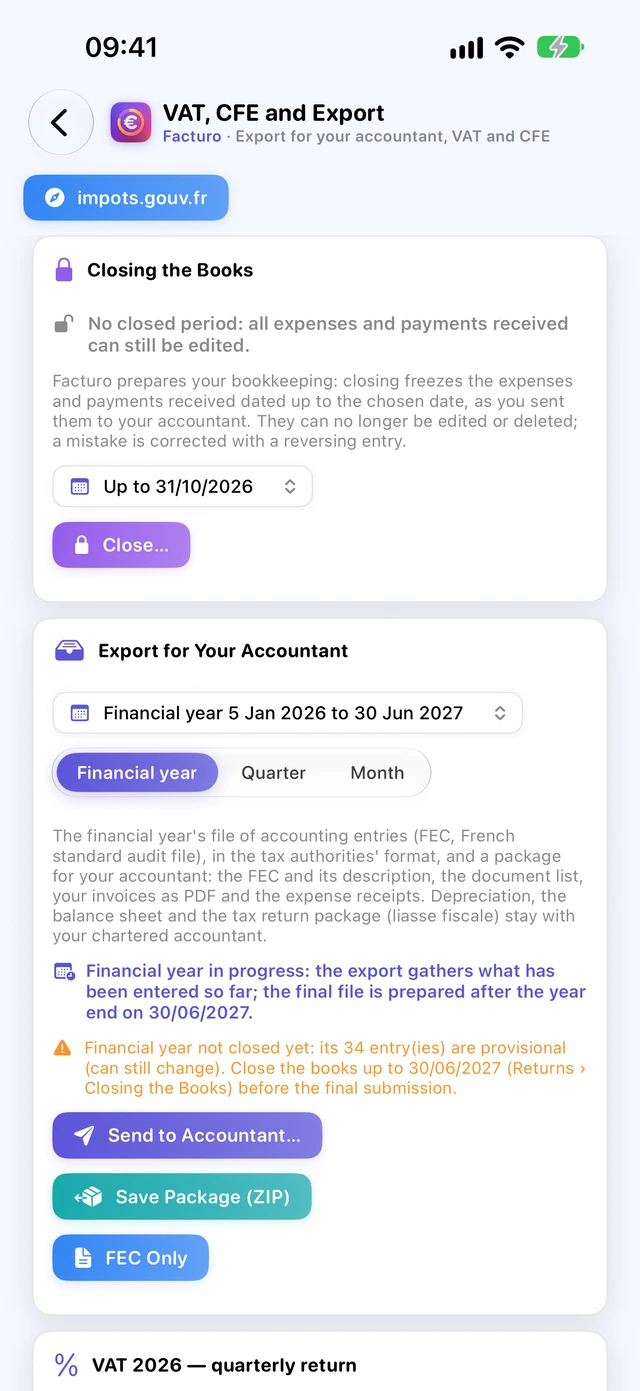
In the returns section, Closing the Books card, Close… locks the expenses and receipts dated up to the chosen date, as you passed them to your accountant. They can no longer be edited or deleted. It can't be undone; an entry recorded later with a closed date is booked on the first open day, keeping its own date.
To correct a closed entry, open it: Correct with a Reversing Entry cancels it as of today, then Enter the Corrected Expense. A capitalised purchase is corrected through the asset register and your accountant. For a sole trader under the BNC standard scheme, the card reminds you to close the year before the 2035.
The export for your accountant
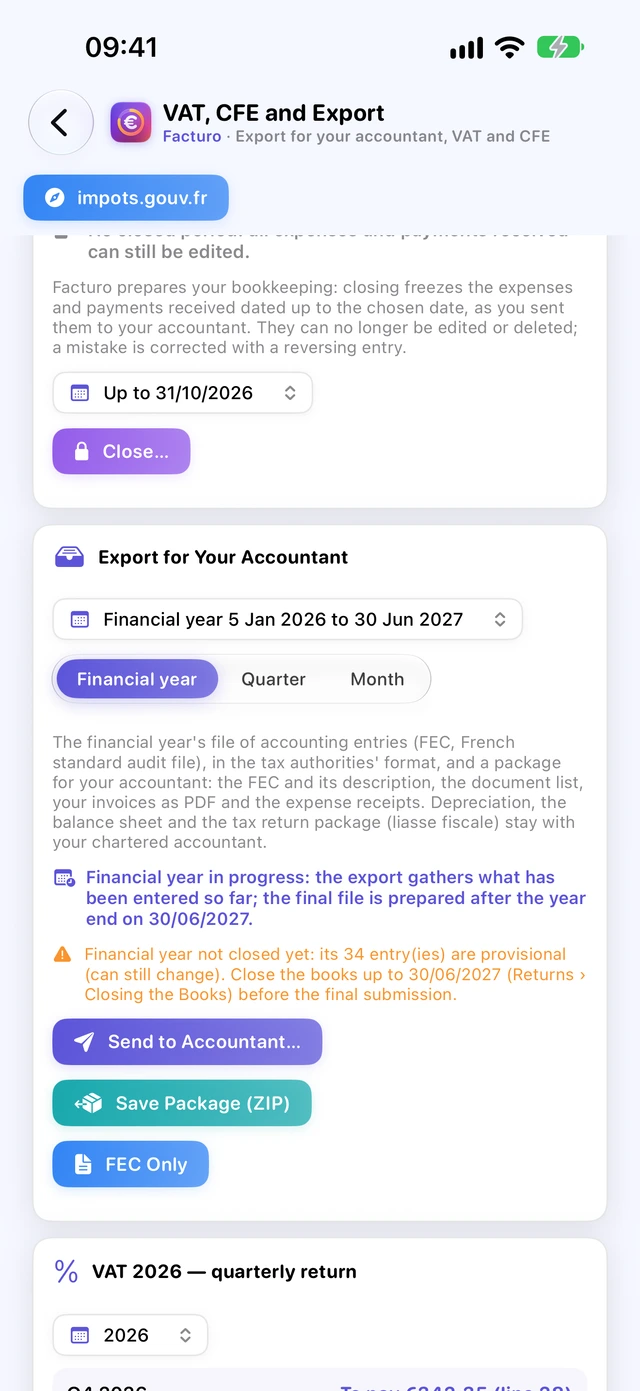
Outside the micro-entreprise scheme, the Export for Your Accountant card prepares the accounting entries file (FEC), in the format required by the French tax authorities, and a package for your accounting firm.
- In the returns section, choose the financial year, then Financial year, Quarter or Month.
- Send to Accountant… opens a new message in your default email app, with the ZIP package attached and the subject and text filled in: add the firm's address and send it.
- Or Save Package (ZIP), or FEC Only.
- For the financial year: the FEC and its description, the list of entries, your invoices as PDFs and the expense receipts. For a quarter or a month: the entries of the period, without the FEC.
- Mac With Mail, the package is attached. With another email app (Outlook, Thunderbird…), the message opens and the package is shown in the Finder: drag it into the message.
- iPhone iPad The Mail window opens inside Facturo; without a Mail account, Facturo offers to share.
Until the financial year is closed, its entries are provisional: the card says how many, and closing makes them final. Depreciation, the balance sheet and the tax return package stay with your accountant.
The cash flow forecast
The cash flow forecast shows, month by month, the money you're expecting and what's going to go out, so you can see a lean patch coming.
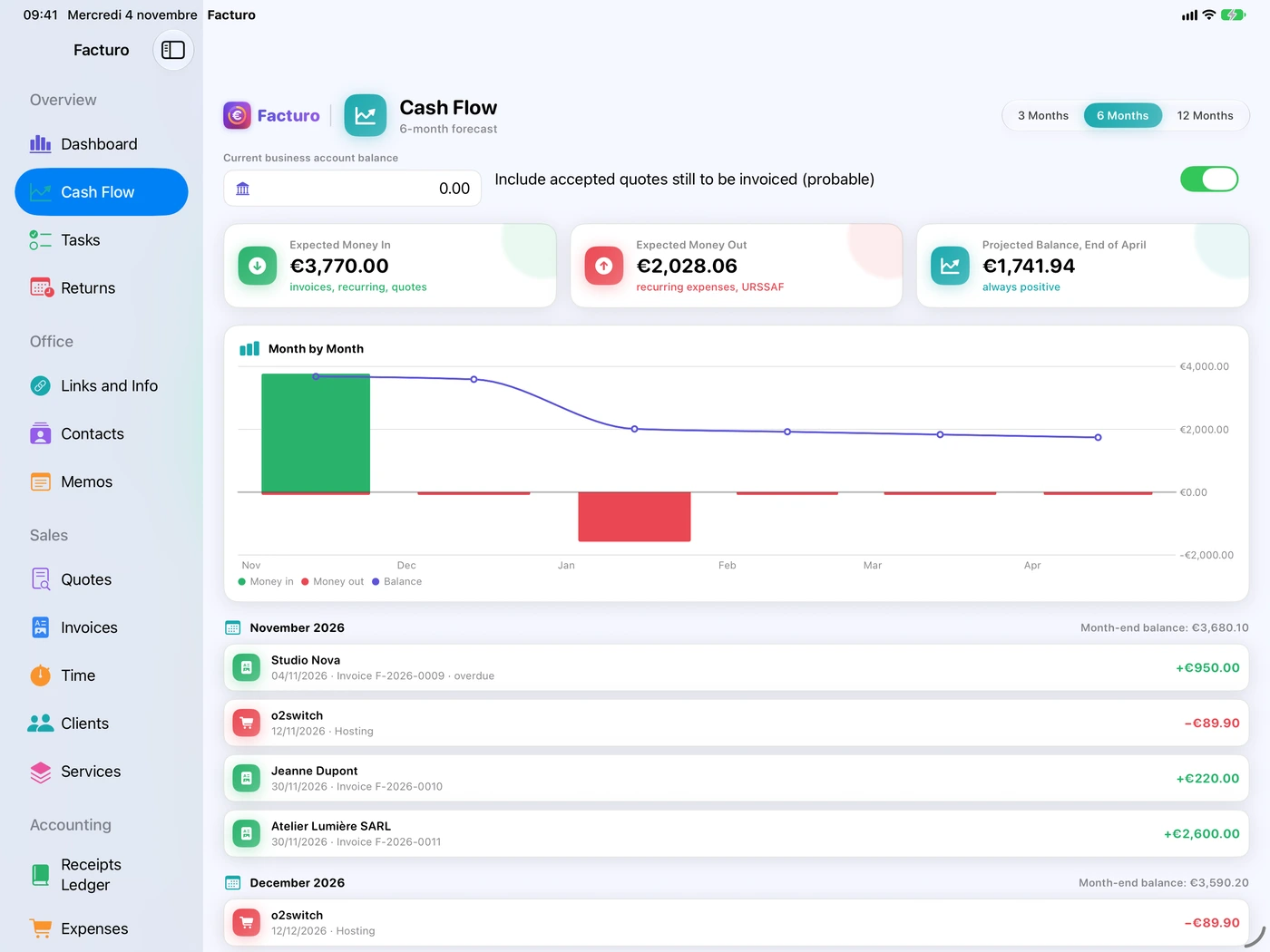
- Open Cash Flow and choose the period: 3 Months, 6 Months or 12 Months.
- Type the Current business account balance: Facturo doesn't read your bank account. This amount stays on the device.
- Leave Include accepted quotes still to be invoiced (probable) ticked, or untick it.
Three cards summarise the period: Expected Money In, Expected Money Out and Projected Balance, End of …, in orange if it falls below zero. The monthly breakdown lists each item:
- money in: unpaid invoices on their due date (an overdue invoice is counted as due today), recurring invoices, accepted quotes marked “Probable”;
- money out: recurring expenses and URSSAF contributions, estimated for each return deadline.
One-off expenses, the CFE and documents in foreign currencies aren't included.
Back to contentsURSSAF returns
For each period, Facturo calculates the revenue to declare and an estimate of your contributions. The return itself is filed on the URSSAF website.
Setting how often you declare
In Business, on the Tax Scheme card, choose the Activity category and, under Revenue return, Monthly or Quarterly, the same as on your URSSAF account. Enter the correct Business start date: it determines your first return.
Returns are monthly by default; you can opt for quarterly returns within the month following your business start date (service-public.fr F23257). To change later on, the official sources give different deadlines: before 31 October of the previous year according to service-public.fr, before 31 January of the year concerned according to the URSSAF FAQ. Check with URSSAF.
The Returns screen
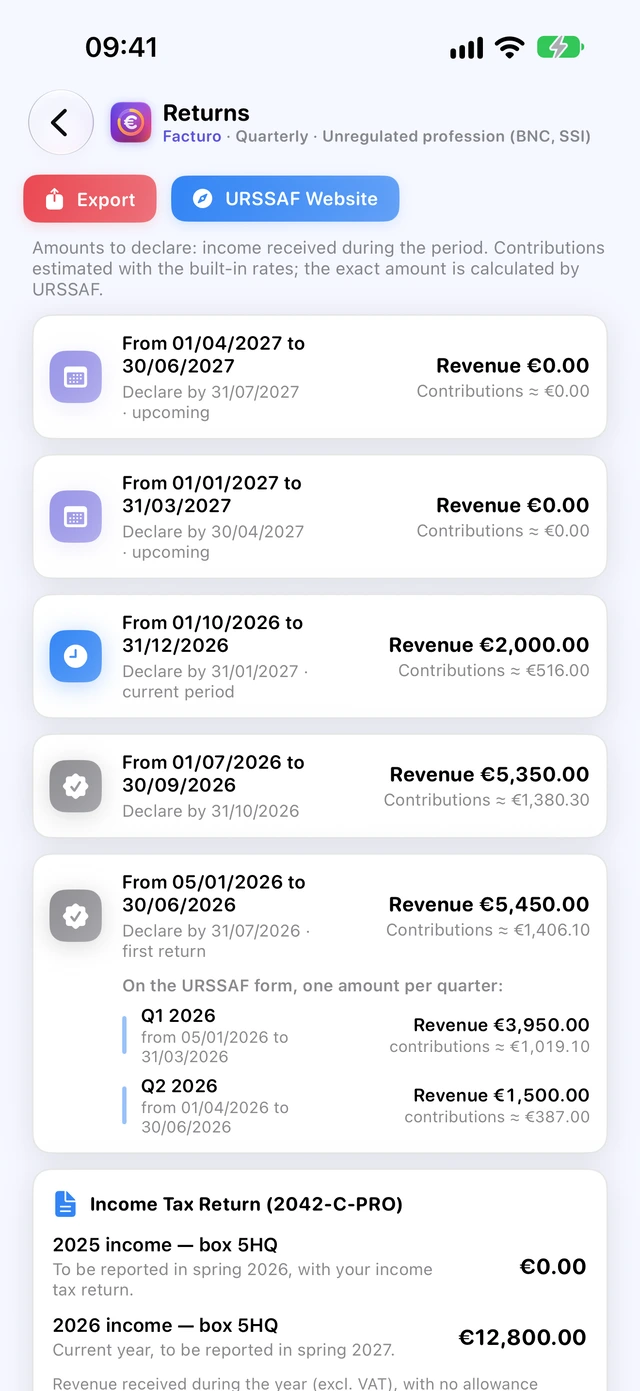
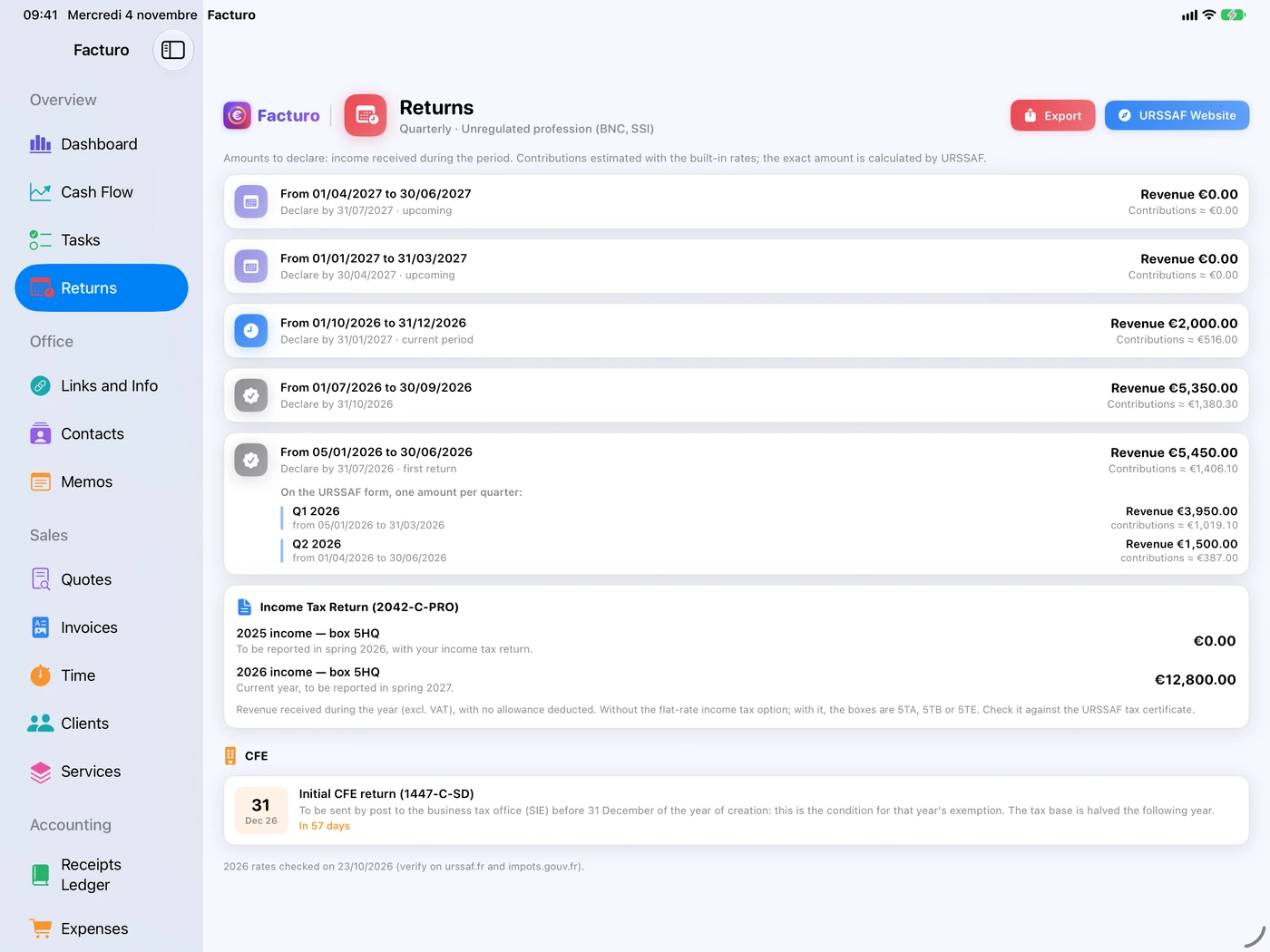
One card per period, the most recent at the top, up to six months ahead:
- the period, “Declare by …” and, depending on the case, “first return”, “current period” or “upcoming”;
- on the right, Revenue …: the amount to enter on the URSSAF website, and Contributions ≈ …;
- the card highlighted in red is the period that has ended and whose deadline hasn't passed: that's the return to file now;
- a grey card with a tick only means that the deadline has passed.
The URSSAF Website button opens autoentrepreneur.urssaf.fr; Export saves all the periods as a PDF (revenue, contributions, training, total).
Facturo doesn't know whether you have filed or paid: there is no “filed” button. Keep URSSAF's proof of filing.
What Facturo counts
- amounts received during the period (payment date), not invoices issued;
- excluding VAT: for a payment linked to an invoice subject to VAT, the VAT part is removed; income without an invoice counts for the amount entered, with no VAT removed;
- refunds entered as negative income are deducted;
- a credit note changes nothing until a refund is entered.
The revenue to declare is the revenue received during the period, gross and excluding VAT; a deposit is declared when it is received. A refund made before you file reduces the amount you declare; if it is made afterwards, you need to file a corrected return through your account's messaging service (URSSAF, “Déterminer mon chiffre d'affaires” page). You must file a return even if your revenue is €0: a missing return incurs a penalty (service-public.fr F23257).
The first return
It covers more than one period. Facturo marks it “first return” and breaks it down: “On the URSSAF form, one amount per quarter” (or per month), with the revenue for each.
| Return | Period covered | Deadline |
|---|---|---|
| Quarterly | From the business start date to the end of the following quarter | End of the following month. E.g. start on 12 April 2026 → by 31 October 2026 |
| Monthly | The month you start and the following 3 months | End of the following month. E.g. start on 6 March 2026 → by 31 July 2026 |
After that, each quarter (or month) is declared before the end of the following month: 30 April, 31 July, 31 October and 31 January for quarterly returns.
These rules are confirmed by URSSAF (“Déclarer et payer mes cotisations” page) and service-public.fr (F23257). URSSAF moves the deadline to the next day when it falls on a Saturday, a Sunday or a public holiday; Facturo shows the end of the month.
The built-in rates
| Activity in Facturo | 2026 contributions | Training (CFP) in Facturo |
|---|---|---|
| Unregulated profession (BNC, SSI) | 25.6% | 0.2% |
| Regulated profession (BNC, CIPAV) | 23.2% | 0.2% |
| Provision of services (BIC) | 21.2% | 0.3% |
| Sale of goods (BIC) | 12.3% | 0.1% |
2026 rates checked on 31 October 2026 (Social Security Code, art. D613-4; service-public.fr F36232; urssaf.fr). The vocational training contribution is 0.1% for traders, 0.2% for independent professionals and 0.3% for craftspeople: Facturo applies 0.3% to all BIC service activities, whereas a trader who provides services pays 0.1%. The contributions shown remain estimates: only URSSAF calculates the exact amount.
- ACRE: the reduction applies to payments dated before the ACRE end date (see Business for the right settings).
- Flat-rate income tax option (versement libératoire): Facturo doesn't calculate it. If you have chosen it, you can tick Custom contribution rate and enter the overall rate including the flat-rate tax. Service-public.fr (F36232) gives 13.3% (sales), 22.9% (BIC services), 27.8% (BNC, SSI) and 25.4% (CIPAV). With ACRE, Facturo would apply the reduction to this entire rate, flat-rate tax included: the estimate would then be too low.
Turn on Settings › Reminders › Remind me of deadlines: a notification 7 days before each deadline, then on the day itself, at 9 am, on this device.
Income tax, CFE and VAT
Below the URSSAF returns, the Returns screen also helps with income tax, the local business tax (cotisation foncière des entreprises, CFE) and, if you're not under the exemption, VAT.
Income tax return (2042-C-PRO)
The card gives the revenue received excluding VAT for the previous year (“To be reported in spring …”) and for the current year, with the box suggested by Facturo: 5HQ for BNC, 5KP for BIC services, 5KO for sales. The amount is shown without any allowance (abattement); with the flat-rate tax option, the boxes become 5TA, 5TB or 5TE. Check the box on your online return and compare the amount with URSSAF's tax certificate.
CFE
- In the year you start: an “Initial CFE return (1447-C-SD)” reminder for 31 December;
- in the following years: a “CFE payment 2027” reminder (with the year) for 15 December.
The next reminder also appears in Upcoming Deadlines on the dashboard. Facturo doesn't calculate the amount of the CFE.
The CFE isn't due in the first year; the initial 1447-C-SD return must reach the business tax office (service des impôts des entreprises) by 31 December of the year you start, by post or through the secure messaging of your professional area. The tax base is halved the following year, and you are exempt if your reference revenue doesn't exceed €5,000. The tax notice can be viewed in your professional area on impots.gouv.fr; payment is generally due by 15 December (service-public.fr F23999; impots.gouv.fr).
VAT collected (if you're not under the exemption)
If you have unticked the exemption, a “VAT Collected” card gives, month by month, the base and the VAT received, for your VAT returns on impots.gouv.fr. VAT on your purchases isn't tracked there.
Back to contentsThe dashboard and thresholds
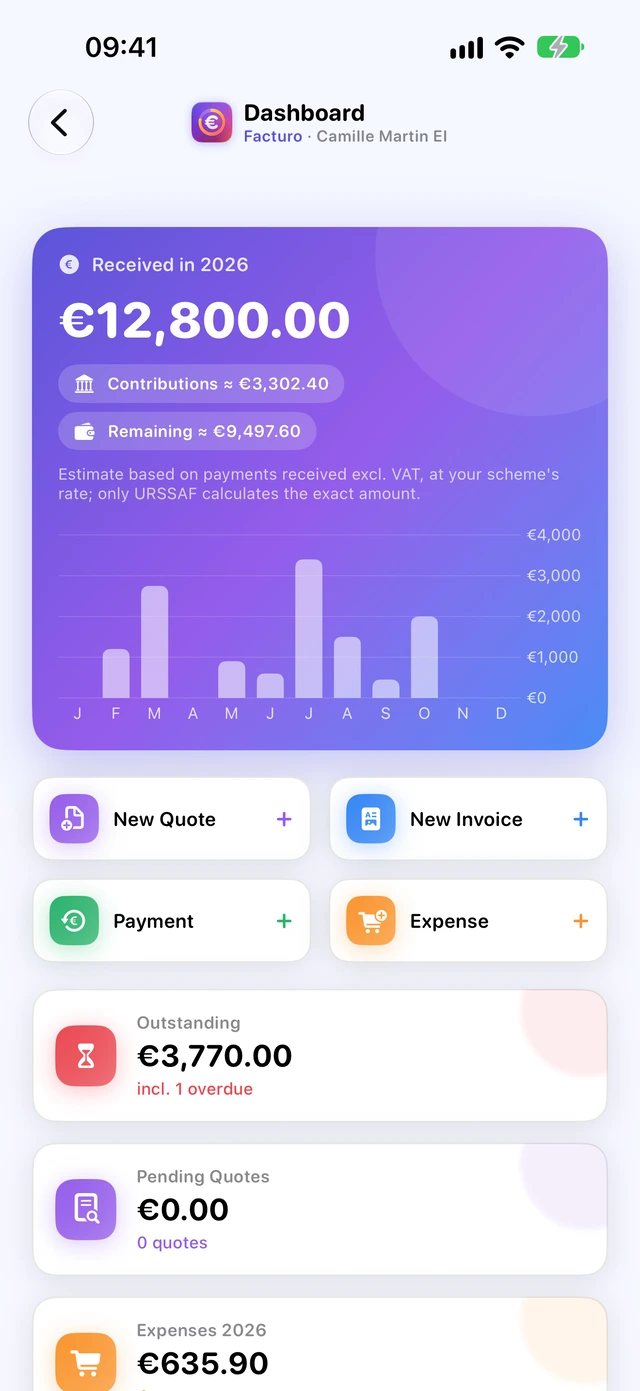
The dashboard sums up the current calendar year and what's coming up soon.
- Received in 2026, with Contributions ≈ and Remaining ≈, and a chart of income by month;
- four shortcuts: New Quote, New Invoice, Payment (receipts ledger), Expense;
- Outstanding (in red, with “incl. … overdue”, if anything is late), Pending Quotes, Expenses 2026;
- Thresholds 2026: micro-business turnover limit and VAT exemption;
- Upcoming Deadlines: URSSAF return and CFE;
- Recent Documents, Tasks, Quick Access (favourite links) and, if there are any, Overdue Invoices.
Thresholds
The rings compare the year's revenue received excluding VAT with the micro-business turnover limit and the VAT exemption threshold (with the higher threshold underneath). In the year you start, Facturo prorates them for the time you have been trading. A message warns you at 80%, then when you go over.
2026 thresholds (service-public.fr F23267 and F21746, checked on 31 October 2026): micro-business limit of €83,600 for services and €203,100 for sales, not to be exceeded two years in a row; VAT exemption threshold of €37,500 (higher threshold €41,250) for services and €85,000 (€93,500) for sales. Above the higher threshold, VAT is due from the day it is exceeded; between the two, from 1 January of the following year. The single €25,000 threshold planned for 2025 was dropped. The micro-business limit is prorated in the year you start; for the VAT exemption, this still needs checking.
The banner at the top shows the amount received including VAT and estimates contributions at today's rate. For the amount to declare, rely on the Returns screen. Facturo never unticks the VAT exemption on its own: it's up to you to do so in Business.
The Office group: tasks, contacts, memos, links
Four sections for the admin that goes with your invoices: things to do, people to deal with, notes and useful links.
Tasks
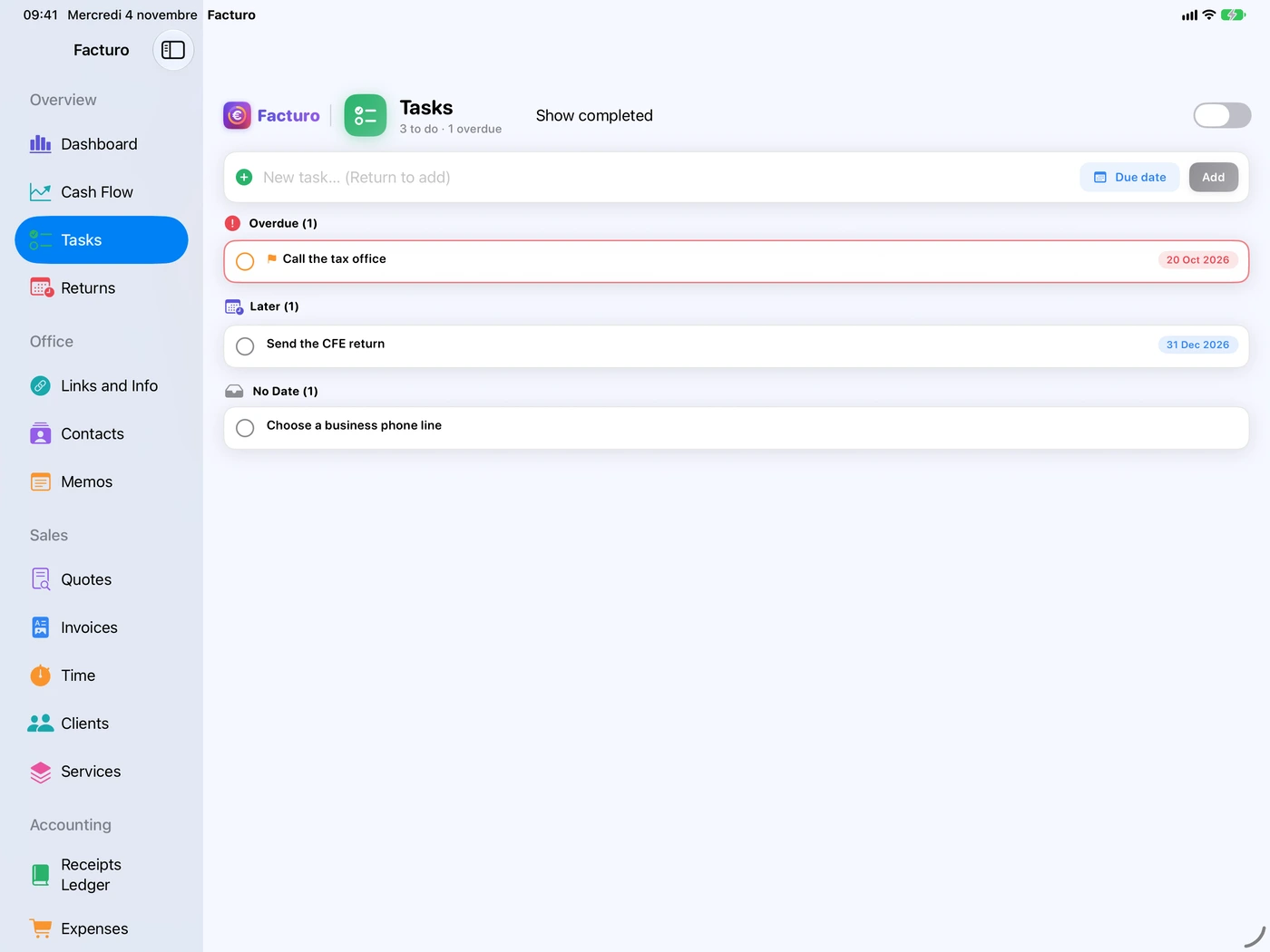
Type the task in New task… (Return to add), add a Due date if needed, then tap Add. Tasks are grouped into Overdue, Today, This Week, Later and No Date. The circle ticks off a task you've done; a long press (right-click on Mac) opens a menu where Mark as Important flags it. With reminders turned on, a notification arrives on the due date.
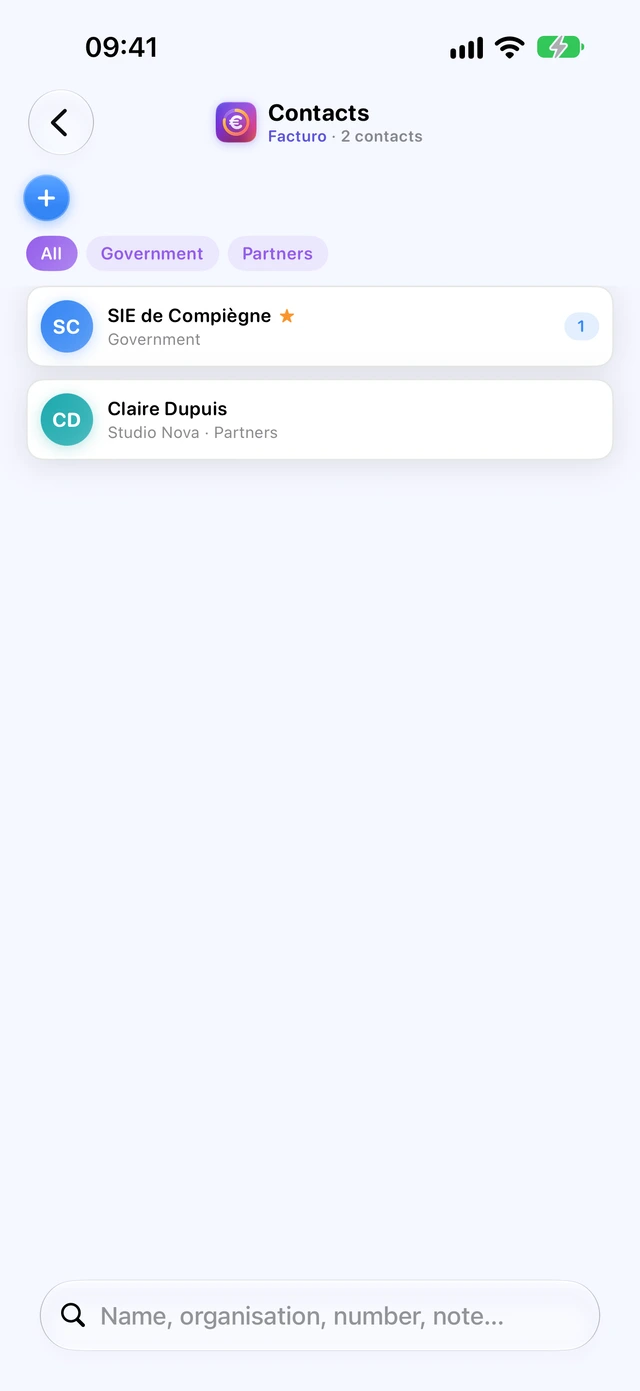
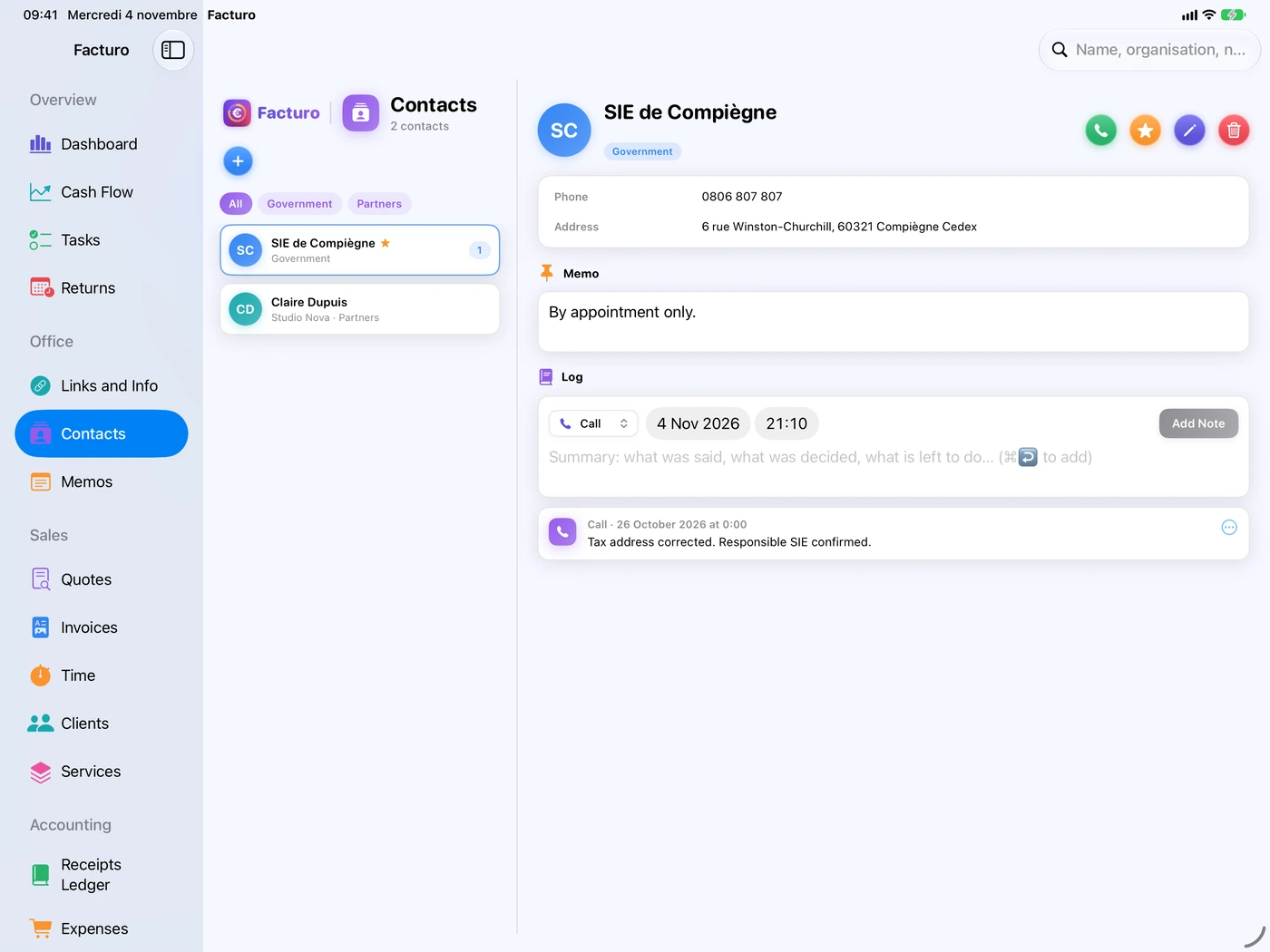
Contacts
A directory for everyone other than clients: government offices, bank, partners, suppliers. Each contact has its details (which you can copy with a tap), a permanent Memo and a dated Log.
- In a contact, choose the type of note: Call, Email, Meeting, Letter or Note.
- Write your summary and tap Add Note.
- A note's … menu offers Create Follow-Up Task: a “Follow up with …” task in 7 days' time.
Memos
Free-form notes: title, text, colour, pinned to the top if needed. They save themselves; a memo left empty disappears.
Links and info
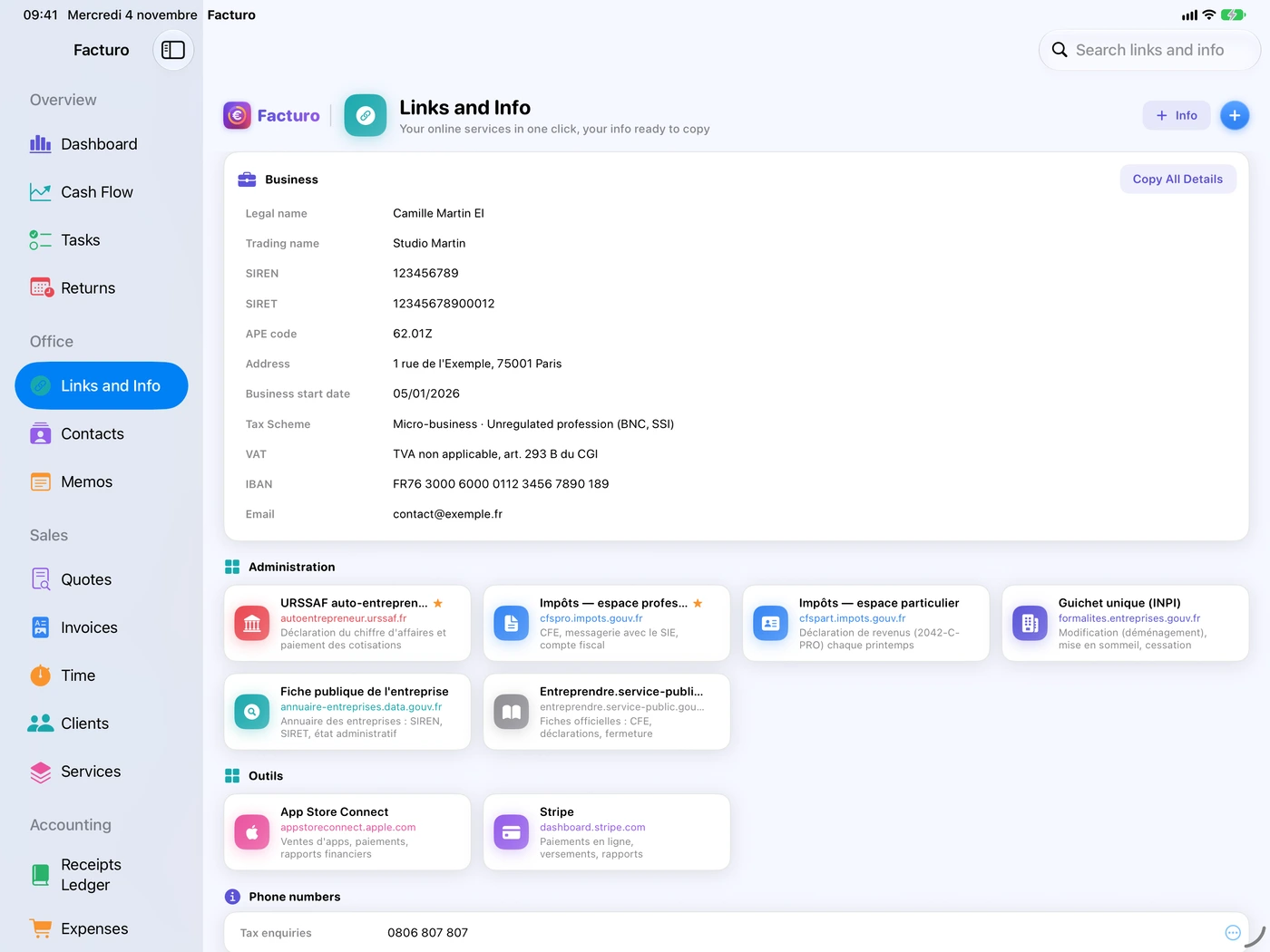
The Business card brings together your information (name, SIREN, SIRET, APE code, address, tax scheme, VAT, IBAN…); Copy All Details copies it all at once for filling in a form. Next come ready-made links to useful services: URSSAF auto-entrepreneur, tax (professional and personal areas), the one-stop shop for business formalities (guichet unique), the business directory (annuaire des entreprises), entreprendre.service-public.fr, App Store Connect and Stripe. Add your own with +; a link marked as a favourite appears on the dashboard. The Info button adds a piece of information to copy (file number, phone number…).
Never store passwords in Facturo: keep them in your password manager.
iCloud sync
With the same iCloud account, your data is available on your Mac, iPhone and iPad. It goes through your private iCloud; ElpisIA has no access to it.
- Sync is on by default: in Settings, on the iCloud Sync card, the Sync with iCloud switch.
- Changing this switch takes effect the next time Facturo starts: quit Facturo (⌘Q on Mac; on iPhone and iPad, swipe it up in the app switcher), then open it again.
- The blue line in Business and Settings shows the status: “iCloud sync on (Mac, iPhone, iPad).”, “No iCloud account signed in…”, and so on.
My data isn't arriving on a device
- On the device that has the data, open Facturo and leave it open for a minute: it sends whatever is missing.
- On the other device, open Settings and tap Fetch from iCloud.
- Facturo counts what iCloud contains and compares it with the device: “Everything's here: …”, or the list of what is still missing, with advice (reopen Facturo, check the connection and the iCloud permission and, on iPhone and iPad, turn off Low Data Mode).
This button doesn't change anything: it checks and explains. Data is received when Facturo opens, then as soon as iCloud reports something new.
When it is turned off, sync doesn't touch anything already in iCloud: your other devices keep their data, and this one keeps its own.
Backing up and restoring
Automatic copies
Facturo copies its data once a day, at launch, and keeps 60 copies. Business › Back Up Now makes an extra one (“Backup created: …”). On Mac, Show in Finder opens the folder in the Finder.
A full backup to a file
- Choose Business › Back Up to a File… (on Mac: File menu, ⇧⌘S).
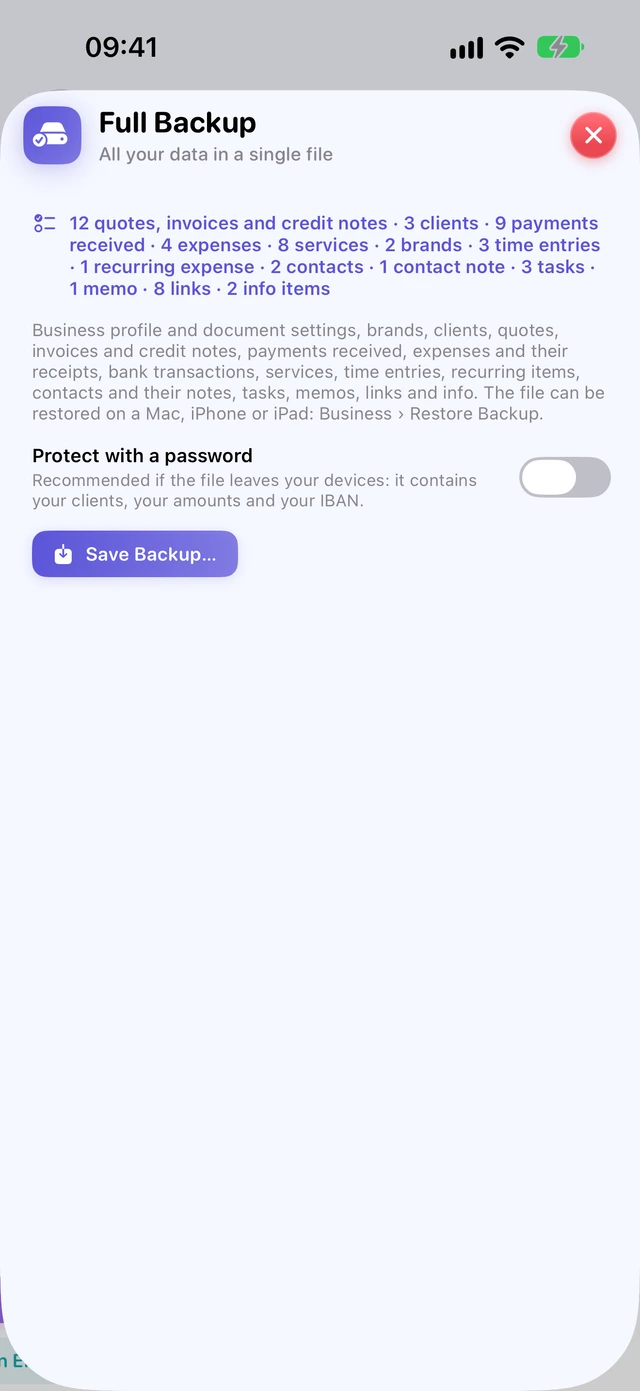
- The Full Backup sheet summarises what it contains: everything, including receipts, logos and signatures.
- Recommended if the file is leaving your devices: Protect with a password (at least 8 characters; write it down: nobody can recover it, neither you nor ElpisIA).
- Save Backup…: choose where to save it. The file is called “Facturo backup YYYY-MM-DD.facturobackup”.
Restoring
- Choose Business › Restore Backup… and select the file (with its password, if it has one).
- A preview shows the date and contents of the backup: nothing has been changed yet.
- Tap Replace My Data, then confirm with Replace.
Restoring replaces all of Facturo's data. A safety copy is made first; with iCloud, your other devices receive the same replacement. The file can be restored on a Mac, iPhone or iPad.
Protecting Facturo with Face ID or Touch ID
Your figures and clients can stay safe from prying eyes, even if someone picks up your unlocked device.
- In Settings, on the Privacy card, turn on Lock Facturo with Face ID (or Touch ID, the device passcode or the Mac password).
- Confirm your identity once.
- Choose when to lock after you leave the app: Immediately, After 1 minute, After 5 minutes or After 15 minutes.
- iPhone iPad Hide in app switcher hides your figures in the preview of open apps.
- Mac Facturo also locks when the Mac goes to sleep, when the screen locks and after 5, 15 or 30 minutes of inactivity.
- While locking is turned on, Spotlight search for your clients and documents is switched off.
These settings are specific to each device.
Back to contentsAll exports
| Export | Where | Format |
|---|---|---|
| A quote, an invoice, a credit note | Issued quote, validated invoice or credit note › … › Export as PDF… or Share… | |
| E-invoice | Validated invoice › … › Export as Factur-X… | Factur-X PDF |
| Accounts for your accountant (outside micro) | Returns › Export for Your Accountant | ZIP (FEC, entries, invoices, receipts) or FEC only |
| Receipts ledger | Receipts Ledger › Export | PDF or CSV, by year |
| Purchase register | Expenses › Export | PDF or CSV, chosen year and category |
| URSSAF returns | Returns › Export | |
| Everything, readable | Business › Export All… | Folder: data in JSON, PDFs of issued documents, receipts |
| Everything, encrypted | Business › Export Encrypted… | Password-protected .facturo file (Open Encrypted Export… turns it back into a zip) |
| Restorable backup | Business › Back Up to a File… | .facturobackup file |
The CSV files use the French format, with semicolons and a decimal comma: they open directly in Excel or Numbers set up for France (with UK or US settings, import them with the semicolon as the separator). Exports go through the Mac's save window or the Files app on iPhone and iPad.
Back to contentsShortcuts: Mac, Siri, Spotlight
On Mac
| Shortcut | Action |
|---|---|
| ⌘N | New Invoice |
| ⇧⌘N | New Quote |
| ⇧⌘T · ⇧⌘M · ⇧⌘K | New Task, New Memo, New Contact |
| ⇧⌘S | Back Up to a File… |
| ⌘1 to ⌘9 | Go menu: Dashboard, Cash Flow, Tasks, Returns, Links and Info, Contacts, Memos, Quotes, Invoices |
| ⌘, | Settings… |
Siri and the Shortcuts app
Say, for example, “New invoice in Facturo”, “New quote in Facturo”, “New expense in Facturo”, “Start the timer in Facturo”, “Stop the timer in Facturo” or “Show my cash flow in Facturo”. Each shortcut opens Facturo, so the Face ID lock applies.
Spotlight
Type an invoice number or a client name in the system search: the result opens the document or the Clients section. The Find clients and documents in Spotlight setting is in Settings, on the Privacy card.
Back to contentsOfficial rules and sources
The rules quoted in this tutorial were checked on 31 October 2026 on the official websites below. Rules change: check them before making a decision.
- Declaring and paying contributions, first return: autoentrepreneur.urssaf.fr (in French) and service-public.fr F23257 (in French)
- Revenue to declare: autoentrepreneur.urssaf.fr (in French)
- Contribution rates and flat-rate income tax option: service-public.fr F36232 (in French) and F23267 (in French)
- ACRE: service-public.fr F11677 (in French)
- VAT exemption (franchise en base de TVA): service-public.fr F21746 (in French)
- What invoices must show: service-public.fr F31808 (in French); numbering and corrections: F23208 (in French); payment terms: F23211 (in French)
- Accounting obligations (receipts ledger, purchase register): service-public.fr F23266 (in French)
- E-invoicing: service-public.fr F39785 (in French) and impots.gouv.fr (in French)
- CFE: service-public.fr F23999 (in French)
Facturo helps you meet your obligations; it doesn't replace a chartered accountant. The contributions shown are estimates. Got a question about the app? See the FAQ or write to us using the form below.