This tutorial walks through Freechange screen by screen: adding your GoodNotes documents, choosing the new background PDF, replacing the background of several documents at once, fixing a form field and going back with the backups. Each chapter shows where to click, with screenshots and a short video.
- Mac, macOS 14 or later
- 19 chapters
- 1 video
- Freechange 1.1, October 2026
All screenshots show fictitious data: made-up GoodNotes notebooks, “Planner 2027”, “Recipe notebook”, “Piano lessons”, “Travel journal” and “Scanned photos”, and page templates created for the example. The video is sped up and has no sound. GoodNotes is a trademark of its publisher; Freechange is neither affiliated with nor endorsed by GoodNotes.
Contents (19 chapters)
Before you start
Freechange replaces the background PDF of a GoodNotes document you have already annotated, for example when a new version of your page template or of a form comes out, without touching your handwriting. The document keeps its name; your notes stay exactly where you wrote them.
What you need
- A Mac running macOS 14 Sonoma or later. Freechange is a Mac-only app.
- The documents to process, as
.goodnotesfiles on that Mac. - The new background PDF, for example the new version of your planner template.
There is no account to create. Your documents never leave your Mac (see Your data and the network).
The workflow in three steps
- In GoodNotes, export the documents concerned in GoodNotes format: you get
.goodnotesfiles. - In Freechange, replace their background (see Replacing the background of several documents) or fix a field (see Fixing a form field).
- Import the processed files into GoodNotes, open them and check the new background under your annotations before you part with the old documents.
According to the GoodNotes help centre (articles “Export documents or pages” and “Import files into Goodnotes”), export offers the PDF, Image and Goodnotes formats and creates a copy, leaving the original in your library; on a Mac, you import with the “New” button then “Import”, or by dragging the file onto the GoodNotes window, and the imported file becomes a separate document. These menus depend on your version of GoodNotes: check its help centre.
Installing Freechange and starting the trial
- Download Freechange from its page on apps.elpisia.com: it is a
.dmgfile. - Open it, then drag the Freechange icon onto the Applications folder next to it.
- Open Freechange from the Applications folder. macOS may ask you to confirm that you want to open an app downloaded from the Internet: Freechange is notarised by Apple.
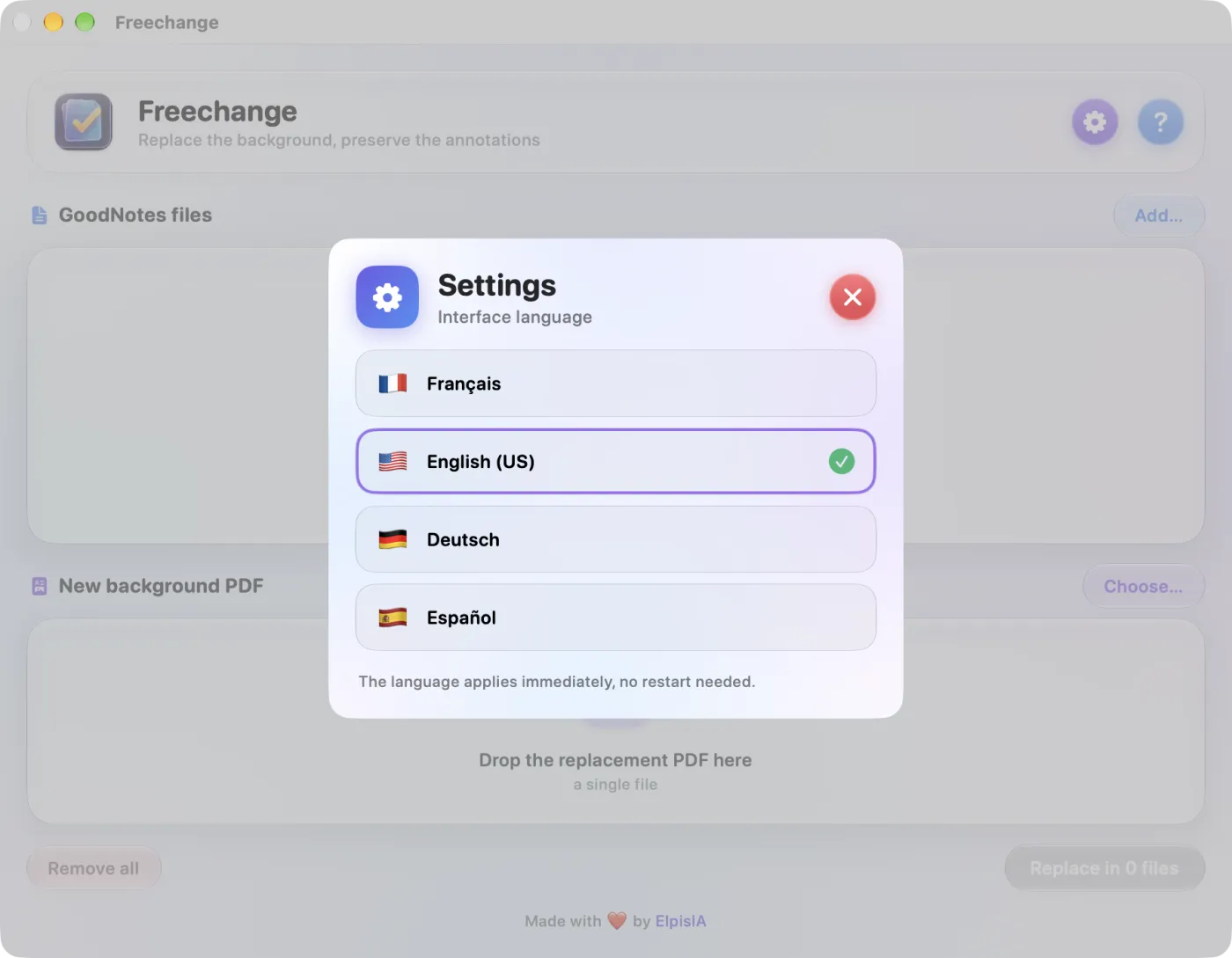
The 14-day free trial, with every feature, starts at this first launch (see Trial and licence). The app opens in French: choose English in the Settings, behind the purple gear at the top right of the window.
Keep Freechange in the Applications folder: that is where the Finder looks for its previews of GoodNotes documents (see Previews in the Finder).
Freechange was called GoodNote Free Change until October 2026. To macOS they are two separate apps: the old one stays in the Applications folder until you move it to the Bin, and the interface language has to be chosen again in Freechange.
The window and its buttons
Everything happens in a single window, from top to bottom: the documents, the new background, any warnings, then the button that does the work.
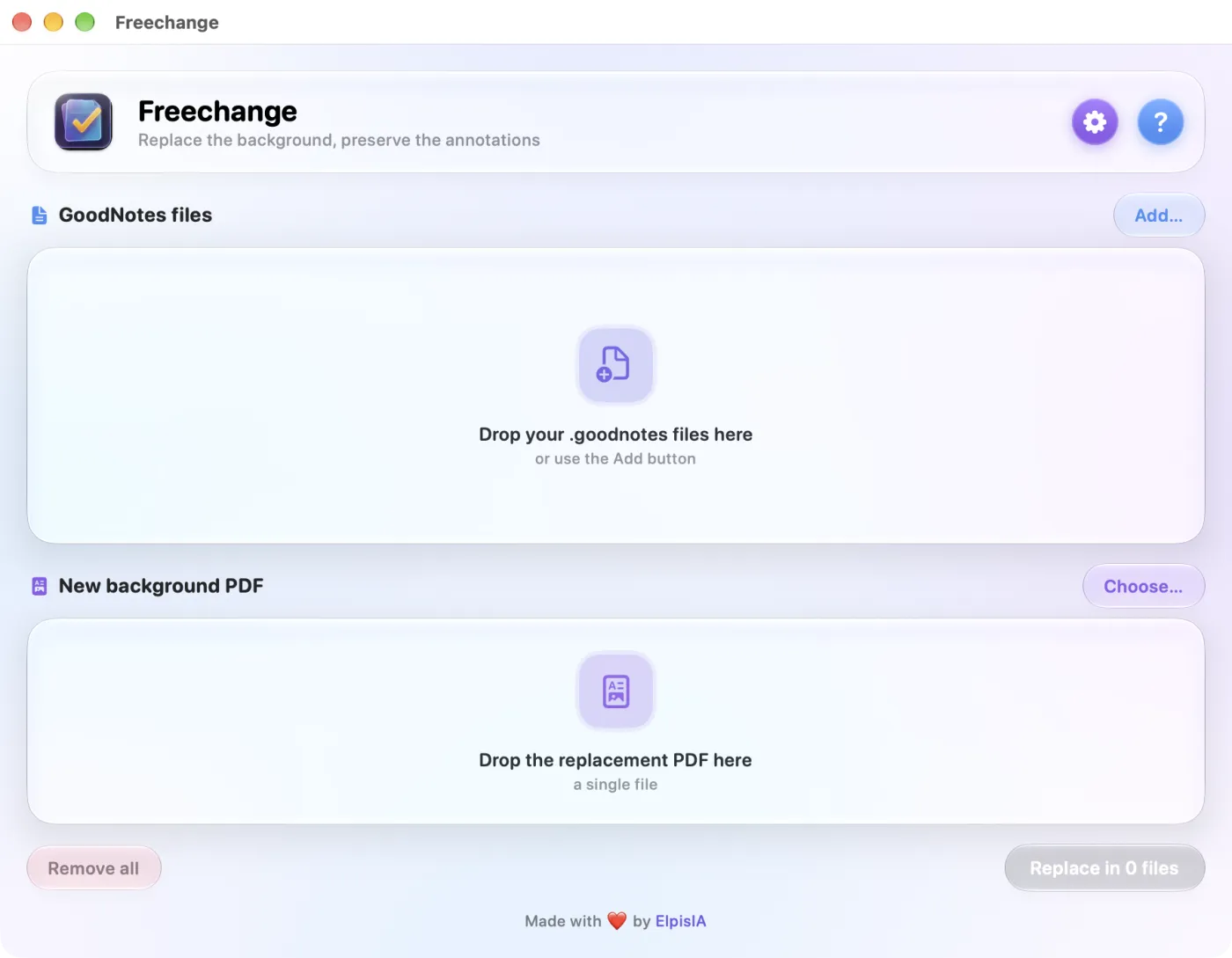
- At the top right, the purple gear opens Settings and the blue question mark opens Help.
- GoodNotes files: the list of documents to process, and the Add… button.
- New background PDF: the PDF that will replace the background, and the Choose… button.
- Below these two areas, warning banners when needed.
- At the bottom, Remove all clears the list and the chosen PDF, after confirmation; your files on disk are not touched. On the right, the main button, for example “Replace in 3 files”.
One card per document
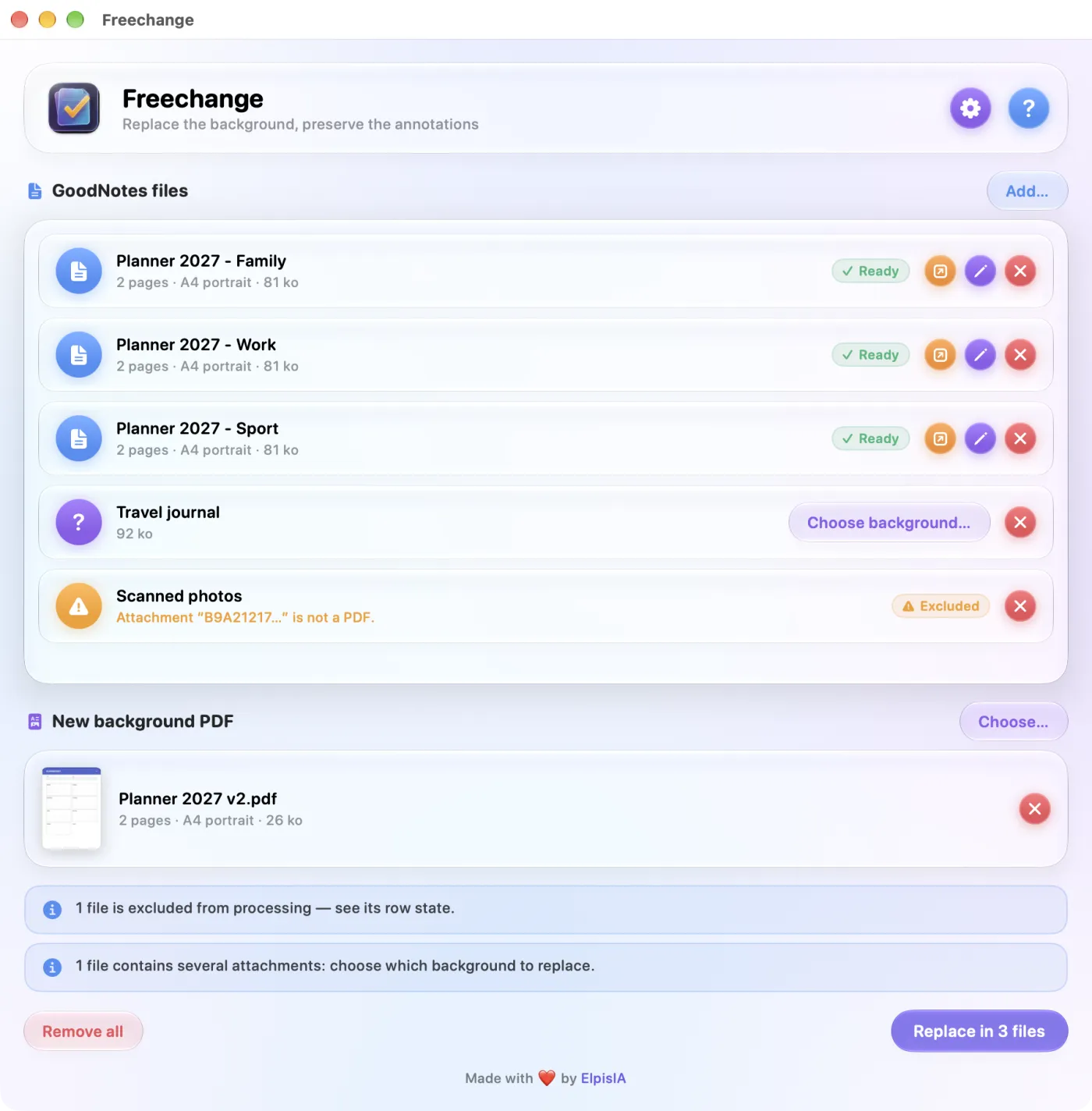
- On the left, a round badge whose colour gives the state: blue (document), purple (choice to make or processing under way), green (replaced), orange (excluded).
- The document name and, below it, the pages and format of the current background, then the file size: “2 pages · A4 portrait · 81 ko” (the size unit is shown in French). For an excluded document, this line gives the reason, in orange.
- On the right, the state: Analyzing…, Ready, Processing…, Replaced or Excluded; for a document that contains several PDFs, the Choose background… button instead.
- Then the card's round buttons.
| Round button | Action | Shown |
|---|---|---|
| Orange, arrow leaving a square | Open background PDF in the default app (see Editing the background in another app) | As soon as the document's background is known |
| Purple, pencil | Fix background PDF form fields… | As soon as the document's background is known |
| Blue, back arrow | Restore from a backup… | When the document has at least one backup |
| Red, cross | Remove from list (the file stays on disk) | Always |
Hover over a button to read its name; hover over a document name to see its full path. Clicking a card selects it (purple outline).
Right-click
Right-clicking a card opens its menu: Fix background PDF form fields…, Open background PDF in the default app, Extract background PDF…, Reveal in Finder, Restore from a backup… and Remove from list.
Back to contentsReplacing the background of several documents
The job Freechange was built for: a new version of your page template comes out (a corrected planner, a revised form), and your already-annotated notebooks have to move onto it. One PDF, as many documents as you like, in a single pass.
- Add the documents. Drag the
.goodnotesfiles onto the GoodNotes files area, or click Add… (⌘O), select one or more files and confirm with Add. A file already in the list is not added twice; other types of file are ignored. - Wait for Ready on each card. Freechange opens each document, finds its background PDF and shows its pages and format. Nothing is changed at this stage.
- Choose the new PDF. Drag it onto the New background PDF area, or click Choose… (⇧⌘O). One file only: the card shows its first page, name, pages, format and size. The red cross (Remove this PDF) removes it; dropping another PDF replaces it.
- Read the banners that appear below the two areas, if any (see Different pages or page sizes and A document that contains several PDFs).
- Click the main button, for example “Replace in 3 files”, or press ↩. The number is the number of ready documents: an excluded document, or one waiting for a choice, does not count.
- The “Processing… 1/3” bar moves on, one document after another. At the end, the report opens (see The report and excluded files).
The main button stays grey until there is a PDF and at least one ready document. While processing, the add and remove buttons are greyed out.
A Replaced document stays in the list and still counts towards the main button: clicking again would replace its background once more, with one more backup. Remove finished documents from the list (the red cross does not touch the file). The card also keeps the pages and format of the old background: to see those of the new one, remove the document and add it again.
After the 14-day trial, replacing requires a licence: without one, the click opens the licence sheet (see Trial and licence).
Back to contentsDifferent pages or page sizes
GoodNotes places annotations according to the page geometry. Before replacing, Freechange compares each document's current background with the new PDF: number of pages and page size, to within 2 points. A mismatch blocks nothing, but you have to confirm it.
A different number of pages
Freechange compares the page count of the current background, the one shown on the card, with that of the new PDF. Hence two cases:
- The new PDF has fewer pages: annotations on the extra pages remain, but without a background. The banner says so, for example “Annotations on page 2 will remain, but without a background.”
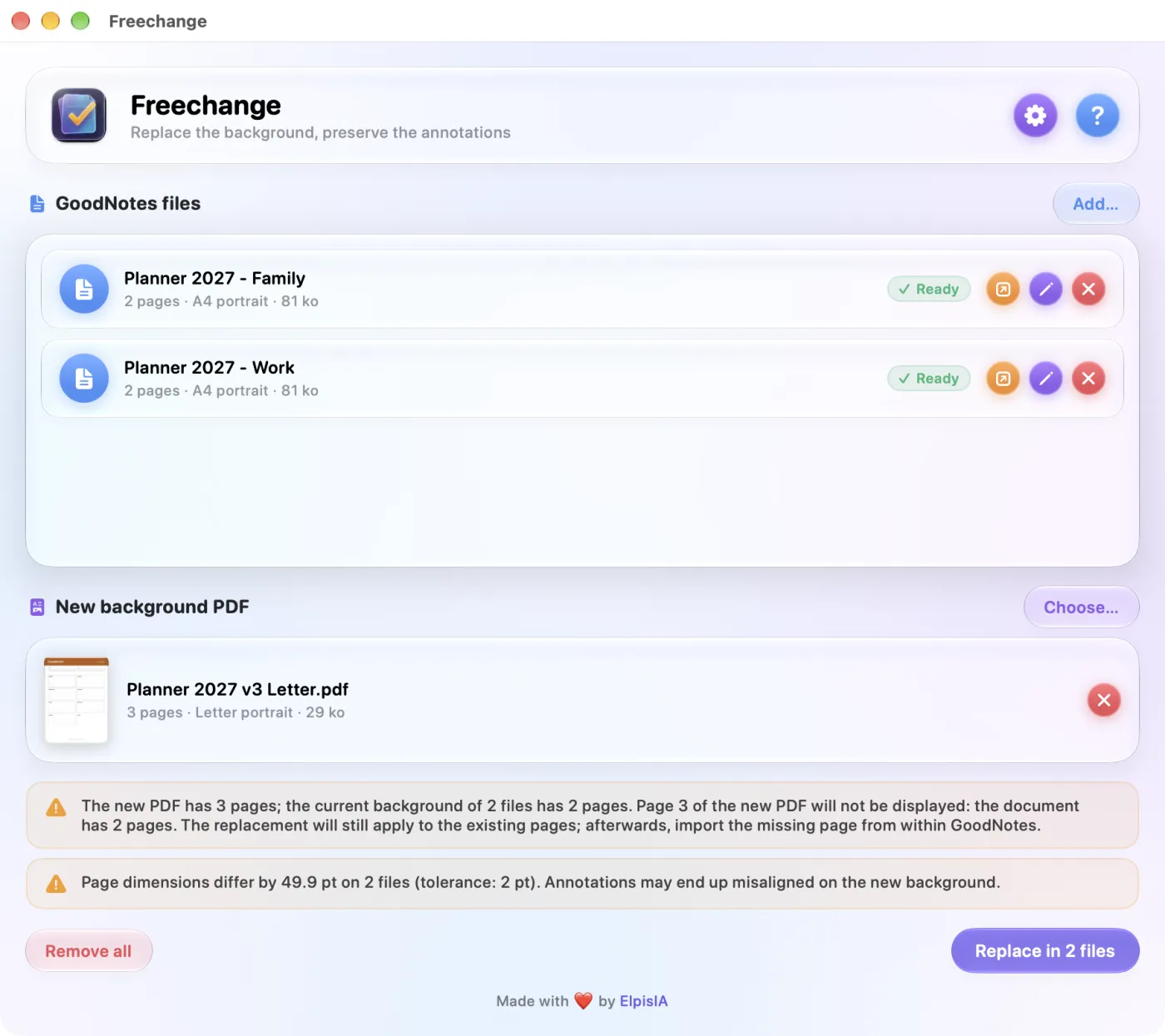
- The new PDF has more pages: the background of the existing pages is replaced and your annotations are preserved, but the extra pages are not displayed. Import them afterwards from within GoodNotes; Freechange does not create pages (see Known limitations).
Different page sizes
Beyond 2 points, the banner warns you: “Page dimensions differ by 49.9 pt on 2 files (tolerance: 2 pt). Annotations may end up misaligned on the new background.” Freechange recognises the A3, A4, A5, Letter and Legal formats, in portrait or landscape; any other size is shown in points, for example “421 × 604 pt”.
The confirmation
When such a banner is shown, the main button first opens the Confirmation required dialog, which repeats the page count and page size warnings. Continue starts the replacement; Cancel (or Esc) leaves everything as it is.
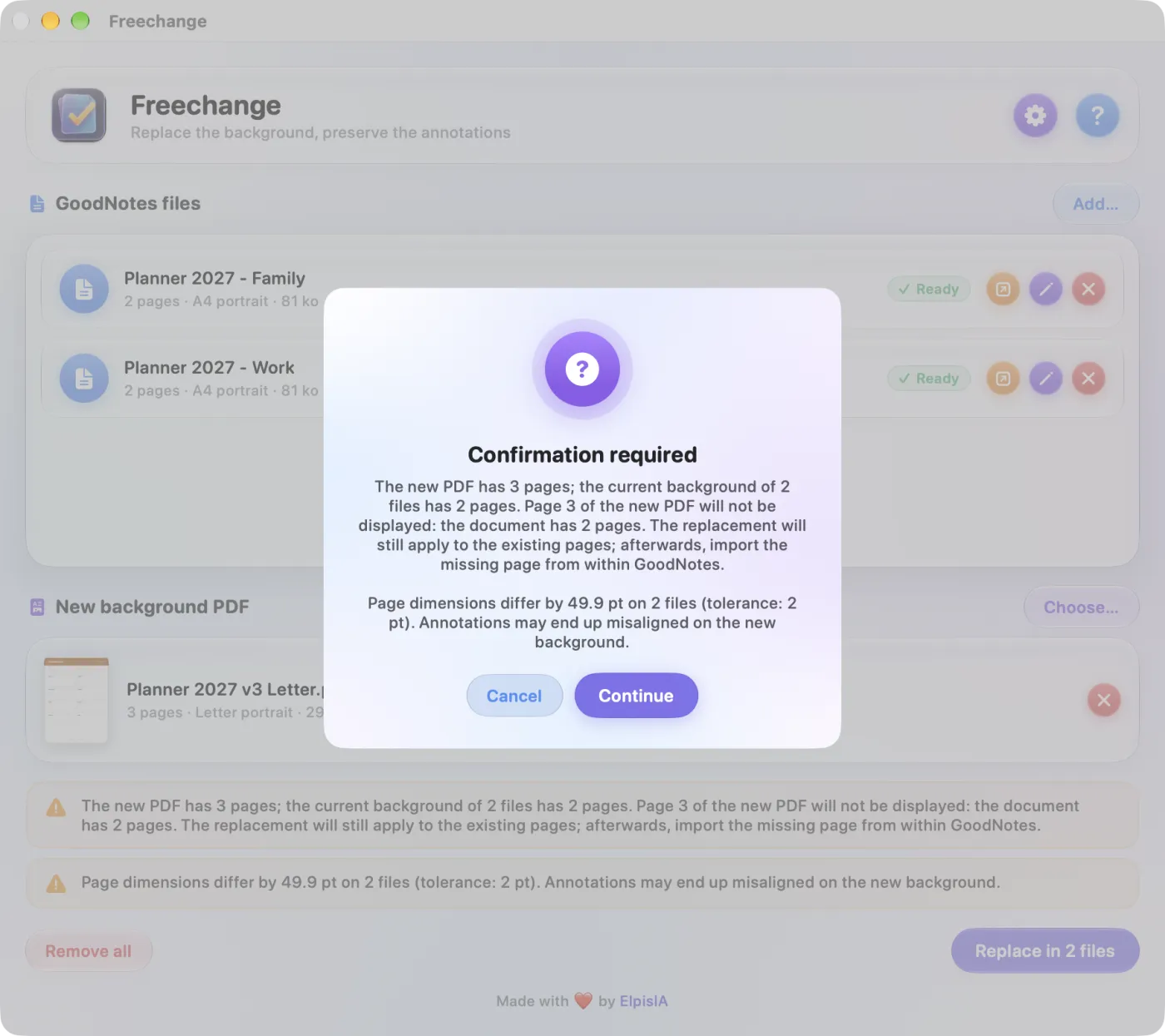
A difference of less than 2 points, common between two programs that produce the same A4 page, triggers nothing.
A document that contains several PDFs
A GoodNotes document can contain several imported PDFs, its “attachments”. Freechange does not guess which one is the background: the card shows the Choose background… button instead of a state, and a banner asks you to pick it.
- On the card, click Choose background….
- The Several attachments sheet lists each attachment: its first page, a short identifier (eight characters followed by “…”), its pages, format and size. The first PDF is already selected.
- Click the attachment to replace (green tick), then Use this background: the card switches to Ready.
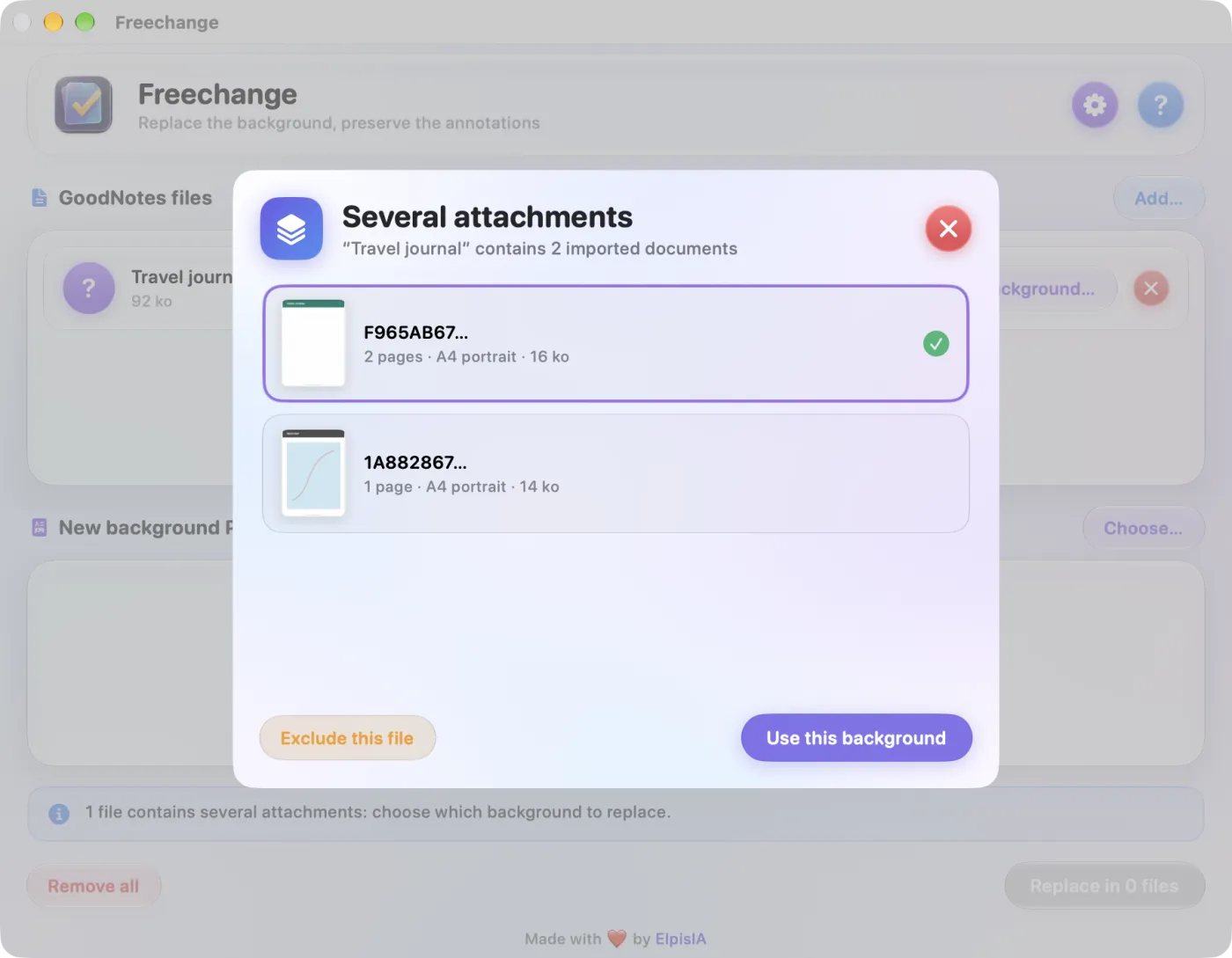
- Exclude this file keeps the document in the list without processing it: it switches to Excluded, with the note “No background PDF in this document.”
- An unusable attachment, an imported image (Not a PDF) or a damaged PDF (Unreadable PDF), is greyed out: you cannot pick it.
- The red cross (Close) closes the sheet without changing anything: the document is still waiting for its choice.
The same choice is asked for before you fix, extract or open in another app the background of such a document.
Back to contentsThe report and excluded files
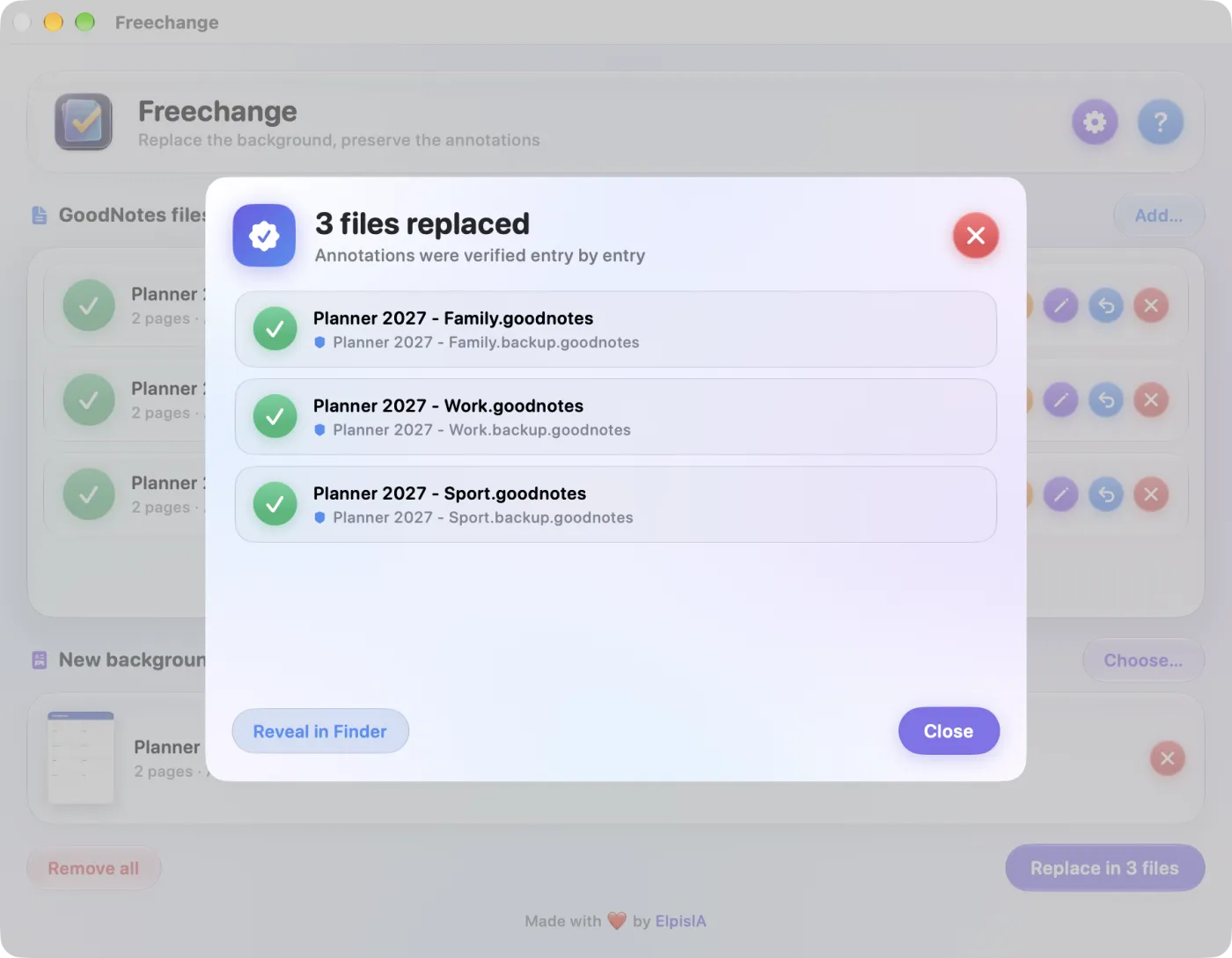
At the end of a replacement, the report tells you, document by document, what was done.
- The title sums it up: “3 files replaced”, “1 file failed” or, for example, “2 replaced, 1 failed”.
- Below it: “Annotations were verified entry by entry”, or “Failed files were not modified”.
- Each successful document shows the exact name of its backup, for example “Planner 2027 - Family.backup.goodnotes” (see Backups); a failed document shows the reason.
- Reveal in Finder selects the documents of the report in the Finder; Close (or ↩) closes the report.
Why a document is excluded
A document that cannot be processed is set aside as soon as it is analysed: its card switches to Excluded, the reason appears in orange under its name, and a banner reminds you how many files are excluded. The other documents in the batch are processed normally. A document whose check fails during processing also switches to Excluded, but the banner does not count it: the report shows it as failed.
| Message | What it means |
|---|---|
| “…” is read-only. | The file, or its folder, cannot be written to. Freechange has to write the backup next to the file: move it to a folder you can write to. |
| “…” is unreadable or not a valid ZIP archive. | It is not a usable GoodNotes document: export it again from GoodNotes. |
| No background PDF in this document. | The document contains no imported PDF, or you excluded it in the choice sheet. |
| Attachment “…” is not a PDF. | The only imported item is an image. |
| Attachment “…” is an unreadable PDF. | The background PDF is damaged. |
| Check 5: … — operation cancelled. | One of the six checks failed during processing (see The six checks): the document was not modified. The technical detail stays in French, whatever the app's language. |
Before starting the batch, Freechange also estimates the space needed on the documents' disk. If it is short, the Cannot start processing dialog gives the space needed and the space available, and nothing is done.
Back to contentsThe six checks before writing
A GoodNotes document is an archive holding many items: your annotations page by page, the preview, indexes and the background PDF. Freechange changes only the last one, and proves it before touching your file.
The order of operations
- Freechange rebuilds the document separately, in a temporary folder on the same disk, item by item and in the original order: only the background PDF changes.
- It runs the six checks below on this new document.
- Only if they all pass does it create the backup, by copying your still-intact file, and check its size.
- Then it replaces your file in one go. Should that replacement fail, the file would be restored from the backup.
| No. | Check on the rebuilt document |
|---|---|
| 1 | It can be read back in full. |
| 2 | It contains the same number of items as the original. |
| 3 | The items have the same names, in the same order. |
| 4 | The background PDF is, byte for byte, the one you supplied (same SHA-256 digest). |
| 5 | Every other item, annotations included, has a SHA-256 digest identical to the original's. |
| 6 | The background PDF is readable and has the expected number of pages. |
Check no. 5 is the one that guarantees your annotations are intact. If a single check fails, your file is not touched, no backup is created and the card switches to Excluded, with the number of the check.
These checks prove that the file changed only where it should. They cannot prove that GoodNotes will display it: its format is undocumented. So always open the document in GoodNotes after processing.
Fixing a form field
The background is a PDF form with fields, typed in before it was imported into GoodNotes, and one value is wrong. Freechange fixes it right in the background PDF, without touching your handwriting.
- On the document's card, click the purple button (pencil), or right-click and choose Fix background PDF form fields….
- The Fix the background PDF sheet shows the background PDF with, above it, the number of fields (“6 fields”) and the no changes label.
- Click the field to fix in the document and type the right value. The badge changes to 1 field changed.
- Click the green tick at the top right (Reinject into the GoodNotes file). It stays grey as long as no field has changed.
- The Field fixed dialog gives the name of the backup created; the card is analysed again.
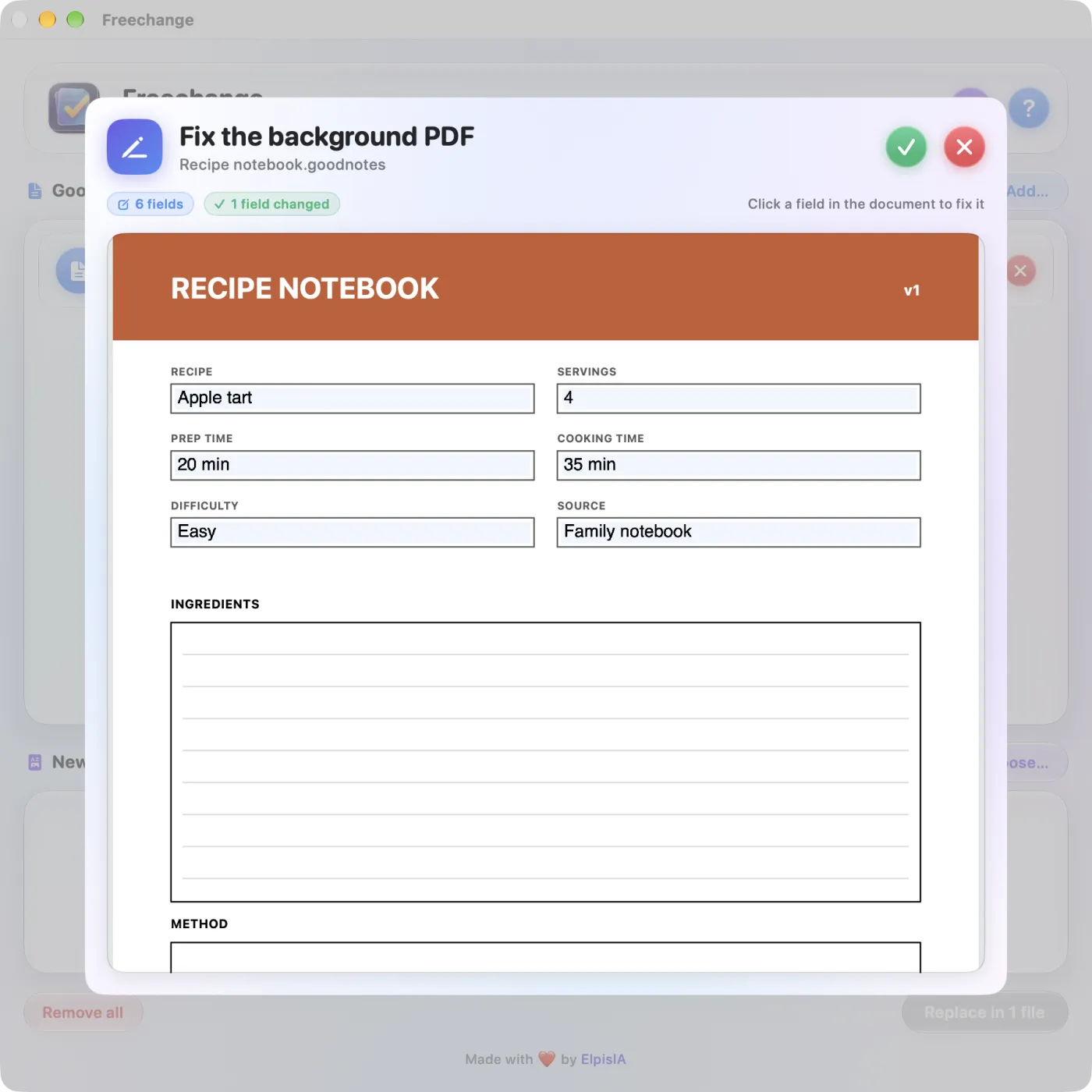
The red cross (Close) closes the sheet without writing anything. The fix follows the same path as a background replacement: six checks, a backup, then the file replacement (see The six checks). If a check fails, the Reinjection refused dialog gives the reason and the file stays as it was.
A form without fields
If the PDF has been “flattened”, its fields are now just drawings. The sheet says so: “This PDF contains no active form fields — it was probably flattened.” Then go through another app or extraction.
GoodNotes search may still find the old value: its text index is not regenerated. The display, however, shows the corrected value (see Known limitations).
Like replacing, fixing a field requires a licence after the trial.
Back to contentsEditing the background in another app
To touch up the background with your usual tools, Preview or another PDF editor: Freechange opens it in your Mac's default PDF app, then reinjects every save into the GoodNotes document.
- Click the card's orange button, or right-click and choose Open background PDF in the default app.
- The background PDF opens in your default PDF app, under the name “NAME-fond.pdf”: it is a temporary copy.
- Edit it, then save (⌘S). One or two seconds later, Freechange reinjects that version into the GoodNotes document, with the six checks and a new backup.
- The card shows External editing, then “External editing · 1”, “· 2”…: the number of saves reinjected. A banner reminds you that the session is open.
- When you are done, click the card's orange button again, now two arrows in a circle (Stop automatic reinjection). The temporary copy is deleted.
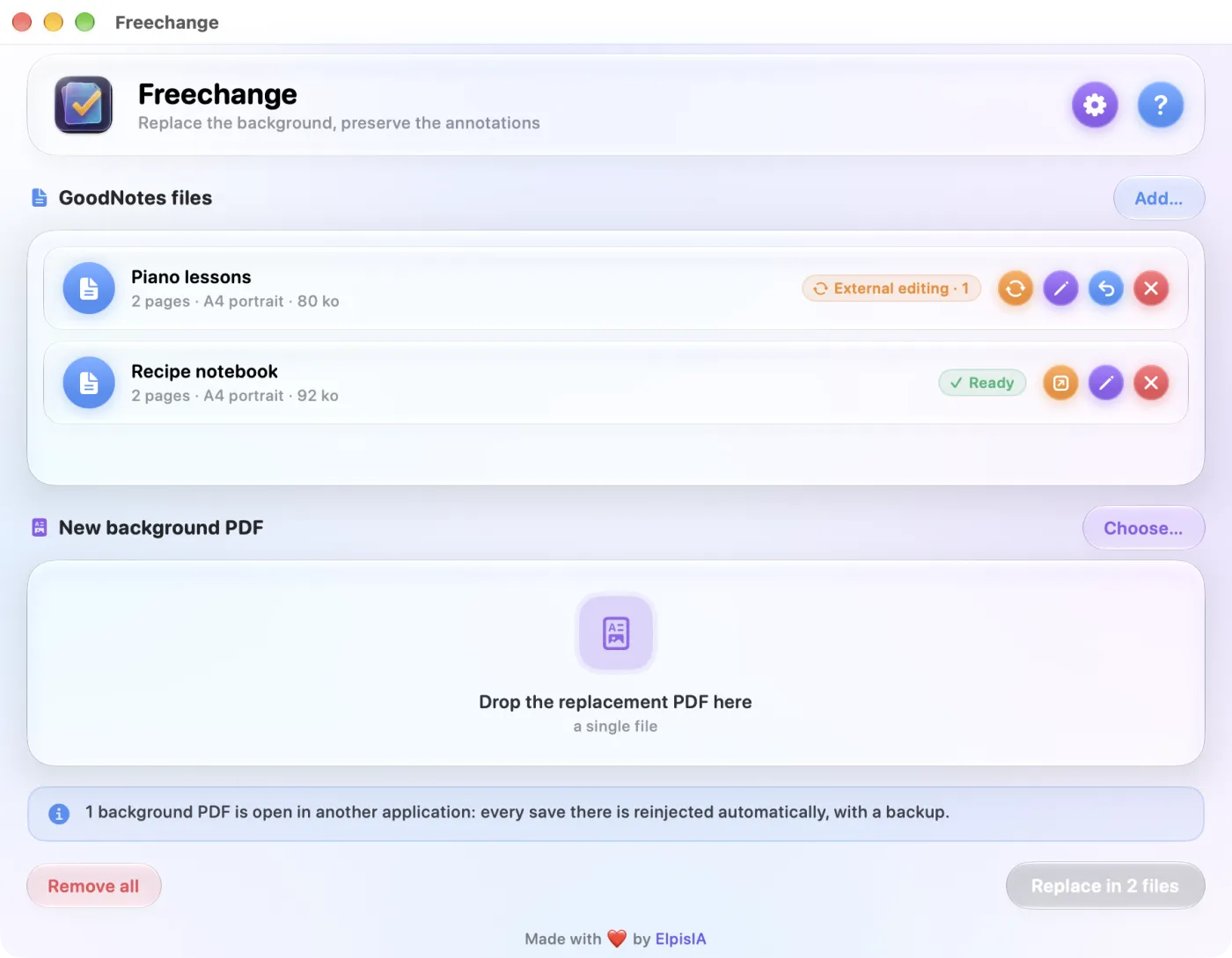
Every save creates a backup: ten saves, ten backups. Save when the change is finished. Here Freechange compares neither page counts nor page sizes: do not change the layout in the other app. If a check fails, the Reinjection refused dialog gives the reason.
- Closing the PDF in the other app does not end the session: stop it in Freechange. Keep Freechange open while you work.
- The session stops by itself if the document goes into a replacement, opens in the field editor, or leaves the list.
- A save still being written, and therefore unreadable, is ignored without a message: the next one is picked up.
- Starting a session requires a licence after the trial; stopping one never does.
Extracting the background PDF
- Right-click the document's card and choose Extract background PDF….
- In the “Where should the extracted background PDF be saved?” window, the suggested name is “NAME-fond.pdf”. Choose the folder and click Extract.
- The Finder opens on the extracted file.
You can keep this PDF, touch it up in the app of your choice, then put it back as the New background PDF: that is an ordinary replacement, with its warnings and checks (see Replacing the background). This is the way to go for a flattened form.
Extraction does not change the document and remains available without a licence.
Back to contentsBackups
Before every write, Freechange keeps an intact copy of the document, in the same folder. It never overwrites one.
- The first one is called “NAME.backup.goodnotes”: it is the state of the document before Freechange first changed it, the “pristine original”.
- The next ones are called “NAME.backup-2.goodnotes”, “NAME.backup-3.goodnotes” and so on.
- A backup is created at every successful write: a background replacement, a field fix, each save reinjected from another app.
- It is created after the six checks and just before the file is replaced: a failed document leaves no pointless backup behind.
- Its size is checked: an incomplete copy stops the operation (“The backup is incomplete (…) — operation cancelled.”).
The processed document keeps its original name. Freechange never deletes a backup, not even after a restore: tidy up yourself in the Finder once you are sure of the result in GoodNotes.
If you delete “NAME.backup.goodnotes”, the next backup takes that name again: it will then hold the state of the document at that moment, no longer the original from before Freechange, even though the restore sheet still marks it pristine original.
Restoring a document
- On the document's card, click the blue button (back arrow), shown as soon as a backup exists, or right-click and choose Restore from a backup….
- The Restore the document sheet lists the backups, with their creation date and size. The first one, marked pristine original, is preselected.
- Click the backup you want, then Restore.
- The File restored dialog confirms: the document is back to the state of the backup, under its usual name, and the backup is kept.
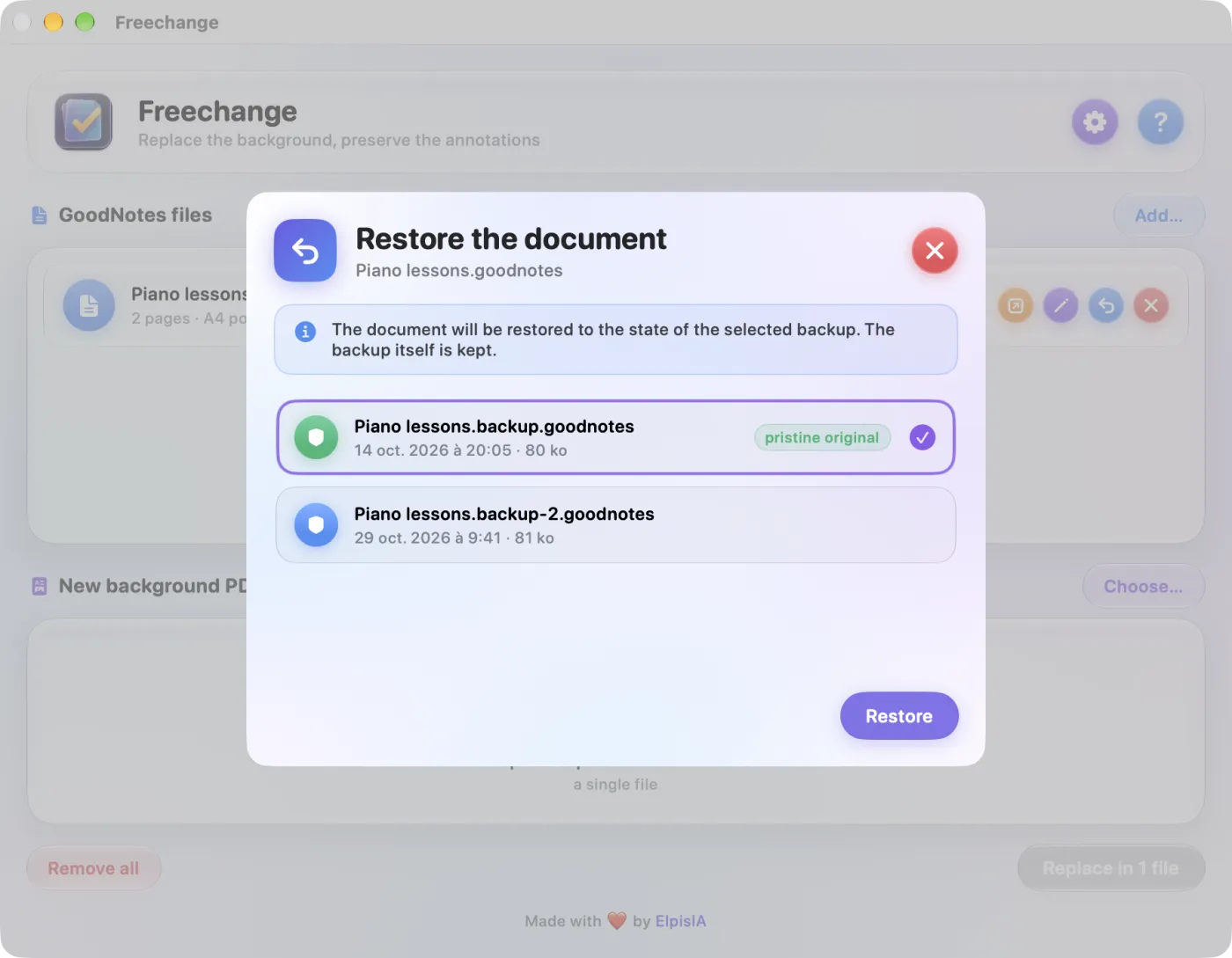
Restoring replaces the document straight away, with no further confirmation, and its current state is not backed up first. If you might still need it, copy the document in the Finder beforehand.
- Restoring remains available without a licence, even after the trial.
- With no backup, that right-click choice opens the No backup dialog.
- The restored document has to be imported into GoodNotes again, as after a replacement.
Trial and licence
You can try Freechange free for 14 days, with every feature, from the first launch. After that, a lifetime licence, valid on two Macs, keeps background replacement and correction available.
What changes when the trial ends
| Without a licence, after the trial | Always available |
|---|---|
| Replacing the background, fixing a field, starting an edit in another app: the click opens the licence sheet. | Adding and analysing documents, extracting the background PDF, restoring a backup. |
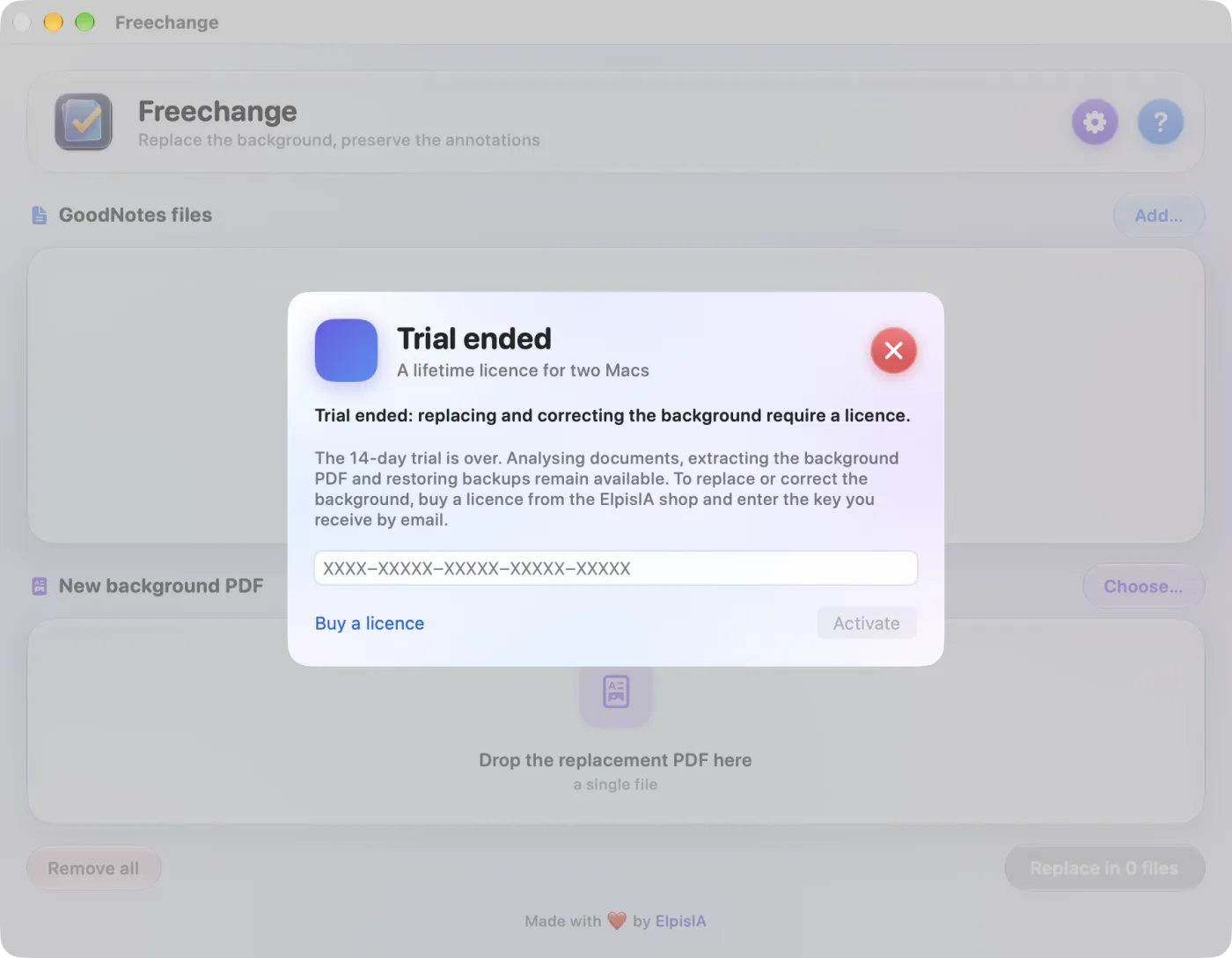
Freechange never stops you from getting your files back. At the first launch after the trial ends, the licence sheet opens by itself, once.
Buying and activating a licence
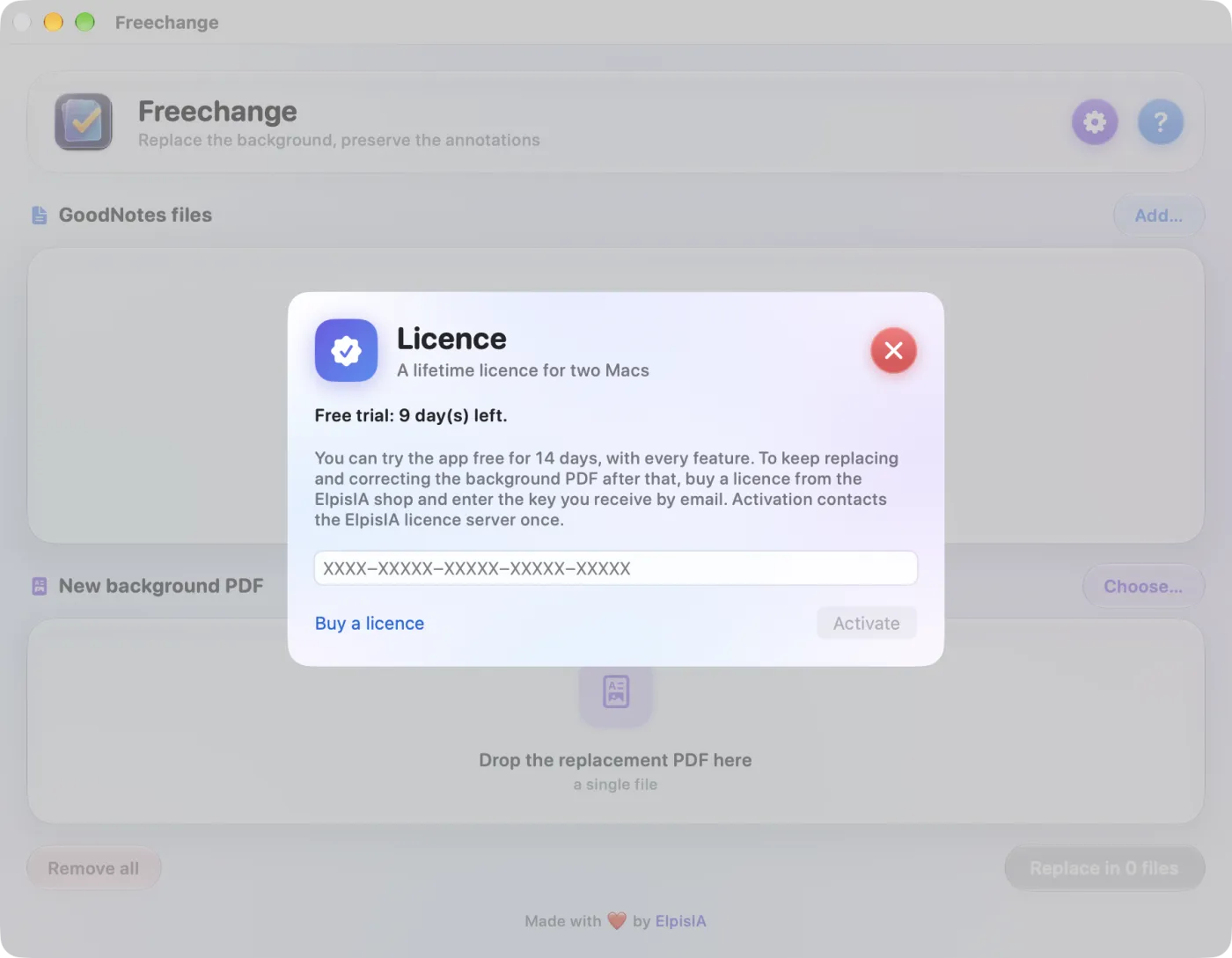
- Open the Freechange menu › Licence….
- Buy a licence opens Freechange's page in the ElpisIA shop, in the app's language. The key arrives by email after payment.
- Paste the key into the entry field (“XXXX-XXXXX-…” in grey), then click Activate (or press ↩). Activation needs an Internet connection.
- The sheet closes; reopened, it shows for example “Licence activated on this Mac (1 of 2 Macs).”
The licence status appears at the top of the sheet: “Free trial: 9 day(s) left.”, “Licence activated on this Mac (1 of 2 Macs).” or “Trial ended: replacing and correcting the background require a licence.”
If activation fails
| Message | What to do |
|---|---|
| Unknown key, or the licence server could not be reached. Check the key. | Copy the key again from the email; if it is right, try again later. |
| The licence server could not be reached. Check your Internet connection, then try again. | Check the Mac's connection. |
| This key is already activated on the maximum number of Macs. | The key is already in use on two Macs: write to us. |
| This key does not unlock this app. | It is the key of another ElpisIA app. |
| This Mac is no longer registered for this key: please enter it again. | Enter the key again and click Activate. |
| This licence has been deactivated. · This licence has expired. | Write to us using the form on this page. |
Once activated, the licence is checked on the Mac itself, with no connection, thanks to a token saved at activation. That token has a limited lifetime: when it expires, Freechange renews it in the background, at most once a day, without blocking the app; without a network, nothing changes. If the server answers that the licence is no longer valid (deactivated, expired, unknown key, Mac no longer registered), it is removed from this Mac.
Back to contentsLanguage, help and information
Choosing the language
- Click the purple gear at the top of the window, or the Freechange menu › Settings… (⌘,).
- Under Interface language, click Français, English (US), Deutsch or Español.
The language applies at once, with no restart, and Freechange remembers it for later launches. At the very first launch, the app is in French, whatever your Mac's language. Finder previews, for their part, follow the system language.
Built-in help
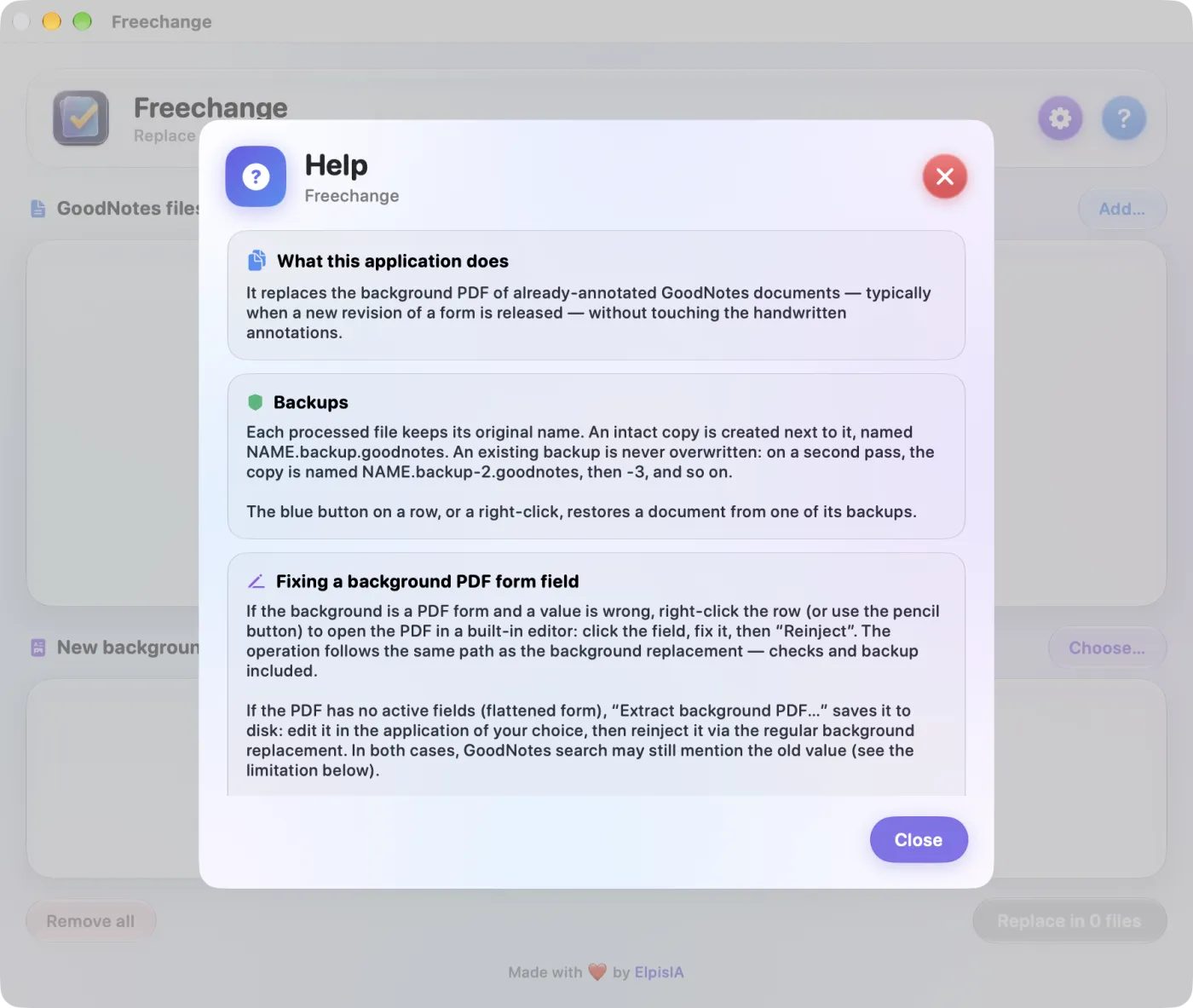
The blue question mark, or the Aide menu › Freechange Help, opens six cards: What this application does, Backups, Fixing a background PDF form field, What is checked before any write, Known limitation: full-text search and New PDF compatibility.
About
The Freechange menu › About Freechange shows the installed version, for example “Version 1.1 (2)”. The ElpisIA link in “Made with ❤️ by ElpisIA”, at the bottom of the main window and of this sheet, opens elpisia.com.
Back to contentsPreviews in the Finder
Once Freechange is installed in the Applications folder, the Finder shows the first page of GoodNotes documents, without opening any app.
- The document's thumbnail, in icon, column and gallery views, is its first page.
- Select a document and press the space bar: the preview shows that first page in large.
- It is the picture GoodNotes itself stores in the document: the first page with its handwritten annotations.
- For a document with several pages, the preview adds “Page 1 of 3” (for example) and “The only page GoodNotes stores a preview for.”
- A document without that picture keeps the Finder's usual icon.
Freechange never shows the background alone instead: a blank form for a filled-in document would be more misleading than an icon.
Back to contentsKnown limitations
- GoodNotes search may still find wording from the old form: GoodNotes keeps a text index of the old background, which Freechange does not regenerate. The document display itself is correct.
- No page creation. If the new revision has more pages, import the missing pages from within GoodNotes. Creating pages would force Freechange to write into the GoodNotes synchronisation log, a private format: the risk would fall on your synced documents.
- An undocumented format. The GoodNotes file format may change with any GoodNotes update. Faced with an unexpected structure, Freechange refuses to write rather than take a chance.
- The name of the old PDF remains recorded in the document's internal log. It is not shown anywhere.
- The technical detail of a failed check is shown in French, whatever the app's language.
- Whatever language you choose in Freechange, the macOS menu titles (Fichier, Édition, Fenêtre, Aide…), file sizes (“82 ko”) and dates stay in French.
Your data and the network
- No account, no usage statistics: your documents and PDFs never leave your Mac.
- The only connection is for the licence: on activation, Freechange sends the key, the product name and a fingerprint of this Mac (a code derived from the hardware identifier, never your name or address); after that, the same check at most once a day, when the licence is due for renewal.
- What Freechange keeps: in its preferences, the chosen language, the key once activated and a copy of the trial start date; in the Mac's keychain, the trial start date and the licence token.
- What Freechange writes to disk: the processed document, replaced in place; its backups, next to it; the extracted PDF, where you choose; temporary files, in macOS's temporary folders.
A question about Freechange? See the FAQ or write to us using the form below.
Menus and keyboard shortcuts
| Shortcut | Action |
|---|---|
| ⌘O | Add GoodNotes files… |
| ⇧⌘O | Choose background PDF… |
| ⌘, | Settings… |
| ↩ | The window's main button, or the coloured button of a dialog or sheet (except the field editor) |
| Esc | Cancel, in a confirmation dialog |
The menus
- Freechange menu: About Freechange, Licence…, Settings….
- Fichier menu (macOS keeps the menu titles in French): Add GoodNotes files…, Choose background PDF… and Remove all. From this menu, Remove all clears the list and the chosen PDF without asking for confirmation; your files on disk are not touched.
- Aide menu: Freechange Help.