
This tutorial walks you through AdminPlace screen by screen: adding your sites, reading the dashboard, storing your credentials in the encrypted vault, keeping track of domains and renewals, and backing everything up. Each chapter tells you where to click, with screenshots of the app.
- Mac, macOS 15 or later
- 26 chapters
- French, English, Spanish, German
- AdminPlace 1.0, October 2026
All screenshots show fictional data: web designer Camille Martin, her clients “Atelier Lumière” and “Studio Nova”, sites on example.com and example.org, and made-up passwords. None of these accounts exist.
Contents (26 chapters)
Before you start
AdminPlace is a Mac app that brings together the monitoring of your websites, the credentials that go with them, the renewal dates of your domains and providers, and your backups.
What you need
- A Mac running macOS 15 Sequoia or later.
- There is no account to create: AdminPlace's database stays on your Mac, and passwords stay in the macOS keychain.
- The first 14 days are a full trial; after that, the app asks for a licence key (see Trial and licence).
Finding your way around the window
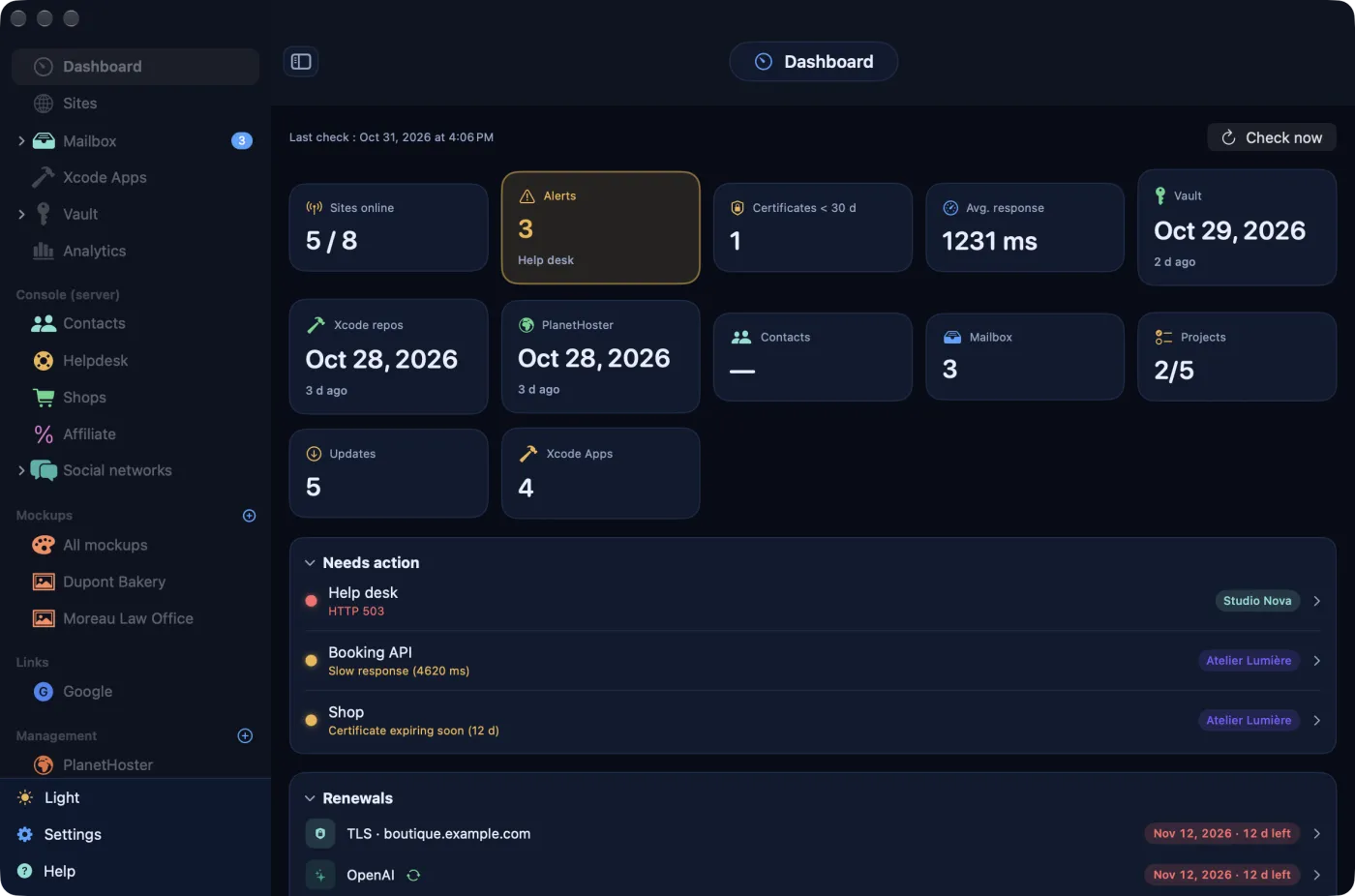
Sections live in the sidebar on the left, in groups:
- at the top: Dashboard, Sites (with the Mailbox right below), Xcode Apps, Vault and Analytics;
- Console (server): Contacts, Helpdesk, Shops, Affiliate and Social networks;
- Mockups, then Links;
- Management: your providers (host, APIs…) and your E-mails;
- Development: how your projects are progressing;
- Domains: one domain per row, with the number of sites online (“3/4”).
The + in a section header adds an item: a mock-up; a provider or an email address (Management); a site to a project domain (Development); a domain and its end date (Domains). At the very bottom, the Light / Dark button switches the appearance in one click, and two entries open Settings and Help.
A small blue i next to a page title opens a bubble that explains the section without leaving the screen.
Language and appearance
The app is available in French, English, Spanish and German. By default it follows your Mac's language (English if it is none of the four); Settings › Language lets you pick one, and the interface switches immediately. The app opens in night mode; Settings › General › Appearance offers System, Light or Dark.
Back to contentsFirst launch
As long as the database is empty (no site, no provider, no email address), AdminPlace opens a short assistant at every launch to record your first site.
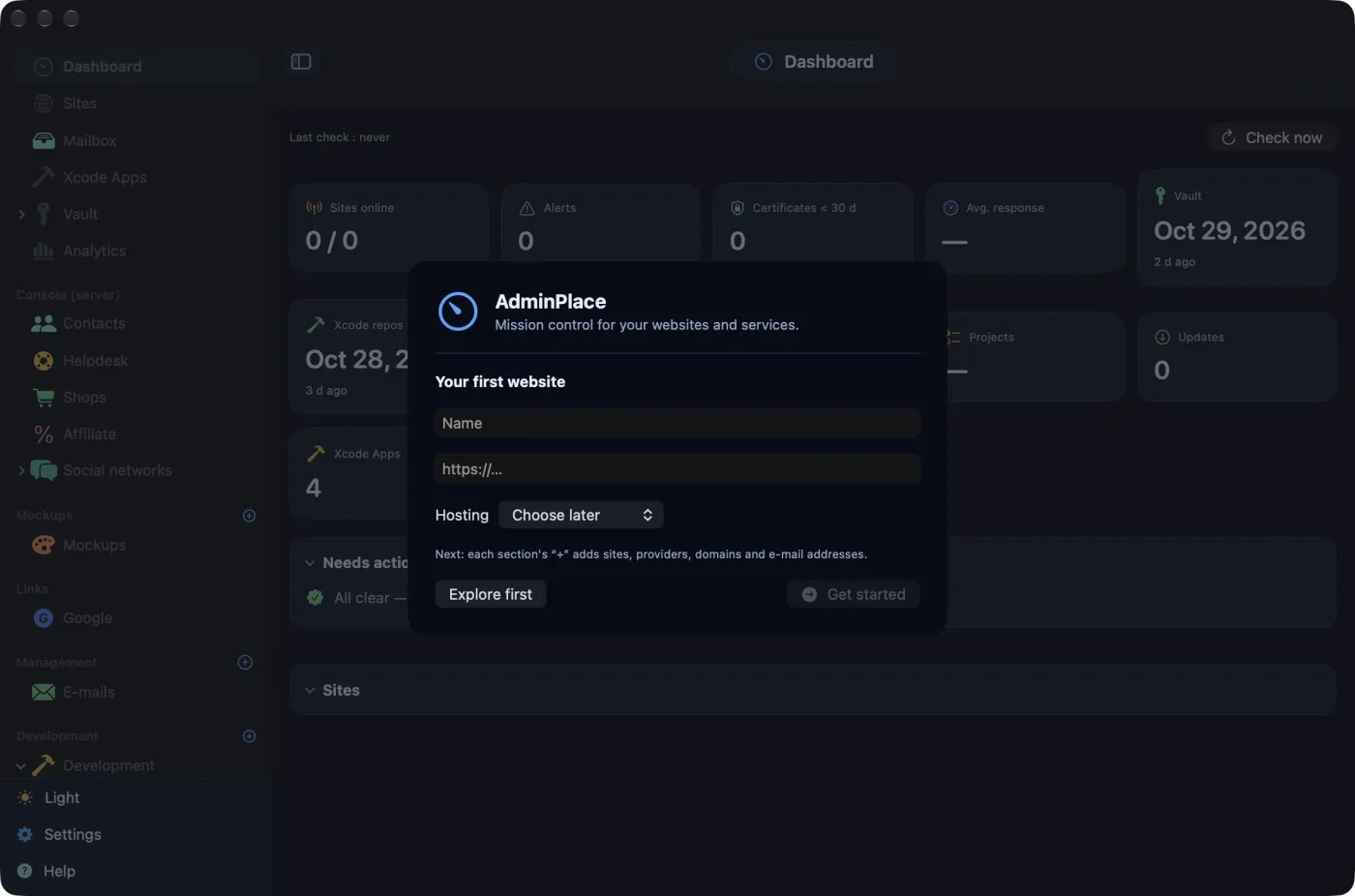
- Under Your first website, type a Name (“Website”, “Blog”…) and the site's address, for example
https://www.example.com. - In the Hosting menu, pick your host from the list, or leave Choose later.
- Click Get started (or press ↩). The button stays greyed out while the name is empty or the address has no dot in it.
AdminPlace then creates a group called My sites, puts the site in it (monitored, expected HTTP code 200) and, if you chose a host, adds it to Management. Forgot “https://”? The app adds it for you.
Explore first closes the assistant without creating anything: it will come back at the next launch as long as the database stays empty.
The site you have just added is not checked straight away. Click Check now on the dashboard to see its status without waiting.
Adding your sites and groups
Sites are organised in groups: a client, a brand, a project. Each group has its own colour, used in the lists and on the dashboard.
Creating a group
- Open Sites, then click Manage groups in the toolbar.
- New group adds a “New group” row at once: change its Group name and pick its colour with the dot on the left (eight colours).
- Click Save.
The name and colour change as you type: this sheet has no Cancel button. A row's trash icon deletes the group and all its sites, with their history, after confirmation.
Adding a site
- In Sites, click New site and choose the group from the menu (the button is greyed out until a group exists).
- Fill in the Name and the Address (URL), which already starts with “https://”. The Admin console (a full address, for example
https://www.example.com/wp-admin/) is optional: it adds an Open console button. - Enter the Technology as free text (“WordPress”, “Flarum”…): it shows as a badge and helps content detection.
- Leave Monitored ticked so the site gets checked; the Expected HTTP code is 200.
- Choose the Content tracking: Auto-detect, WordPress, Flarum or No tracking.
- Click Save, available as soon as the name is filled in and the address starts with http or https.
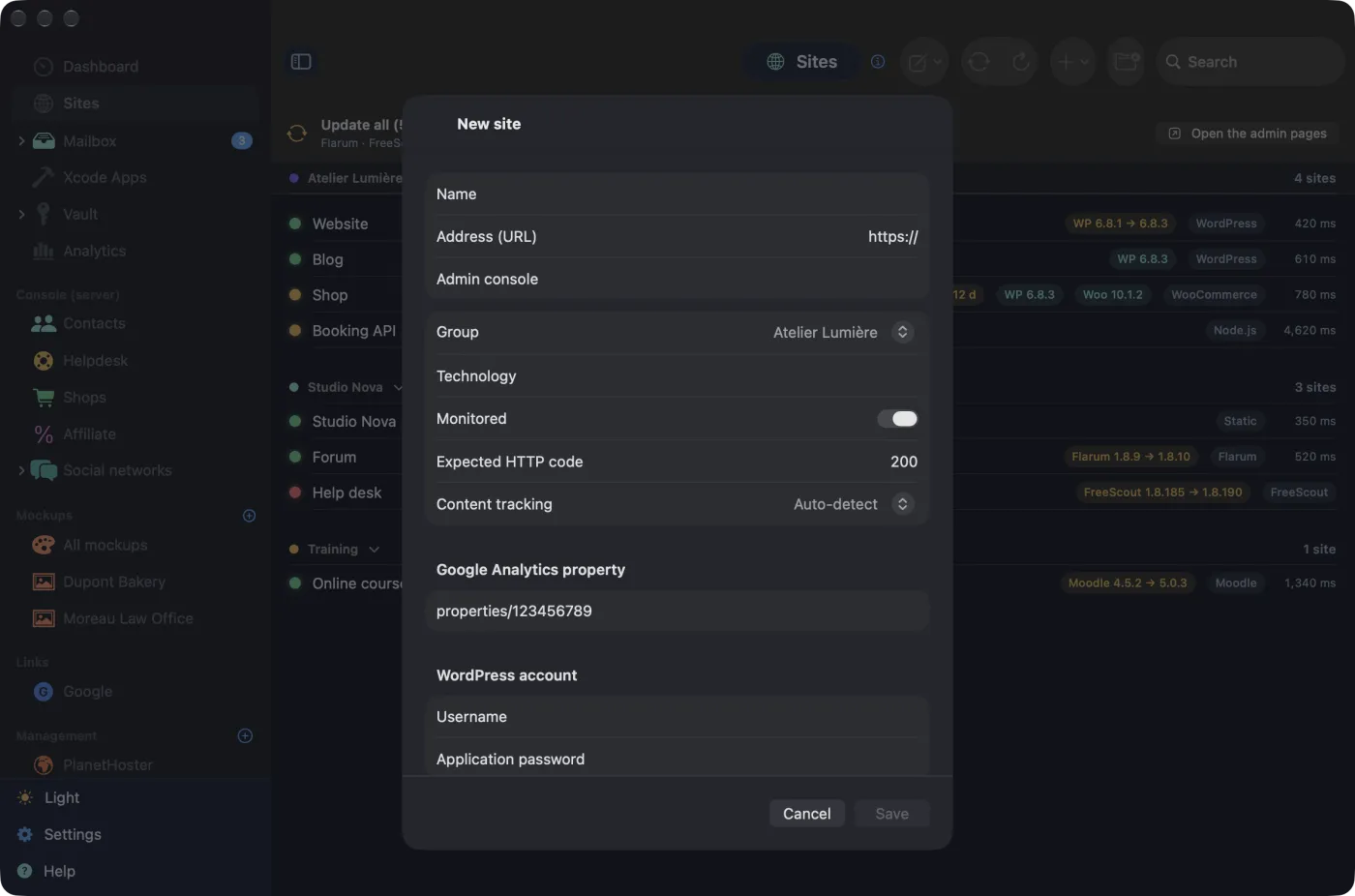
The same sheet has three more sections: the site's Google Analytics property (see Google, writing and the Console); the WordPress account used to publish posts and to read a WooCommerce shop: Username and Application password, created in wp-admin (Users › Profile › Application Passwords) and kept in the keychain; and Notes.
Editing or deleting a site
Open the site's page and click Edit. The Delete button at the bottom of the sheet erases the site and its whole measurement history; vault credentials linked to it stay in the vault.
The expected HTTP code only matters for a response outside the 200 to 399 range: a protected site that answers 401 can stay “online” if you enter 401. Any response between 200 and 399 is accepted.
The dashboard
The dashboard sums up the state of all your sites and what needs your attention. It opens at launch.
The header
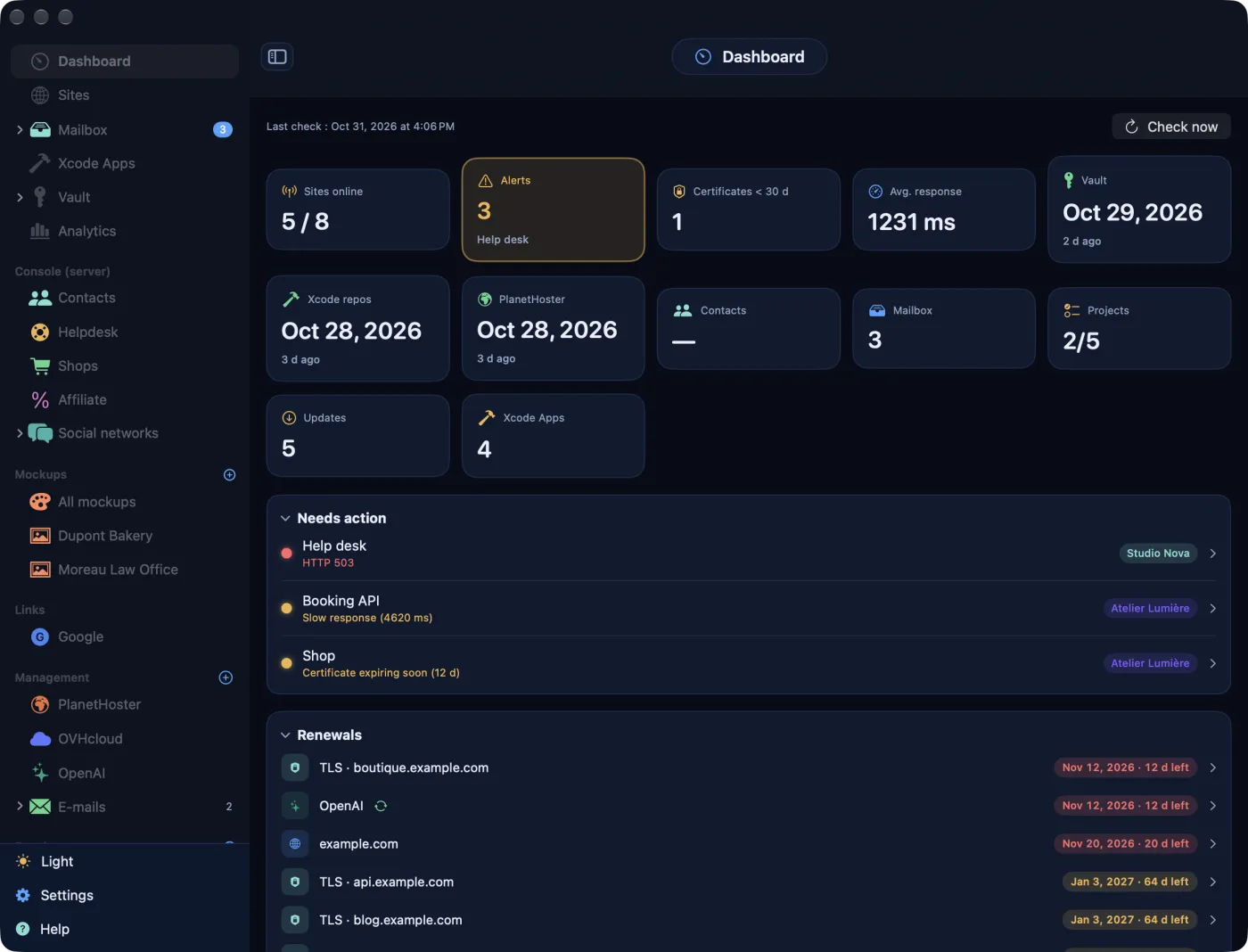
“Last check” gives the time of the most recent measurement. On the right, Check now runs a full check of every monitored site; while it runs, a spinner and a counter (“3 / 8”) replace the button.
The tiles
A tile in alarm takes on its colour entirely. Clicking most of them takes you to the section concerned.
| Tile | What it shows |
|---|---|
| Sites online | Sites online out of monitored sites; green when all of them respond. |
| Alerts | Sites that need attention or are down, with the name of the first one. A click opens that site, or the list of alerts if there are several. |
| Certificates < 30 d | TLS certificates that expire within 30 days. |
| Avg. response | Average response time of the monitored sites. |
| Vault and Xcode repos | Date of the last backup; red once the frequency you set is exceeded (see Full backup). |
| Name of your host | Last full cPanel backup, if Management contains a host that uses cPanel; red beyond 30 days, or as long as no backup has been requested. |
| Contacts | Number of contacts read through the Console (see Google, writing and the Console). |
| Mailbox | Unread messages across all your mailboxes. |
| Projects | Finished projects out of tracked projects. |
| Updates | Software running behind its latest version. |
| Xcode Apps | Projects found on disk; amber if one of them has uncommitted changes. |
The cards
- With the Console set up, a Console (server) card comes first (see Google, writing and the Console).
- Needs action: sites in alert (down first), each with its reason: “HTTP 503”, “Certificate expiring soon (12 d)”, “Slow response (4620 ms)”… An overdue backup also shows up here, with the Back up now button (or Set up backup if no folder has been chosen), as does a site whose content API no longer responds. Nothing to report: “All clear — no incidents.”
- Renewals: the six nearest due dates (domains, provider accounts, TLS certificates), with the date and the days left; red at 30 days or less, amber at 90.
- With Google Analytics connected, Audience (28 d).
- Mailboxes, Server backups and Development, side by side when the window is wide enough.
- Updates, Content tracking (posts, comments and images of your blogs, with the changes since the last check) and Sites, one row per group.
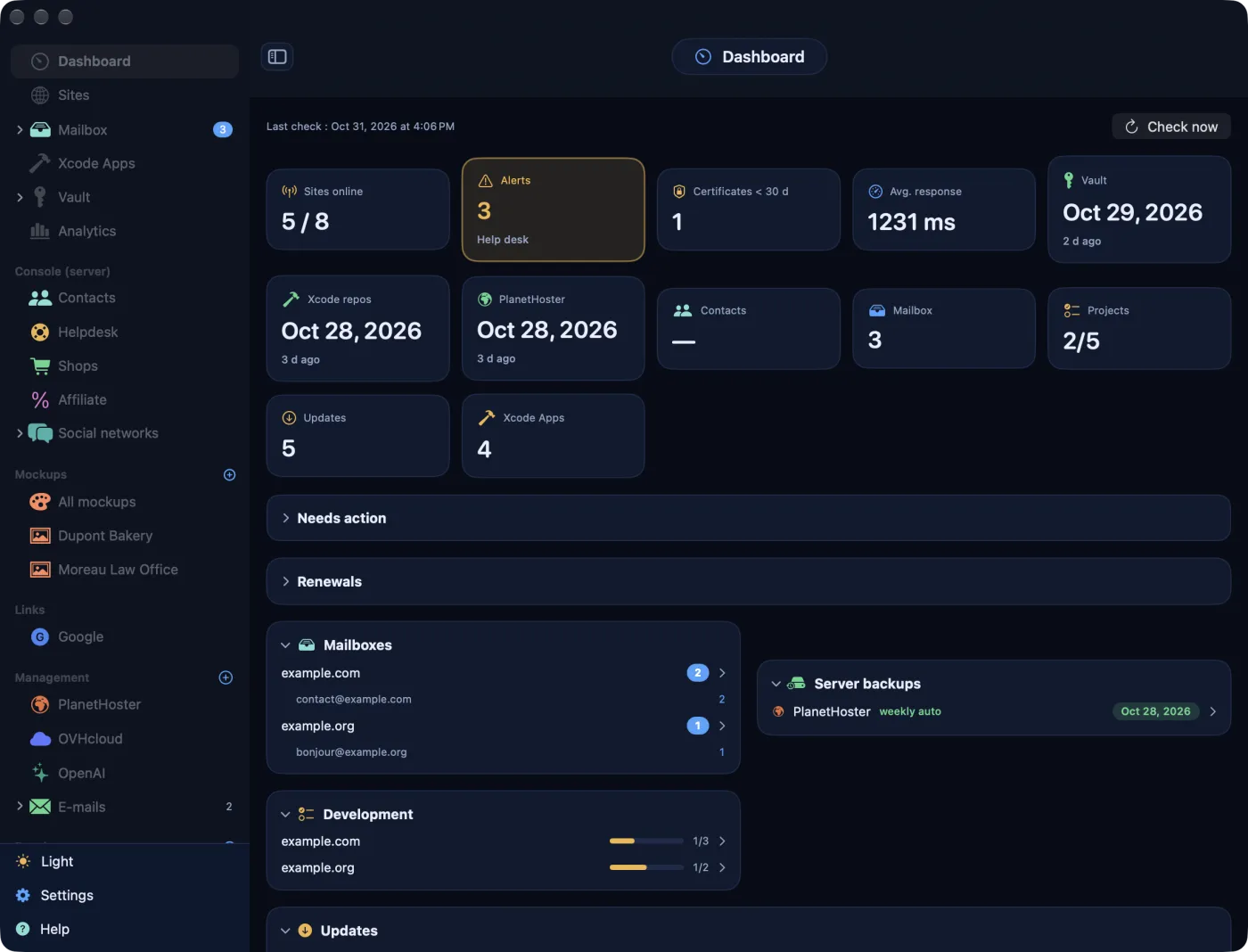
Clicking a card's title collapses it; AdminPlace remembers this at the next launch.
Back to contentsWhat AdminPlace checks
For each monitored site, AdminPlace downloads the page at its address and takes five measurements from it. It never signs in to any account: it is the same visit a browser makes.
The measurements
- the HTTP code of the final response, after following redirects;
- the response time, until the download finishes;
- the days left on the TLS certificate;
- the security headers present, out of six: Strict-Transport-Security, Content-Security-Policy, X-Content-Type-Options, X-Frame-Options, Referrer-Policy and Permissions-Policy;
- the number of redirects.
Along the way, the page often gives away the software and its version (WordPress, WooCommerce, Flarum, Moodle, FreeScout, PHP, server): see Versions and updates.
The four states
| State | When |
|---|---|
| Online (green) | The site responds normally. |
| Needs attention (amber) | Certificate expiring within 21 days, a response slower than 4 seconds, or code 429 (the host is rate-limiting requests: this is not an outage). |
| Down (red) | Network or TLS error, timeout, or an unexpected code outside the 200 to 399 range. |
| Not checked yet (grey) | Never measured, or not monitored. |
How often
Set Settings › Monitoring › Automatic check: Manual only, or every 5, 15 (the default), 30 or 60 minutes. Checks run as long as AdminPlace is open, even with its window closed. In manual mode, no site is checked on its own, except the very first time: as long as no site has been measured, opening the dashboard starts a check. After that, click Check now (or Check on a site's page).
AdminPlace queries at most two sites at a time, with a short pause between each: shared hosts don't like bursts.
Alerts
When a site that was online or needed attention turns red, AdminPlace checks it again 8 seconds later; if it is still down, a notification arrives, for example “Site down: Help desk”. When it recovers: “Back online: Help desk”. Notifications are set in Settings › Notifications (see Settings).
Measurements are kept for 30 days by default: Settings › Notifications › Measurement history kept offers 7, 30, 90 or 365 days. A new frequency counts after the current wait: the next check comes one period later.
macOS refuses an unencrypted http:// site, which then shows as down: monitor its https:// address instead.
A site's page
Clicking a site, in the list, on the dashboard or in a domain, opens its page: everything AdminPlace knows about it.
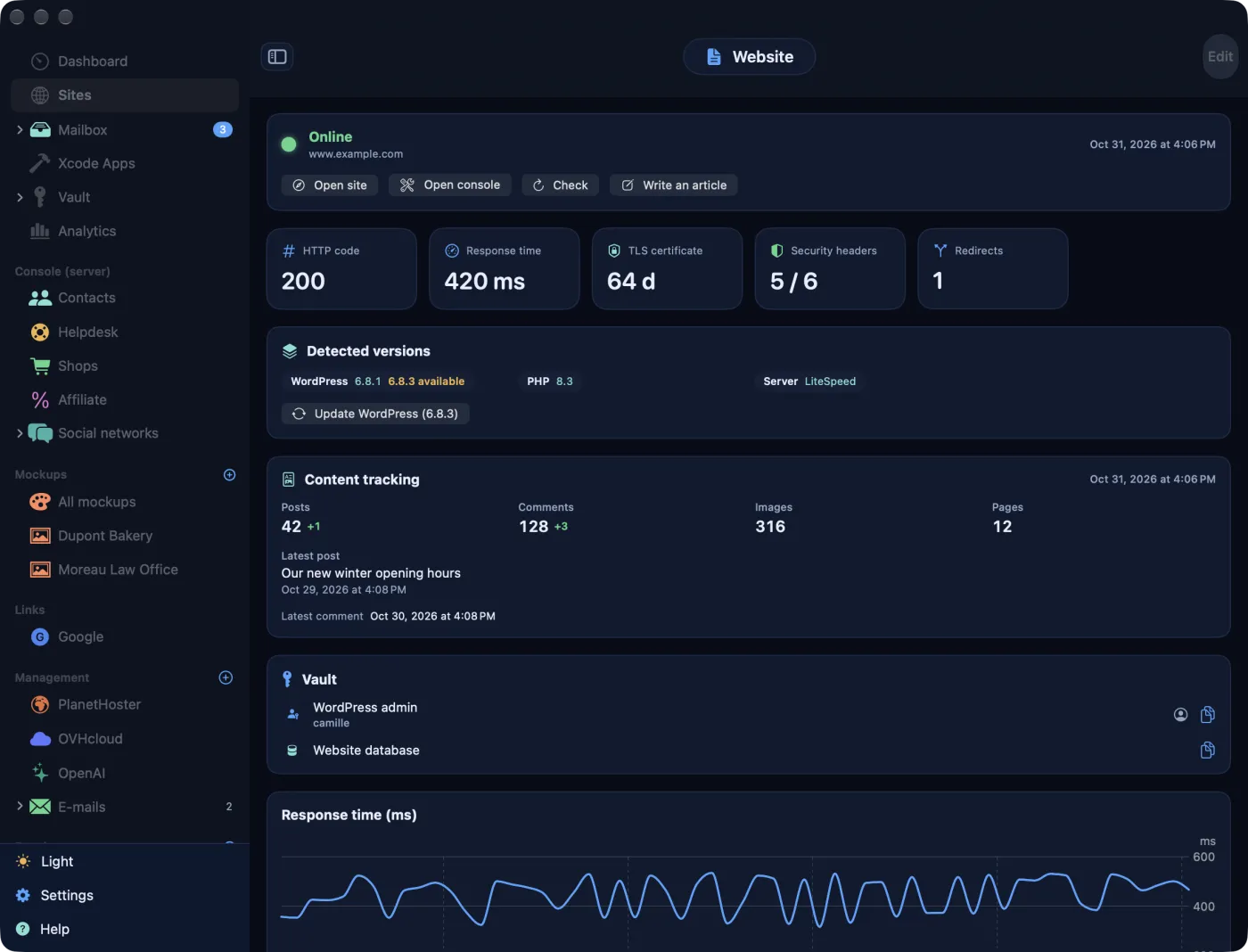
- The status, in large type, with the time of the last check and the Open site, Open console, Check buttons and, for a WordPress blog, Write an article.
- Five tiles: HTTP code, Response time, TLS certificate (in days), Security headers (“5 / 6”, green from 5) and Redirects.
- Detected versions: each piece of software found; for WordPress, Flarum, Moodle and FreeScout, “up to date” or “6.8.3 available”, with a button that opens the update page.
- Content tracking: for WordPress, the number of Posts, Comments, Images and Pages, the Latest post and the Latest comment; for Flarum, the Last activity and the Recent discussions. These figures come from the site's public API, without any credentials.
- Store, if WooCommerce is detected (see Google, writing and the Console).
- Vault: the credentials linked to this site, with one button to copy the username and another to copy the password. No credentials yet: New credential.
- Response time (ms): the curve of the last 60 measurements, outages as red dots; then the History of the last 15 measurements and your Notes.
In the lists, right-clicking a site offers Open site, Open console and Check. A row's blue address opens the site in your browser.
Versions and updates
AdminPlace compares the versions found on your sites with the latest published releases of WordPress, WooCommerce, Flarum, Moodle and FreeScout. It flags the delay; updating remains your call.
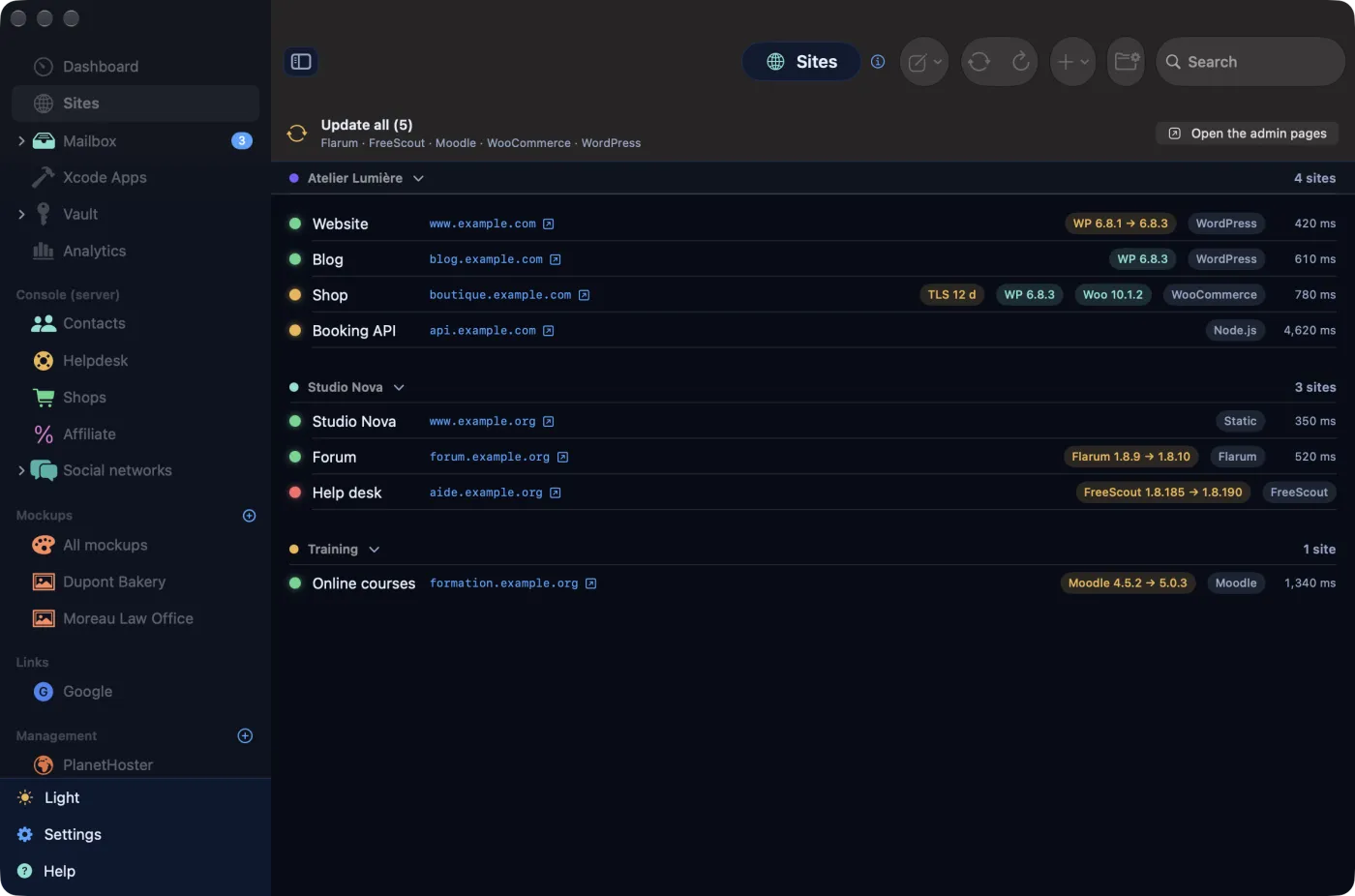
- In Sites, each row carries badges: “WP 6.8.3” in teal when up to date, “WP 6.8.1 → 6.8.3” in amber when a newer version exists. A “TLS 12 j” badge (the app always shows it this way) flags a certificate nearing its end.
- A banner at the top of the list sums up what is behind; Open the admin pages opens, after confirmation, the update page of each piece of software in your browser.
- The same action exists in the toolbar (“Update all (5)”) and on the site's page, one piece of software at a time (WooCommerce counts in the banner but has no button on the site's page).
- Clicking a group's header collapses it.
Flarum, Moodle and FreeScout often hide their version from the public. Settings › Monitoring › Server versions endpoint URL takes the address of a small JSON file placed on your server, which gives the exact versions, site by site.
AdminPlace never applies an update itself: an upgrade can break a site. Back up your hosting first (see Full cPanel backup).
The credentials vault
The vault holds every credential for your sites and services: usernames, passwords, API keys, databases, email addresses. Secrets are never written to the app's database: they live in the macOS keychain.
Opening the vault
When you open it, the vault is locked: click Unlock and confirm with Touch ID or your login password. Unlocking applies to the whole app (vault, email, Mailbox, site cards) until the automatic lock, 15 minutes by default after the last action that required unlocking; the delay is set in Settings › Monitoring › Vault auto-lock (5, 15 or 60 minutes, or Never). Quitting AdminPlace locks it too.
Types of credentials
In the sidebar, Vault expands into one entry per type; some expand further:
- Site access, sorted by domain;
- Google / API keys, by type: OAuth (client), API key, Site verification, Service account, Analytics, reCAPTCHA (anti-spam), Other Google key;
- E-mail;
- Database, split into Databases and Logins;
- Affiliate;
- AI keys, by provider: Gemini, OpenAI, Anthropic (Claude), Mistral, DeepSeek, Other AI;
- Social networks, by domain;
- Other.
Clicking Vault itself shows everything, type by type, with a Search field (name, username, server or linked site).
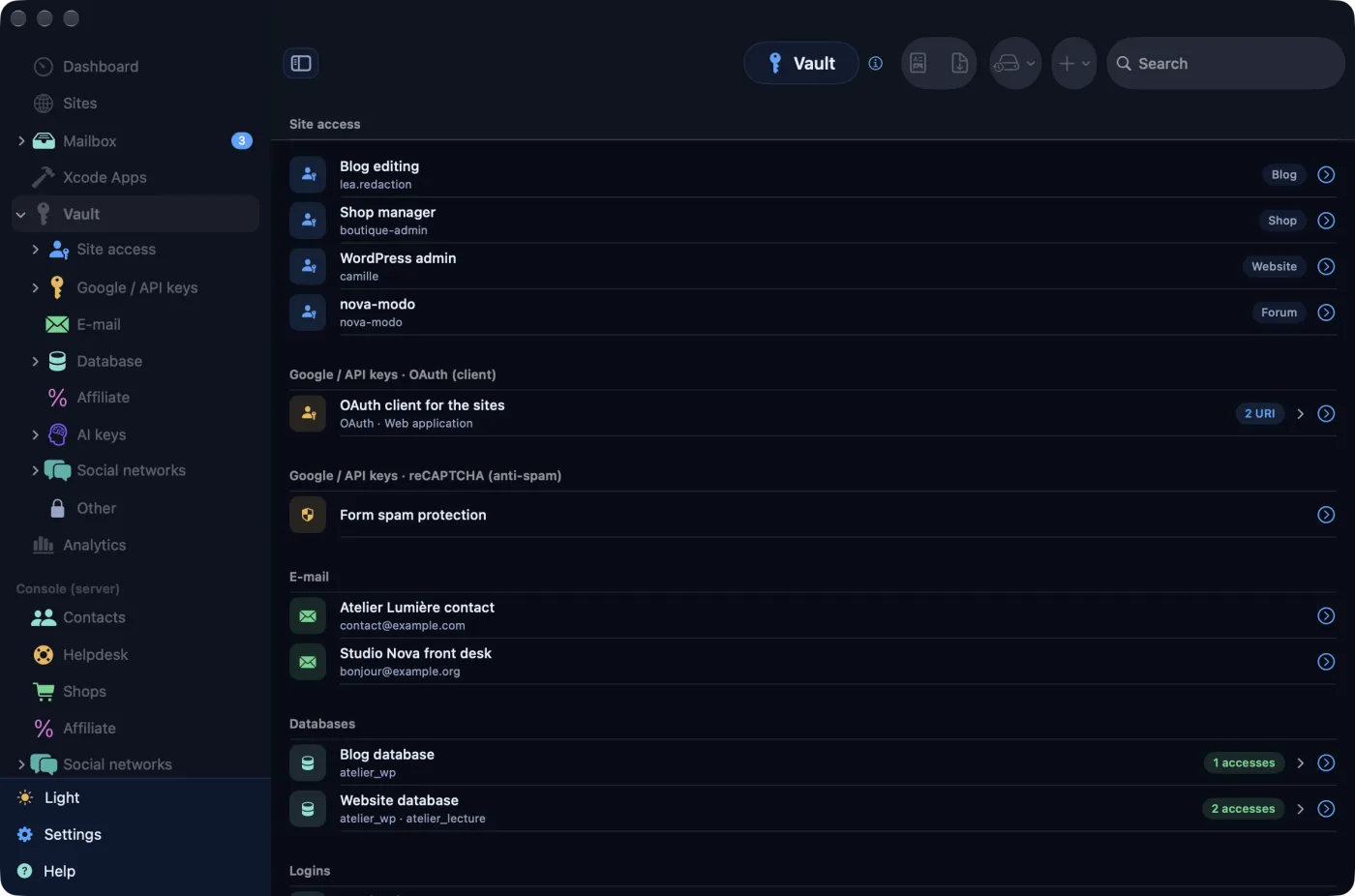
The toolbar buttons
- New credential (+): a menu of types; in a sub-section, it creates that type directly.
- Vault backup: Encrypted backup… and Restore a backup… (see Exporting and backing up the vault).
- View PDF and Export as PDF: every entry, secrets included.
Creating and viewing a credential
- Click New credential and choose the type, for example Site access.
- Give it a Name and choose the Linked site: the credential will appear on that site's page.
- For a site credential, choose the Access type: Administrator, Editor, Author, Subscriber, Owner, Other or Moderator.
- Fill in the Username, the Password and the Server (the sign-in address).
- Click Save: the button becomes available as soon as the name is filled in.
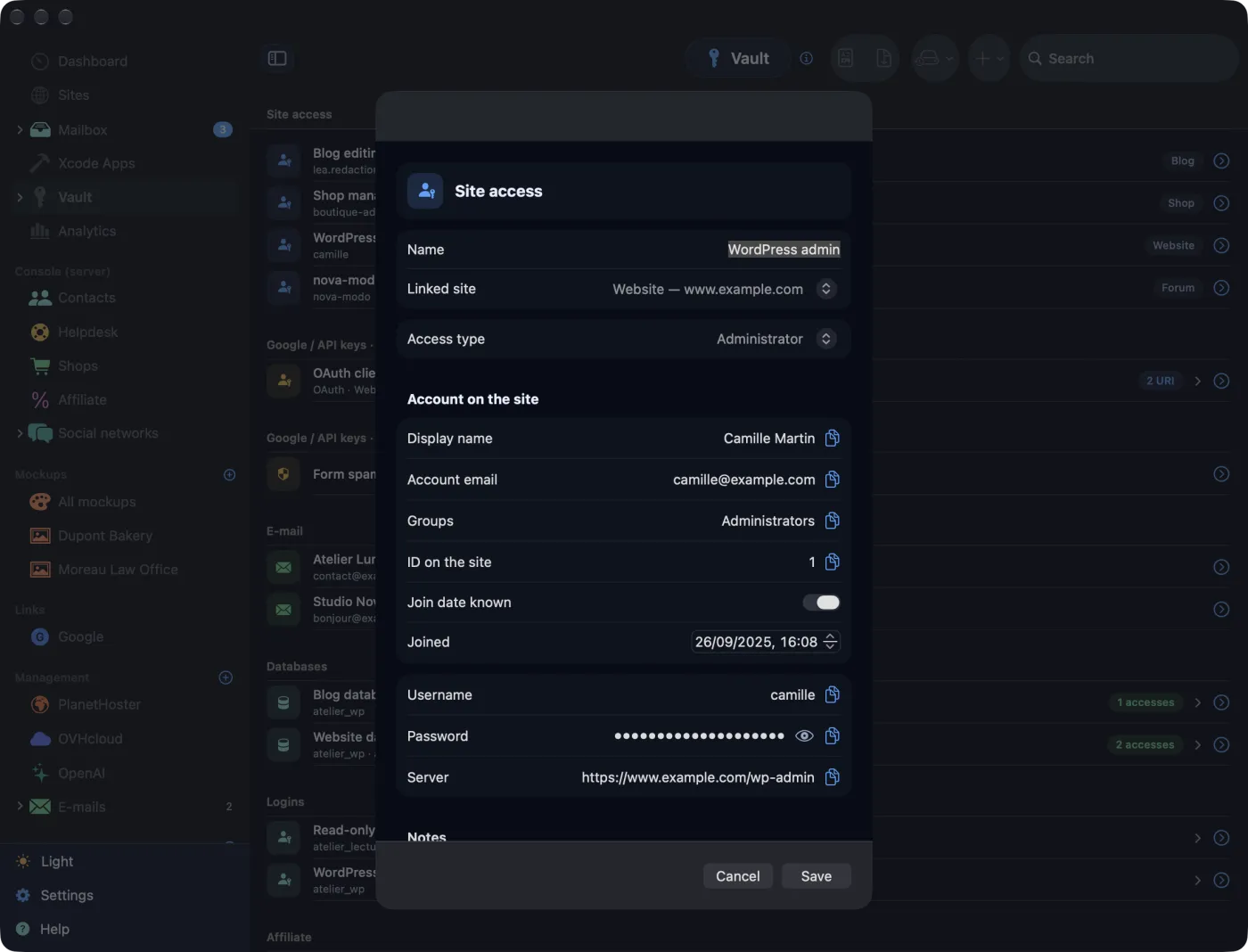
The Account on the site section keeps the account as the site's admin area shows it: Display name, Account email, Groups, ID on the site and, if you tick Join date known, the Joined date. None of this is secret.
Reading and copying a secret
- The password is hidden. The eye shows it in clear (and unlocks the vault if needed); a second click hides it again.
- The copy button to the right of each field copies its value; “Password — copied” confirms it below the fields.
- Anything you copy from AdminPlace is cleared from the clipboard after 35 seconds, unless you have copied something else in the meantime.
In the vault, the blue circle at the end of a row (Open the entry) opens the full entry; clicking the row opens it too, or expands what it contains (an OAuth key's URIs, a database's accounts).
Deleting a credential
Delete, at the bottom of the entry, asks for confirmation: “Delete this credential? Its secret will also be removed from the keychain.”
An entry saved while the vault is locked never erases an existing password: only a secret you have just typed replaces it.
Databases, keys and social networks
Databases and MySQL users
A Database entry is one of two kinds (Entry type): the database itself, which has no password, or the MySQL user, which has one. Under a database, the Accounts with access list takes as many accounts as needed (Add an account, or the menu of users already known). A user's entry shows in return the Databases this account opens.
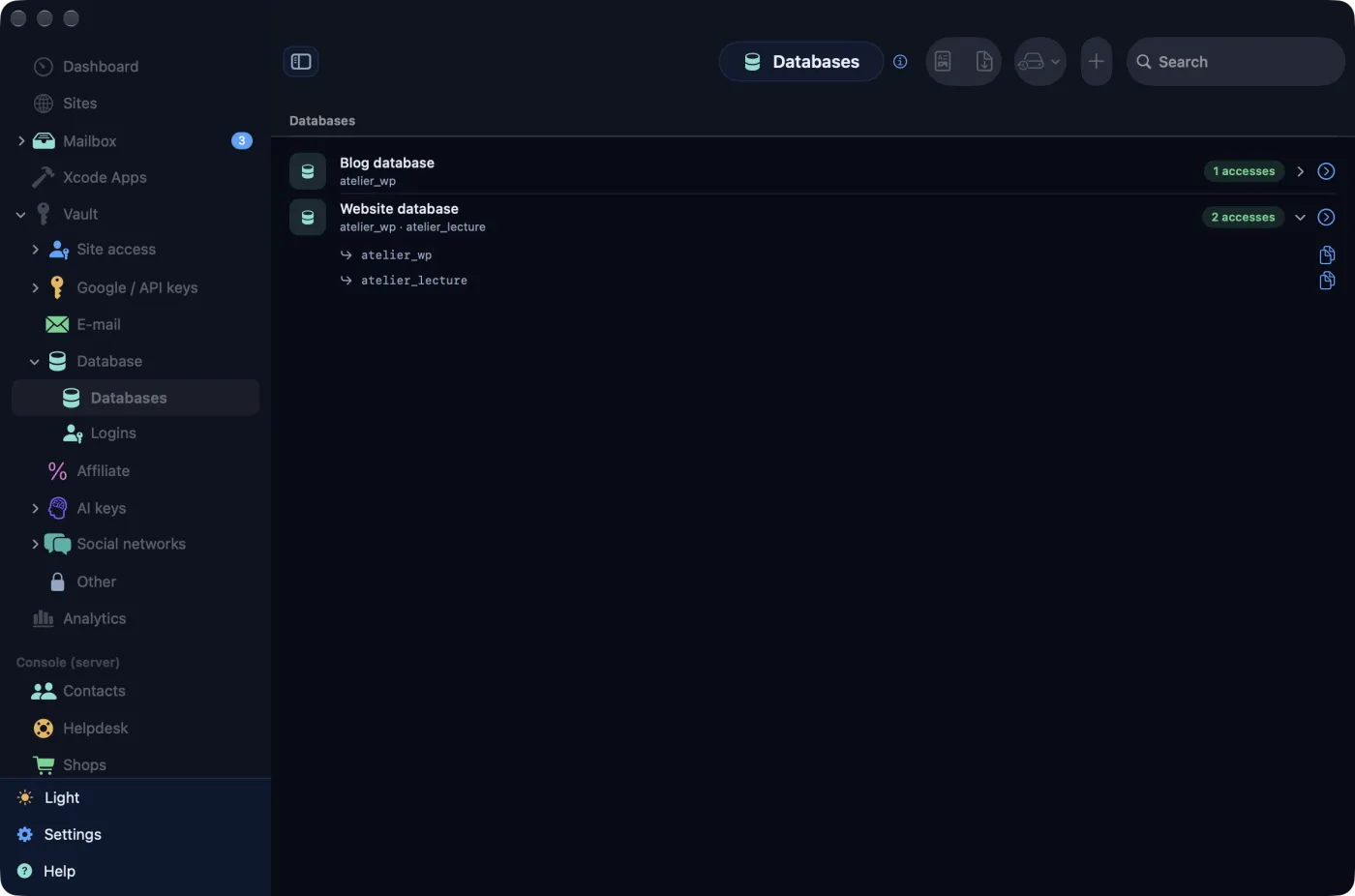
In the list, a database shows its number of accounts (“2 accesses”); a database with no account on record shows in amber, “No account recorded”.
Google keys
Choose the Key type; for an OAuth client, the Application type (Web application, iOS, Android, Desktop…). The key holds a Public key / client ID and a Private key. The Google project (ID) makes the link to the Google console open the right project. For OAuth, keep the Authorized redirect URIs up to date, one per line: the vault row shows how many there are and expands on them.
AI keys
Choose the Provider: the Open the API keys page link leads to the right console. The value goes into API key.
Social networks and affiliate programmes
- A social account belongs to a Brand (one of your domains) and a Network. The entry keeps the Public profile address, the Sign-in address and the password, with links to the profile and to the network's settings. In the Social networks view, Check the accounts checks that each profile responds, and reads the follower count when the network publishes it.
- An Affiliate entry keeps the partner (Affiliate for), the username, the password, the Tracking code and the Affiliate site.
Client mock-ups
A mock-up is a site you show a client before it goes live: a private address, with the username and password to give them.
- Click the + of the Mockups section in the sidebar.
- Enter a Name (the client's, for example), the mock-up's Address (URL), the Username and the Password.
- Save.
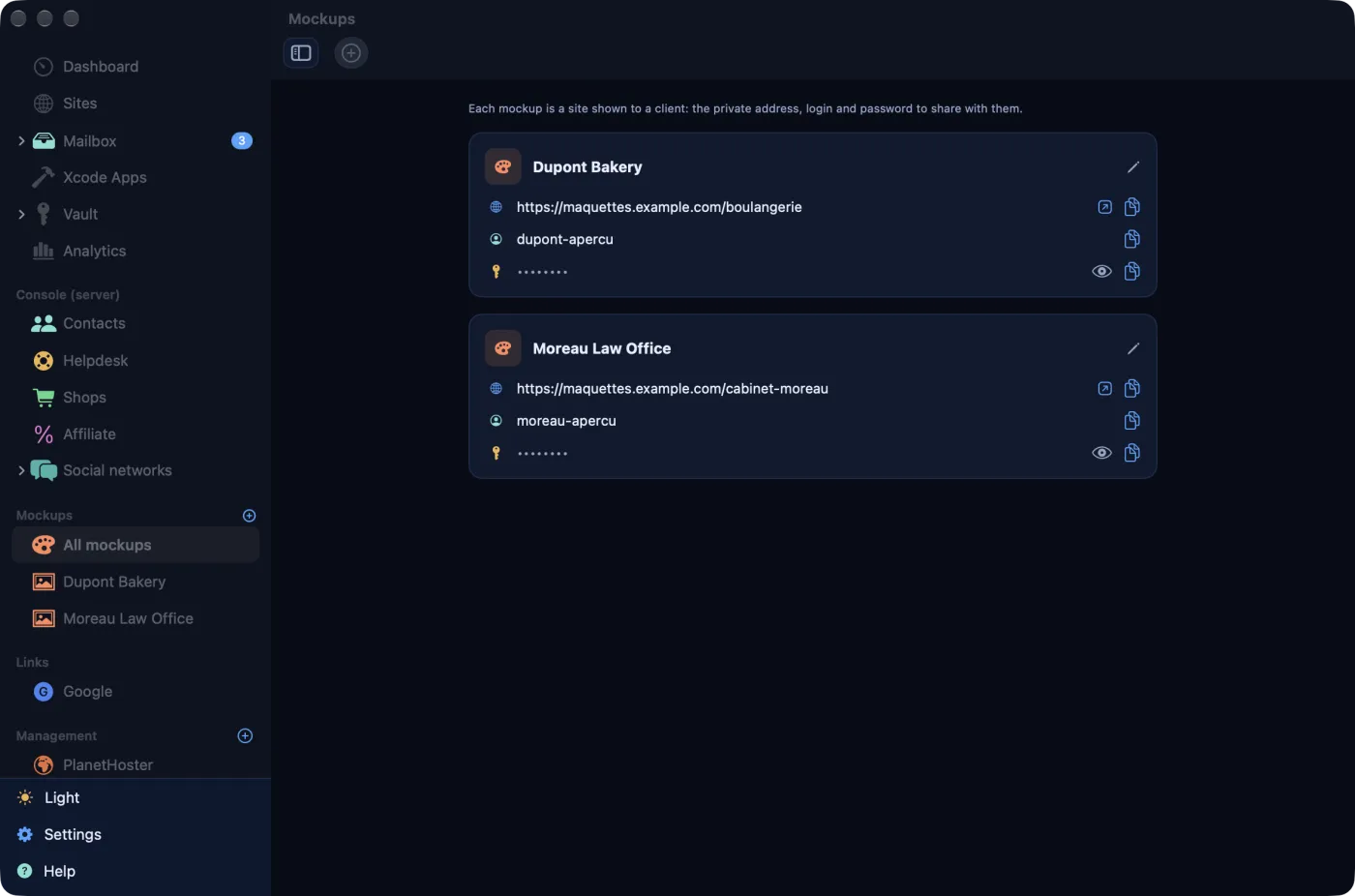
Each mock-up has its card: address (with a button to open it), username and hidden password, each with its copy button, and the Edit the entry pencil. Each mock-up also gets its own line in the sidebar.
Back to contentsExporting and backing up the vault
The encrypted vault backup
- In the vault, open the Vault backup › Encrypted backup… menu.
- Choose a Backup password (at least 8 characters) and type it again in Confirmation.
- Encrypt and export, then choose where to save the file.
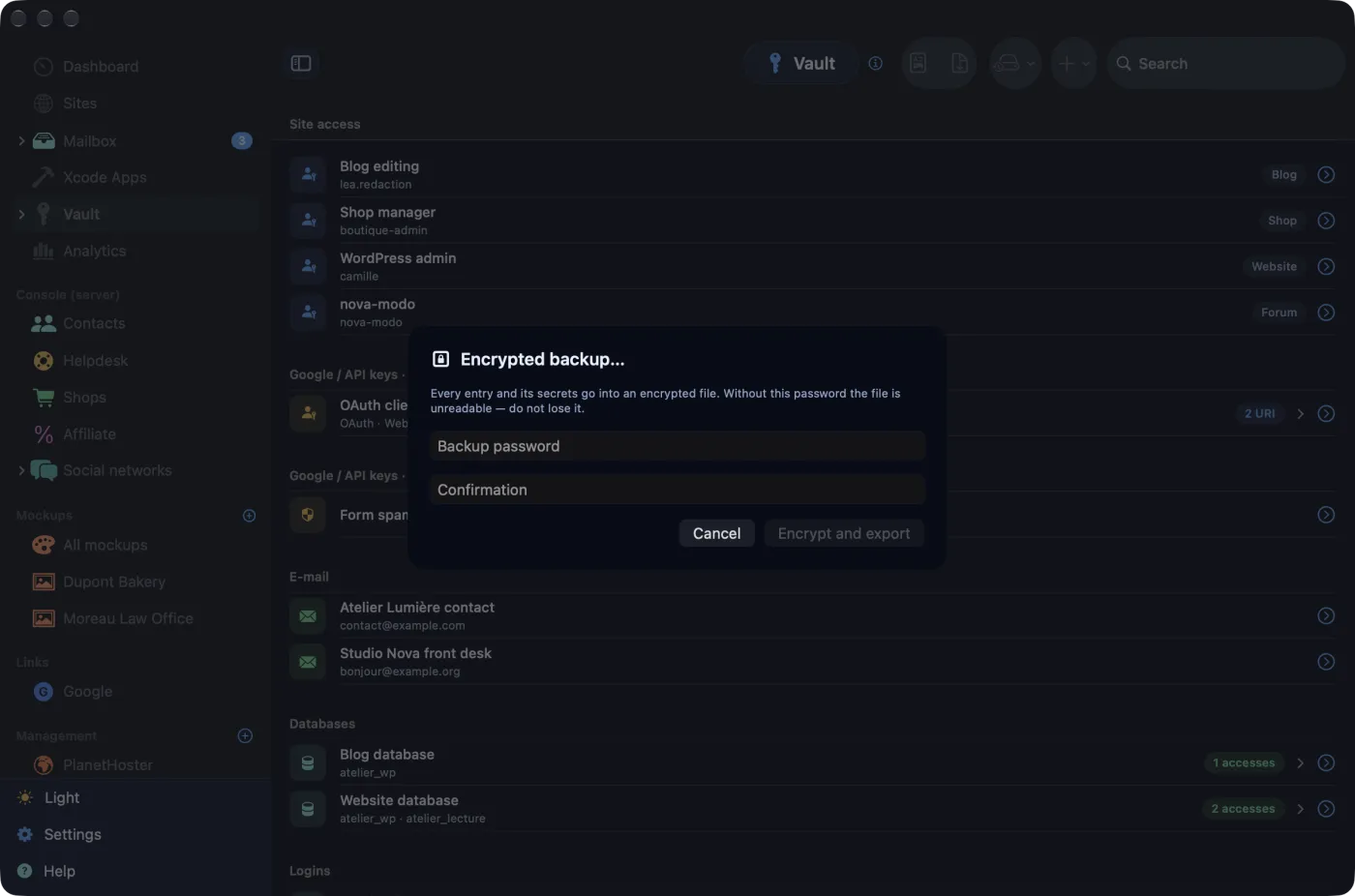
Every entry and its secrets go into this file, encrypted with your password (AES-GCM, key derived with PBKDF2 over 200,000 rounds). Without that password nobody can read it, neither you nor ElpisIA.
Restoring
Menu Vault backup › Restore a backup…, choose the file, type its password, then Restore. Restoring merges: known entries are updated, the others created, nothing is deleted; an empty secret in the backup does not erase the one in the vault. The result is displayed: “Entries created: 3 · updated: 12”.
The PDF
View PDF shows every entry on screen, Export as PDF saves them to a file. Before either, AdminPlace warns you: “Plain-text PDF”. The PDF contains every secret, readable by anyone who opens the file; confirm with Continue unencrypted, or use the encrypted backup instead.
Keep a vault PDF as you would a bunch of keys: never in a shared folder or as an email attachment.
Providers and hosts
The Management section keeps the list of your providers: the host of your sites, but also your API, payment or email services. Each one has its page, with your account's renewal date.
Adding a provider
- Click the + in the Management header, then Add a provider….
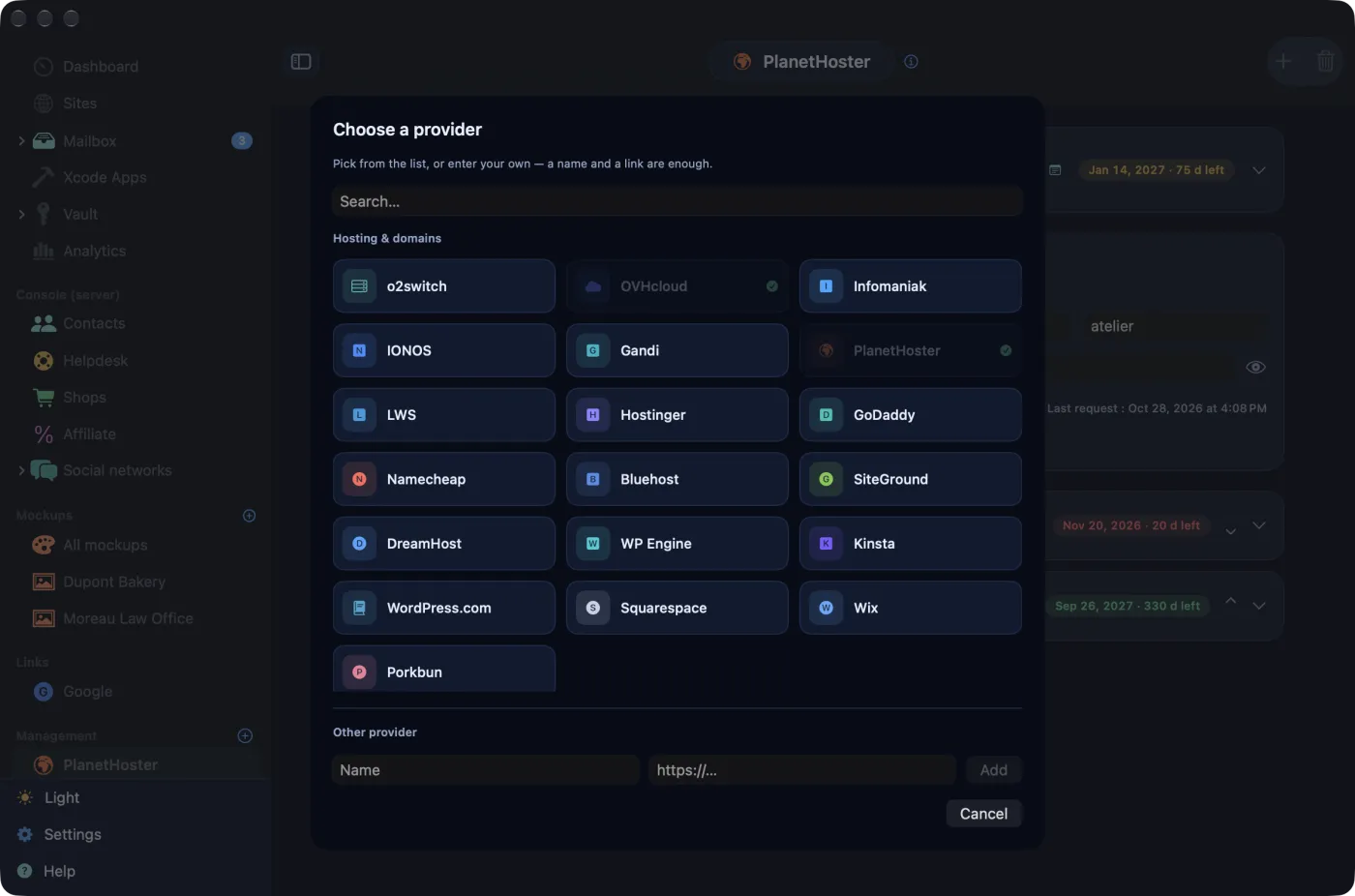
- The Choose a provider sheet presents the catalogue in six families: Hosting & domains, Cloud & infrastructure, AI & APIs, E-mail & marketing, Payments & e-commerce and Tools & services. The Search… field filters by name or address.
- Click a brand: it is added at once, with its icon and colours, and the sheet closes. A brand already added is ticked and greyed out.
- Provider not in the catalogue? Under Other provider, type its name and address, then Add. A provider added this way is not a host: it has no domains and no cPanel backup.
A provider's page
At the top, the account: name, link to the provider's site and a renewal badge (“Jan 14, 2027 · 75 d left”). The chevron reveals the account's End date (or Clear the date), the Automatic renewal checkbox and free-form notes. These fields save themselves. An account without a date shows “No date set” in amber.
For a host, the page also shows the Full backup card when the host uses cPanel (see next chapter), and the list of its domains (see Domains, renewals and reminders).
Delete this provider, in the toolbar, removes its entry after confirmation, along with its cPanel token; the vault is left untouched. Its domains stay in the renewal list but no longer appear on any host page: move them to another host first.
Back to contentsDomains, renewals and reminders
A domain name expires even when no site runs on it. AdminPlace keeps each one's end date and reminds you in time.
Adding a domain
- On the host's page, Add a domain in the toolbar (or the + in the sidebar's Domains header).
- Type the domain, choose its Hosting, its End date (one year ahead by default) and, if relevant, Automatic renewal.
- Save.
A domain added with the + of Domains goes to the first host you declared; the sidebar's Domains section itself only lists the domains of your sites. A host page that is still empty offers Use the domains of the monitored sites: one click creates a domain for each domain of your sites.
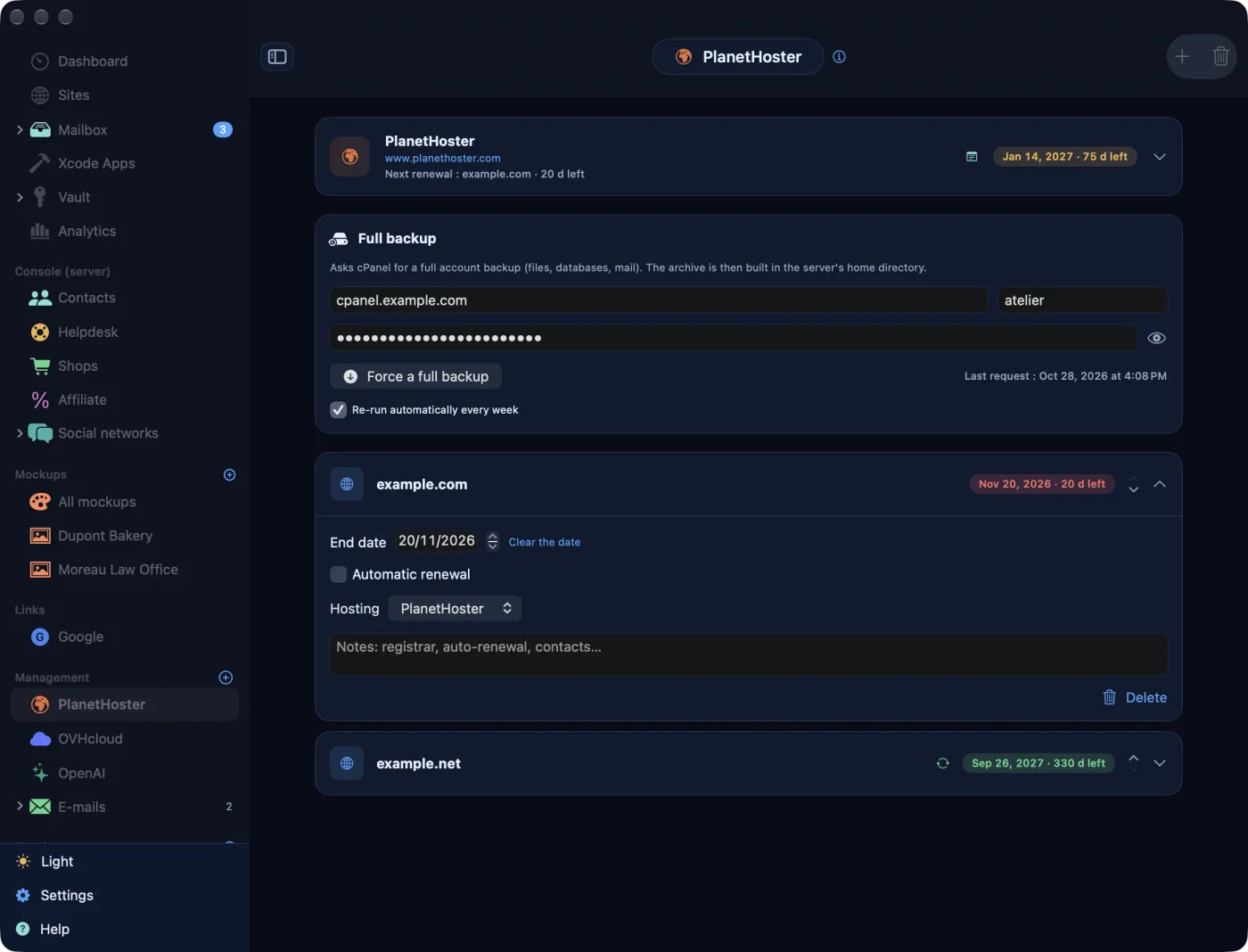
Each domain has its row: the renewal badge, a green looping arrow if it renews automatically, and two small chevrons to move it Move up or Move down the list. The chevron on the right reveals the date, the renewal option, the host (to move it to another one), notes and Delete, which removes the domain without asking for confirmation.
| Badge colour | Meaning |
|---|---|
| Red | 30 days or less, or “Expired” |
| Amber | 31 to 90 days, or no date entered |
| Green | More than 90 days |
Reminders
The end dates of domains and provider accounts feed the dashboard's Renewals card and notifications scheduled in macOS: they arrive even when AdminPlace is closed.
- without automatic renewal: a reminder 30, 7 and 1 day before the date;
- with automatic renewal: a single reminder, 2 days before, to check the payment method;
- at 9 a.m. by default.
Everything is set in Settings › Notifications: Reminders, in days before the date (“30, 7, 1”, separated by commas), Auto-renewal: remind me D- (0, 1, 2, 3 or 7) and Reminder time. A change to the reminders applies at once; the time, the “D-” value and the renewals switch apply the next time the AdminPlace window opens.
Your sites' TLS certificates also join the Renewals card once they drop below Flag a certificate under (90 days by default). They have no renewal reminder; a watch notification arrives when 15 days or fewer remain.
Full cPanel backup
With a host that uses cPanel (PlanetHoster, LWS, GoDaddy…), AdminPlace can request a full backup of the account: files, databases and email.
- In cPanel, under Security › API Tokens, create a token.
- On the host's page, in the Full backup card, fill in the cPanel host, the Account and the cPanel API token (kept in the keychain; the eye shows it).
- Click Force a full backup. Message: “Backup started — cPanel is building the archive in the home directory.”
The archive is built on the server, in your hosting account's home folder: download it afterwards if you want a copy elsewhere. The date of the Last request shows in the card, on the dashboard tile and in Server backups.
Tick Re-run automatically every week: when its window opens, AdminPlace runs the backup again if the last request is older than one period. The period is the Expected frequency in Settings › Encrypted backup, one week by default, one day at least.
After more than 30 days without a backup, the card shows “Last backup more than 30 days ago.” and the tile turns red.
Email addresses and the Mailbox
Email addresses
Management › E-mails lists your addresses, sorted by domain. They are the vault's E-mail entries: the address as Username, its password and, if needed, the mail server as Server. Each row shows the address, a hidden password (the eye reveals it), a copy button, the full entry and the trash icon.
To add one: + in the Management header › Add an e-mail address…, or the + on the E-mails page.
The trash icon offers two choices. Remove from the app only deletes the entry and its password; the mailbox stays intact on the server. If the address's cPanel host has its API token, a second button also deletes the mailbox at the host, with all its messages: this cannot be undone.
The Mailbox
The Mailbox reads the messages received by these addresses, straight from the server (IMAP). Nothing is copied: the mailbox remains the reference.
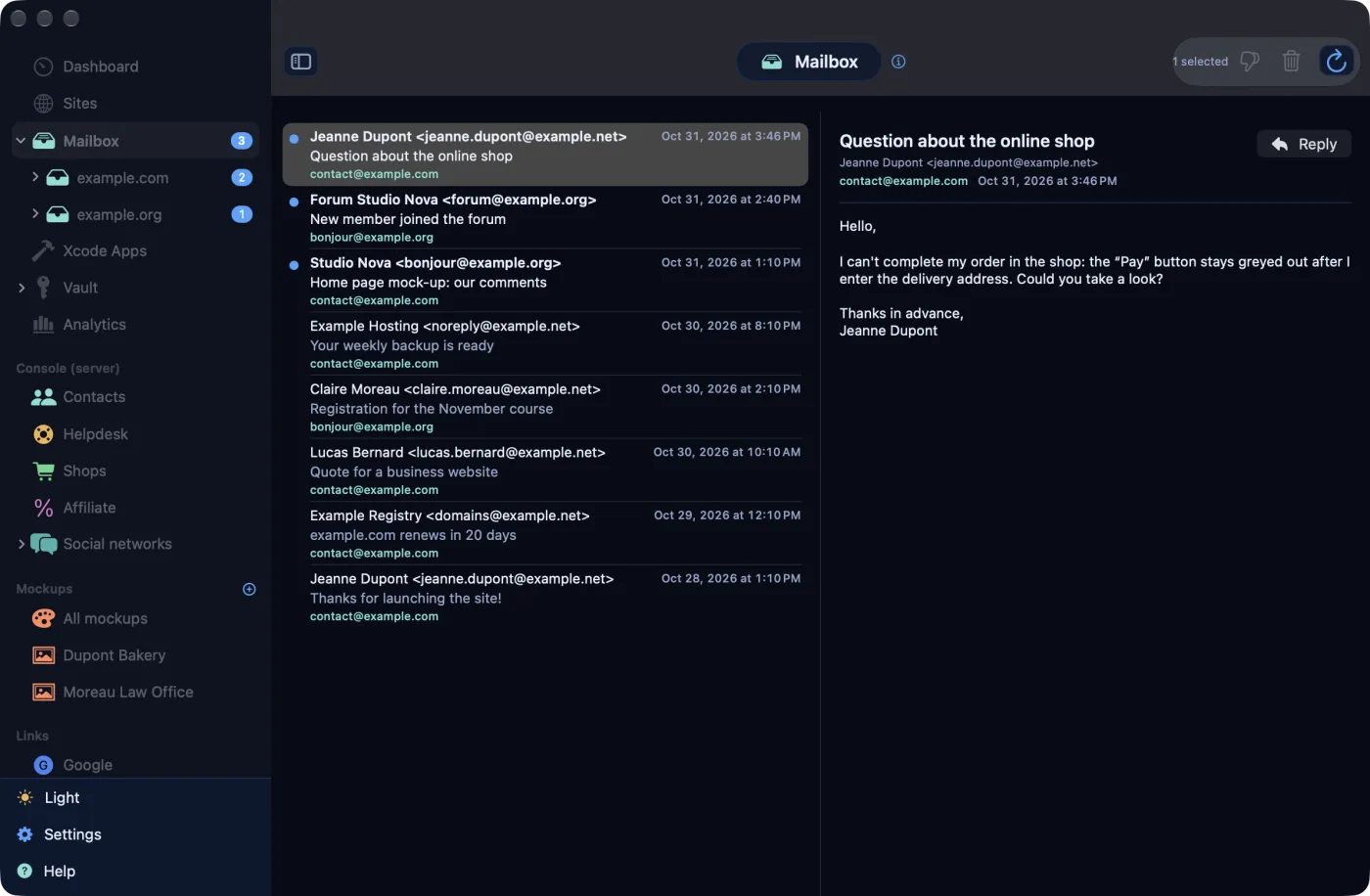
- In the sidebar, Mailbox expands by domain then by address, with the number of unread messages; the Dock shows the total.
- Mailboxes are fetched automatically, in the background; the Refresh button reloads them right away. A mailbox in error (password, server) shows at the top of the list with the reason.
- Clicking a message shows it on the right and marks it as read, on the server too. Reply opens a reply sent through your outgoing server (SMTP, port 465), with the same credentials.
- Select several messages (⌘-click or ⇧-click): the toolbar offers Junk and Delete. After confirmation, deleted messages go to the mailbox's trash, or are erased for good if the server has none. Right-clicking does the same.
- The list shows the latest 25 messages of each mailbox; Load older messages goes back 25 at a time.
With no server set in the entry, AdminPlace uses mail. followed by the address's domain, the convention of cPanel hosts. If your host gives another server name, enter it in the entry's Server field.
Development tracking
The Development section tracks how your projects are going, domain by domain: what is to do, in progress, done, and on which screens the layout has been checked.
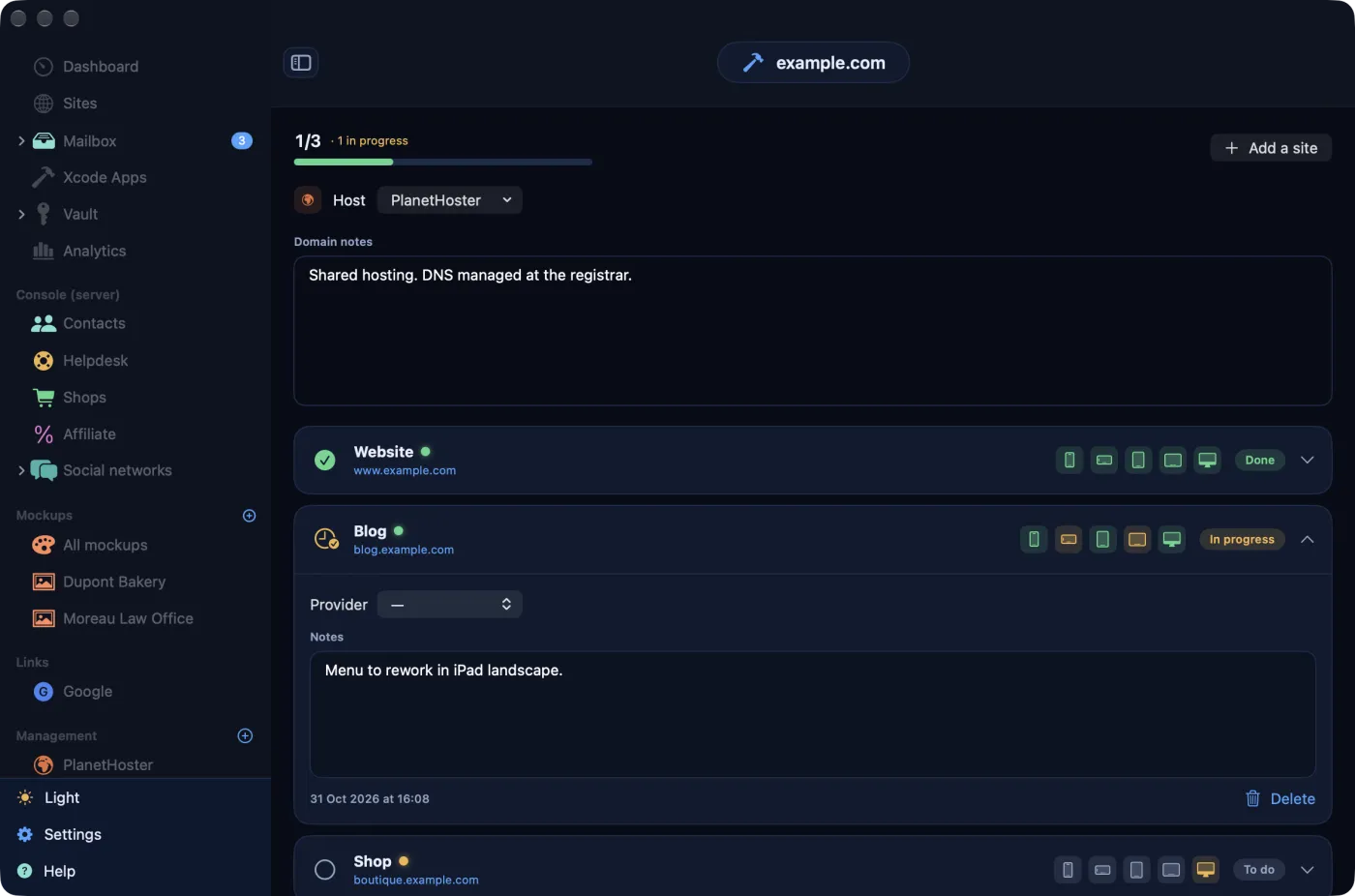
- The sidebar sorts domains under their host, with the “done / total” count. The overview shows a gauge per domain.
- The + in the Development header (or Add a site on a domain's page) adds a site to a project domain already tracked: domain, name, address.
- In each row, the circle on the left cycles the state: To do, In progress, Done. The dot next to the name shows the online state measured by monitoring.
- Five small icons track the layout, screen by screen: iPhone portrait, iPhone landscape, iPad portrait, iPad landscape and Computer. A click cycles their state; grey, amber and green, like the site's state.
- The chevron reveals the Provider hosting this site, its Notes and Delete.
- A domain's page also has its Host (menu of the hosts in Management, then of the catalogue) and its Domain notes.
Everything is saved as you click. The dashboard's Projects tile and Development card give the summary.
In this version, AdminPlace does not create project domains itself: as long as none exists, the Domain menu of the add sheet stays empty.
Xcode apps
If you develop apps, the Xcode Apps section takes stock of your projects: version, git status, and App Store listing when the app is published there.
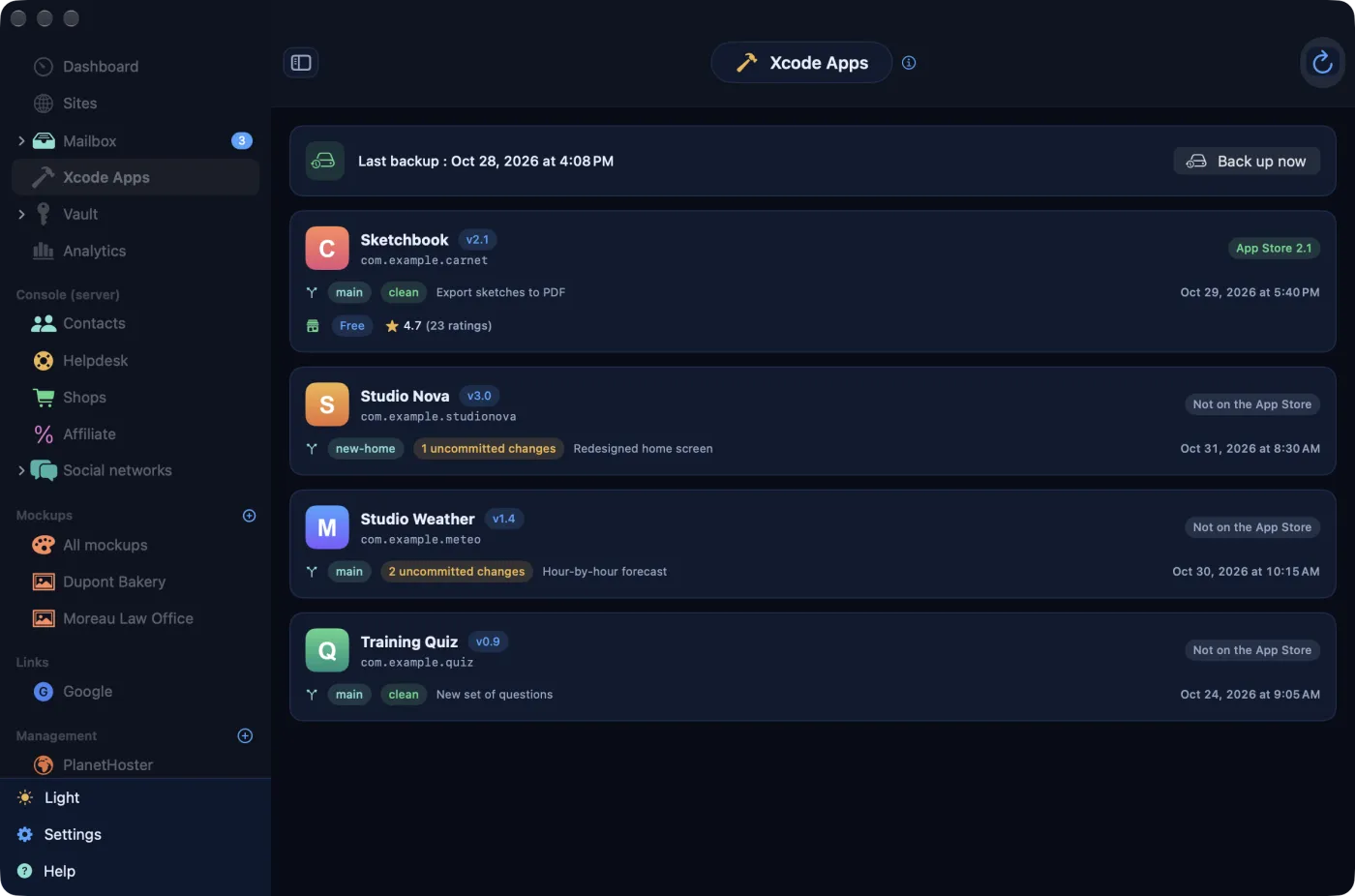
- AdminPlace scans the folder set in Settings › Xcode Apps › Xcode apps folder (
~/Sites/xcodeby default; Choose… opens a folder picker). Each direct subfolder containing an Xcode project becomes a card. - A card gives the app's name, version, identifier and icon; the git branch, the number of uncommitted changes (or “no git”) and the last commit, with its date.
- For a published app, the App Store listing (French store) is added: live version, price, rating and View on the App Store. Otherwise: “Not on the App Store”.
- The toolbar button rescans the disk. Right-clicking a card offers Reveal in Finder.
Backing up the repositories
The top card gives the repositories' Last backup. Once the backup folder and the age key are set (see Full backup), Back up now saves a complete git “bundle” of each repository, work in progress included, encrypted, into a dated Xcode/ subfolder. Otherwise, the Set up backup button leads to the settings.
A git repository is not a backup: it lives on the same disk as the code. The encrypted bundle, on the other hand, can go to another disk or to your cloud storage.
Google, writing and the Console
Three sections rely on services you connect yourself. Until they are connected, they stay empty: that is not a fault.
Google Analytics
- In the Google Cloud console, enable the “Google Analytics Data” and “Google Analytics Admin” APIs, then create an OAuth client ID of type iOS with AdminPlace's bundle identifier,
com.elpisia.adminplace. - Paste the ID (the one ending in
apps.googleusercontent.com) into Settings › Google Analytics › OAuth client ID. - Open Analytics and click Sign in with Google.
- On each site's sheet (Edit), choose its Google Analytics property.
Analytics then shows your properties, the visitors right now and the figures for the last 28 days, site by site; the dashboard adds the Audience (28 d) card, and a site's page its Users (28 d), Sessions (28 d) and Page views (28 d). Settings › Google Analytics › Sign out removes the link.
Writing a post
For a WordPress blog, Write an article (in the Sites toolbar, or on the site's page) prepares a complete post, ready to publish:
- Type the Subject and, if you like, Guidelines (optional); or click Suggest a subject.
- Choose the Number of images (1 to 3), the Category and, if needed, Publish immediately (otherwise draft).
- Generate the article: the app searches the web, writes, then illustrates.
- Review the preview and click Publish to the blog. Once the post is created, Open the article shows it in your browser.
The engine is chosen in Settings › Writing (AI): API Claude (Anthropic key), API ChatGPT (OpenAI key), or the claude and codex command-line tools already installed on the Mac (no key). Publishing goes through the site's WordPress account, with an application password.
Illustrations need a DeepInfra key, entered in Settings › Writing (AI) › DeepInfra API key (images and translation) (the field appears when the selected engine is API ChatGPT). DeepInfra writes the drawing prompt, draws and judges the image; without a key, the post is written without illustrations. If drawing fails at DeepInfra, the app falls back on Draw Things, open on this Mac with its API server (port 7860). An illustration that still does not match the post after three attempts is not added.
The Console
Contacts, Helpdesk and Shops read your servers through a token-protected access point that serves, as JSON, the registered accounts, the FreeScout helpdesk tickets, and the WooCommerce orders and products. AdminPlace does not provide this access point: it has to be built on your server. Then fill in Settings › Console (server): Endpoint address, Token (in keychain) and Agent signing the replies, then Test the connection. Once connected, the Helpdesk lets you read tickets, reply to them (with a reply drafted by AI, to be reviewed) and delete them; Contacts lets you subscribe a person to the newsletter or unsubscribe them.
The Affiliate section does not need the Console: it shows the vault's affiliate entries. A WooCommerce shop detected on a site also adds a Store card to its page (month's revenue, orders, average basket); its figures need the site's WordPress account, with an application password that has access to WooCommerce.
Back to contentsUseful links
The Links section of the sidebar gathers the Google consoles most useful for a website: Search Console, Google Analytics, Tag Manager, Google Cloud Console and its API credentials, Postmaster Tools, reCAPTCHA, Google Business Profile, Merchant Center, Google Ads, AdSense, PageSpeed Insights, the Rich Results Test, Firebase and Google account security. A click opens the console in your browser, with the account signed in there.
Back to contentsSettings
Settings open from Settings, at the bottom of the sidebar, or from the AdminPlace › Settings… menu (⌘,). They are organised in sections; clicking a section's title collapses it.
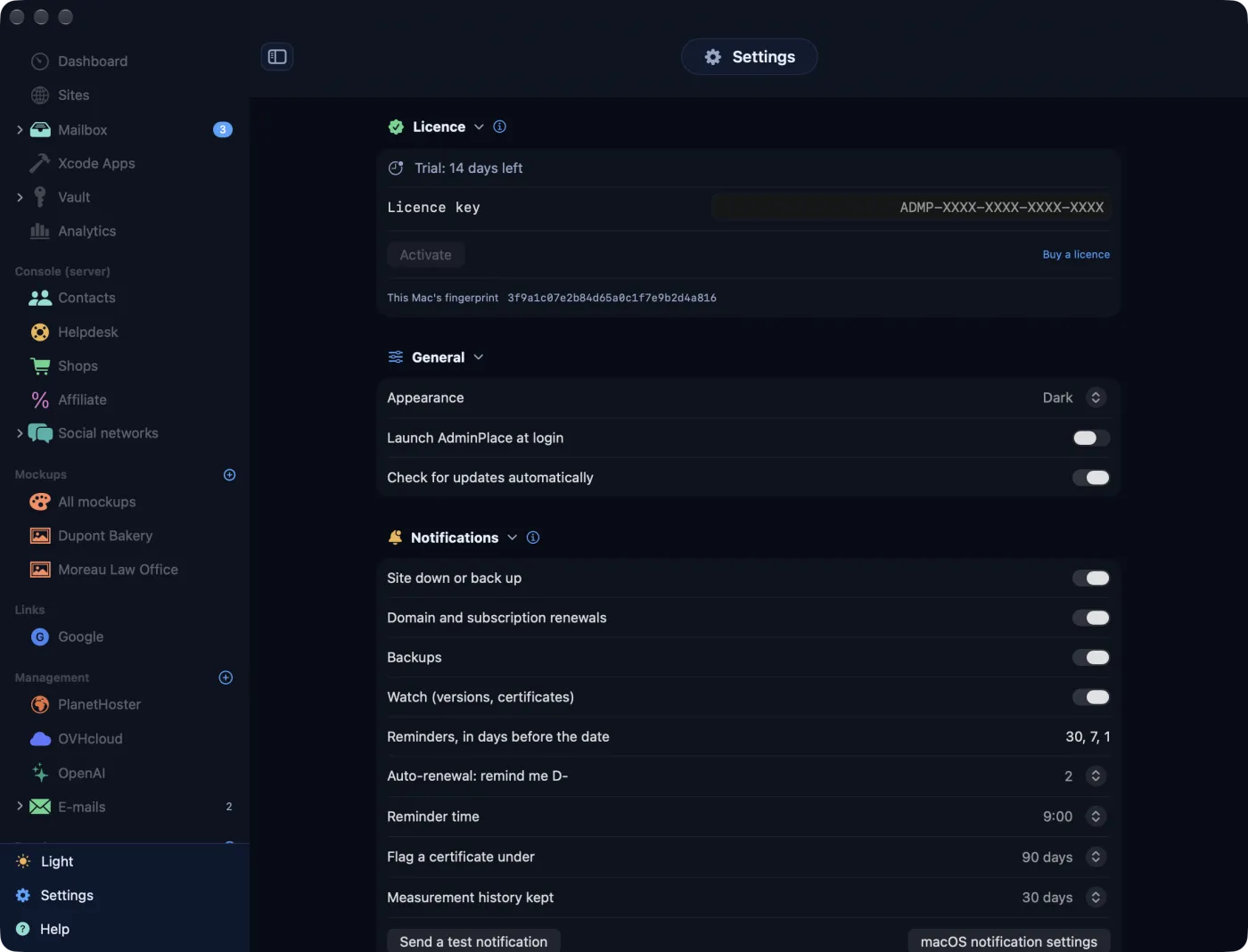
| Section | What you set there |
|---|---|
| Licence | The current trial, the licence key (see Trial and licence). |
| General | Appearance (System, Light, Dark), Launch AdminPlace at login, Check for updates automatically. |
| Notifications | Four switches: Site down or back up (outages and recoveries found by the checks), Domain and subscription renewals (the reminders), Backups (the result of automatic cPanel runs), Watch (versions, certificates) (available updates, certificates under 15 days, overdue backups, mailboxes or content tracking failing, and a second back-online notice). Then the renewal reminders, Flag a certificate under, Measurement history kept and Send a test notification. |
| Language | Automatic (the Mac's language), French, English, Spanish or German. |
| Monitoring | Automatic check, Server versions endpoint URL, Vault auto-lock. |
| Google Analytics | The OAuth client ID for Google Analytics. |
| Writing (AI) | The writing engine, its keys, the DrawThings address. |
| Xcode Apps | The Xcode apps folder. |
| Console (server) | Your servers' access point and its token. |
| Encrypted backup | The folder, the age keys, the frequency (see next chapter). |
| About | The version number. |
Send a test notification tells you whether macOS lets AdminPlace's banners through (the button is greyed out if Site down or back up is off). Nothing arrives? macOS notification settings opens the right pane of System Settings.
App updates come through the app itself: AdminPlace › Check for updates…, or automatically if the box is ticked.
Back to contentsFull backup and restore
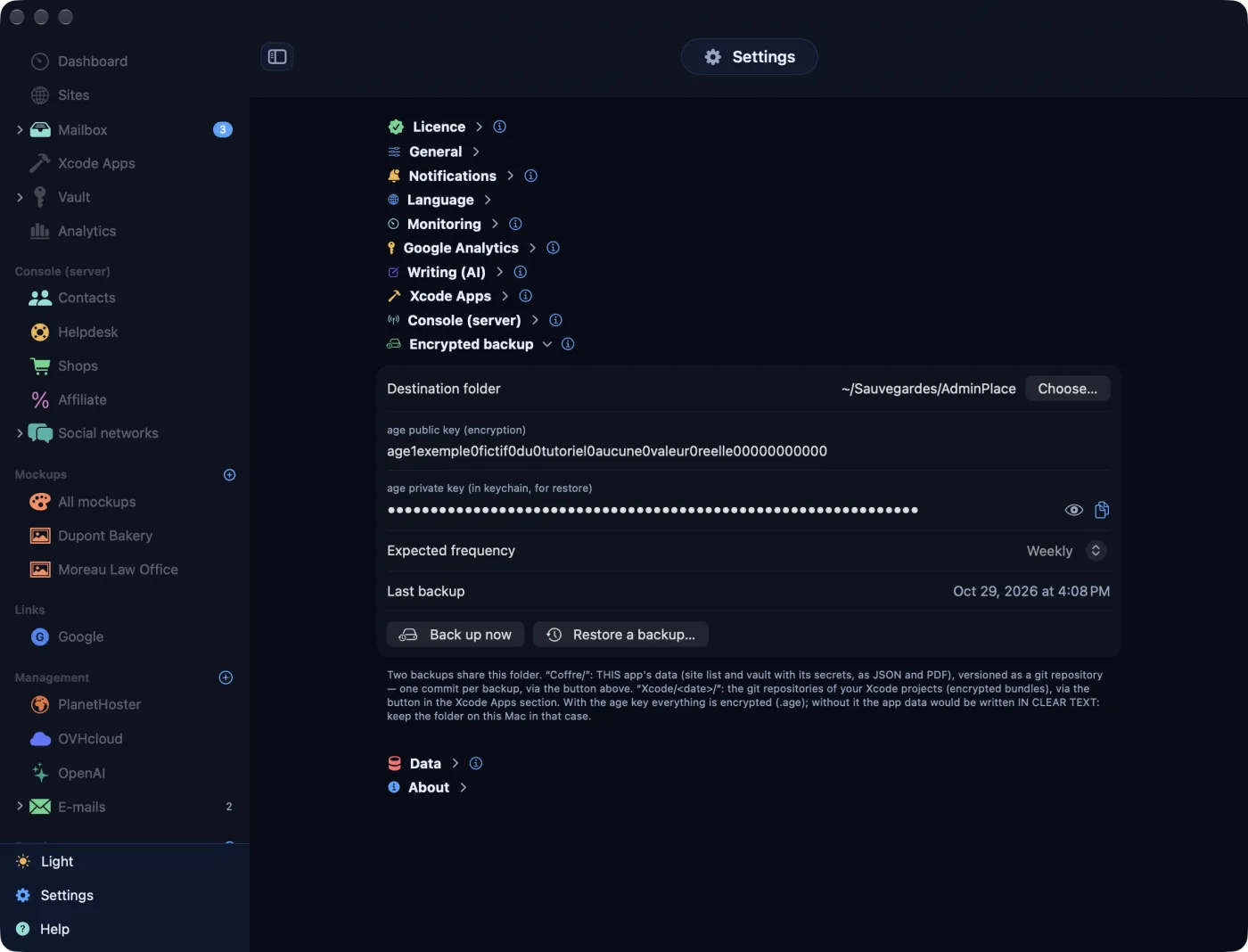
The full backup copies all of AdminPlace into a folder you choose: the whole database, every secret in the keychain, the settings, plus the list of sites and the vault as JSON and PDF.
Setting up the backup
- Open Settings › Encrypted backup.
- Destination folder: Choose… a folder, ideally on another disk or in a synced cloud folder.
- Paste your age public key (encryption) and your age private key (in keychain, for restore). The key pair is created with the
age-keygentool; theagetool must be installed on the Mac (for examplebrew install age), and so must git (Xcode's command-line tools). - Choose the Expected frequency: Manual (no alert), Daily, Weekly (the default) or Monthly.
Backing up
Back up now, in this section, or File › Back up now (⌥⌘S). AdminPlace asks for Touch ID (or your login password), then writes a dated folder inside Coffre/ (for example Coffre/2026-10-31_0930/) and keeps its history with git, one version per backup. With the age key, every file is encrypted (.age).
Without an age key, the backup contains your passwords in clear. Keep that folder on this Mac only. Also keep a copy of the age private key off the Mac: without it, an encrypted backup cannot be restored.
The frequency triggers nothing: it only says when a backup is overdue. AdminPlace then flags it on the Vault tile, in the Needs action card, in the menu bar menu and with a notification.
Restoring
- File › Restore a backup… (or the button of the same name in the settings).
- Choose the backup's dated folder, inside
Coffre/. - Confirm with Restore and Restart, then Touch ID.
AdminPlace then returns to the state of the backup: the whole database (sites, Development tracking, management, history), the whole keychain and the settings. The current database is first moved to an Archives folder; the settings and secrets from the backup replace the current ones. The app then restarts.
An older backup, made before full backups existed, does not contain the database: AdminPlace then adds its sites and credentials, and updates those that already exist, without deleting anything.
Trial and licence
AdminPlace can be used freely for 14 days from the first launch. After that, it asks for a licence key.
- During the trial, Settings › Licence shows the days left (“Trial: 12 days left”), in amber for the last three days.
- When the trial ends, the “Trial period is over” window opens at every launch. Your data stays intact; only using the app waits for the key.
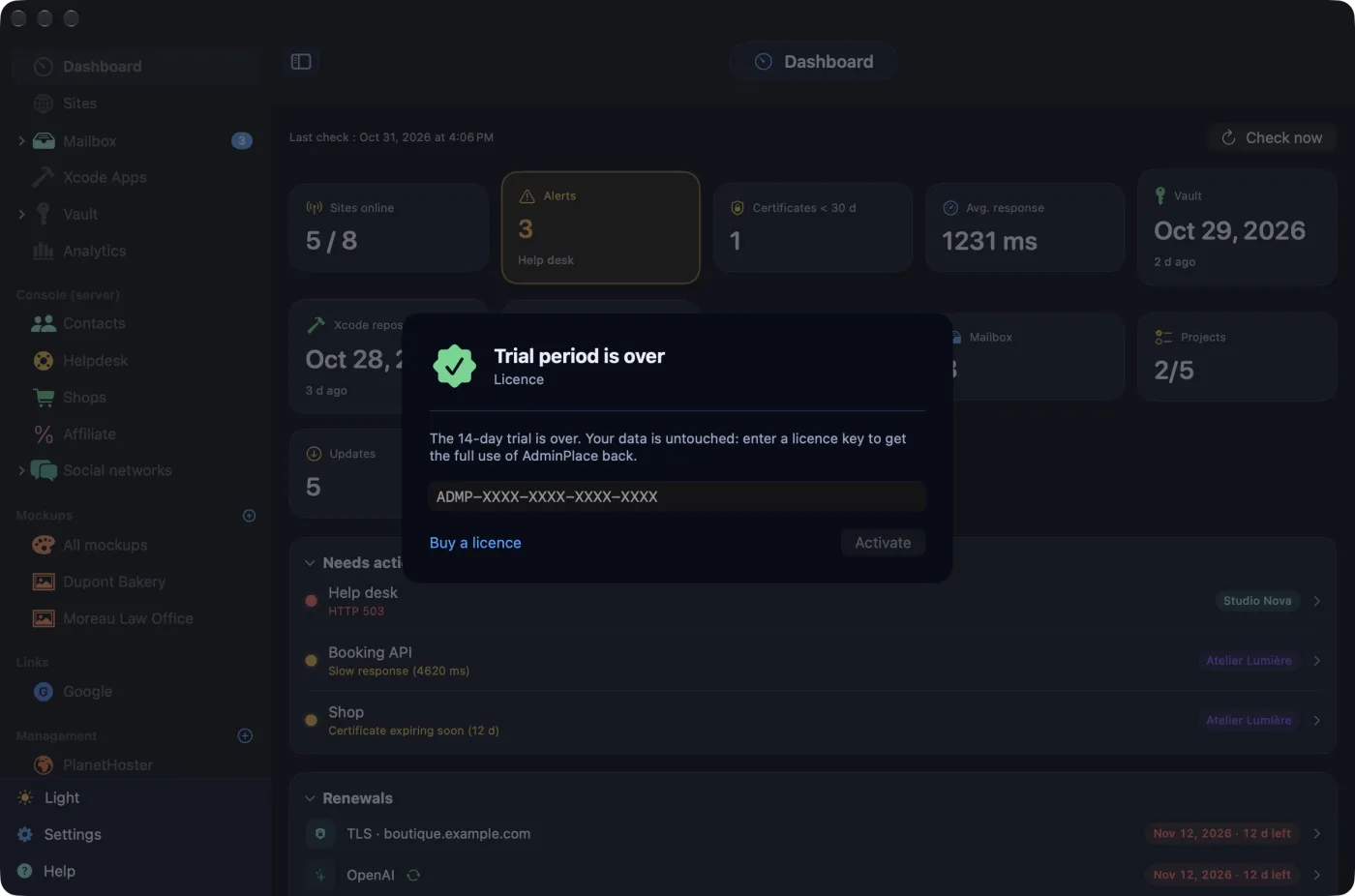
- Paste the key you received at purchase into Licence key (it starts with “ADMP-”).
- Click Activate. Activation is the only step that needs the Internet; after that, the licence is checked on your Mac, offline, and renews itself in the background.
An active licence shows Licence active and the seat in use (“Seat 1 of 2”, for example). Remove from this Mac removes the key from this Mac. The This Mac's fingerprint is a code derived from the hardware: no name, no address. The Buy a licence link leads to the ElpisIA shop.
Possible messages on activation: “This key does not exist.”, “This key has expired.”, “This key has been revoked.”, or every seat of the licence already in use. In that last case, write to us using the form at the bottom of this page.
Where your data lives
AdminPlace has no server of its own: your data stays on your Mac.
- The database (sites, measurements, management, projects, vault entries without their secrets) is a file in the
~/Library/Application Support/AdminPlace/folder. - Secrets (passwords, private keys, API tokens) are in the macOS keychain, never in the database.
- What goes out to the Internet: visits to your sites to check them, the public APIs of their content, the latest versions of the tracked software (api.wordpress.org, GitHub), your apps' App Store listing, social network profiles when you check them, and the services you connect yourself: mailboxes, cPanel, Google, writing engines and DeepInfra (the post's text goes there), WordPress and WooCommerce with your application password, Console. To ElpisIA, only the licence (activation, then an occasional recheck) and the update check.
Two copies contain your secrets: the vault PDF and a full backup made without an age key. Protect them like a bunch of keys.
If something does not save
Every change is written to the database right away. If writing fails, a red “Could not save” banner stays at the top of the window until the next successful save: your latest changes would be lost when the app closes. If the database no longer opens at all, AdminPlace shows “AdminPlace's database cannot be opened” and writes nothing: restore a backup (File › Restore a backup…) or write to us with the error message.
Back to contentsBuilt-in help and support
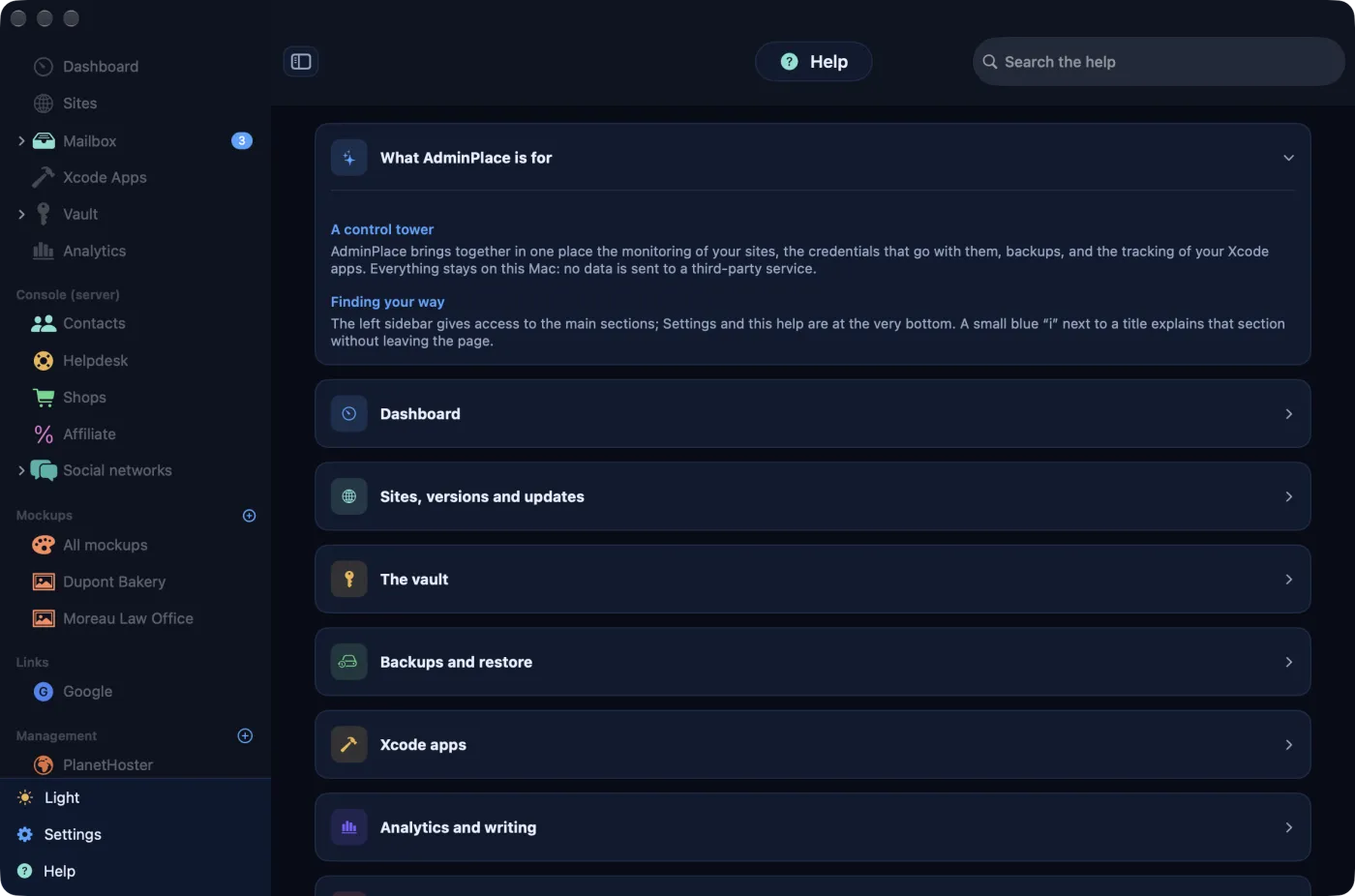
Help, at the bottom of the sidebar, opens the built-in guide: eight chapters, from an overview of the app to security, with a Search the help field. Clicking a chapter expands it.
A question about the app? See the FAQ or write to us using the form below.