
This tutorial takes you through Polyapps screen by screen: giving each profile of Firefox, Thunderbird, Chrome or another app its own icon in the Dock, launching profiles side by side, then making Polyapps your default browser so you can choose where each link opens.
- Mac with Apple silicon, macOS 26 or later
- 15 chapters
- 2 videos
- Polyapps 3.3.1, October 2026
All the screenshots show fictitious data: the Firefox profiles “Work” (nickname “Agency”), “Personal”, “Clients”, “Léa” and “Testing”, the Thunderbird profiles “Work” and “Family”, the Chrome profiles “Demo” and “Research”, and the Claude profiles “Personal” and “Work”. The videos are sped up and have no sound.
Contents (15 chapters)
Before you start
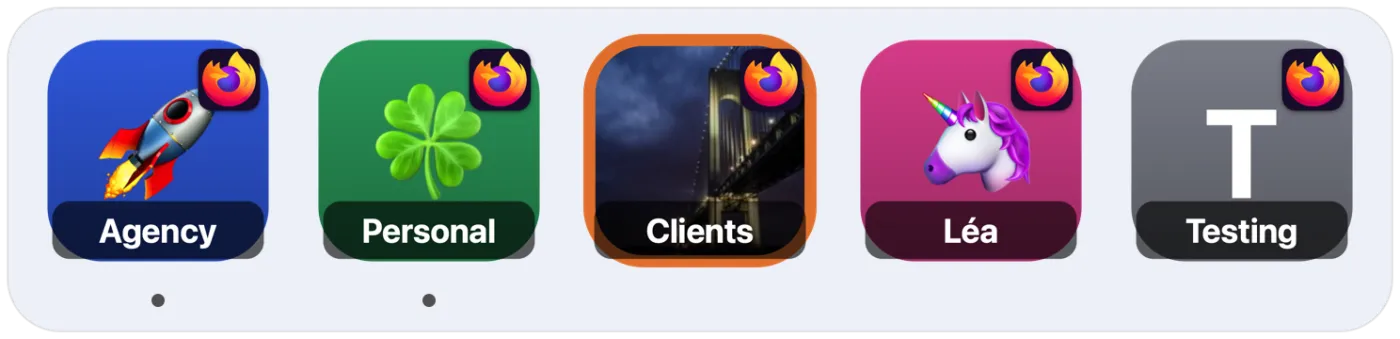
Polyapps launches several profiles of the same application side by side. Each profile becomes a real little app, with its own icon in the Dock: you can tell at a glance which Firefox is for work, which is for home and which is for the children.
What Polyapps does
- One app per profile. For each profile, Polyapps builds a lightweight copy of the application (“Firefox – Work”, “Firefox – Personal”…) whose icon shows the profile's colour, emoji or photo, with its nickname (or, failing that, its name) on a banner.
- Truly separate profiles. Each profile keeps its own bookmarks, passwords, extensions and open sessions, and runs in its own window, at the same time as the others.
- Link routing. Set as your default browser, Polyapps doesn't display any pages: it sends each link you click in Mail, a document or another app to the open profile, or lets you choose if several are open.
What you need
- A Mac with Apple silicon running macOS 26 or later.
- At least one of the supported applications, installed in the Applications folder (see Supported applications).
There's no account to create and no subscription: everything happens on your Mac. Polyapps never reads the contents of your profiles (history, passwords, emails); it only launches the application with the right profile.
Installing Polyapps
- Open the Polyapps disk image (
.dmgfile) downloaded from ElpisIA. - Drag Polyapps onto the Applications shortcut in the window.
- Open Polyapps from the Applications folder.
Polyapps is distributed outside the App Store, signed by its developer and notarised by Apple. The first time you open it, macOS may ask you to confirm that you want to open an app downloaded from the internet: confirm. After that, Polyapps offers you its updates (see Updates).
Polyapps is in French the first time you open it. The flag menu at the top right of the window switches it to English, Spanish or German, whatever your Mac's language (see Help, language and About).
Finding your way around the window
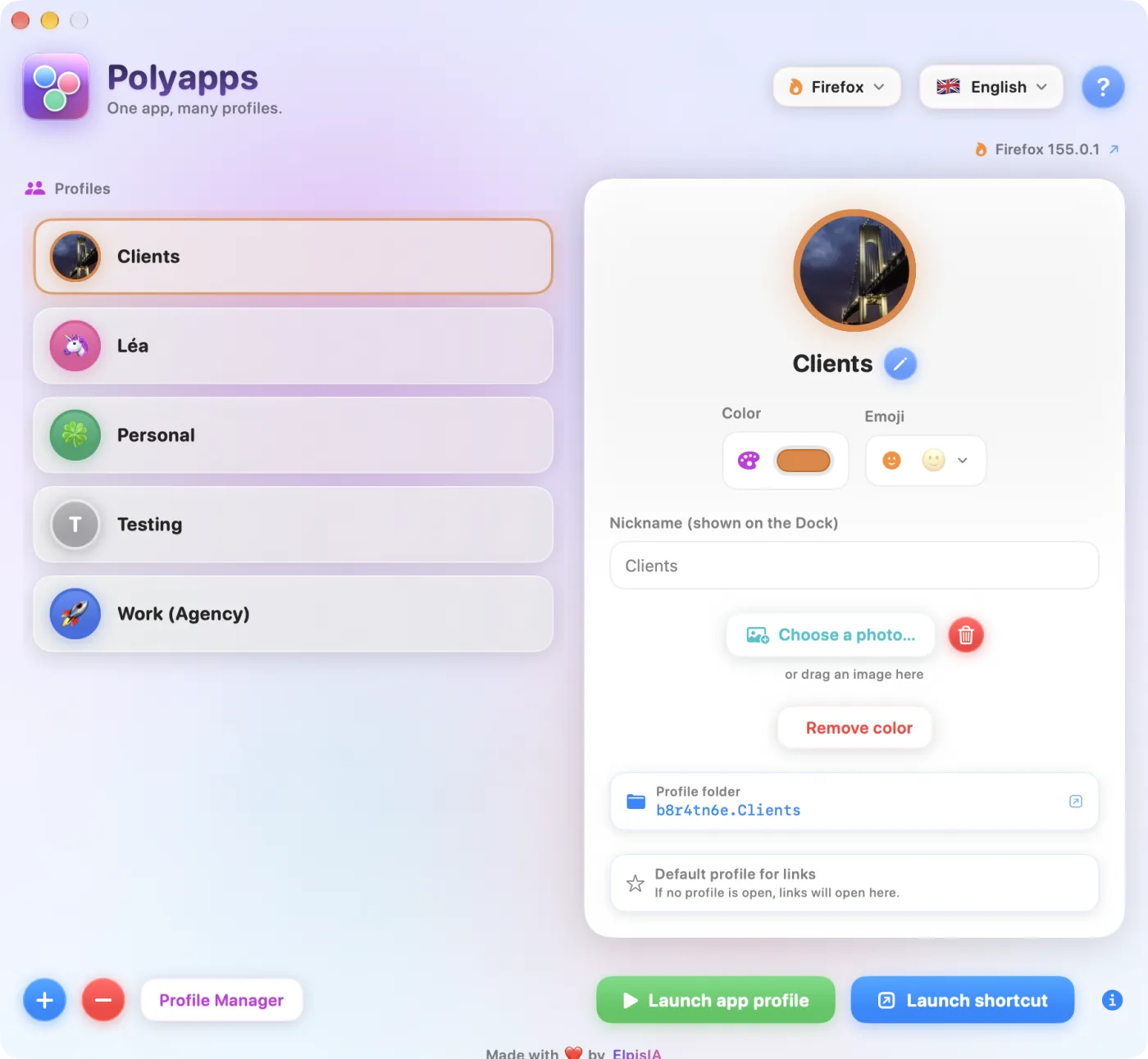
Polyapps fits in a single fixed-size window: the list of profiles on the left, the selected profile on the right, the launch buttons at the bottom.
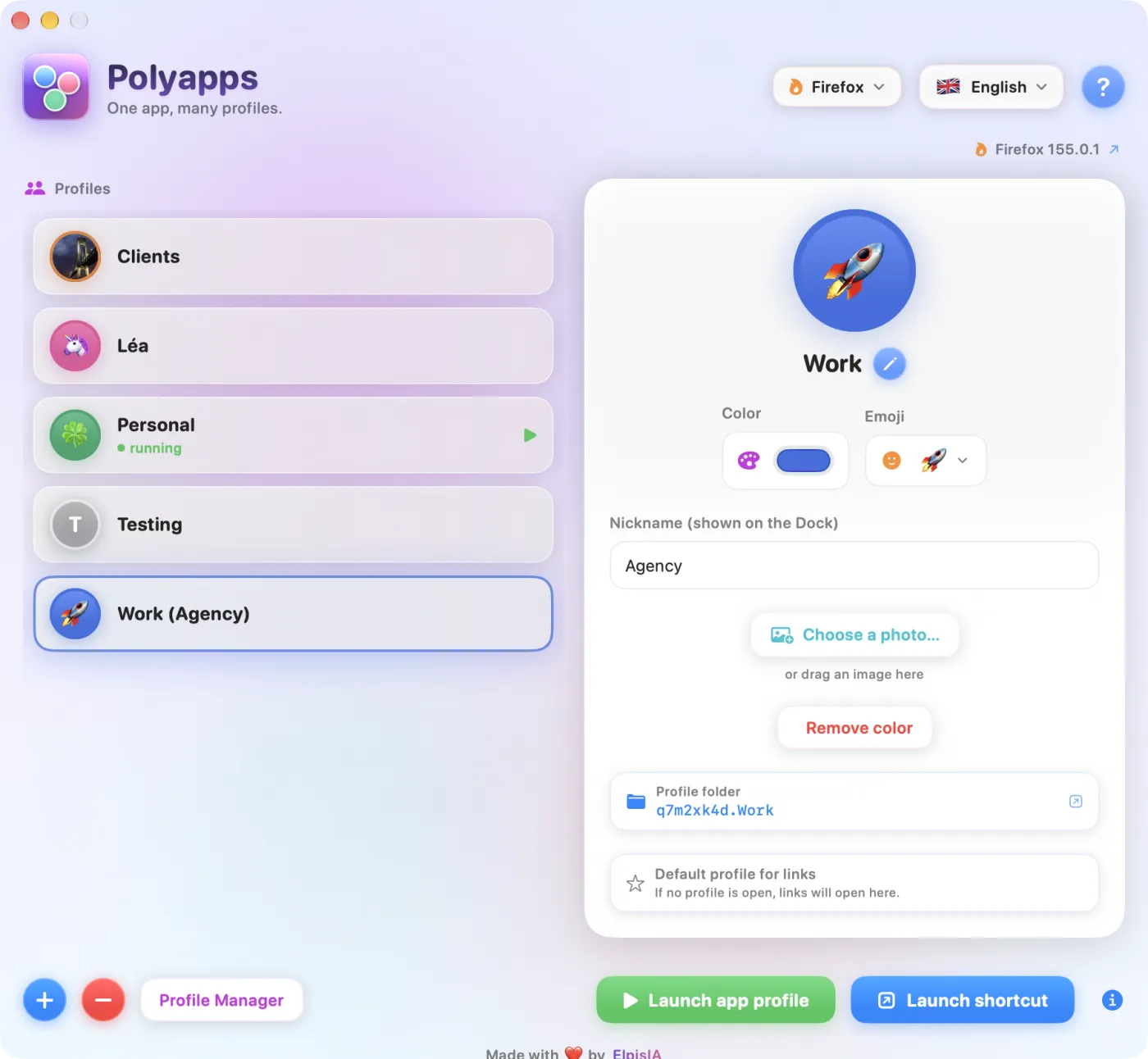
- At the top: the menu of the managed application (Firefox, Thunderbird, Chrome…), the language menu and the round ? button, which opens Polyapps Help.
- Just below, on the right: the name and version of the chosen application; click it to open its official website.
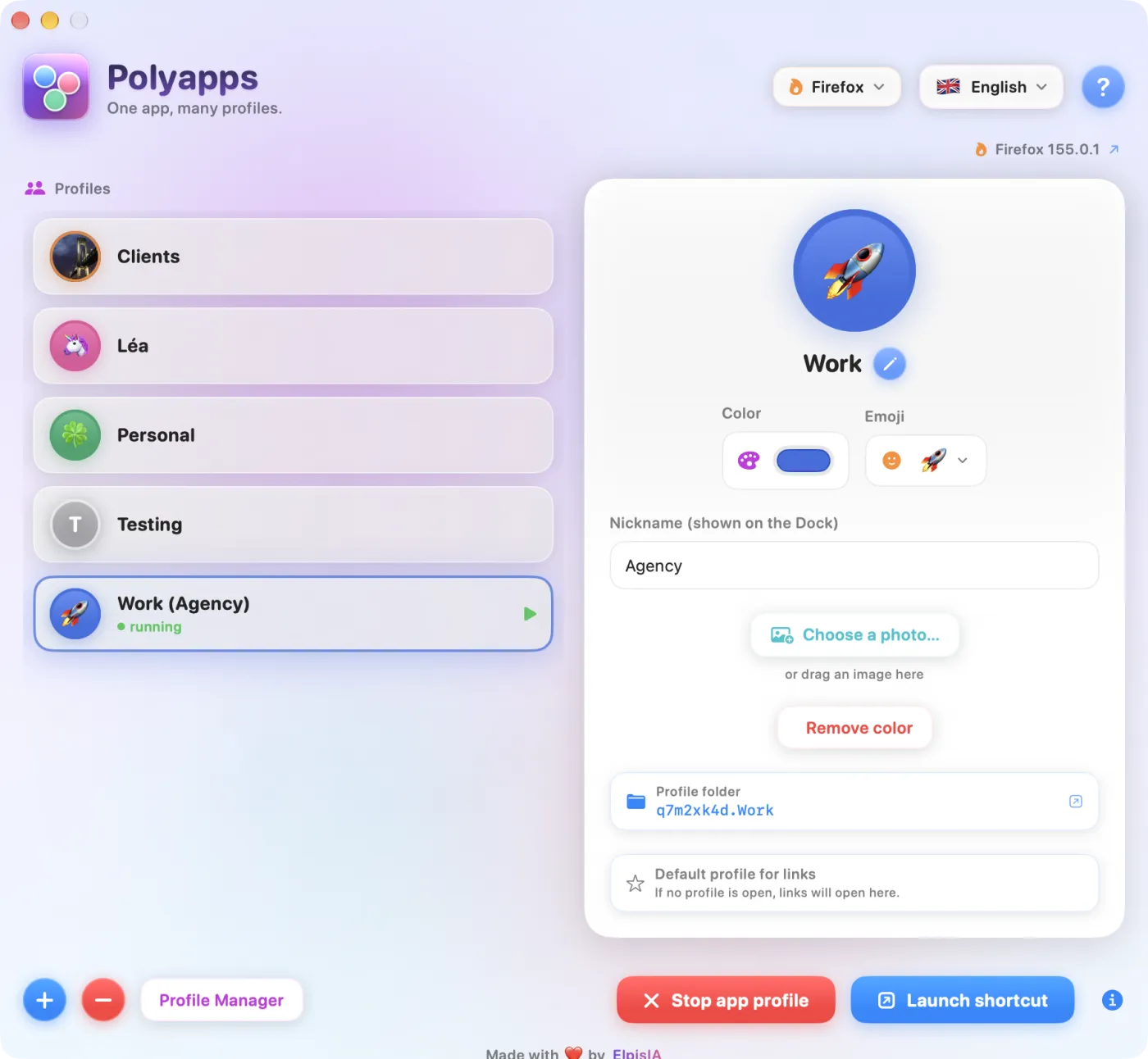
- On the left, Profiles: one card per profile, with its avatar and its name, followed by its nickname in brackets if it has one. A profile whose app is open shows a green running label. Click a profile to select it, double-click it to launch it.
- On the right: the pane of the selected profile, where you customise it (see Colour, emoji, nickname and photo).
- At the bottom: + (New profile), − (Delete profile), Profile Manager for browsers in the Firefox family, then the two launch buttons, Launch app profile (green) and Launch shortcut (blue), and the blue i, which explains them.
Closing the window doesn't quit Polyapps: it stays available in the menu bar (see The menu bar). To quit it, press ⌘Q or choose Quit Polyapps in that menu.
Back to contentsSupported applications
Polyapps manages 26 applications, arranged in three groups. Only the ones installed in the Applications folder can be chosen; the others are offered for download.
| Group | Applications | Where the profiles come from |
|---|---|---|
| Gecko browsers | Firefox, Thunderbird, LibreWolf, Waterfox, Floorp, Zen, Mullvad, Pale Moon, Basilisk, SeaMonkey | The application's own profiles, as it lists them (profiles.ini file) |
| Chromium browsers | Google Chrome, Brave, Microsoft Edge, Opera, Vivaldi, Chromium, Arc | Folders created and managed by Polyapps, one per profile |
| Applications | Claude, VS Code, Cursor, Notion, Slack, Discord, Signal, Obsidian, Figma | Folders created and managed by Polyapps, one per profile |
Switching application
- Click the application menu at the top right (it shows “Firefox”, for example).
- Choose the application. An application that isn't on your Mac appears as “Brave — Download ↓”: choosing it opens its official download page.
Polyapps remembers the chosen application for the next time you open it.
Firefox profiles and Chrome profiles: the difference
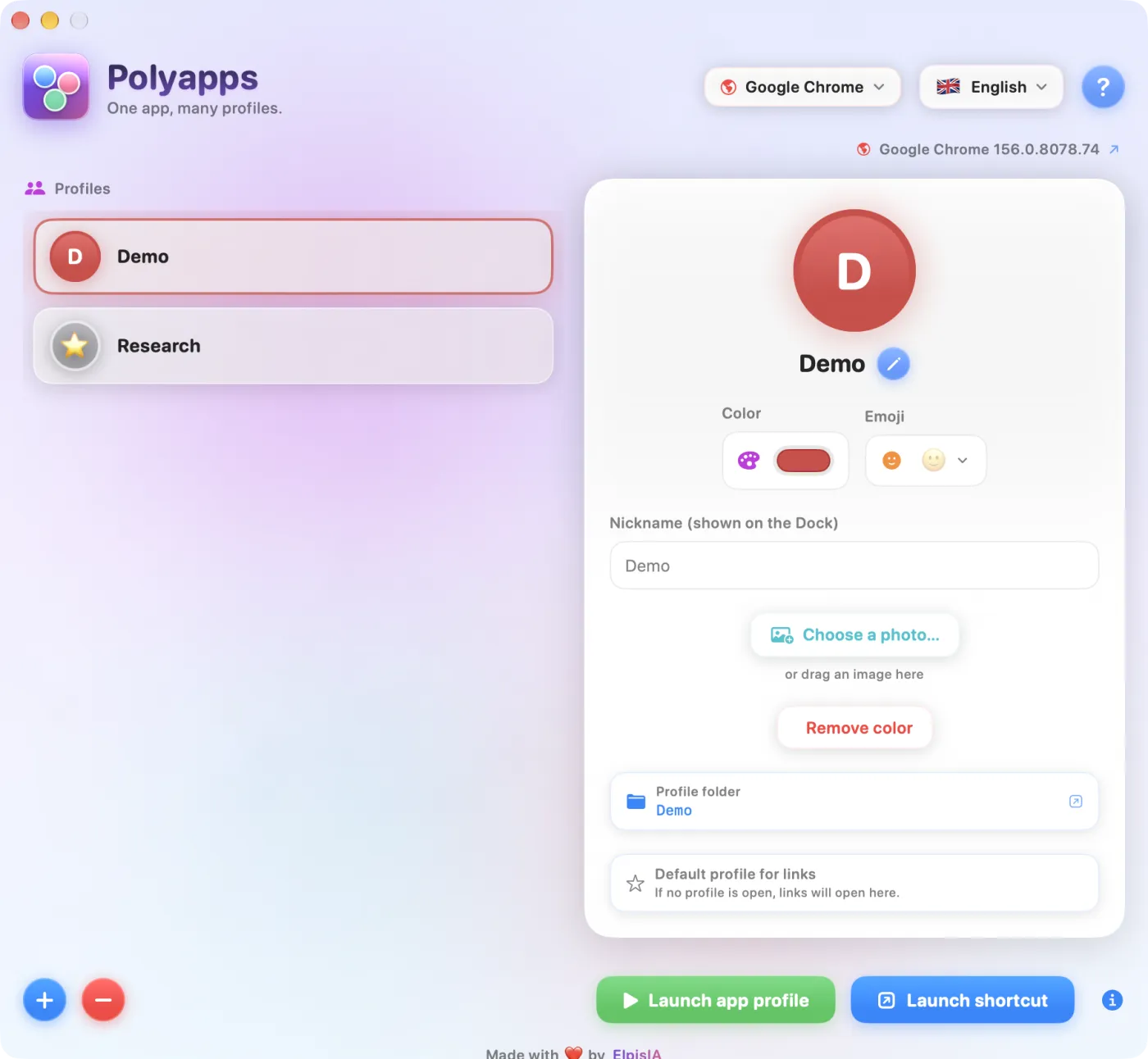
- Firefox family: Polyapps shows the profiles the application already knows about, including those created before Polyapps. The profiles stay where the application keeps them.
- Chrome, Brave, Edge… and the Applications group: a Polyapps profile is a separate data folder, in
~/Library/Application Support/Polyapps/UserData/. Each profile starts out empty: you sign in to your accounts once, and it keeps them.
If several versions of an application are installed (for example Firefox and Firefox Developer Edition), a menu with a parcel icon appears at the bottom of the window, with the tooltip Firefox version: it sets which one to launch.
Only web browsers (the Firefox family except Thunderbird, and the Chromium browsers) receive links when Polyapps is the default browser. Thunderbird and the applications in the third group never receive any.
Back to contentsCreating, renaming and deleting a profile
A profile is a complete browsing identity: bookmarks, passwords, extensions, signed-in accounts. Polyapps creates and stores profiles without opening the application.
Creating a profile
- Choose the application at the top right.
- Click + (New profile) at the bottom left.
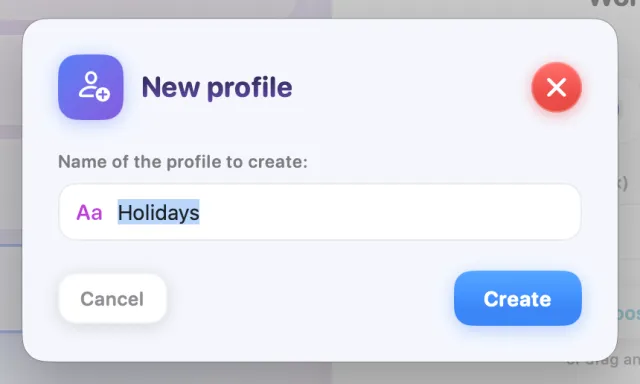
- Type a name in the field labelled Name of the profile to create: then click Create (or press ↩). Cancel (or Esc) closes the sheet.
The new profile appears in the list, already selected. For the Firefox family, the application itself creates it, in its usual location; for Chrome and the others, Polyapps creates its folder.
Renaming a profile
Click the pencil next to the name in the right-hand pane (Rename). In the Rename profile sheet, type the new name in the field labelled New profile name: then click Rename. The colour, emoji, nickname and photo stay with the profile. Its old app is deleted and the new one carries the new name: if you had kept the app in the Dock, add it again.
- Firefox family: only the name changes in the application's list of profiles; the data folder keeps its original name.
- Chrome and the others: the profile's folder is renamed.
- The Default profile for links star doesn't follow the new name: set it again if you need to.
Deleting a profile
- Select the profile, then click − (Delete profile).
- Read the Delete this profile? alert: “The profile and its data folder will be moved to the Trash. This cannot be undone.”
- Confirm with Delete, or click Cancel.
Polyapps removes the profile from the application's list, moves its data folder to the Trash, and erases its colour, emoji, nickname, photo and profile app.
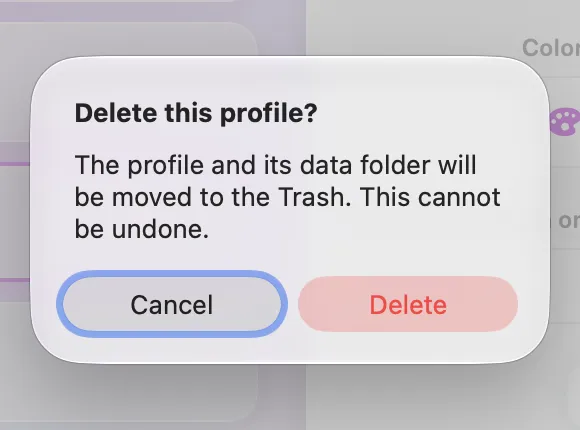
Close the profile before deleting it: its folder holds its bookmarks, saved passwords and cookies. Until you empty the Trash, you can still recover the folder, but the profile no longer appears in the application.
The Firefox profile manager
For the Firefox family, the Profile Manager button opens the application's own tool, for advanced settings (a profile's location, the default profile…). The list in Polyapps updates the next time Polyapps starts, or when you choose another application and then come back to this one.
If the list stays empty
Polyapps always tells you why:
- “No profile in this browser.”: create one with +.
- “No profiles file: launch the browser once so it creates one.”: the application has never been opened on this Mac.
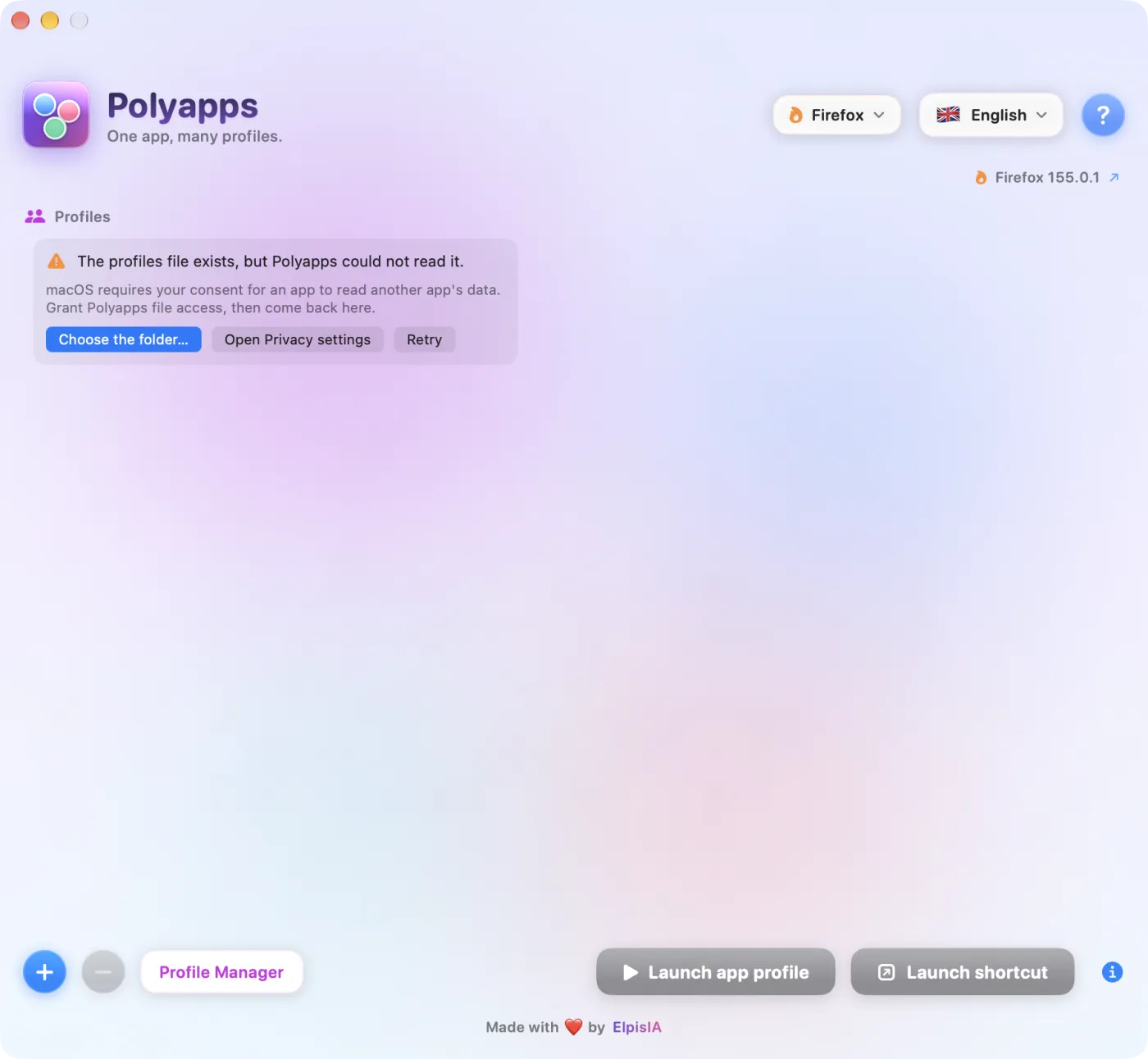
- “The profiles file exists, but Polyapps could not read it.”: macOS is blocking access to it; see Allowing access.
If the application shown at startup has only one profile (or none), Polyapps tells you: “Create a second profile!” (the message mentions Firefox, whatever the application). For the Firefox family, the OK button opens the application's profile manager; for the others, it closes the alert.
Colour, emoji, nickname and photo
Everything is set in the right-hand pane, and you see the result straight away on the large avatar. These settings make up the icon of the profile's app in the Dock.
The settings in the pane
- Color: click the swatch to open the macOS colour picker. If there's no colour, Polyapps reminds you: “Pick a color to recognize this profile in the Dock.”; once there is one, the Remove color button returns it to neutral grey (the profile's app is then rebuilt the next time it launches).
- Emoji: click to open the Emoji or avatar sheet (see below).
- Nickname (shown on the Dock): a short name, written at the bottom of the icon instead of the profile name. It also appears in the list, in brackets, and in the menu bar menu.
- Photo: Choose a photo… opens an image picker; you can also drag an image onto the large avatar (or drag an image here). The round bin button, Remove photo, removes it.
The avatar shows the photo if there is one, otherwise the emoji, otherwise the profile's initial. The photo is cropped to a square.
Emojis, avatars and images
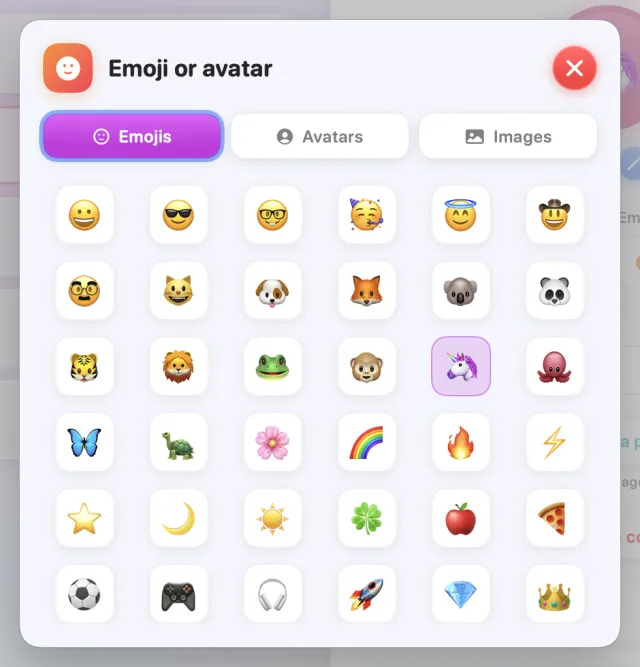
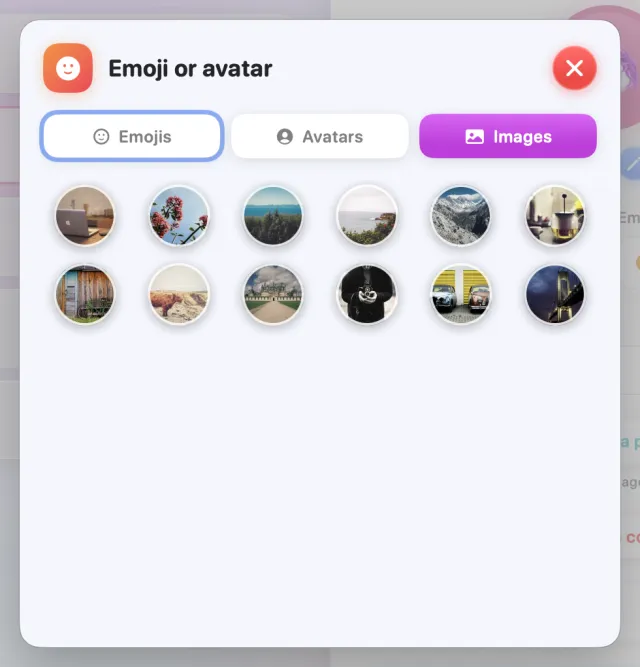
- Emojis: 40 emojis; click one to apply it and close the sheet. No emoji removes the emoji.
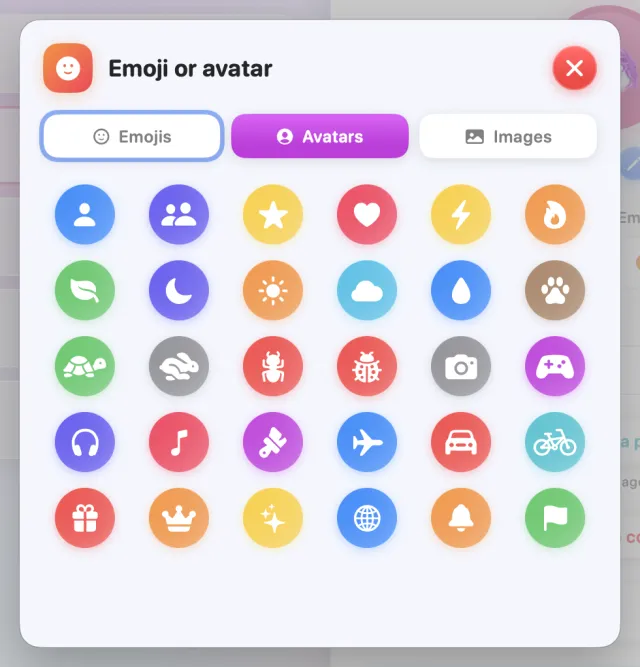
- Avatars: 30 symbols on a coloured circle.
- Images: 12 photos supplied with the app (landscapes, objects).
An avatar or an image becomes the profile's photo, so it takes priority over the emoji. To go back to the emoji, remove the photo with the round bin button.
The profile folder
Below the settings, Profile folder shows the name of the data folder; click it to show the folder in the Finder. For a browser, the Default profile for links row comes next (see Polyapps as your default browser).
Back to contentsThe profile app and its icon
To give the Dock one icon per profile, Polyapps builds a lightweight copy of the application for each one: the profile app.
What it looks like
- A rounded square in the profile's colour (grey if it has none);
- the photo, filling the square inside a border in that colour; otherwise the emoji, in the centre; otherwise the initial of the nickname or name;
- at the top right, the icon of the original application;
- at the bottom, a banner with the nickname, otherwise the profile name.
In the Dock and the app switcher (⌘⇥), it's called “Firefox – Work”, “Google Chrome – Demo”…
Where it's stored
Profile apps are kept in ~/Applications/Polyapps/. They take up almost no space: macOS shares the contents of the original application (APFS clone), and only the icon and a few settings differ. A profile app can also be opened directly from that folder: it opens the right profile, and if the app is already open, it normally brings its window to the front.
When it starts, Polyapps tidies up this folder: it deletes the apps of profiles for Chrome, Brave… and the Applications group, as well as those of profiles with no customisation at all, unless they're open. They're rebuilt straight away for the application shown, or otherwise the next time the profile is launched. So open your profiles from Polyapps or its menu bar menu rather than from an icon kept in the Dock.
When it's rebuilt
- the first time the profile is launched; when Polyapps starts, the apps of the profiles of the application shown are checked and rebuilt if necessary;
- one second after a change of colour, emoji, nickname or photo, for a profile that has a colour;
- when the original application has been updated.
While this happens, the green button shows Preparing…; it takes a few seconds.
For the Firefox family, automatic updates are turned off in profile apps: only the original application updates itself. If a profile app is opened before it has been rebuilt after an update, it launches the updated original application, with the right profile, under the standard icon.
Launching a profile
The green button opens the profile in its app, with its icon in the Dock. Several profiles can run at the same time, each in its own windows.
- Select the profile in the list.
- Click Launch app profile, press ↩, or double-click the profile's card.
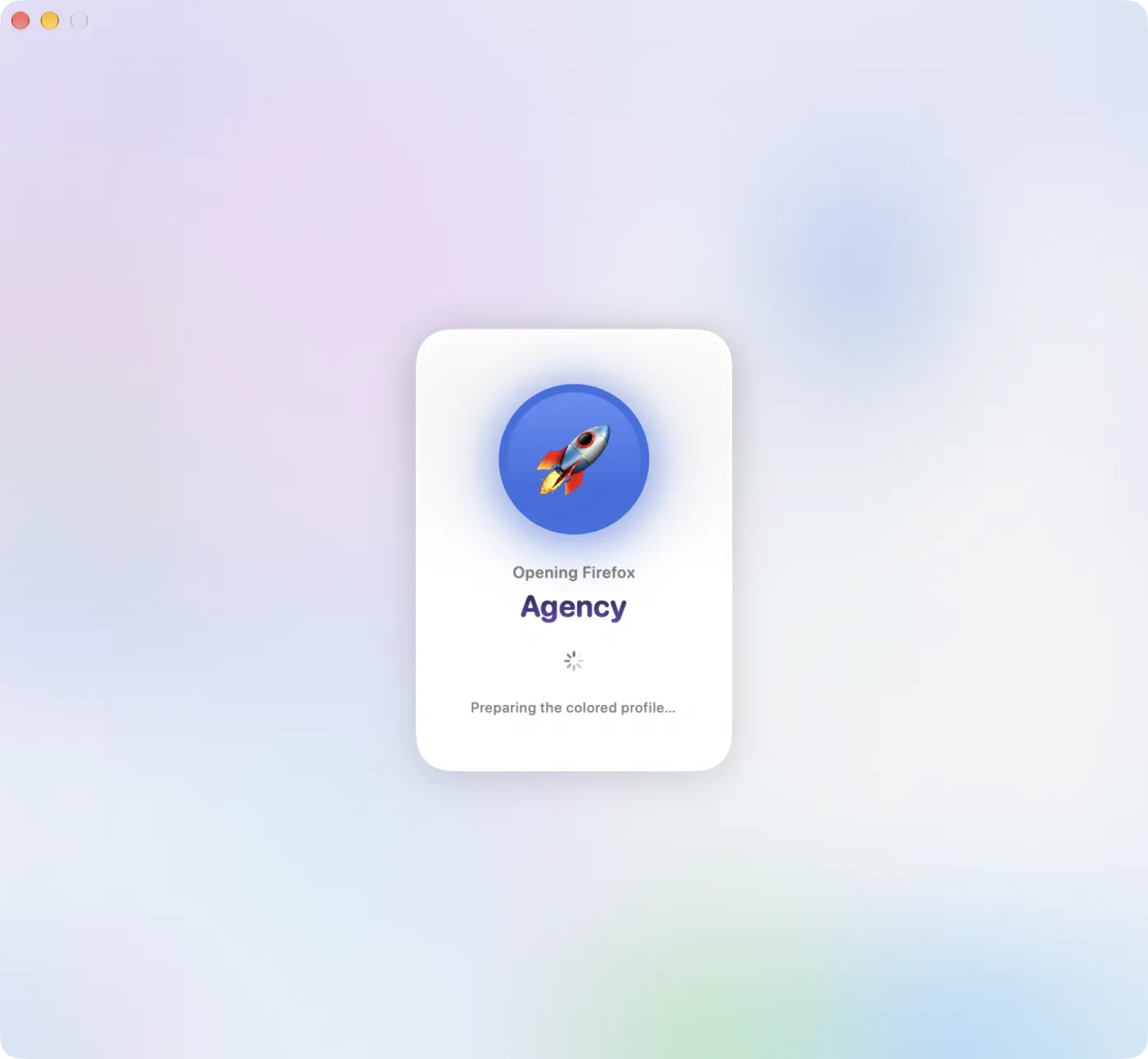
- Polyapps shows “Opening Firefox”, the profile's nickname or name, and “Preparing the colored profile…” while it gets the profile app ready.
- As soon as the profile's app is open, the Polyapps window is minimised to the Dock: it doesn't close.
An open profile
Its card shows the green running label, and the green button becomes Stop app profile, in red: click it to quit that profile's app. Be careful: ↩ triggers this button too.
Double-clicking the card of a profile that's already open brings its window to the front instead of opening a second one. For the Firefox family, this works however the profile was opened; for Chrome and the Applications group, only if it was opened through its profile app.
If the profile app can't be prepared
Polyapps shows “Colored launcher unavailable — Firefox will launch normally.” and opens the profile in the original application, with its standard icon. The profile is all there; only the custom icon is missing.
If a Firefox-family profile opens with a “missing profile” message, macOS is blocking access to its data: Polyapps detects this and explains what to do (see Allowing access to profiles).
The shortcut: opening the original app
The blue button opens the same profile, but in the original application: standard icon, no app created.
- Launch shortcut opens the original application on the selected profile;
- while it's running, the button becomes Close shortcut, in red, to quit it.
This is useful for troubleshooting, or with a very strict password manager, because the application keeps its original signature (see Updates and passwords).
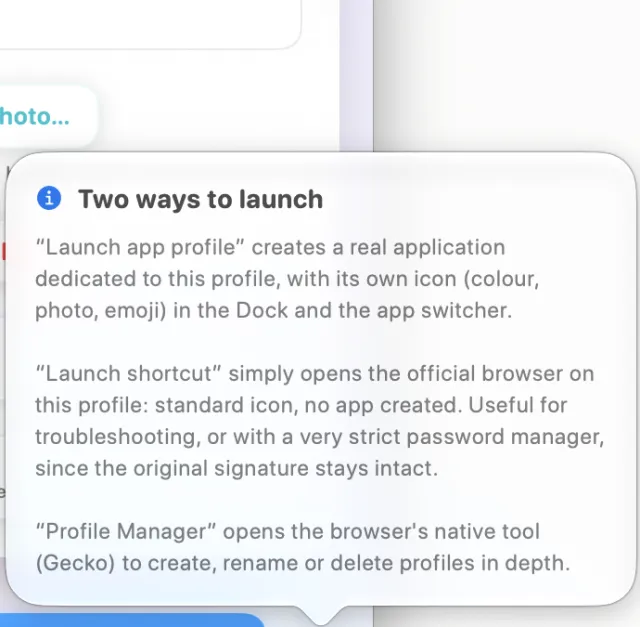
The blue i, to the right of the buttons, opens the Two ways to launch popover, which sums up the two buttons and the Profile Manager.
A profile opened with the shortcut doesn't count as “open” for link routing: only profiles open in their profile app receive links directly (see Polyapps as your default browser).
The menu bar
The Polyapps icon at the top of the screen opens any profile without going through the window. It's the quickest way to work day to day.
- The menu lists the profiles of all the installed applications that have at least one, with a heading for each application as soon as there's more than one.
- Each row shows the profile's photo (otherwise a dot in its colour, or else a grey silhouette), its emoji and its nickname (or name).
- An open profile is shown in bold, with a green dot.
- Clicking an open profile brings its windows to the front; clicking a closed one makes Polyapps switch to its application and launch it, like the green button. The application shown in Polyapps therefore changes, which matters for links (see Polyapps as your default browser).
- At the bottom: Open Polyapps brings back the main window, and Quit Polyapps quits the app.
The menu is refreshed every time it opens: a profile opened outside Polyapps also shows up there as open (Firefox family).
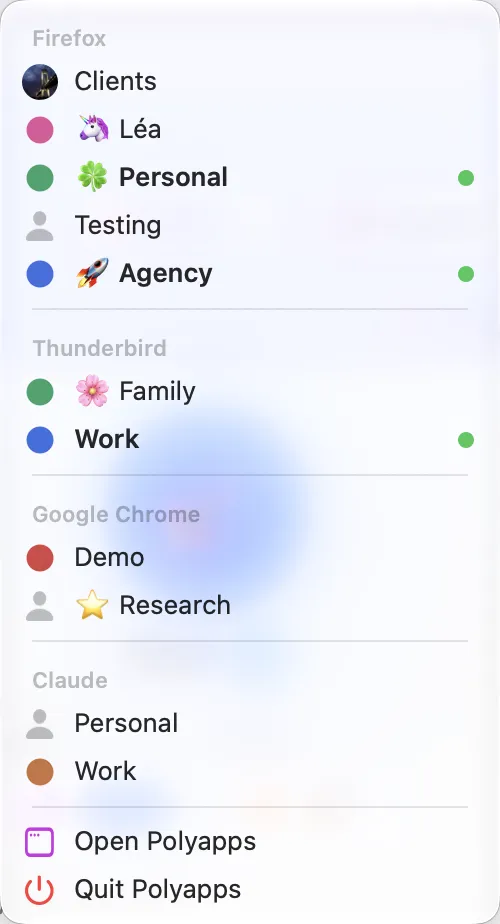
Close the Polyapps window without quitting the app: it stays in the menu bar, ready to open a profile in one click, and to receive links if it's your default browser.
Polyapps as your default browser
Once it's your default browser, Polyapps receives the links you click in Mail, Messages, a PDF or any other app, and passes each one to the right profile. It never displays a page itself.
Setting it up
- Open System Settings › Desktop & Dock.
- Under Default web browser, choose Polyapps.
To go back, choose your usual browser again in the same place. The built-in Polyapps help mentions a “Default Apps” pane: you won't find it in macOS 27, where the setting is in Desktop & Dock.
Where a link goes
| Profiles open in their profile app | What Polyapps does |
|---|---|
| One | The link opens there directly. |
| Two or more | A panel asks which one to open it in. |
| None | The link goes to the default profile for links (the star); otherwise to the last profile launched, if it exists in this browser; otherwise to the selected profile. Its app is launched in the process. |
The choice panel
- The title Open link in…, then “Several profiles are open. Choose where to open this link.”;
- one button per open profile (blue arrow): click it to open the link there;
- Other profiles expands the list of closed profiles (purple icon): click one to launch that profile, which then receives the link;
- Cancel (or Esc) discards the link.
The panel floats above your windows without bringing Polyapps to the front; if Polyapps was already running, its main window doesn't open.
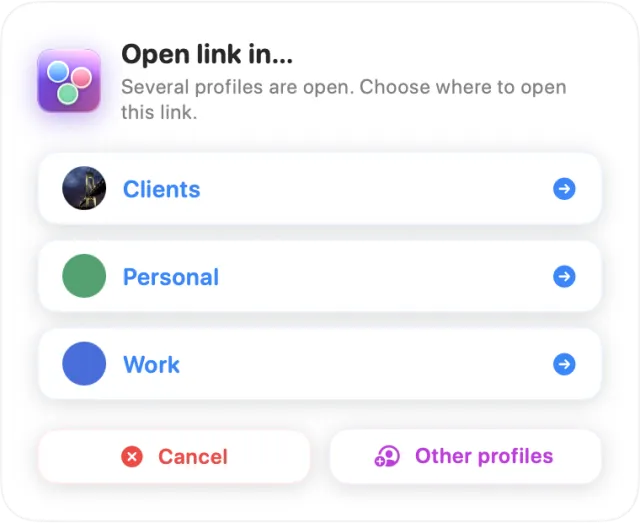
The default profile for links
In a browser profile's pane, click the Default profile for links row: the star turns yellow and a blue tick appears. “If no profile is open, links will open here.”
- Only one profile can have the star, across all applications; giving it to another profile takes it away from the previous one.
- A second click removes the star: links then go to the last profile launched.
- The star only applies to its own application: if Polyapps is showing another browser, the star is ignored for that browser's links.
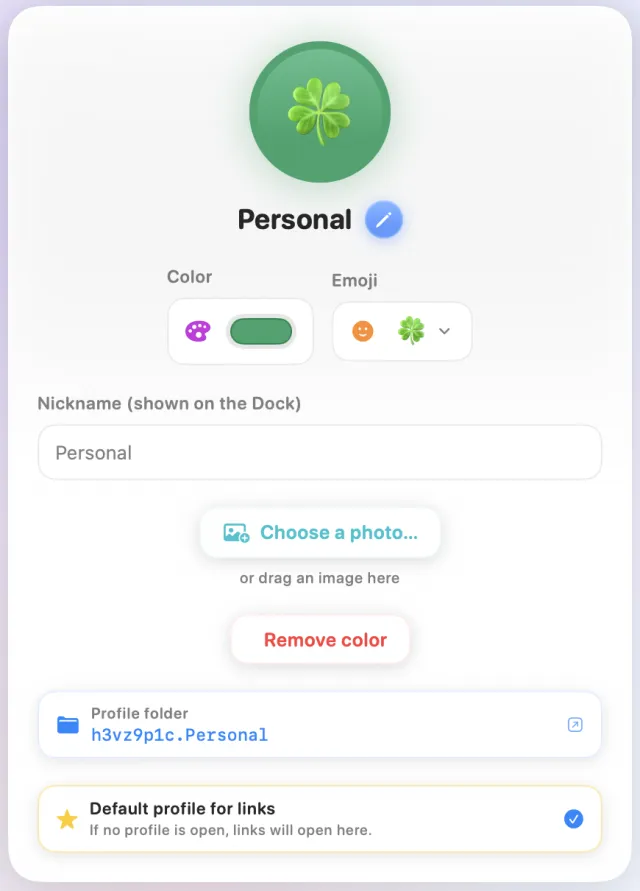
Which application receives links
- Only web browsers receive them: the Firefox family except Thunderbird, and the Chromium browsers. Never Thunderbird, Slack, Claude or any other application.
- It's the application shown in the Polyapps window, if that's a browser; otherwise the starred profile's application, otherwise the first installed browser. Polyapps switches to it before passing the link on. Launching a profile from the menu bar also changes the application shown.
- Only that application's profiles count: an open Chrome profile doesn't receive a link while Polyapps is on Firefox.
- If no supported browser is installed, the link opens in Safari.
Allowing access to profiles
macOS protects each application's data. For the Firefox family, a profile's app reads the original browser's data, and macOS may block it until you've given it permission.
If the browser reports a “missing profile”
The profile hasn't gone anywhere: it's access to it that is being refused. Depending on the situation, macOS either asks first whether to allow access (answer “Allow”), or blocks it without asking. Eight seconds after a Firefox-family profile is launched, Polyapps checks that it really opened; if it didn't, Polyapps shows the This profile needs permission alert.
- Click Open the setting and reveal the app: Polyapps opens System Settings › Privacy & Security › Full Disk Access and shows the profile's app in the Finder.
- Drag the profile's app (for example “Firefox – Work”) into the list in that setting, then turn it on.
- Quit the profile's app and launch it again: the profile opens normally.
Later closes the alert without changing anything.
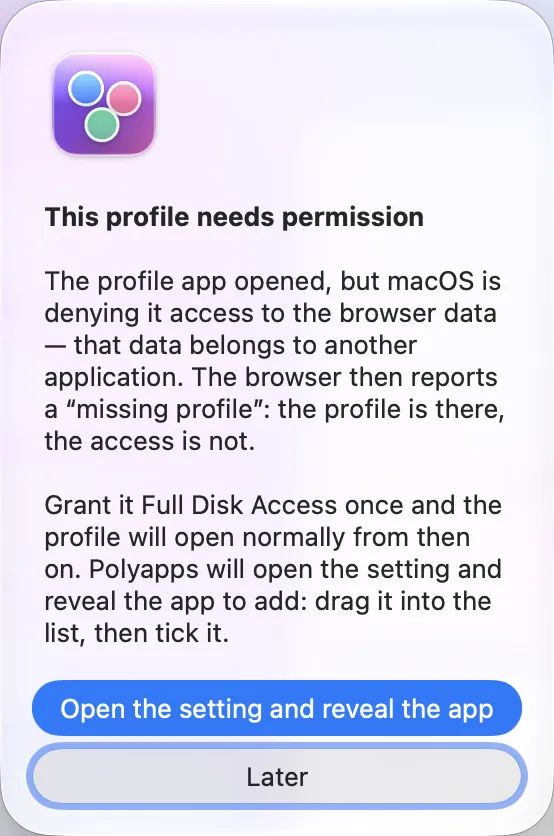
Full Disk Access is granted one profile app at a time. When Polyapps rebuilds an app (a change of colour or photo, a browser update…), macOS may ask for it again: the same alert then guides you. Thunderbird normally doesn't need it: its profiles are stored in ~/Library/Thunderbird, outside the protected area.
If Polyapps can't read the list of profiles
The list then shows “The profiles file exists, but Polyapps could not read it.”, with three buttons:
- Choose the folder…: a picker opens on the right folder; click Allow. Polyapps remembers this choice and won't ask you again for this application;
- Open Privacy settings: opens the Full Disk Access setting, so you can add Polyapps itself;
- Retry: reads the file again, for example after you've granted access.
Updates and passwords
Updating Polyapps
Polyapps checks for a new version on its own once a day, and offers to install it. To check right away: Polyapps menu › Check for Updates…. Updates are signed: only a version published by ElpisIA can be installed.
When a browser updates
- For the Firefox family, profile apps don't update themselves: only the original application does.
- Polyapps rebuilds the apps of the coloured profiles of the application shown when you come back to its window, and checks the profile app every time a profile is launched.
- If a profile app is opened before it has been rebuilt, it launches the updated original application, with the right profile: you never open an out-of-date version.
Password managers
Enpass and 1Password only accept browsers whose signature has been verified. Because the profile app carries a custom icon, it is signed again. If the extension refuses to connect, turn off the Enpass option that only allows browsers with a verified signature, then allow the connection. Another solution is to open that profile with Launch shortcut, which keeps the original signature.
Firewall
After a browser update, a firewall such as LuLu may report that the profile app has changed: this is normal, as it has just been rebuilt. Accept the modification.
Back to contentsHelp, language and About
Built-in help
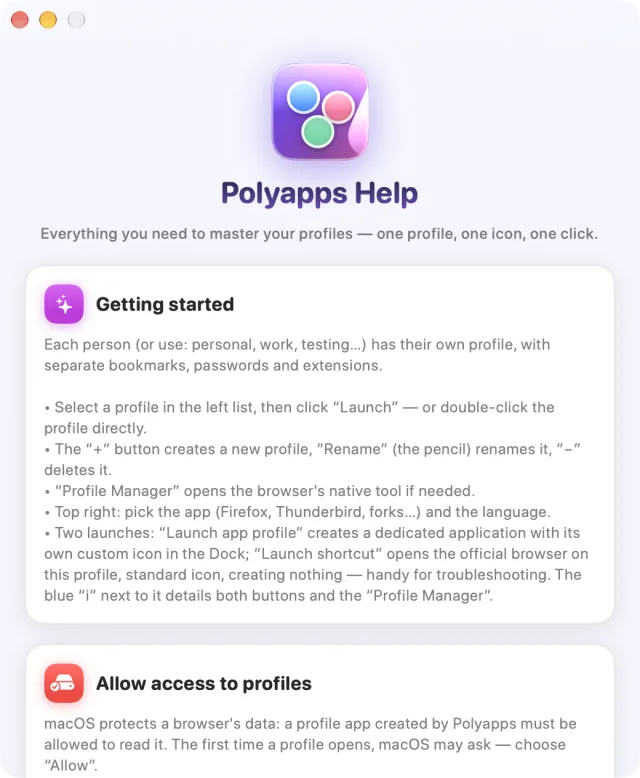
The round ? button in the window, or Polyapps Help in the Help menu in the menu bar, opens eight topics: Getting started, Allow access to profiles, Color, emoji and nickname, How it works, Updates & password managers, Choose which profile a link opens in, Menu bar and Troubleshooting.
Language
The flag menu at the top right of the window offers Français, English, Español and Deutsch. The change applies straight away to the window and the menu bar menu, and doesn't depend on your Mac's language.
About
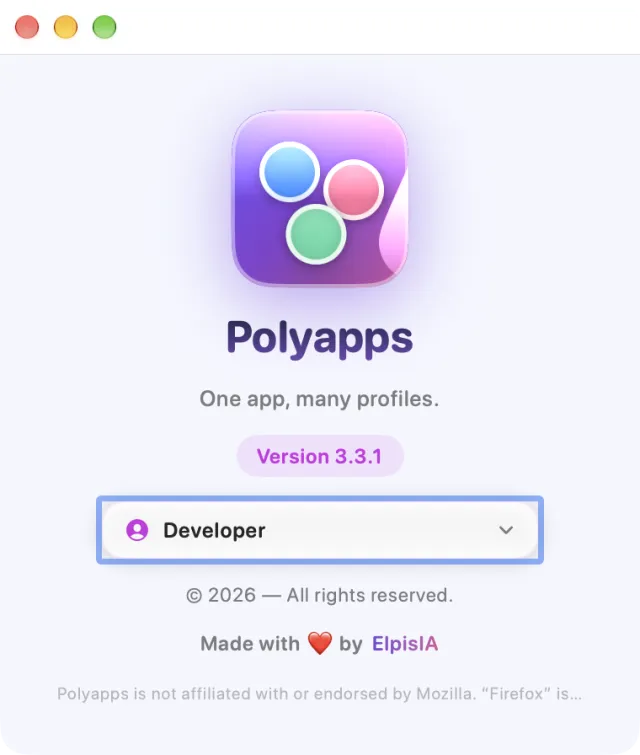
Polyapps menu › About Polyapps: the version number, which is useful if you write to us.
Your data and uninstalling
Polyapps has no account and no server: everything stays on your Mac. Polyapps itself only goes online to check for updates; web pages open in your browsers.
| What | Where |
|---|---|
| Profile apps | ~/Applications/Polyapps/ |
| Firefox-family profiles | Wherever the application keeps them (for example ~/Library/Application Support/Firefox/Profiles/) |
| Profiles for Chrome, Brave… and the Applications group | ~/Library/Application Support/Polyapps/UserData/ |
| Profile photos | ~/Library/Application Support/Polyapps/avatars/ |
| Log of the menu bar menu (profiles chosen, for troubleshooting) | ~/Library/Application Support/Polyapps/journal-menu.txt |
| Colours, emojis, nicknames, language, starred profile | Polyapps' settings (~/Library/Preferences/com.polyapps.app.plist) |
Uninstalling Polyapps
- Quit Polyapps (Quit Polyapps) and any open profile apps.
- Move Polyapps from the Applications folder to the Trash, then do the same with the
~/Applications/Polyappsfolder. Its settings (~/Library/Preferences/com.polyapps.app.plist) and the~/Library/Application Support/Polyappsfolder stay on your Mac until you delete them. - If Polyapps was your default browser, choose another browser in System Settings › Desktop & Dock.
The ~/Library/Application Support/Polyapps/UserData folder contains the profiles for Chrome, Brave… and the Applications group that you created with Polyapps: bookmarks, sessions, sign-in data. Only delete it if you no longer need it. Firefox-family profiles, on the other hand, stay in the original application.
Frequently asked questions
The coloured icon doesn't appear in the Dock
Check that the profile has a colour, then launch it again with Launch app profile. The Launch shortcut button, by contrast, always keeps the standard icon.
The green button stays on “Preparing…”
Polyapps is rebuilding the profile's app, which takes a few seconds: on first launch, after a colour change or after a browser update.
The browser reports a “missing profile”
macOS is blocking access; the profile isn't lost: see Allowing access to profiles.
A link doesn't open in the profile I expected
- Only profiles opened through their profile app (green button) count; a profile opened with the shortcut isn't offered.
- Launching a profile from the menu bar switches Polyapps to that profile's application: the next links go to that application if it's a browser.
- Only the profiles of the application shown in Polyapps count, if it's a browser.
- When no profile is open, the starred profile receives the link: check the star (see Polyapps as your default browser).
I can only see one profile
You need at least two to open several windows side by side: create a second one with +.
I've closed the Polyapps window
It's still running: click its icon in the menu bar, then Open Polyapps, or click its icon in the Dock.
Got a question about Polyapps? See the FAQ or write to us using the form below.